
Looking for a reliable way to schedule and manage your social media posts? Buffer’s platform offers a streamlined solution for Instagram, Facebook, Twitter (X), LinkedIn, Pinterest, and YouTube Shorts. It’s a popular choice for businesses and creators who need consistency without manual posting.
Buffer at a Glance
Buffer is a cross‑platform scheduling tool that lets you plan, publish, and analyze content from a single dashboard. Whether you run a business account or a personal brand, Buffer’s interface is designed to keep your online presence organized and efficient.
Key supported networks include Facebook, Instagram, X, LinkedIn, Pinterest, and YouTube Shorts. The tool is available on web browsers and on iOS and Android devices.
Pricing Overview
- Free tier – basic scheduling for one channel.
- Essentials – $5/month (includes analytics and a content calendar).
- Team – $10/month (adds collaboration tools and unlimited queues).
Core Features
- Cross‑Platform Scheduling – Manage all your accounts from a unified dashboard.
- Visual Content Calendar – Drag‑and‑drop scheduling with an overview of upcoming posts.
- Analytics & Performance Tracking – Real‑time data on reach, engagement, and post effectiveness.
- Team Collaboration – Assign tasks, review content, and maintain workflow control.
Pros & Cons
- Pros
- Reduces manual uploads, simplifying content scheduling.
- Supports multiple platforms, ensuring a consistent presence.
- User‑friendly interface for quick post creation.
- Cons
- Video uploads can be problematic even after compression.
- No clear distinction between YouTube Shorts and regular videos in the scheduler.
- Instagram analytics require linking a Facebook page, counted as an additional channel.
How to Use Buffer for Social Media Scheduling
Below is a step‑by‑step guide to get you started with Buffer’s scheduling workflow.
Step 1: Sign Up
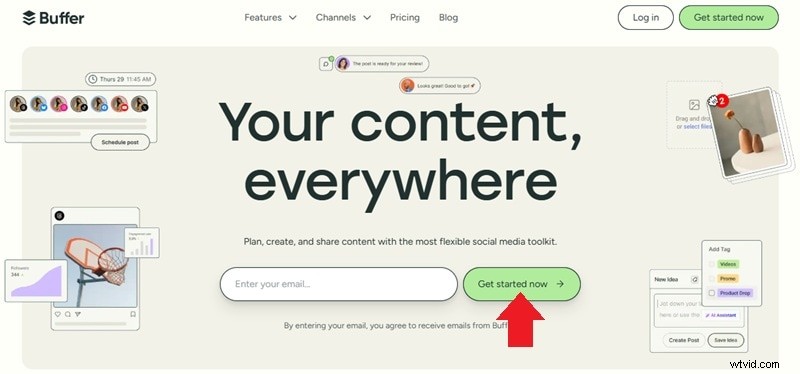
Visit buffer.com or download the mobile app. Click “Get Started Now” to create an account.
Step 2: Connect Your Social Accounts
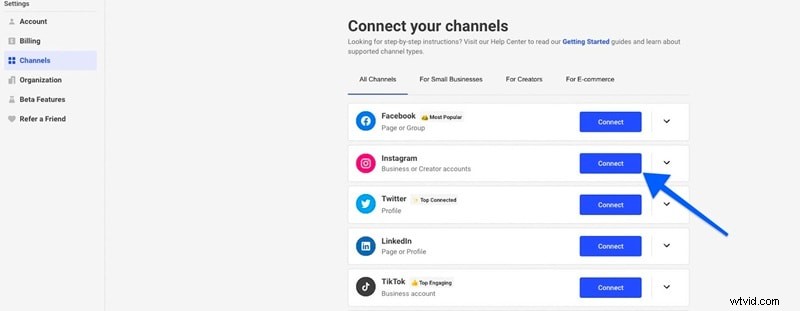
In the app, go to Profile > Channels > Accounts. Click “Connect New Channel” and select Instagram, Facebook, X, LinkedIn, Pinterest, or YouTube Shorts. Note that personal Instagram accounts cannot be auto‑posted due to API limits; use a professional or business account instead.
Step 3: Create and Schedule Posts
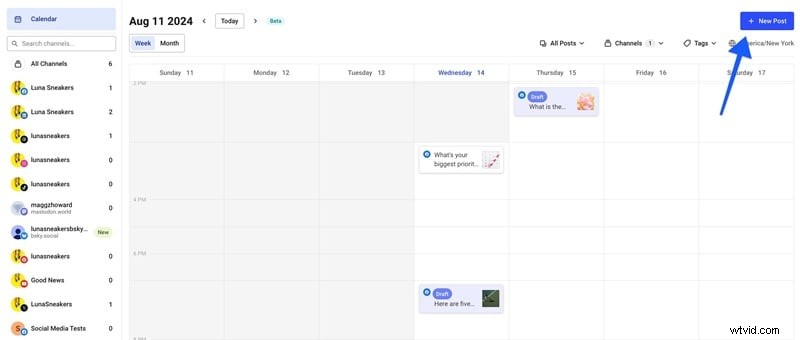
Click the “+ New” button or select a date on the calendar. In the pop‑up, choose channels, add media or text, and set a publishing time. Hit “Add to Queue” to schedule.
Step 4: Edit or Reschedule
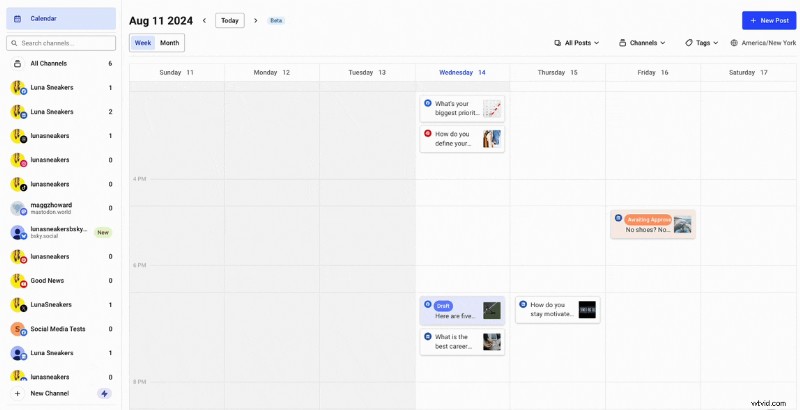
- To edit, click the post in the calendar, then “Edit.” Update content and click “Save.”
- To reschedule, drag the post to a new date/time.
Step 5: Review Published Posts
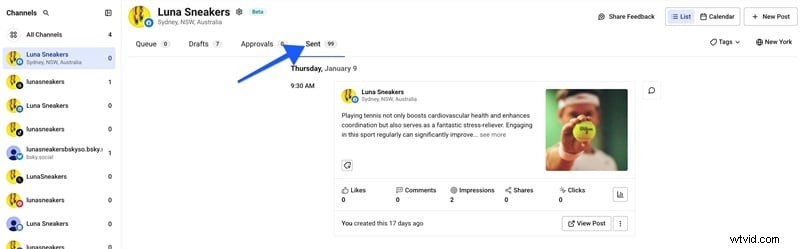
Use the “Sent” tab to see all posts that have been published. The free plan keeps history for the last 30 days.
Video Scheduling – When Buffer Falls Short
Buffer supports YouTube Shorts but does not offer direct scheduling for long‑form YouTube videos. It also provides only a reminder for YouTube posts, requiring manual publishing at the scheduled time.
Alternative: Filmora’s Social Video Planner
If automated video posting is essential, consider Wondershare Filmora’s Social Video Planner, which integrates video editing and scheduling.
Why Choose Filmora?
- All‑in‑one editing and publishing tool.
- Direct, automated posting to YouTube, Instagram, Facebook, TikTok, and Vimeo.
- Central dashboard for monitoring performance across platforms.
How to Schedule a Video with Filmora
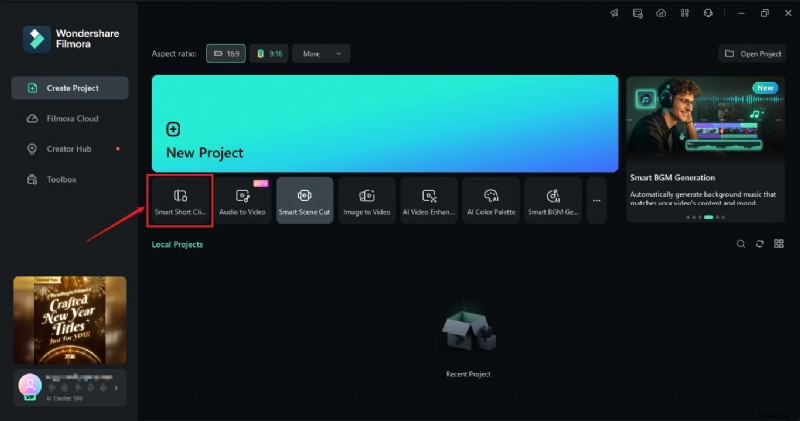
- Launch Filmora and select Smart Short Clips from the main menu.
- Import your footage or paste a YouTube link to repurpose content.
- Adjust settings (language, duration, theme) and generate the clip.
- Enhance audio, add text, transitions, and effects, then export.
- Navigate to the Social Media tab, link your YouTube channel, and set title, description, and schedule.
- Enable “Schedule” and pick the exact date/time for auto‑posting.
Conclusion
The Buffer scheduler is a solid choice for businesses and creators seeking a unified platform for cross‑platform posting and analytics. Its strengths lie in ease of use, a visual calendar, and team collaboration features. However, its limited video scheduling capabilities—especially for long‑form YouTube content—may require you to look elsewhere.
For comprehensive video automation, Filmora’s Social Video Planner offers an integrated solution that may better align with your needs. Evaluate both tools against your workflow to determine which platform delivers the best value for your social media strategy.