
When dealing with video editing and animation, sometimes the background is important for you. You might have to place a green screen in your project to give it more dimensionality.
This is where KineMaster can come in handy, as it can help you create stunning videos using its Chroma key feature.
So, without further ado, let's get through the step-by-step process of using the green screen in the KineMaster app. We'll also provide the best alternative option to the KineMaster tool for your possible demand.
In this article
- What Is KineMaster?
- How To Use Green Screen In KineMaster
- A Better Option For Video Editor: Filmora
What Is KineMaster?
Kinemaster is a creative and easy-to-use video editing software that lets you edit dull videos using your iOS or Android device to turn them into captivating, high-quality footage.
The app's wide range of features appeals to those who want to get creative with their recordings. Its many customization options allow for precise control over the production settings.
Key Features
Following are some features of the KineMaster video editor that make it stand out from the rest of the tools available:
- Clear Interface: The KineMaster app has a clear and straightforward UI that makes it easy to use even for new users.
- Numerous Editing Tools: KineMaster comes with the ability to trim, split, and join videos. You can also add filters, effects, animation, text, and graphics to your clips to make them more engaging.
- Music Library: The app supports a vast library of royalty-free sound effects and music that can give your videos a whole new level of creativity!
- Record and Edit: The KineMaster app has a built-in camera that lets its users record and edit directly in the app.
- Formats: The app supports a variety of image, audio, and video formats, including JPEG, PNG, WebP, BMP, GIF, MP3, MP4, MOV, and 3GP.
How To Use Green Screen In KineMaster
Green screen, or chroma key in KineMaster, is a special effects technique. With it, you can replace the background of a video with a different image or video.
Follow these steps to use the green screen in KineMaster to take your video editing to the next level:
Step1 Head to Google Play Store or App Store and install KineMaster on your device. Launch the app and choose the aspect ratio. Tap the "Media" option from the right side of the screen. Select the video clips with chroma-key and import them to the timeline.
Step2 Next, select all the video clips with the green screen and open the right-hand side menu. Scroll down and tap "Chroma Key" to remove the color from the videos.
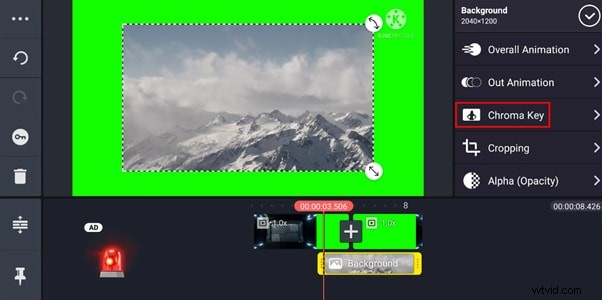
And according to the user experiences we collected online, there is a possibility that you may experience the "Ghost Face" effect. If that does happen, you can adjust the clip's duration, color, and other settings to get a clear picture.
Step3 Finally, you can further use the filters, animations, overlays, effects, music, and other amazing editing features the app offers. Once you are done, tap the "Export" option to save the clip on your device or share it with your family and friends.
Video Tutorial - How to Use Green Screen in Kinemaster Video!
To help you use Green Screen in Kinemaster successfully, we also prepared a video tutorial for you! Please watch the video below and start your trial of using Green Screen without any hassle!
A Better Option For Video Editor: Filmora
While KineMaster is widely recognized as a capable video editing tool, many users face common challenges when working with green screens. Issues like fuzzy edges around the subject, noisy backgrounds after applying the green screen effect, and grayed-out video layers often disrupt the creative process. These problems can result in unpolished edits, making it difficult to achieve professional-looking results.
To avoid these issues, we recommend using Filmora - the best user-friendly alternative to KineMaster. Please see the features of Filmora below and find why we recommend it.


Features
Here are some features that provide an edge to Filmora over the KineMaster tool:
- Ease of Use: The app is designed to be quick and easy to use so that you can create great-looking videos without any prior experience.
- Pre-built Templates: Filmora has over 500 ready-to-use creative templates that you can use to create your videos without having to start from scratch.
- Massive Libraries: The app includes a vast library of stickers, effects, and filters that you can add to your videos to make them more engaging.
- Royalty-free AI music: You can generate copyright-free music that fits your video's mood and theme perfectly.
- Chroma Key Effect: With this app, you can also add the Chroma screen effect to your videos like a pro!
- AI-powered image transformation: Easily turn your creative ideas into captivating visual videos.
- Smart AI copywriting: Let AI craft compelling titles, descriptions, and captions for your videos.
- Effortless editing and sharing: Capture, create, and share content seamlessly with just a single click.
How to Use Green Screen on Filmora:
Below, we've provided the step-by-step process for applying the green screen effect in your videos using Filmora:
Step1 Import your green screen footage
Launch the Filmora Mobile app and tap "New Project" or "+" to start.
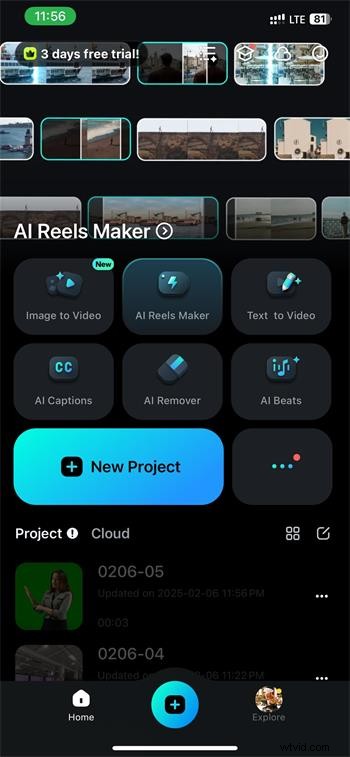
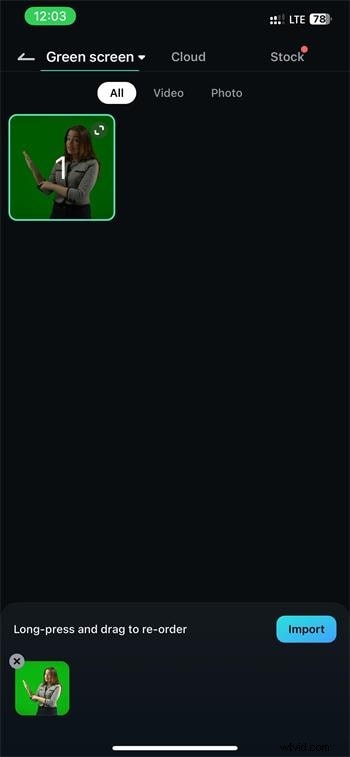
Select your video with a green screen from your phone's gallery and hit "Import" to load it into the editing workspace.
Step2 Access the Chroma Key tool
Tap "Trim" from the toolbar at the bottom of the screen.
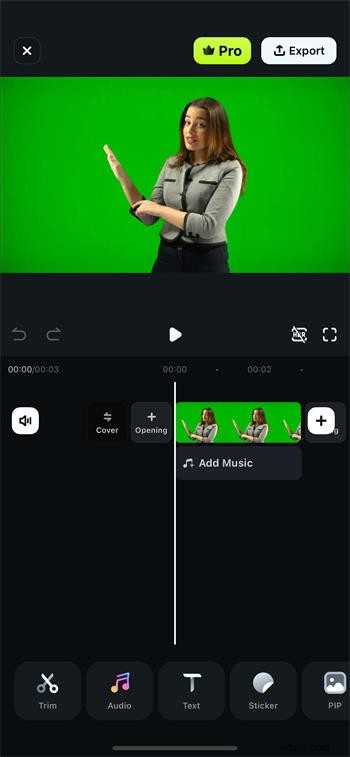
Locate the "Smart Cutout" option. From there, select "Chroma Key."
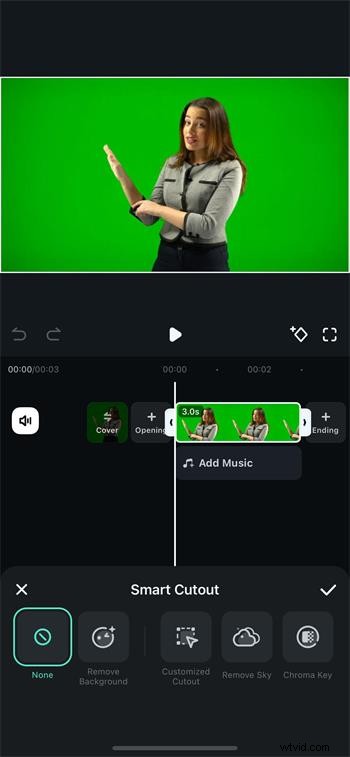
Step3 Remove the green screen background
Use the "Color Picker" tool in the preview panel to select the green background you wish to remove. Filmora will instantly eliminate the selected color.
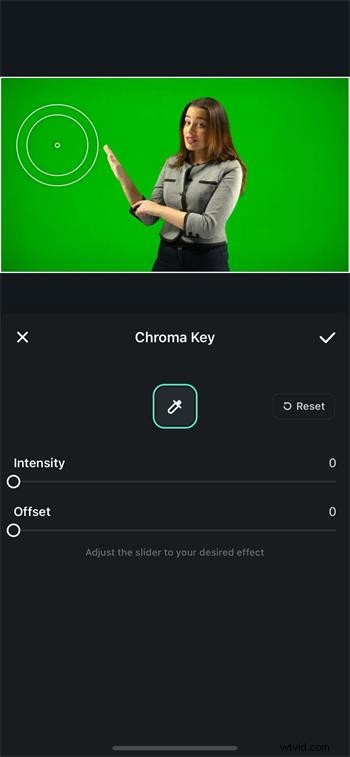
Step4 Fine-tune and finalize
Adjust the "Strength" and "Shadow" sliders for a smoother, more natural effect. Once satisfied, tap the checkmark to apply the changes and finalize your edit.
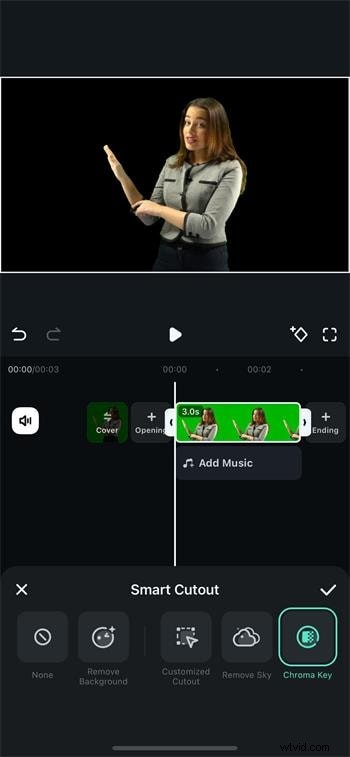
By choosing Filmora Mobile, you'll enjoy greater creative control and hassle-free green screen edits that elevate your video content effortlessly.
Conclusion
Using a chroma key for creative purposes can help you improve your YouTube, Instagram, and Snapchat games. Therefore, in this extensive guide, we've explored how to use the green screen in KineMaster.
We've also provided the best alternative video editing option, Filmora, to help you edit your video footage quickly.
Hopefully, you've found this guide helpful, and now you have enough information to get started with using the chroma key effect.