
As smartphones evolve, so does the need for on‑the‑go editing tools. Video editing, once limited to desktops, is now accessible right on your Xiaomi device thanks to a lightweight, built‑in editor.
While Xiaomi’s editor handles everyday tasks—trimming, adding basic effects, and adjusting audio—it may fall short for creators seeking advanced control. In this guide, we’ll walk you through every step of editing with the native tool, troubleshoot the most common hiccups, and explain why a dedicated app like Wondershare Filmora can take your videos to the next level.
In this article
- Overview of Xiaomi's Built‑In Video Editor
- Key features
- Benefits
- Limitations
- Editing a video with Xiaomi’s editor
- Open the Gallery and start editing
- Apply basic edits (trim, text, audio)
- Add effects and transitions
- Save and share
- Troubleshooting common issues
- Feature re‑downloads
- Missing features in Recommended tab
- Offline functionality
- Why choose Filmora over the built‑in editor?
- Advanced tools and AI features
- Higher export quality
- Cross‑platform flexibility
- Filmora step‑by‑step tutorial for Android/iOS
- Download and install
- Create a new project
- Import media
- Basic editing
- Add music, text, stickers, and effects
- Advanced features (AI, speed, green screen)
- Export your final video
- Conclusion
Part 1. Overview of Xiaomi's Built‑In Video Editor for Android
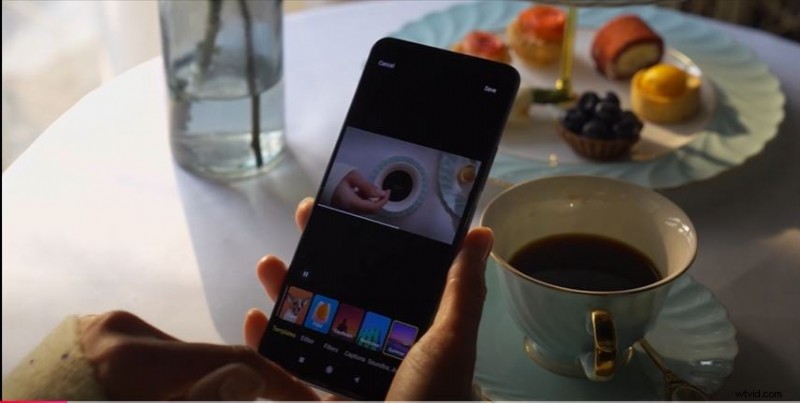
The native editor offers a quick, no‑frills editing experience that’s perfect for short clips and simple adjustments.
Features
- Basic trimming – cut clips to the exact length you need.
- Limited filters and text overlays for quick styling.
- Audio adjustments – control volume and add background tracks.
Advantages
- Instant access – no extra downloads required.
- Straightforward interface suitable for beginners.
Limitations
- Missing advanced features such as speed control, keyframing, or chroma key.
- Some builds may display watermarks or ads.
- Export options are restricted to certain resolutions and formats.
Part 2. How to Edit a Video Using Xiaomi Video Editor
Follow these steps to create polished clips directly from your device.
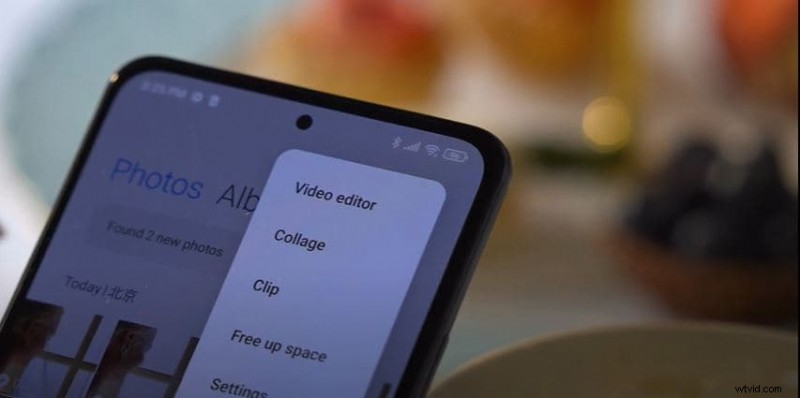
Step 1: Open the Video Editor
Launch the Gallery app, choose the video you wish to edit, and tap the Edit button.
Step 2: Apply Basic Edits
- Trim – drag the timeline sliders to isolate the desired section, then tap Trim to cut.
- Text – add overlays, select font, color, size, and timing.
- Audio – adjust original volume, add background music, or record a voice‑over.
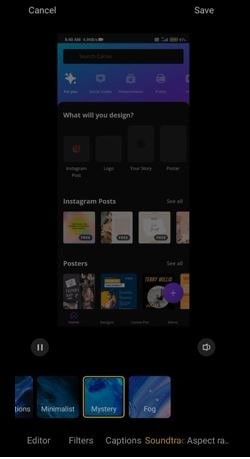
Add Effects and Transitions
While options are limited, you can still apply filters or stickers for a subtle touch.
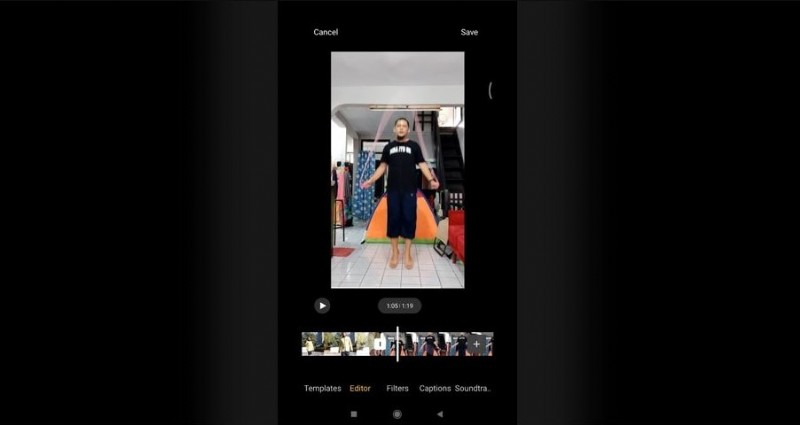
Step 3: Save and Share
Tap Save to export the edited clip. From there, share it on social media or messaging apps.


Note: Feature availability can vary by device model and MIUI version.
Part 3: Troubleshooting Xiaomi Video Editor Issues
If you encounter hiccups, try the solutions below.
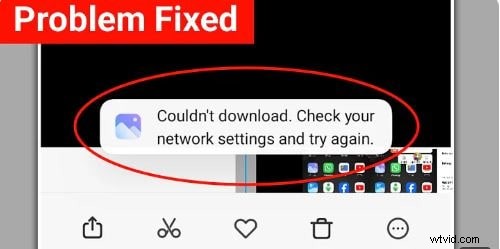
1. Frequent Feature Re‑Downloads
Some users must repeatedly re‑download features due to a temporary bug.
- Update the Gallery app to the latest version.
- Restart your phone to clear temporary glitches.
- Clear cache and data for the Gallery app if the problem persists.
2. Missing Features in the Recommended Tab
Filters or effects might be absent.
- Ensure the app is updated to the newest build.
- Some features load only with an internet connection.
- Contact Xiaomi support if the issue continues.
3. Inability to Use Features Offline
Offline mode limits certain features.
- Switch to online mode when possible.
- Consider an alternative editor like Filmora that works offline.
Part 4: Get All Editing Features with Filmora Video Editor (Android/iOS)
Filmora delivers a full‑blown editing suite on mobile, combining professional tools with AI‑powered enhancements.
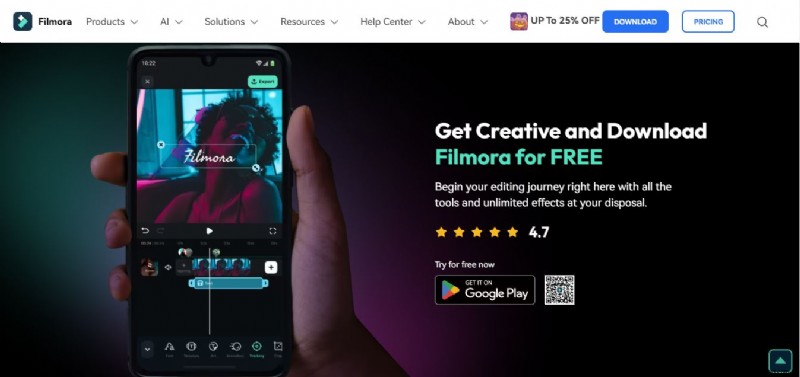

Filmora ⭐⭐⭐⭐⭐
Powerful AI video editor for all creators

Features
- Advanced editing: trim, split, merge, speed control.
- Creative effects: filters, transitions, text animations.
- Audio tools: background music, sound effects, voice‑overs.
- Chroma key for professional green‑screen work.
- High‑resolution export in multiple formats.
- AI utilities: denoise, text‑to‑speech, auto‑cut, and more.
Why Choose Filmora Over Xiaomi's Built‑In Editor?
Filmora offers precision, depth, and AI support that surpasses the native app.
- Comprehensive toolset: from fine trimming to dynamic transitions.
- AI enhancements streamline workflow and improve quality.
- Seamless export options tailored for social media or professional use.
Part 5. Edit Videos on Android/iOS Using Wondershare Filmora? [Tutorial]
Follow these steps to harness Filmora’s full potential on your mobile device.

Filmora ⭐⭐⭐⭐⭐
Powerful AI video editor for all creators
Step 1: Download and Install
Get Filmora from the Google Play Store or App Store and grant the requested permissions.
Step 2: Create a New Project
Launch Filmora, tap New Project or the + icon, and choose a template or your device’s camera.
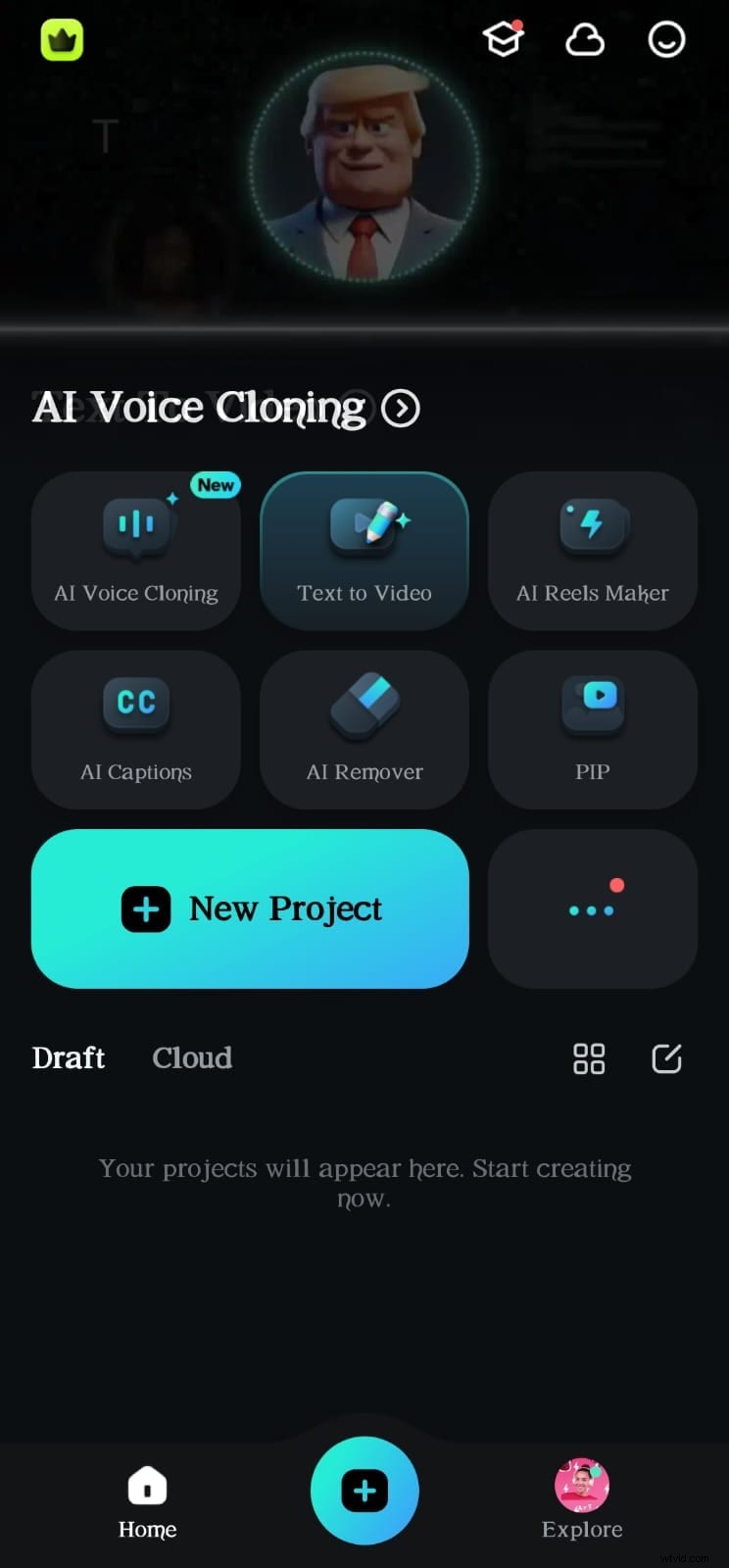
Step 3: Import Media Files
- Use the Album tab to select local media.
- Choose Cloud to import from online storage.
- Explore the Stock library for ready‑made footage.

Step 4: Basic Video Editing
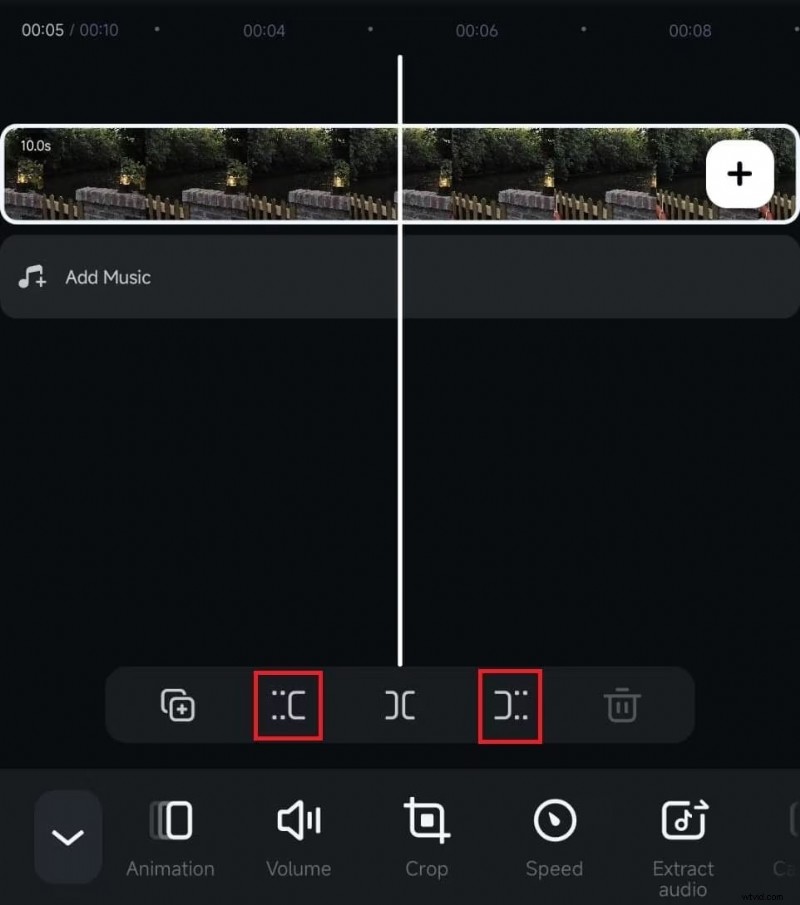
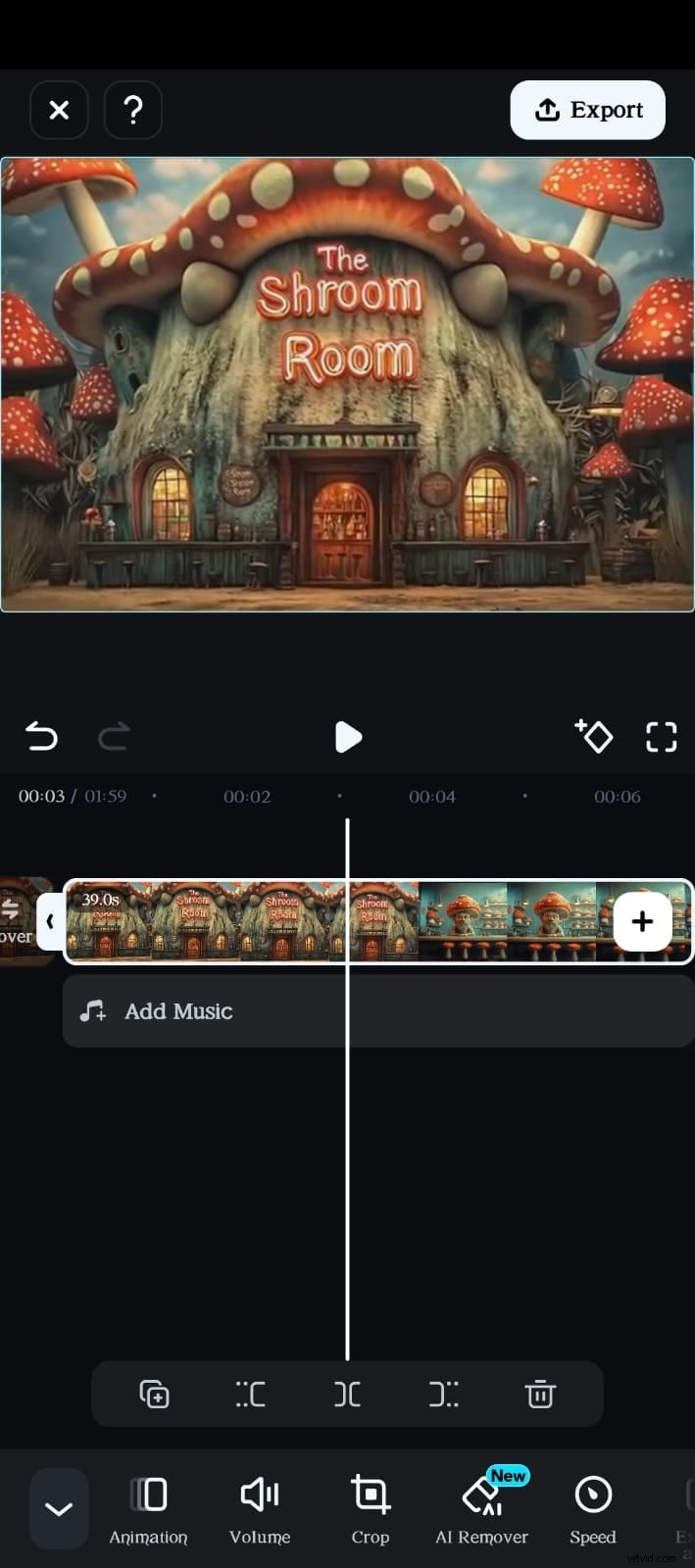
- Drag clips onto the timeline.
- Trim using the Mark In/Mark Out tools or the Trim button.
- Apply filters via Filters in the toolbar.
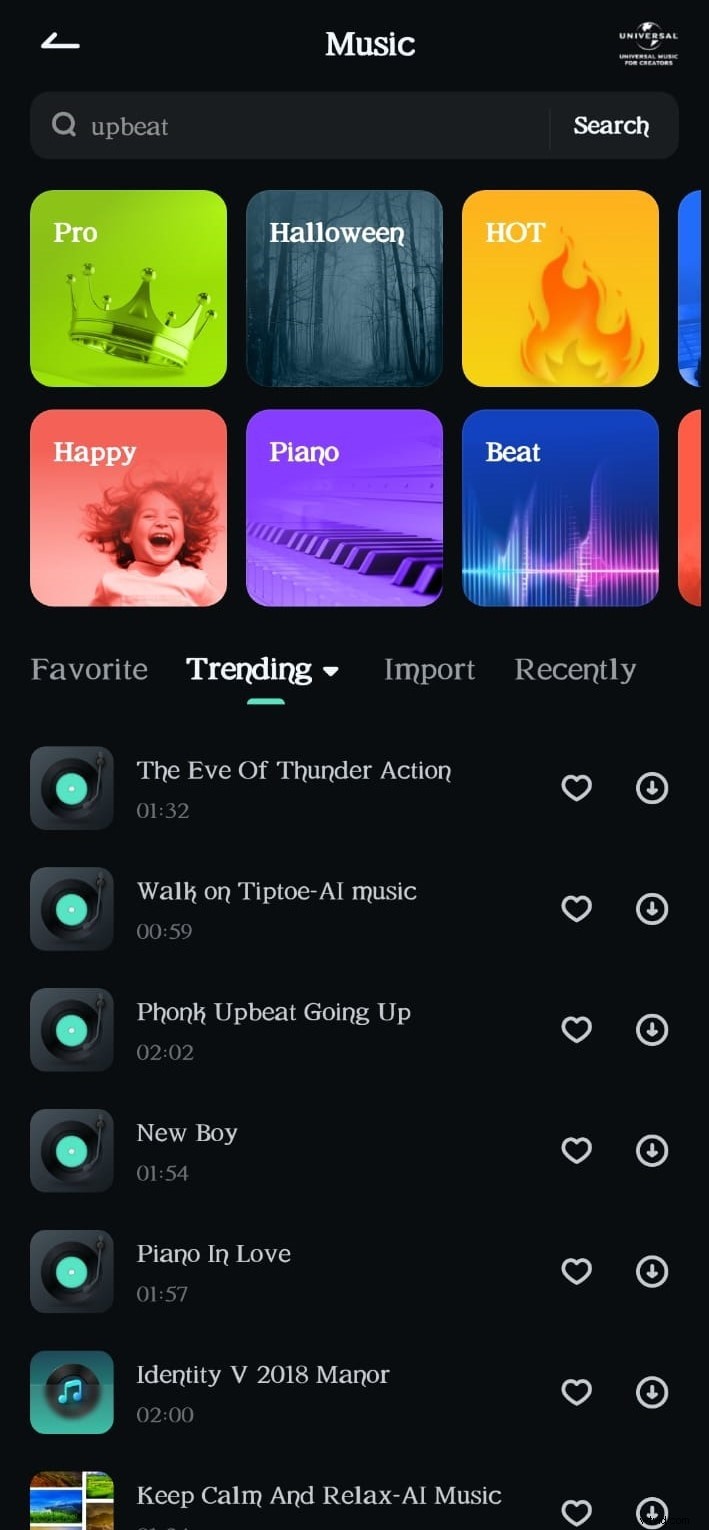
Step 5: Add Music
Tap Add Music, choose a stock track or import your own. Adjust volume, fades, and speed.
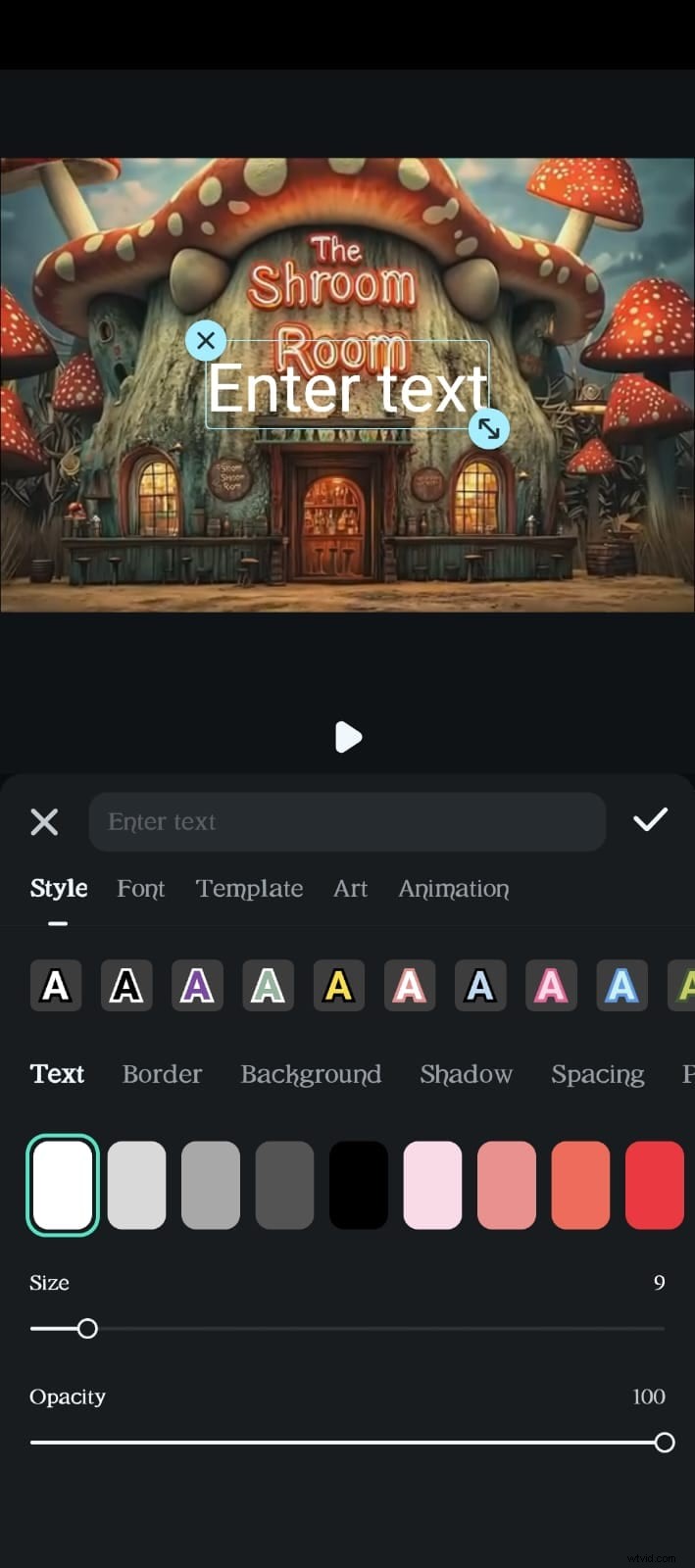
Step 6: Add Text and Effects
Use Text for titles, Sticker for fun graphics, and Effect for visual flair. Transitions can be inserted by tapping the line between clips.
Step 7: Advanced Editing
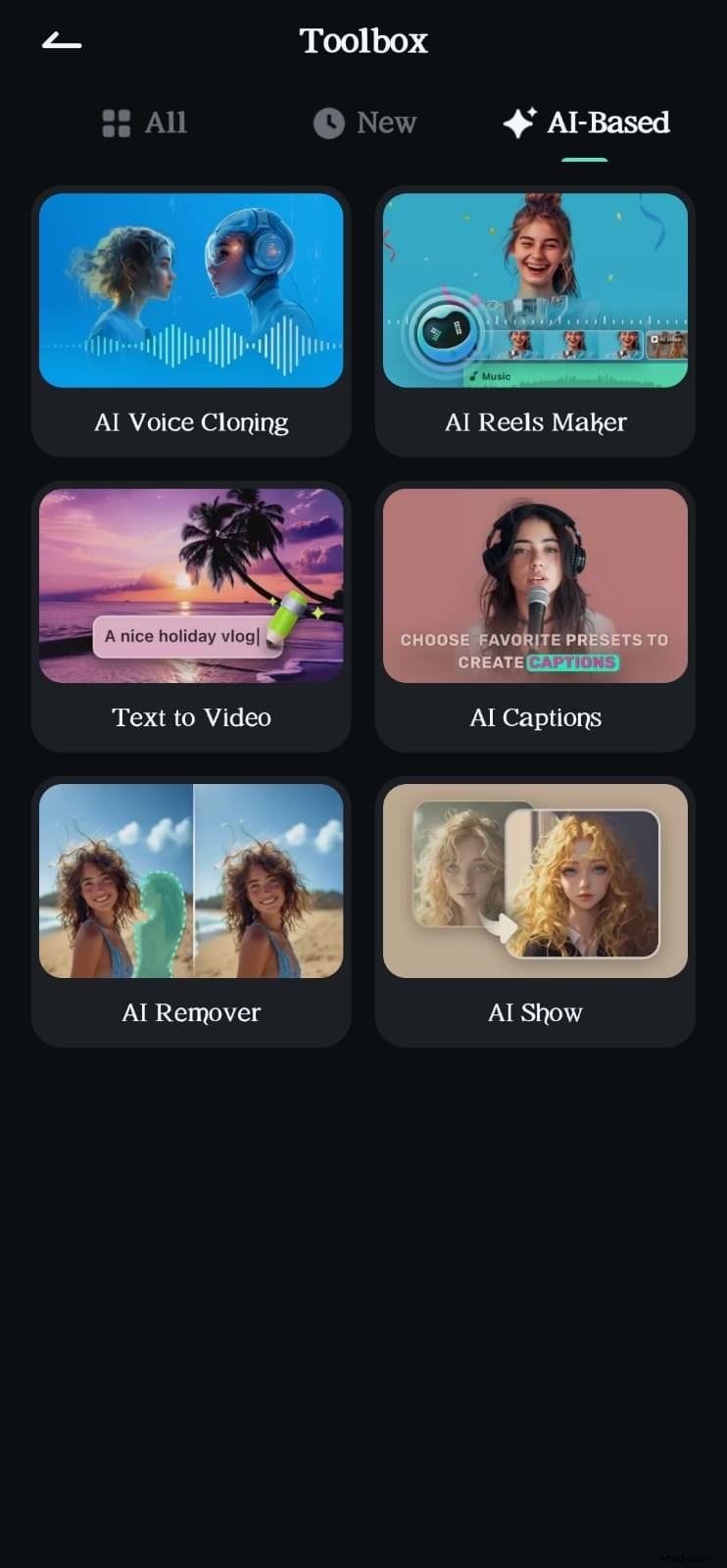
Unlock AI features, speed control, reverse playback, green‑screen, picture‑in‑picture, and motion tracking.
Step 8: Export Your Video
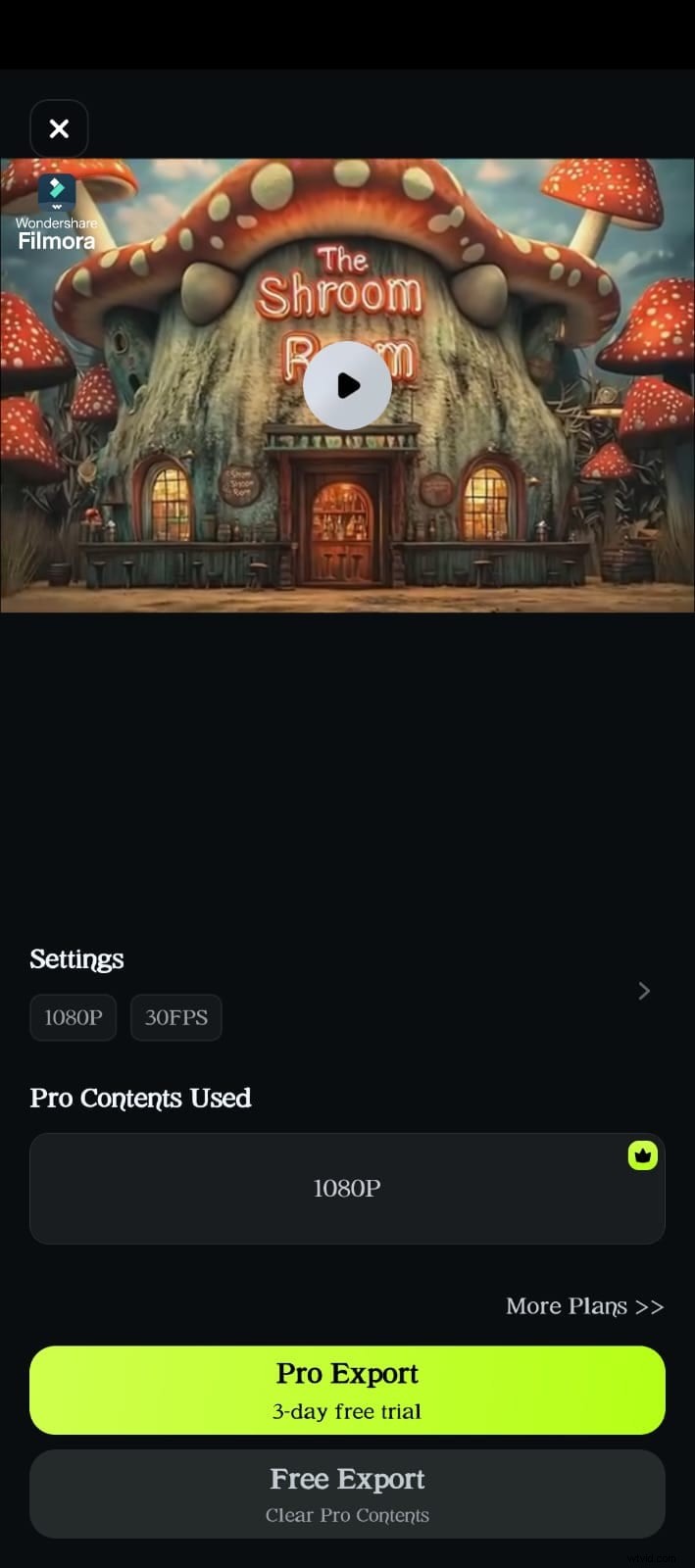
Select resolution, aspect ratio, and frame rate, then hit Export to save the finished product.
Conclusion
While Xiaomi’s native editor is convenient for quick edits, it lacks the depth that power users desire. Filmora bridges that gap with a rich feature set and AI enhancements, making it an ideal choice for anyone looking to elevate their mobile video production.
Use Filmora to transform simple clips into engaging, professional‑quality videos right on your Xiaomi device.
Filmora ⭐⭐⭐⭐⭐
Powerful AI video editor for all creators