

With the explosion of social media, video content is king. Samsung smartphones, known for their superb cameras, let you capture high‑quality footage on the go. A quick tweak in Samsung’s built‑in editor—or a more powerful third‑party app—can turn your clips into shareable gold.
This guide explores the best video editors for Samsung devices, from native tools to leading third‑party solutions. You'll learn how to craft professional, engaging videos straight from your phone.
In this article
-
- How to use Samsung's Movie Maker App
-
- Filmora
- PowerDirector
- Filmmaker Pro
- LumaFusion
- VivaVideo
-
- Editing Videos with Filmora on Your Samsung Device
- Can Filmora Meet All Video Editing Demands on Your Samsung Device?
Part 1: Does Samsung Have a Built‑in Video Editor App?
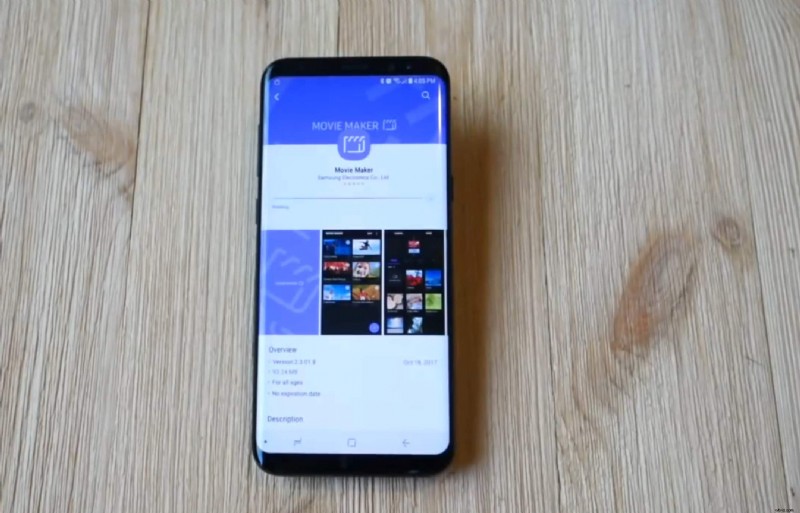
Samsung includes a built‑in video editor that lets users trim, merge, and add basic effects to clips directly from the device. It’s designed for casual creators who want a quick turnaround without installing additional software.
Samsung Movie Maker is available on selected Galaxy models. The app offers essential editing tools—text overlay, audio adjustments, transitions, background music, and voice recording—so you can polish a video in minutes.
Key Features of Samsung Galaxy video editor
- 4+ preset themes (Active, Humorous, Romantic, and Peaceful)
- Text overlays with various font styles.
- 25+ built‑in tracks (option for custom audio files from your device available).
- Voice Recording
- Title Clips
- Pinch‑to‑Zoom Editing
- Export and Sharing permission
Pros
- Intuitive interface suitable for beginners.
- Pre‑loaded themes and music accelerate production.
- Supports photos, videos, and audio for richer projects.
- Free and pre‑installed on Samsung devices.
Cons
- Limited advanced features for seasoned editors.
- Only available on Samsung Galaxy devices and must be downloaded separately from the Gallery app.
How to use Samsung's Movie Maker App
Samsung’s built‑in editor is straightforward. Follow these steps to get started:
Step 1: Open the Gallery app and select the video you want to edit.

Step 2: Tap the edit button and locate the Movie Maker option at the bottom right corner.
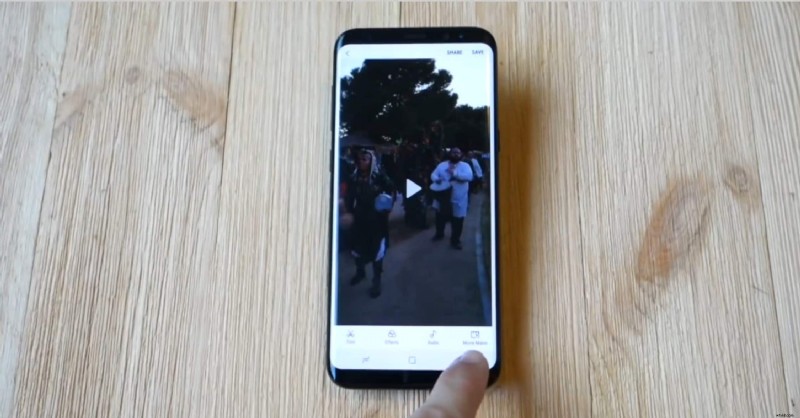
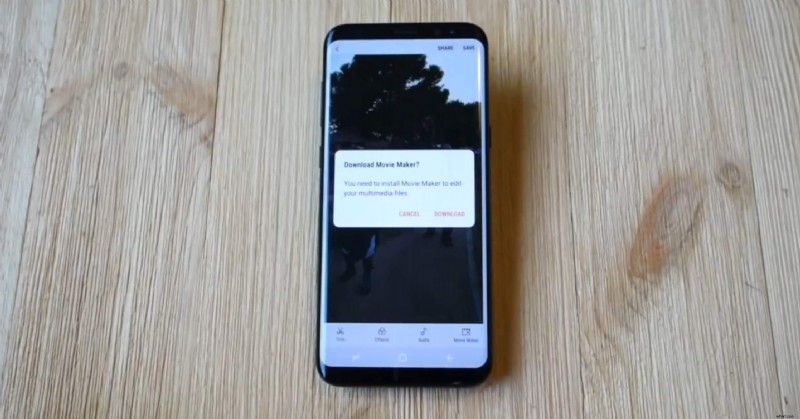
Step 3: Download and install Movie Maker if prompted.
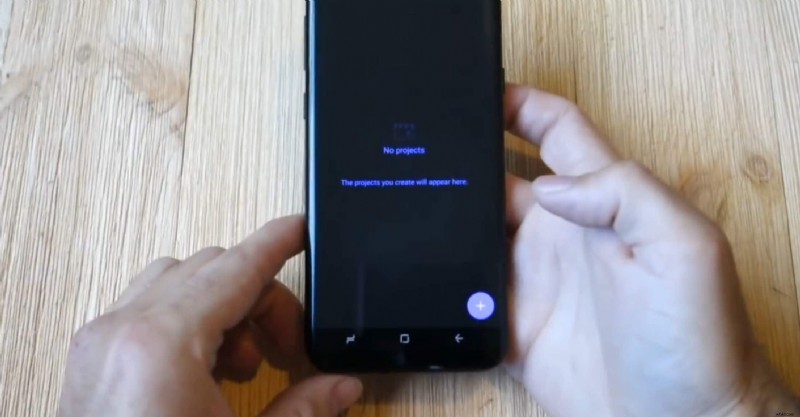
Step 4: Launch the app and tap the “+” icon to start a new project.
Step 5: Import media files and begin editing.
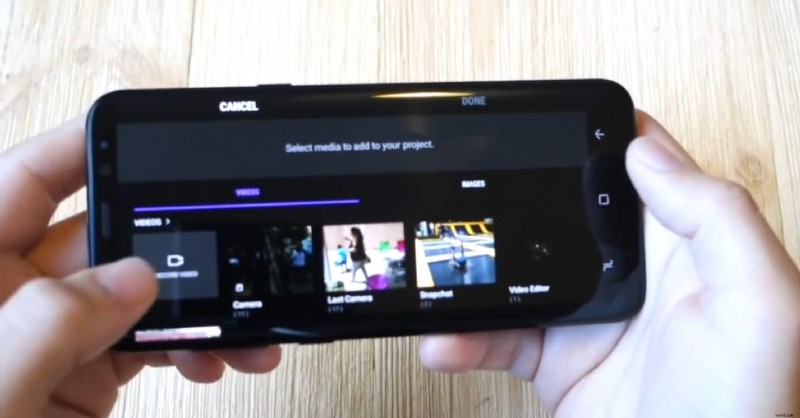
Step 6: Apply edits—trim, add text, choose a theme, and insert background music.

Step 7: Save and export the finished video to your gallery.


Movie Maker is ideal for quick edits, but those seeking deeper creative control should consider robust third‑party apps—Samsung’s roadmap suggests the app will be phased out with future Android releases.
In the next section we’ll explore top alternatives that bring professional‑grade features to your Samsung device.
Part 2: The Best Third‑party Video Editor for Samsung: 5 Apps You Can Trust
With the Samsung Movie Maker era ending, it’s time to explore third‑party editors that deliver both basic and advanced editing capabilities. Below are five of the most reliable video editor apps for Samsung users, complete with key features, pricing, and compatibility.
1. Filmora
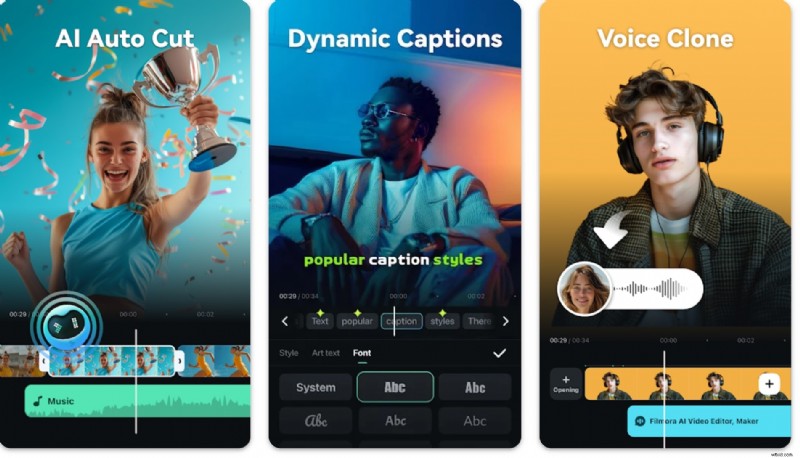
- Download size (Android): Starts at 105 MB
- Cross‑Platform: Yes (mobile & desktop)
- Export quality: Up to 4K
- Audio tools: Background music, voice‑over, sound effects
- Social sharing: Direct upload to YouTube, Instagram, Facebook, etc.
- Advanced: AI editing, smart tracking, speed curves, masking, keyframe animation, visual effects
- Minimum Android: 7.0+
Filmora combines a rich feature set with a user‑friendly interface, making it a top choice for Samsung creators who need high‑quality output and cross‑device workflow. Regular updates add fresh AI tools, filters, and templates that keep the editor cutting‑edge.
2. PowerDirector
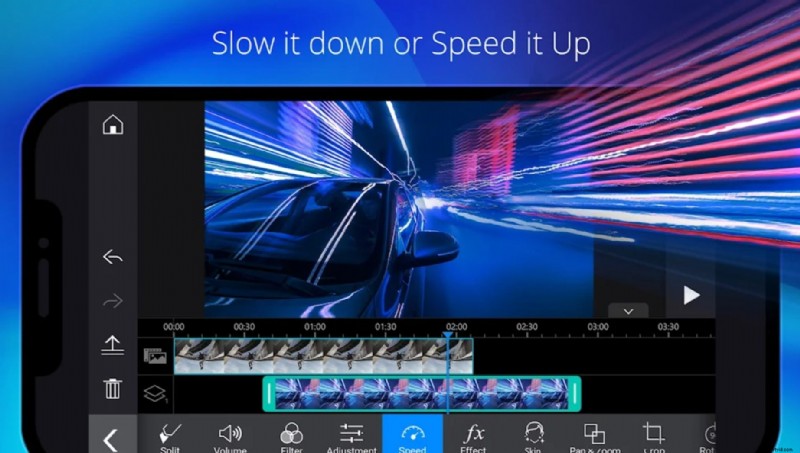
- Download size (Android): Starts at 210 MB
- Cross‑Platform: Yes
- Export quality: 4K
- Audio tools: Background music, effects, volume control
- Social sharing: Major platforms supported
- Advanced: AI body effects, smart cut‑out, 18K templates, stock media, slow‑motion, animated titles
- Minimum Android: 8.0+
PowerDirector offers desktop‑style editing on the go, with multi‑layer timelines and green‑screen support. Its intuitive layout makes it a favorite among Samsung users who want professional‑grade features in a mobile package.
3. Filmmaker Pro
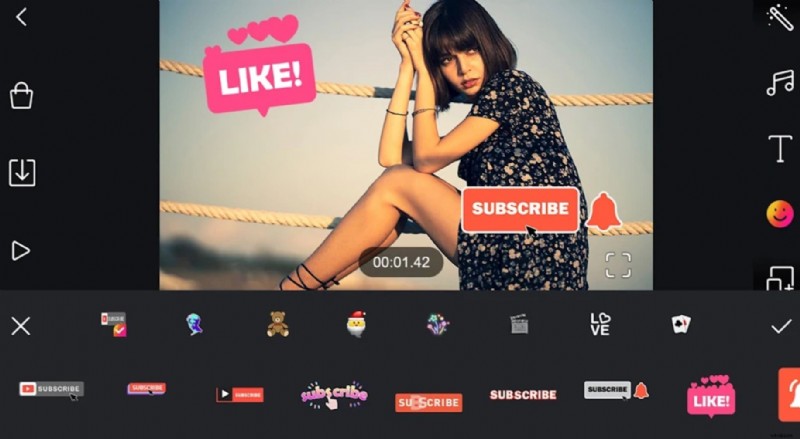
- Download size (Android): Starts at 210 MB
- Cross‑Platform: No (mobile only)
- Export quality: Up to 1080p
- Audio tools: Voice‑overs, sound effects, music library
- Social sharing: Direct export to social apps
- Advanced: Animated text, 50+ filters, transitions, glitch & shake effects, chroma key, speed control
- Minimum Android: 5.0+
Filmmaker Pro is a powerful yet accessible editor that lets users create Hollywood‑style videos with chroma key, animated intros, and a vast library of effects—all from a Samsung device.
4. LumaFusion
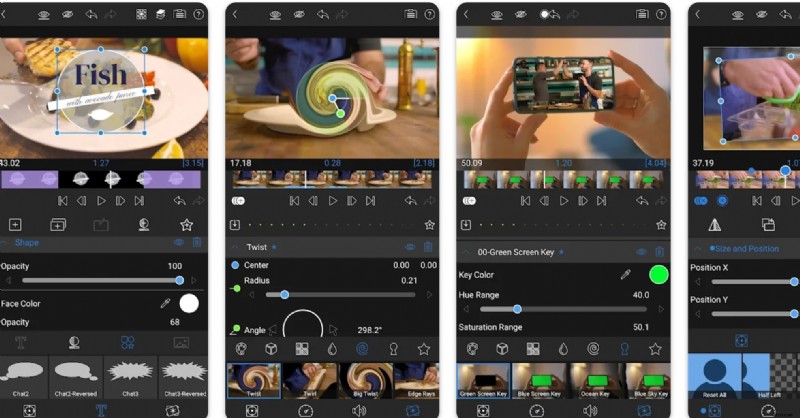
- Release date: 20 Feb 2023
- Download size (Android): Starts at 210 MB
- Pricing: £10.9 – £74.99 (Play Store)
- Cross‑Platform: No (iOS & Android)
- Export quality: 4K
- Audio tools: Six‑track mixer, voice‑over support, audio filters
- Social sharing: WhatsApp, YouTube, etc.
- Advanced: Royalty‑free music, luma & chroma keys, frame rates 18‑240 fps, advanced color correction, 6 video & 6 audio tracks
- Minimum Android: 10.0+
LumaFusion is the professional‑grade editor on Android, offering multi‑track timelines, precise color grading, and touch‑optimized workflow. It’s ideal for users who demand high‑level control and superior output.
5. VivaVideo
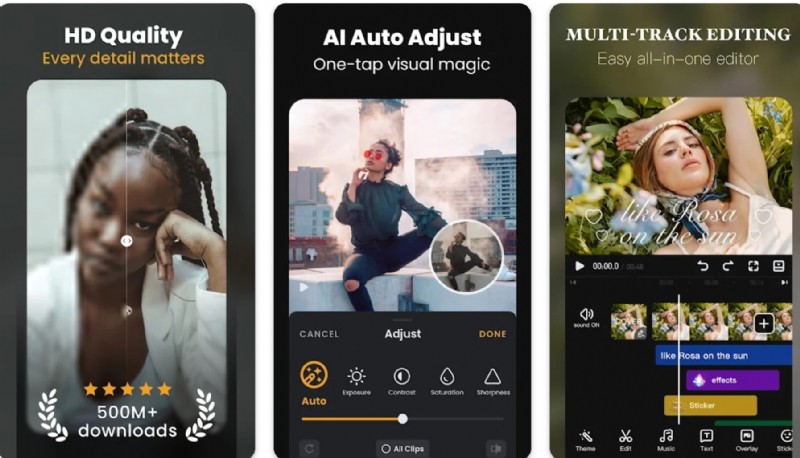
- Release date: 21 Mar 2013
- Download size (Android): Starts at 128 MB
- Pricing: £0.8 – £94.99 (Play Store)
- Cross‑Platform: No (mobile only)
- Export quality: 720p – 4K
- Audio tools: Music library, sound effects, audio mixing
- Social sharing: Quick share to social apps
- Advanced: AI effects, keyframe editing, speed curves, picture‑in‑picture subtitles, translation, VHS & FX effects
- Minimum Android: 5.0+
VivaVideo blends ease of use with a solid set of features, making it a popular choice for quick, creative edits on social media. The free tier supports high‑definition exports and direct sharing to YouTube, Instagram, and TikTok.
A Comparison Table of the Above 5 Apps
This comprehensive comparison highlights key differences between the top video editors for Samsung devices. Use the table below to quickly evaluate each app’s strengths and identify the best fit for your editing needs:
| Feature/Aspect | Filmora | PowerDirector | Filmmaker Pro | LumaFusion | VivaVideo |
| Cross‑Platform | Yes (Mobile & Desktop) | Yes | No (Mobile only) | No (iOS/Android) | No (Mobile only) |
| Export Quality | Up to 4K | 4K | Up to 1080p | 4K | 720p‑4K |
| Audio Tools | Music, voice‑over, SFX | Music, effects, volume | Voiceovers, SFX, music | 6‑track mixer, filters | Music library, mixing |
| Social Media | Direct sharing | Major platforms | Direct export | WhatsApp, YouTube | Quick sharing |
| Advanced Features | AI editing, keyframes | Green screen, templates | Chroma key, effects | Color correction, multi‑track | AI effects, keyframes |
| Best For | Social media creators | Professional editing | Hollywood‑style videos | Pro‑grade editing | Quick creative edits |
Part 3: Your Guide to Editing with Samsung's Best Alternative Video Editor App
Choosing the right editor is about balancing ease of use with powerful features. Among the options, Filmora stands out as a reliable, versatile solution that scales from mobile to desktop. Its AI‑powered tools, extensive library, and cloud transfer make it a solid choice for both novices and seasoned editors.
Let’s dive into how to set up and use Filmora on a Samsung device.
Editing Videos with Filmora on Your Samsung Device
To create polished videos with Filmora, follow these steps after installing the app from the Google Play Store:
Step 1: Launch Filmora. Grant the app permission to access your device’s media, photos, and files.
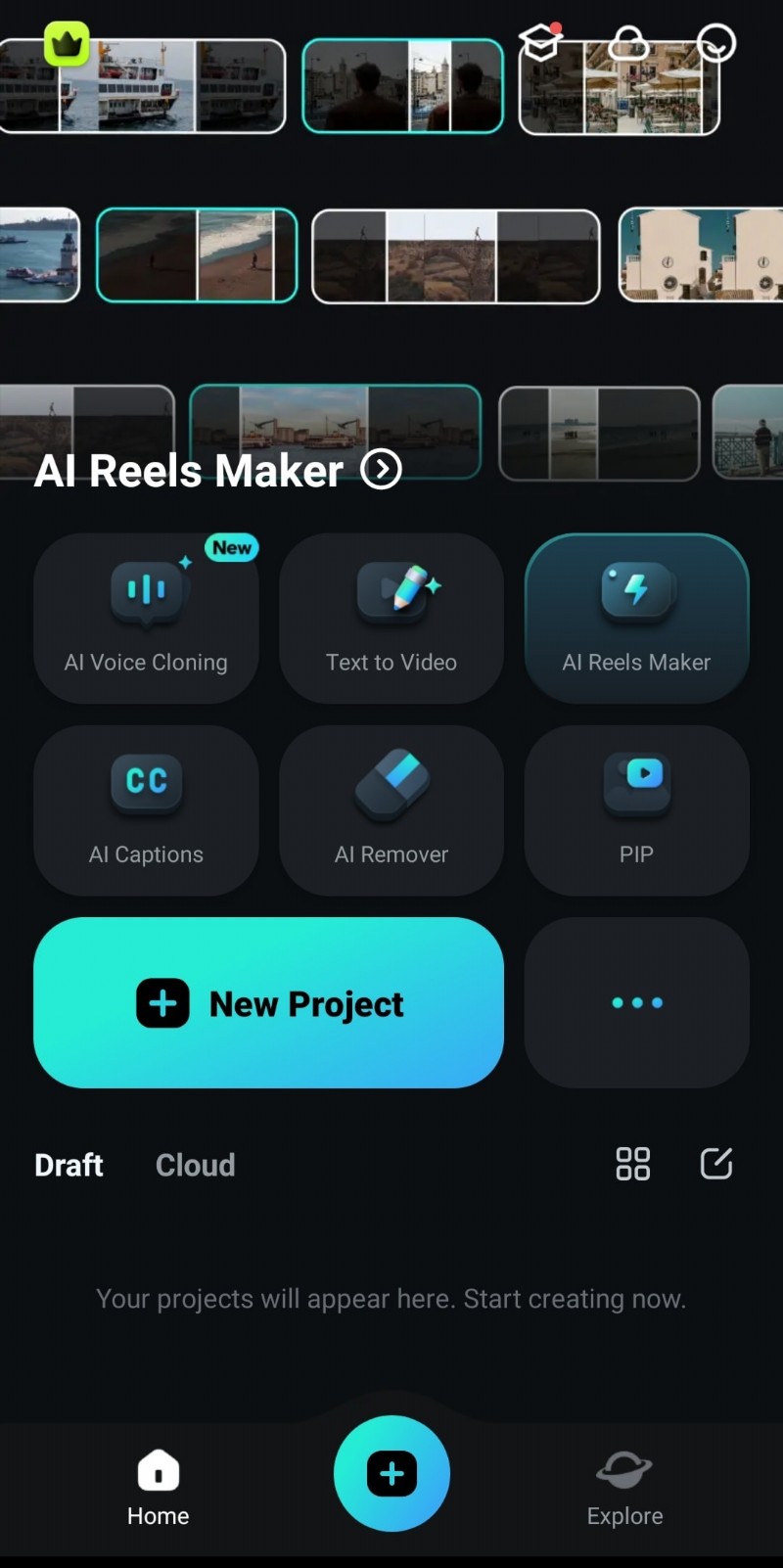
Step 2: Tap “New Project” and import the media you want to edit.
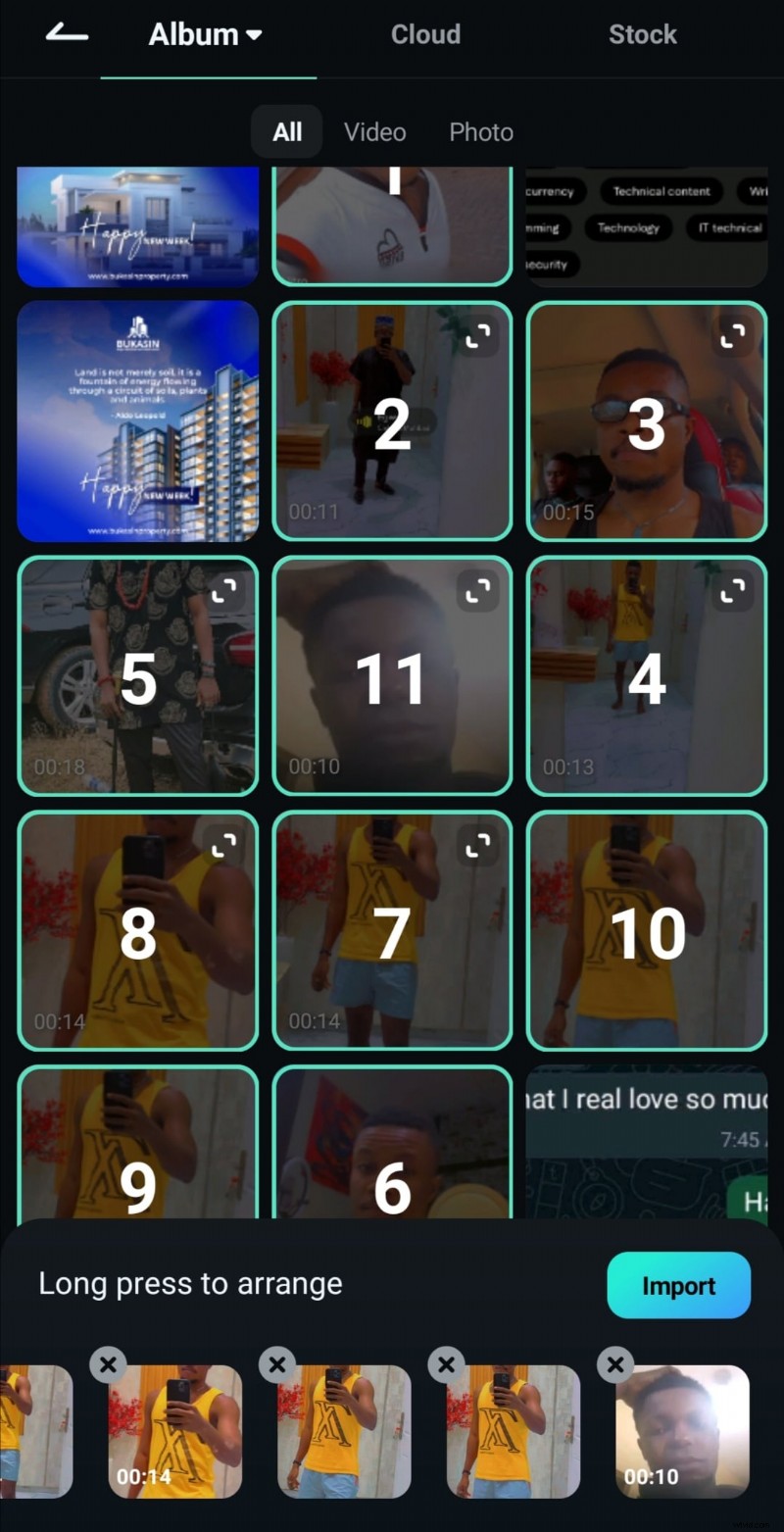
Step 3: Drag and drop media onto the timeline. You can reorder clips, trim sections, or split them by tapping on each item.
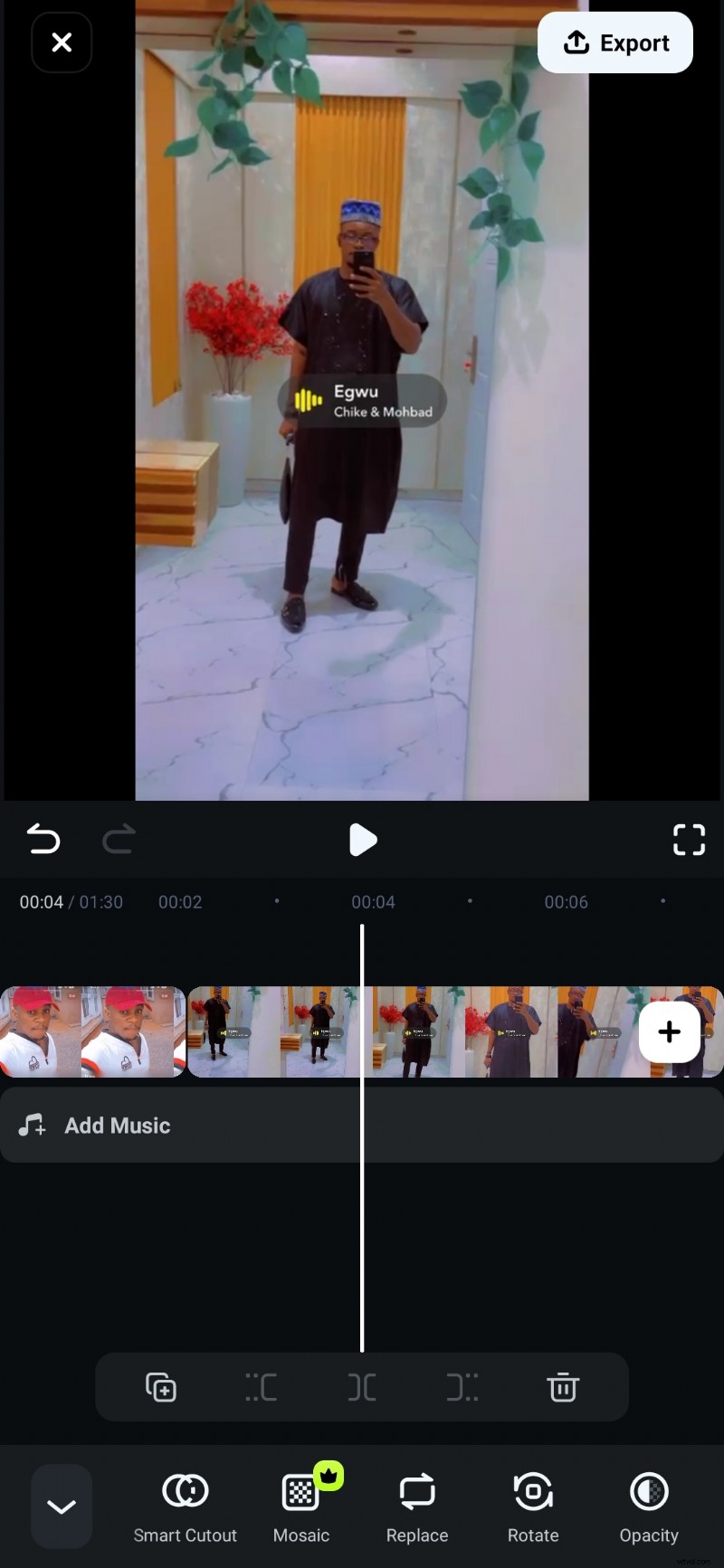
Step 4: Enhance your project with filters, masks, overlays, animations, text, background music, and transitions. Adjust speed to create slow‑motion or time‑lapse effects.
Step 5: When satisfied, tap “Export” to save the video in HD, 4K, or a custom resolution.
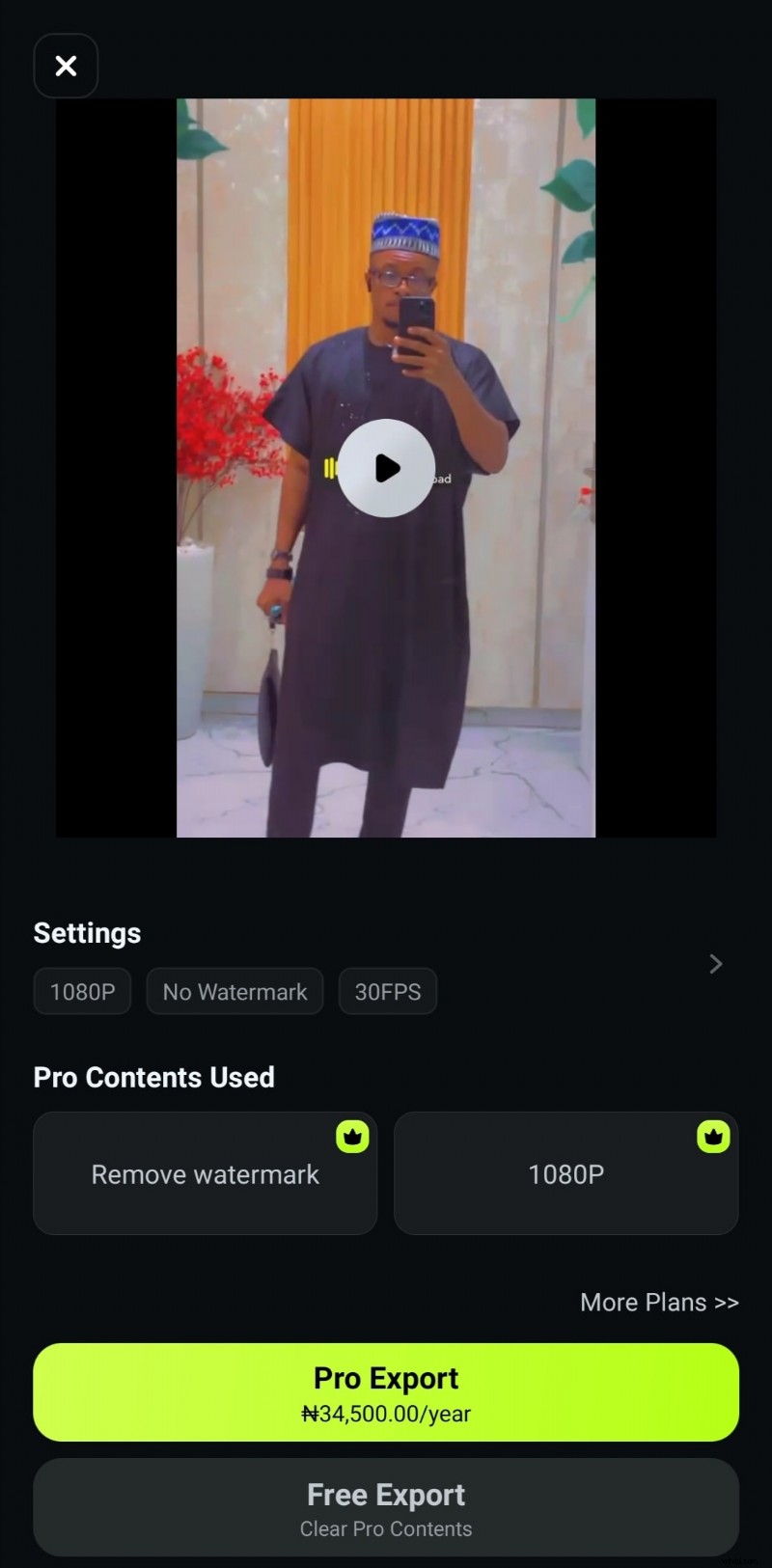
Filmora also supports direct sharing to YouTube, Instagram, and other social platforms.
Can Filmora Meet All Video Editing Demands on Your Samsung Device?
While Filmora performs admirably on mid‑range Samsung models, intensive tasks—such as multi‑layer, high‑resolution edits—may strain the device’s resources. In such cases, it’s best to transfer the project to a desktop version, where the editor’s AI tools and robust hardware can handle complex workflows.
Filmora’s cloud‑based transfer feature enables seamless migration between phone and PC, allowing you to start on the go and finish on a machine with greater processing power.
Conclusion
Samsung’s ecosystem offers a range of video editors—from the lightweight built‑in Movie Maker to professional‑grade tools like Filmora, PowerDirector, LumaFusion, and others. Selecting the right app depends on your creative goals, technical skill, and device capability.
For a versatile, cross‑platform experience that balances power and simplicity, Filmora remains a top recommendation. It offers a free trial, so you can experiment before committing.

Filmora
⭐⭐⭐⭐⭐
The Best AI‑powered Video Editing Software and App