
If you’re creating tutorials, demos, or side‑by‑side comparisons, split‑screen videos can significantly boost clarity and engagement. The key to a polished result? A reliable editor that lets you layer multiple clips effortlessly.
In this article
- 5 Best Split‑Screen Video Software for Windows and Mac Users
- Choosing the Best Video Split‑Screen Software
- How to Use the Best Video Split‑Screen Software – Wondershare Filmora
Part 1. 5 Best Split‑Screen Video Software for Windows and Mac Users
Split‑screen editing powers everything from product comparisons to reaction videos. Choosing the right tool depends on ease of use, platform support, layout flexibility, and extra features such as transitions and AI‑enhancements. Below are the top five contenders, each chosen for its balance of power and accessibility.
Wondershare Filmora
Filmora is a user‑friendly editor that bundles robust features with a polished interface. Its library of split‑screen templates supports up to six clips in one frame, and AI tools streamline tasks like text‑to‑video creation, music suggestions, and noise reduction.
- Multiple split‑screen templates (up to 6 clips)
- AI Text‑to‑Video, AI Music, and AI Image generation
- Wide range of filters, effects, and stickers
- Auto‑sync for audio and video tracks
- Quick Split Mode for rapid layout creation
Pros: Beginner‑friendly, cross‑platform (Windows & Mac), affordable, supports numerous output formats.
Cons: Free version includes a watermark.
Stabilize Videos with Wondershare Filmora
- High‑quality video stabilization with minimal distortion
- Extensive library of effects and creative assets
- AI‑powered content creation tools
- Intuitive yet professional workflow
- Compatible with Mac, Windows, iOS, and Android


iMovie
Apple’s free editor, iMovie, is perfect for Mac and iOS users. While limited to two video clips per split‑screen, its clean interface, built‑in transitions, and seamless iCloud sync make it an excellent entry point.
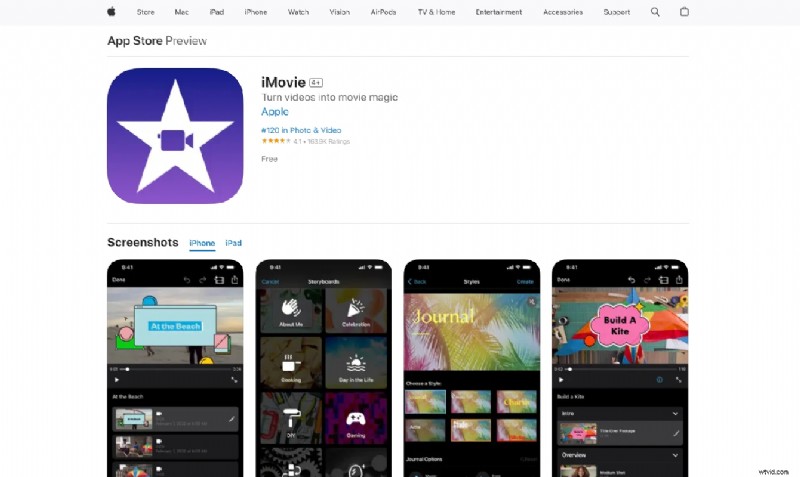
- Transition, effect, and filter library
- iCloud sync across Apple devices
- Voice‑over recording capability
- Direct sharing to social platforms
Pros: Free for Apple users, tight integration with Apple ecosystem.
Cons: Windows/Android unavailable; lacks advanced editing tools; limited audio/visual options.
Adobe Premiere Pro
For professionals seeking industry‑standard features, Premiere Pro offers a powerful set of tools. Its Crop effect and multi‑track editing enable complex split‑screen layouts, while AI features enhance audio and visual quality.
- Simultaneous multi‑camera angle editing
- Built‑in effects, transitions, and color grading
- AI‑driven audio cleanup and speech enhancement
- Team Projects for real‑time collaboration
Pros: Ideal for professional production; extensive format support; customizable workspace.
Cons: Steep learning curve; demands high‑performance hardware.
Final Cut Pro
Apple’s flagship editor, Final Cut Pro, is designed for speed and depth. It supports advanced color grading, 360‑degree footage, and multi‑channel audio editing—features that elevate any split‑screen project.
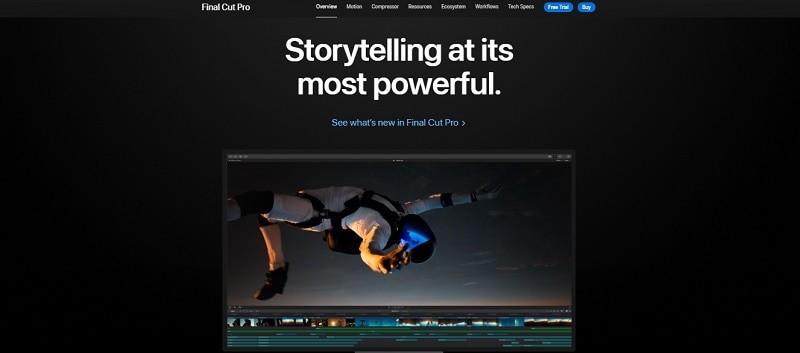
- Color grading, clip connections, and synchronization tools
- Multi‑camera editing with varied frame rates
- Support for 360‑degree footage and wide color spaces
- Comprehensive audio enhancement utilities
Pros: Deep integration with Apple hardware; powerful professional features.
Cons: macOS exclusive; can consume significant storage.
Kapwing (Online)
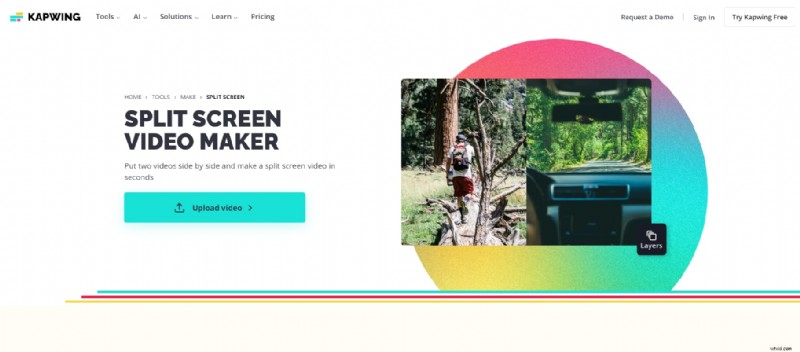
For users who prefer a cloud‑based solution, Kapwing offers an intuitive split‑screen creator without local installation. Its AI tools—including video generation and subtitle creation—add a modern twist to traditional editing.
- Trim, crop, merge, and add text or subtitles
- Create multi‑clip side‑by‑side layouts
- AI Video Generator, subtitle automation, and more
Pros: Import up to 4+ clips; multiple template styles; collaborative editing.
Cons: Requires reliable internet; lacks some desktop‑level features.
Part 2. Choosing the Best Video Split‑Screen Software
When selecting a split‑screen editor, consider these criteria:
- Compatibility – Ensure the software runs on your OS and your hardware meets the minimum specs.
- Pricing – Decide between one‑time purchases, subscriptions, or free tiers; trial versions help evaluate before commitment.
- Ease of Use – Intuitive interfaces reduce learning time, especially for beginners.
- Extra Features – Integrated audio editing, AI enhancements, and noise reduction keep you in one toolset.
Below is a quick comparison table that maps each tool against these factors.
| Compatibility | Pricing | Ease of Use | Extra Features | |
| Filmora | Windows & Mac | Free tier; $29.99/month subscription | Easy | Screen recorder, audio visualizer, AI text‑to‑video, auto‑highlight |
| iMovie | macOS & iOS | Free | Easy | Automatic enhancement, stabilization, freeze‑frames |
| Premiere Pro | Windows & Mac | $239.88/year | Hard | Speech enhancement, intelligent waveforms, visual fade handles |
| Final Cut Pro | macOS | $299.99 one‑time | Hard | Light & color enhancement, smooth slo‑mo, advanced transitions |
| Kapwing | Online (browser) | Free tier; $16/month Pro | Moderate | Smart cut, article‑to‑video, B‑roll generator |
Part 3. How to Use the Best Video Split‑Screen Software – Wondershare Filmora
Filmora’s blend of simplicity and power makes it the ideal choice for most creators. Below is a step‑by‑step guide to crafting a split‑screen montage.
Step 1: Install and Launch Filmora
Step 2: Choose a Split‑Screen Template
Navigate to Templates > Split Screen to browse over 250 ready‑made layouts. Drag your chosen preset onto the timeline. The default duration is 5 seconds, but you can adjust by dragging the edges.

Step 3: Edit Your Clips
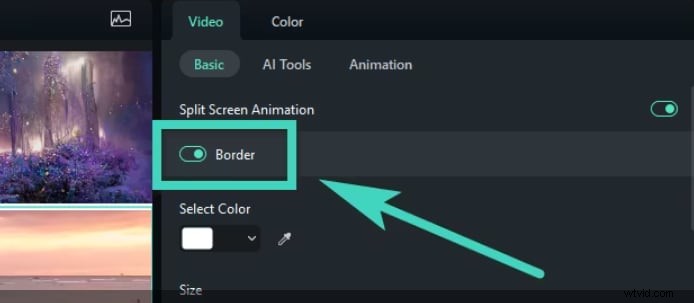
Use the Video tab in the property panel to enable Border and customize the spacing and color between clips. This step is essential for clear visual separation.
Step 4: Add Effects and Stickers
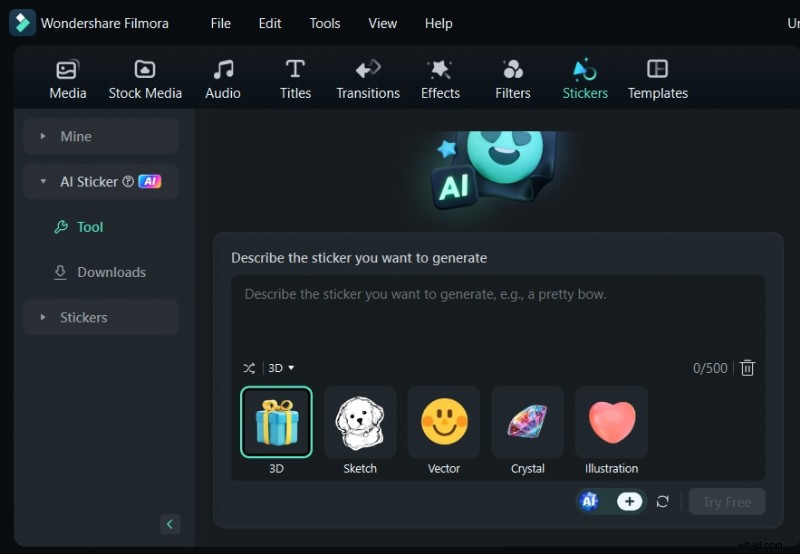
Open the Effects / Filters / Stickers panel to apply visual enhancements. Filmora’s AI Stickers feature can generate custom graphics on demand.
Step 5: Export and Auto‑Highlight
Click Export > Local to choose your output format. For quick social‑media clips, enable Auto Highlight and select a preset length (15 s for TikTok, 60 s for YouTube Shorts, or a custom duration).
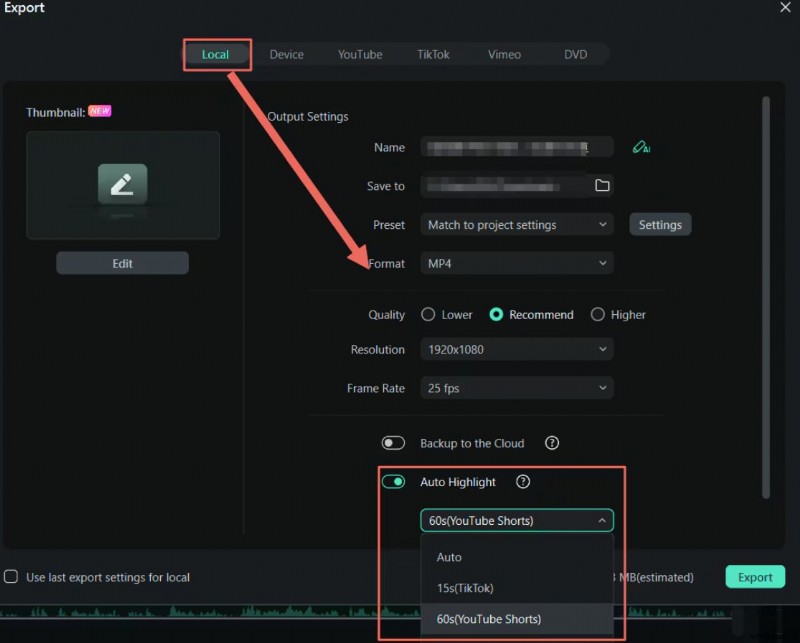
After exporting, Filmora will deliver both the full video and a highlight reel, ready for sharing.
Conclusion
Split‑screen videos are versatile tools for comparison, reaction, and instructional content. Whether you’re a casual creator using iMovie or a professional editing with Premiere Pro or Final Cut Pro, the right software can streamline the process and elevate your storytelling.
Among the options reviewed, Wondershare Filmora consistently delivers the best blend of ease, flexibility, and value, making it a top recommendation for creators of all skill levels.