
Jul 14, 2025 • Proven solutions
GoPro cameras are celebrated for their wide‑angle lenses, which deliver expansive fields of view. However, the resulting fisheye effect can warp straight lines and enlarge the center of frames, creating an unprofessional look. Whether you’re shooting action footage or capturing stills, you can correct this distortion with the right workflow.
Eliminate Fisheye Distortion in GoPro Footage
1. Use Linear FOV Mode
Linear FOV mode is a built‑in feature of GoPro Hero5 Black and newer models that applies software correction at capture time, saving the corrected image directly to your memory card.
Key points:
- Linear FOV is available only at 2.7k, 1080p and lower resolutions.
- It can be enabled in Timelapse Photo mode but not in Timelapse Video.
- Edges may be cropped or slightly stretched, which can affect composition.
- Once activated, the camera will no longer record wide‑angle footage.
2. Post‑Production Correction
2.1 GoPro Studio
GoPro Studio offers a simple “Remove Fisheye” option for exported footage. Follow these steps:
- Import your original clip and open Advanced Settings.
- Select “Remove Fisheye” and confirm.
- Add the clip to the conversion list and render.
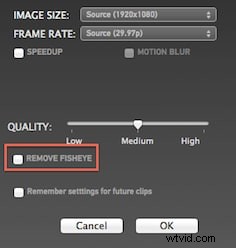
Note: The option appears only when the source contains fisheye distortion.
Limitation: The software lacks a preview panel, so you must render before checking the result.
2.2 Wondershare Filmora
For users who need a user‑friendly yet powerful editor, Filmora provides a dedicated Action Cam tool with lens‑correction support.
Highlights:
- Comprehensive feature set including 3D LUT, white‑balance, speed control, audio de‑noise, stabilization, and lens distortion correction.
- Fast editing workflow—trim, merge, and export 8 GB clips in under a minute.
- Supports popular formats such as MTS, MOV, and MP4, making it ideal for GoPro, phone, and other action‑cam footage.


How to Remove Fisheye in Filmora
Watch this quick demo to see the process in action.
Steps:
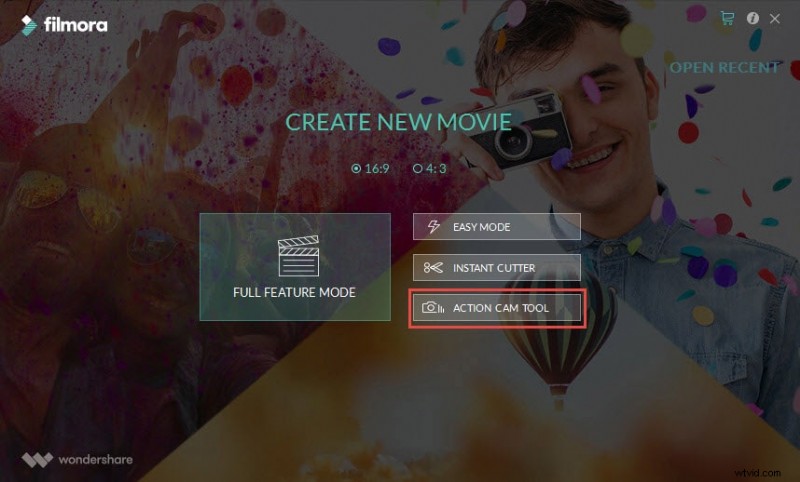
- Launch Filmora and open the Action Cam tool.
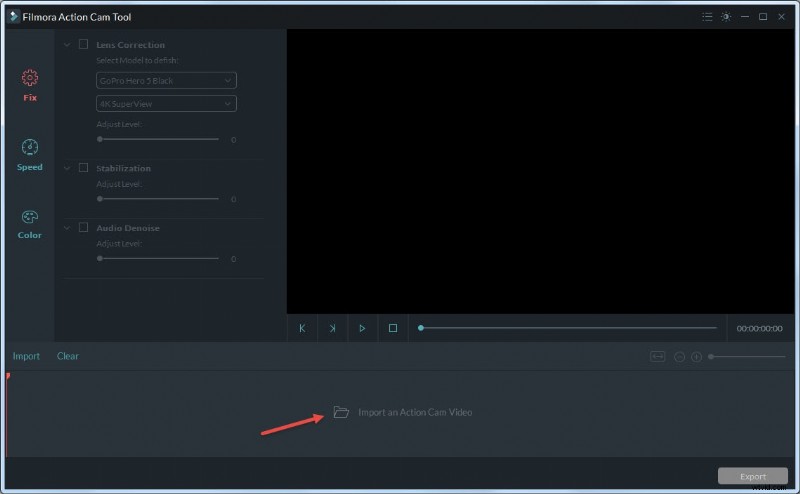
- Import your clip via the button or drag‑and‑drop.
- Enable the Lens Correction toggle. Choose your camera model and shooting mode; the software will automatically apply the correction. Adjust the slider to fine‑tune.
- Preview the result in real time.
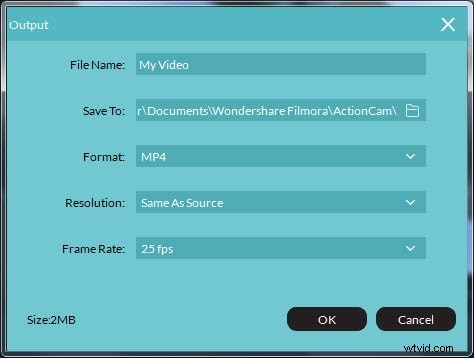
- Export: select MOV or MP4, set resolution to 4K if desired, and choose 60 fps. Click OK.


Max Wales
Max Wales is a writer and a lover of all things video.
Follow @Max Wales