
Adobe Premiere Pro is the industry‑standard tool for video professionals, offering a suite of advanced, non‑destructive editing features. Its robust speed‑ramping capabilities make it the go‑to solution for creating cinematic slow‑motion footage.
Whether you’re a beginner or a seasoned editor, this guide delivers clear, step‑by‑step instructions for achieving smooth slow‑motion effects, plus a curated selection of ready‑to‑use templates that accelerate your workflow.
In this article
- How to perform slow motion in Premiere Pro
- Top templates for quick slow‑motion effects
- Bonus: Creating slow motion in Filmora
- Conclusion
Slow Motion Video Maker
Control keyframes precisely to craft unique, cinematic slow‑motion sequences.
Part 1: How to Perform Slow Motion in Adobe Premiere Pro
Premiere Pro’s intuitive interface lets you manipulate frame speed without compromising quality. Key features include:
- Non‑destructive editing with adjustment layers
- Smart auto‑correct color grading
- Before/after comparison view
- Support for professional‑grade formats and third‑party plugins
Follow these steps to add a slow‑motion effect:
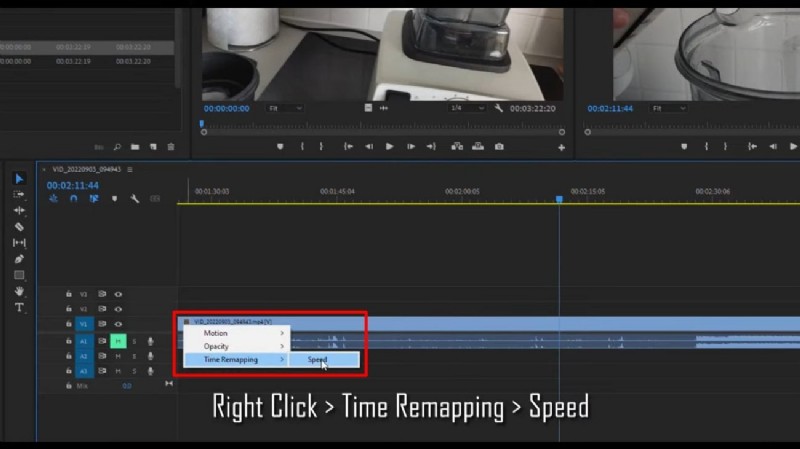
- Import your clip. Drag the video onto the timeline. Right‑click the clip’s FX icon, select Time Remapping > Speed.
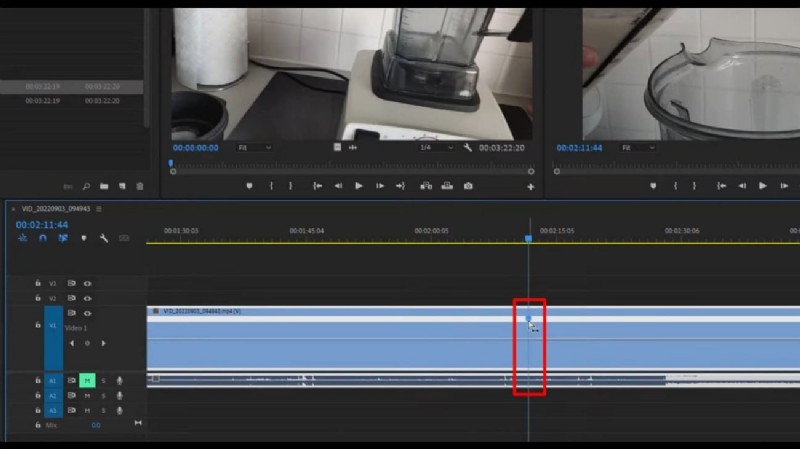
- Set keyframes. Press CTRL + Click where the slow motion starts and ends. Drag the middle keyframe to the right to create a ramp.
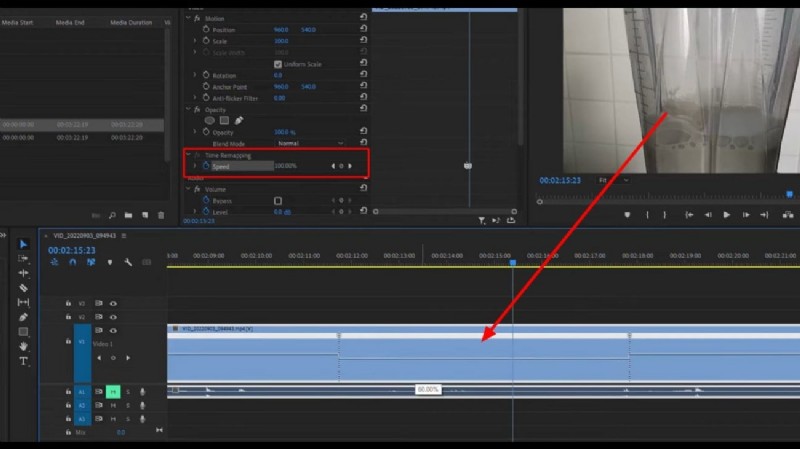
- Adjust speed. Hover over the central segment between keyframes, click, and drag downwards to reduce speed. The percentage display will update in real time. For finer control, use the Effect Controls panel.
Part 2: Leading Templates for Quick Slow‑Motion Effects
Enhance your projects with these polished, ready‑to‑customize templates:
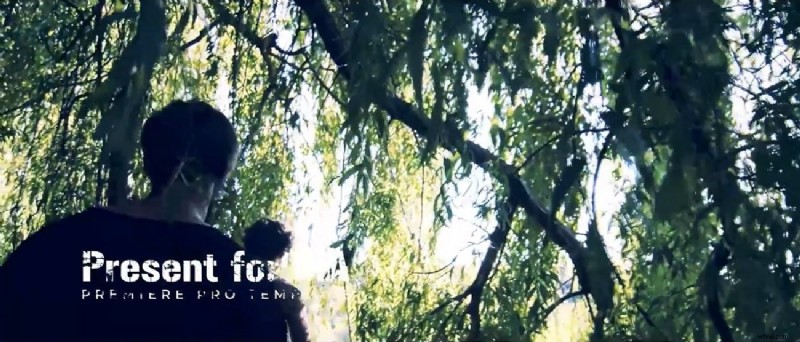
- Slow Motion Short Opener – 9 outdoor scenes, 16 media placeholders, 7 text placeholders, and 2 logo slots. Ideal for intros and slideshows in HD.
- Slow Motion Explosion Logo Opener – A vibrant, hand‑drawn logo reveal with matching background music. Includes media and text placeholders for branding.
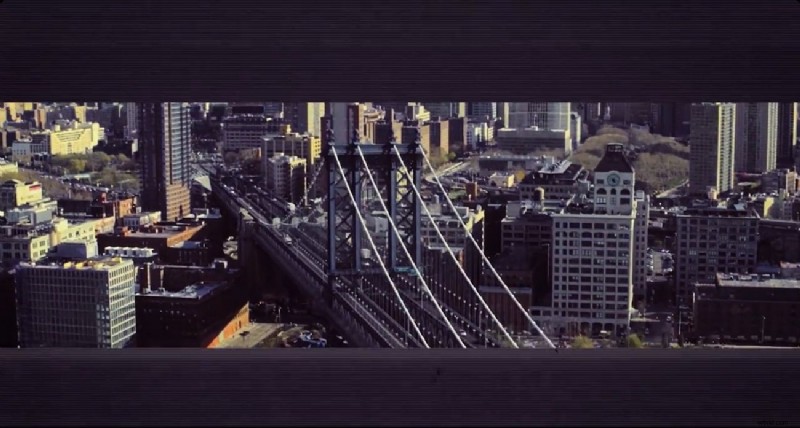
- Urban Freeze Frame – Freeze frames that showcase dynamic cityscapes, paired with energetic music. Full HD, perfect for fashion, action, and demo videos.
- Dynamic Sport – Sleek sports footage with modern transitions and 8 editable text placeholders. A favorite for athletic highlights.
- Planet Titles – Cinematic spinning planets and 8 text slots for events or productions. Comes with engaging background music.


Part 3: Bonus – Creating Slow Motion in Filmora
If you prefer a simpler workflow, Filmora also supports speed ramping with AI enhancements. Here’s a quick rundown:
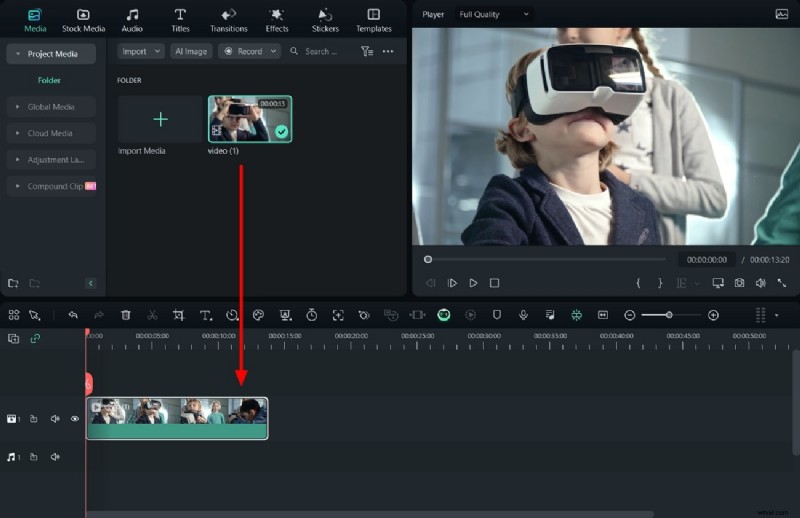
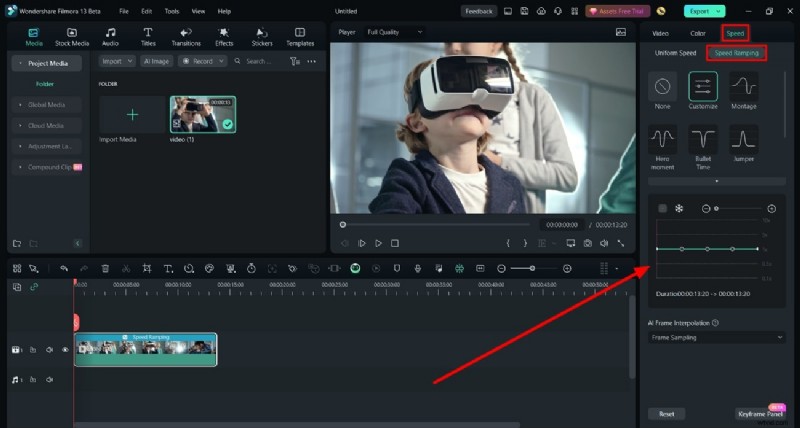
- Import – Start a new project, click Import Media, and drag the clip to the timeline.
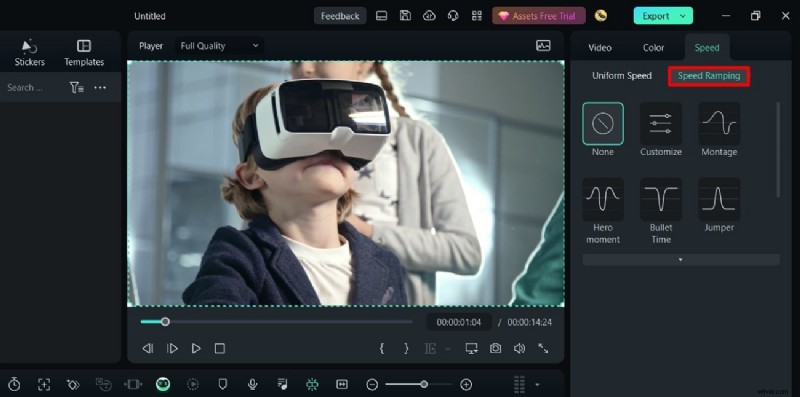
- Open Speed Ramping – On the right panel, select the Speed tab and choose Speed Ramping.
- Customize Speed – Select Customize, then manipulate the graph points to lower the speed as needed.
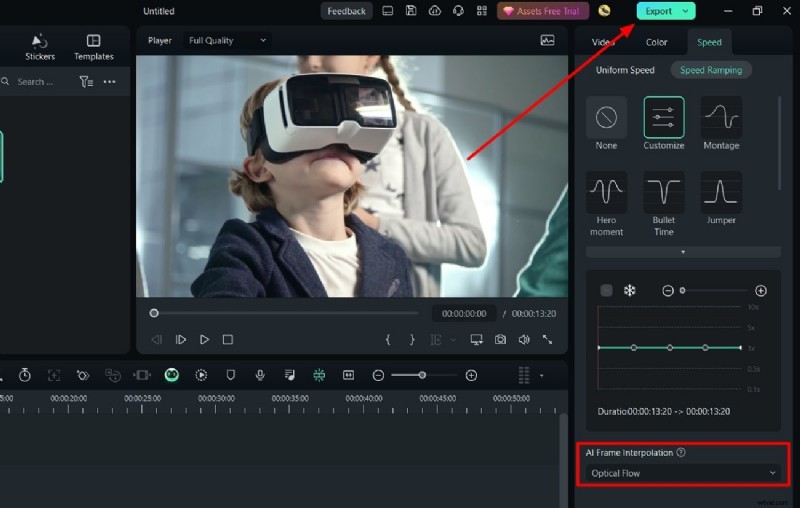
- Render – Enable AI Frame Interpolation with Optical Flow, then click Render Preview for the best quality.
Conclusion
Premiere Pro delivers high‑fidelity slow‑motion results for professionals, while Filmora offers a user‑friendly alternative for quick, AI‑powered edits. With the right tools and templates, you can elevate any project with stunning slow‑motion footage.