
Even with the incredible ranges of colors available to digital photographers and illustrators, there is still something magical and sophisticated about the stark simplicity of a black and white image. The lack of color allows the viewer to focus on elements like shadows and highlights without the distraction of color interactions. Black and white photos can express a mood that color often cannot.
Converting to black and white
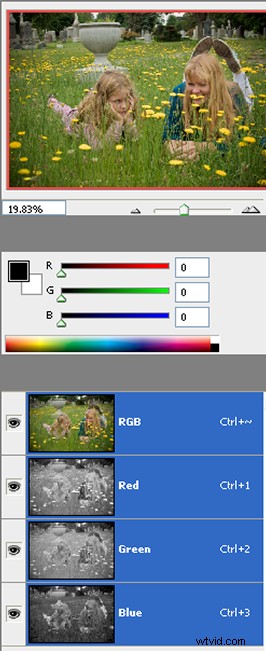
1. A color image with the RGB channels palette open
Like most processes in Photoshop, there are about ten different ways to convert a color image to black and white. They all yield different black and whites and offer vastly different ranges of control over the final result. You can simply go to the “Image” menu and choose “Grayscale.” Or you can create a “Black and White” adjustment layer in CS3 that will allow you much control over your conversion. I could go on, but there are a lot of other tutorials on the web on the subject. Instead, I want to share a very simple, yet really dramatic, method for taking the color out of your images.
The RGB color space
Digital cameras produce images in the RGB color space. Very basically, each channel (red, blue, and green) contains information pertaining to the image’s hue (color), saturation (strength of the color), and luminance (or brightness) levels. You can exploit this last property to create desaturated images.
With an image open in Photoshop, open the Channels Palette, which is usually tabbed along with the Layers Palette. If not, go to the Windows pull-down menu and pick “Channels.” The color channels allow you a huge amount of control over your image. For now, click on the first channel, Red.
(Note: By default, the thumbnails of the channels in the Channels Palette will show in black and white. If they are displaying in color, you’ll want to type “ctrl” or “cmnd” plus the “k” key. This will open the Photoshop Preferences dialog box, where you can select “Interface” to change the channel thumbnails to display in black and white).
When you select the red channel, you’ll see your original image displayed with only the information contained in the red channel. It’s completely without color. Now try it with the green channel, and then the blue channel. Your image will be in black and white, with a different look each time.
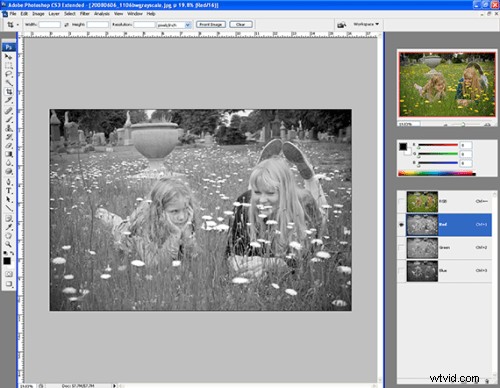
2. Channels palette open, red channel selected
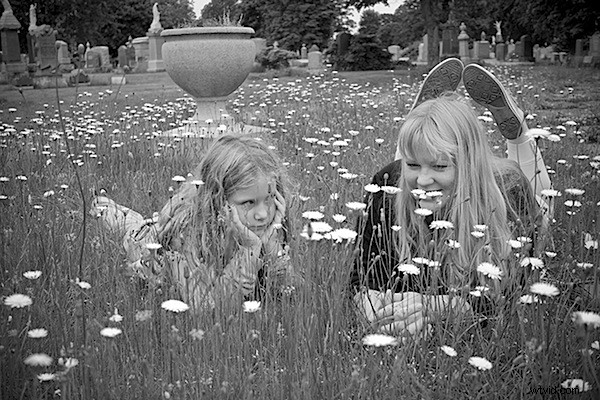
3. This image was photographed in color. This is the version with only the red channel selected.
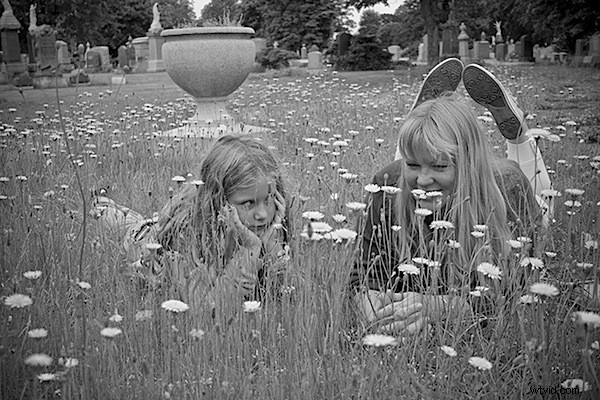
4. The same image, with only the green channel selected in the RGB channel palette
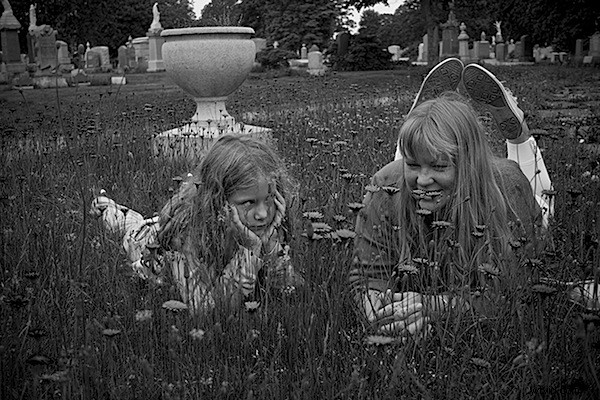
5. The same image again, only with the blue channel selected this time
If one of the three desaturated images you create appeals to you, and you want to save it as an independent image,:
- Select the channel you want to use to create your desaturated image.
- Go to the “Image” pulldown menu and choose “Mode.”
- From “Mode,” pick “Grayscale.”
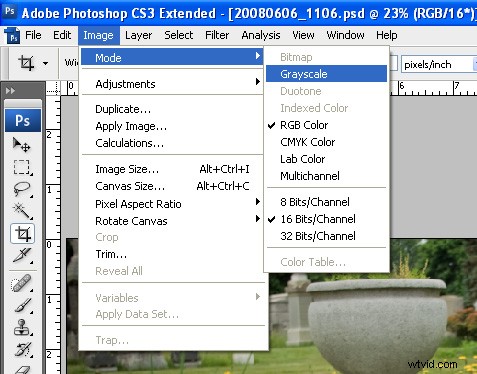
6. Converting to grayscale
Photoshop will ask you if you want to discard the color information. Click yes. You will then be asked if you want to discard the other layers. Click discard.
You will then be left with your black and white image based on whatever color channel you picked. The image has no color now, so only luminance levels need to be displayed, therefore, in the layers palette, there will be only a single layer, grayscale.
Different processing techniques of the original color image can yield dramatically different results when you desaturate:
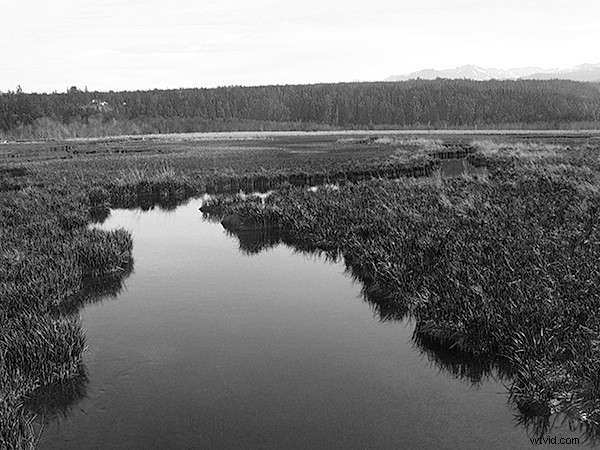
7. Color image desaturated based on the green channel
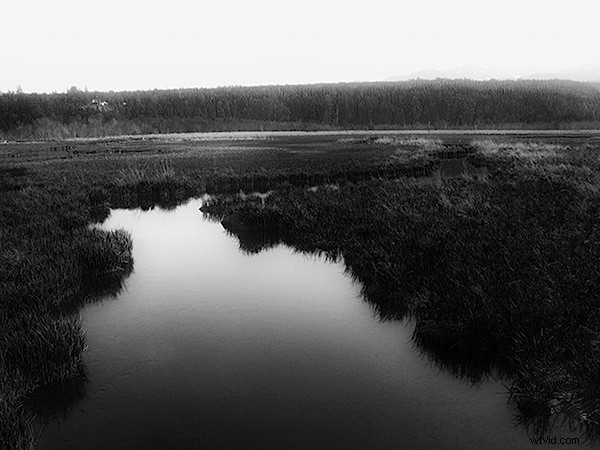
8. The same image, desaturated with the help of the blue channel
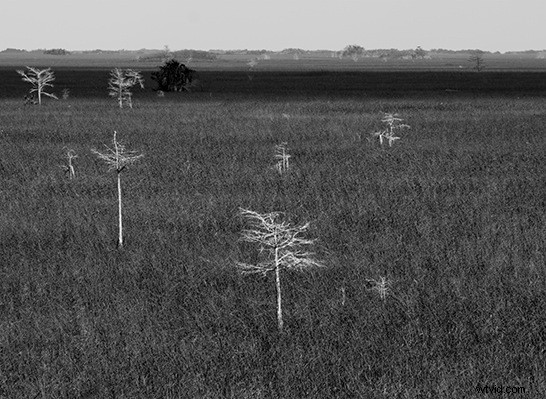
9. Desaturated image, also based on the blue channel
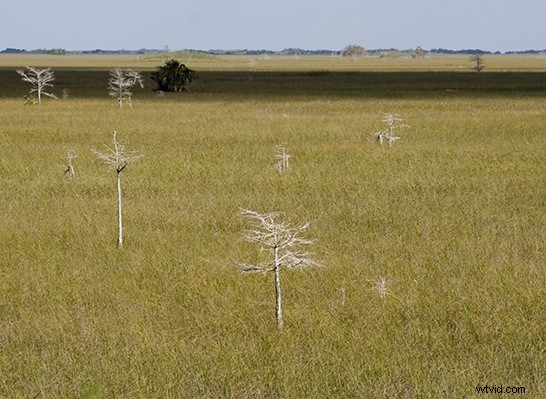
10. And the original RGB image from which the blue channel was extracted