
Creating original music can be time‑consuming and technically demanding, especially when using advanced tools like OpenAI’s Jukebox. This guide explains why Filmora’s AI Music Generator offers a faster, more user‑friendly solution for video creators looking to add royalty‑free tracks without the steep learning curve.
What Is Jukebox AI?
OpenAI’s Jukebox is a neural network designed to generate full audio waveforms from scratch. By learning patterns in raw sound data and accompanying lyrics, it produces music that mimics style, rhythm, and harmony. Prior work such as MuseNet focused on MIDI, which limits expressive detail; Jukebox moves beyond that by working directly with audio.

Core Technology
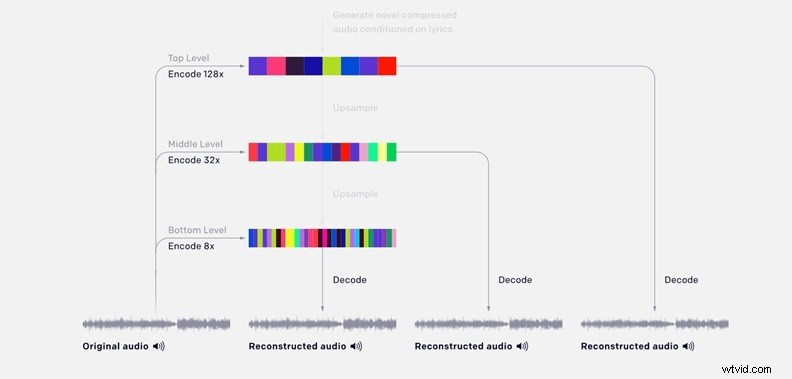
Trained on over 1.2 million songs, Jukebox compresses raw audio via VQ‑VAE, then uses transformer models—similar to those behind ChatGPT—to sequence these compressed codes into complete tracks. The result is music that feels coherent, even if pitch precision isn’t always perfect.
Is Jukebox Free?
As a research project, OpenAI has released the code, model weights, and sample outputs for free, but it is not packaged as a commercial product. Users must run the models locally or via cloud services.
What You Can Do with Jukebox AI
Beyond simple loops, Jukebox can:
- Compose full songs from start to finish, including vocals, instrumentation, and background layers.
- Imitate the style of famous artists such as Queen, Frank Sinatra, or Beyoncé.
- Turn supplied lyrics into a sung track, albeit with occasional timing or pronunciation quirks.
- Blend genres—e.g., jazz beats with hip‑hop rhythms or rock vocals over synth‑pop backdrops.
- Extend or remix existing clips through audio priming, maintaining stylistic consistency.
Limitations and Future Directions
Current Constraints
- No clear song structure: Jukebox often lacks defined verses, choruses, or bridges.
- Audio artifacts: Compression and upscaling can introduce distortion or fuzziness.
- Slow generation: One minute of music may take ~9 hours on high‑end hardware.
- Hardware‑intensive: Requires multiple GPUs and advanced technical setup.
- Limited diversity: Training data skews toward English and Western styles.
- No graphical interface: Interaction is purely code‑based.

Prospective Improvements
- Accelerated generation through model optimizations.
- Cleaner audio quality with reduced artifacts.
- Broader training data to support more languages and global genres.
- More accessible tools—apps or browser platforms that hide the code.
How to Use Jukebox AI
While there is no visual UI, Google Colab offers a convenient cloud‑based notebook to run Jukebox without setting up local infrastructure.
Step‑by‑Step Guide
- Open Google Colab, sign in, and create a new notebook.
- Clone the repository:
!git clone https://github.com/openai/jukebox.gitand navigate:%cd /content/jukebox/. - Install dependencies:
!pip install -r requirements.txt. - Download a pretrained model (e.g.,
python jukebox/download.py --model=5b_lyrics). If memory is limited, use1b_lyrics. - Mount Google Drive to store outputs:
from google.colab import drive; drive.mount('/content/drive'). - Configure generation parameters: sample length, genre/artist style, model size, and sampling temperature.
- Run each code cell sequentially. Once finished, preview and download the audio from your Drive.
Filmora’s AI Music Generator – A Practical Alternative
For creators who want instant, royalty‑free music without the overhead of code, Filmora’s built‑in AI Music Generator is the ideal solution. Integrated directly into the editor, it lets you craft tracks in minutes, matching mood, genre, or theme.
Why Filmora Stands Out
- One‑click workflow: No coding, no command lines.
- Quick generation: Minutes versus hours.
- Customizable duration and multiple versions.
- Instrumental tracks suitable for background music.
- Full integration: Edit, trim, loop, and sync within the same timeline.
- Complementary AI tools—Image Generator, Subtitle Generator—enrich the entire video creation process.

Generating Music in Filmora
- Launch Filmora on desktop or mobile.
- Navigate to the Audio tab and select AI Music.
- Choose mood, genre, or theme, set duration, and specify how many variations you’d like.
- Click Generate and wait a few moments for the AI to produce tracks.
- Listen, select the best fit, then drag it into your project timeline. Adjust volume, loop, or trim as needed.
Conclusion
OpenAI’s Jukebox showcases the potential of AI in music creation, but its technical demands make it less accessible for everyday use. Filmora’s AI Music Generator delivers comparable results in a fraction of the time, offering a trustworthy, royalty‑free solution for video creators worldwide.

FAQs
- Can Jukebox generate instrumental-only tracks? Yes, by using a non‑lyric model or omitting lyrics, Jukebox can focus on musical arrangement.
- Can I fine‑tune Jukebox on my own music? It’s not designed for user‑level fine‑tuning; large‑scale training requires significant compute and data.
- What file format does Jukebox output? Typically WAV (high‑quality, uncompressed). Many shared samples are MP3 for size.
- Is it legal to emulate artists’ styles with Jukebox? Personal or research use is fine; commercial releases that closely mimic real artists may raise copyright or likeness issues.