
Video editors often face the choice of Filmora vs Camtasia. Both tools are well-known, but they serve different needs. One focuses on creative editing with AI, effects, and a large asset library, while the other is more about recording your screen, making presentations, and creating training content.
If you are still considering which editor to try, we have prepared a detailed comparison of Camtasia and Filmora. This review uncovers all essential aspects, including their differences in features, simplicity of use, and price, to answer the following question: which tool is better – Camtasia or Filmora?
Part 1: What is Camtasia?
Camtasia, developed by TechSmith, is a well-liked screen recording and lesson video creation program. It enables users to record their screen and webcam at the same time, so it is suitable for how-tos, demos of software, online lessons, or even game recordings.
Its design is sleek, without the learning curve being too high. This balance of power and simplicity is why it remains trusted for business and education projects.
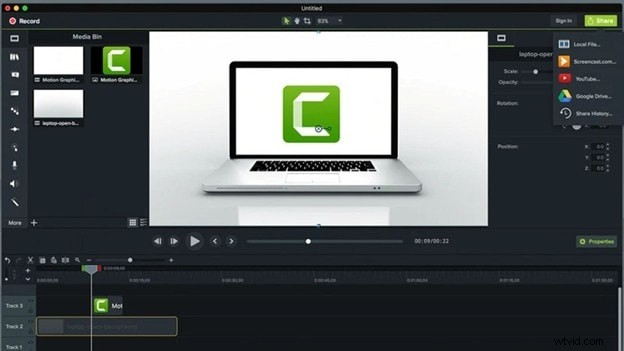
Core Features
- Screen + Webcam Capture: Record the screen, webcam feed, mouse path, and system or mic audio in one go.
- Tools for Editing Videos: Tools for Editing Videos: Use a straightforward timeline approach to insert transitions, animations, and annotations.
- Audio Tools: Noise reduction, normalization, emphasis, and quick audio cleanup for clarity.
- Cursor Control: Highlight cursor movement, change size, or add focus effects for better demos.
- Text and Titles: Insert annotations, subtitles, or instructions directly onto the video.
- Split and Merge: Break long clips or combine recordings without effort.
- Media Library: Store reusable images, sounds, and past projects for consistent branding.
Best Suited For
For experts that require high-quality training and instructional videos, Camtasia is the way to go. It is often used by:
- Teachers making classroom lessons
- Corporate teams producing onboarding videos
- HR staff creating compliance material
- Support teams explaining product use
- Businesses building customer tutorials
Part 2. What is Filmora?
Wondershare Filmora is a versatile video editor available for both Windows and Mac, with mobile apps for Android and iOS. It comes with simplicity but enriched creativity capabilities. With a clean interface, drag-and-drop timeline, and a variety of advanced features, it is easy to see why many people turn to Filmora for their video editing needs.
 Secure Download
Who Uses Filmora
- YouTubers and vloggers publishing frequent content
- Freelancers and agencies producing ads or brand videos
- Small businesses crafting promos and social clips
- Independent creators seeking professional results with less effort
Accessibility and Creative Edge
Filmora stands out for giving beginners and pros equal footing:
- 10K+ templates and 2.9M+ assets for quick starts
- AI Mate Editing provides guidance along with smart tools for editing, captioning, and audio cleanup.
- Advanced creativity with motion tracking, Green Screen, speed ramping, and keyframes
- Better performance for both Windows AND Mac (offering ProRes and Dolby Vision for macOS)
Part 3. Filmora vs Camtasia: Detailed Feature Comparison Table (2025 Data)
If you want to compare Filmora and Camtasia side by side, you can do that in this handy table.
| Attribute | Filmora | Camtasia |
| Feature | Efficient video editing with cutting-edge control, professional effects, and AI tools | Screen recording with tutorial-focused editing features |
| Best For | Creators, freelancers, small businesses | Educators, trainers, corporate teams |
| Ease of Use | Beginner-friendly, guided by AI, templates, and AI Mate Editing | Straightforward, but less flexible for creativity |
| Primary Focus | Storytelling, marketing, and social content | Lessons, walkthroughs, and eLearning |
| Pricing | Subscription and perpetual plans available | Moving toward a subscription-only model |
| AI Features | Extensive | Limited |
| Templates | 10K+ presets, 2.9M+ creative assets | Stock media and templates via TechSmith Assets |
| Platform | Windows & macOS desktop | Windows & macOS desktop |
Part 4. Feature Deep Dive: A Head-to-Head Breakdown
4.1 Video Editing & Creative Tools
Filmora focuses on quick, stylish edits. The software comes packed with advanced features like AI tools, motion tracking, green screen effects, audio editing, and a large library of creative assets such as transitions, filters, and overlays.
Secure Download
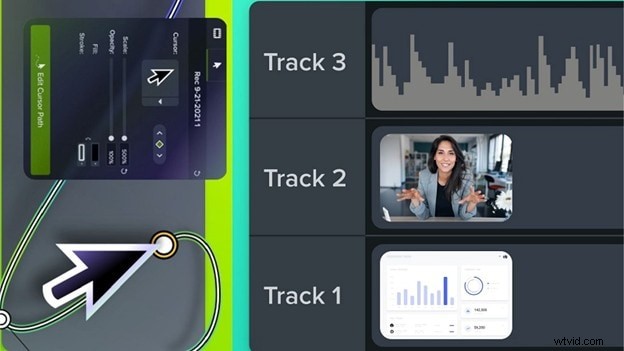
Camtasia centers on clarity for teaching. You get a multi-track timeline, animations, and interactive hotspots. Cursor emphasis, callouts, and on-screen shapes guide the viewer’s eye. A large set of transitions and customizable motion graphics supports step-by-step demos.
4.2 Screen Recording & Audio
Filmora desktop app features a screen recorder tool that lets you record the screen, webcam, and voiceovers with simple controls. It suits creators who want to capture, cut, and publish quickly. The recoded screen will be directly imported to its editing workspace, where you can finetune it.
Secure Download
Camtasia leads in capture depth. Input resolutions of up to 4K at 60 frames per second can be recorded.Add camera, mic, and system audio in one pass. Cursor paths, clicks, and keystrokes are recorded for precise edits. Audio tools include noise removal, leveling, normalization, and visual waveforms. You can auto-remove hesitations and add sound effects or visualizers for emphasis.
4.3 AI & Automation
Filmora speeds up the creative process with a wide range of AI and automation tools. To name a few, these AI tools include:
- Auto Captions: Instantly generate accurate subtitles for your videos.
- Auto Beat Sync: Match clips to the rhythm of your music in one click.
- AI Object Removal: Erase unwanted elements from your footage seamlessly.
- AI Audio Enhancer: Enhance sound quality, remove background noise, or apply AI voice effects.
- AI Portrait: Remove or replace backgrounds with precision.
- AI Voice Cloning & TTS: Generate natural-sounding voiceovers in different styles.
Filmora also supports video and image generation based on text prompts or reference files, giving you fresh visuals without starting from scratch.
Secure Download
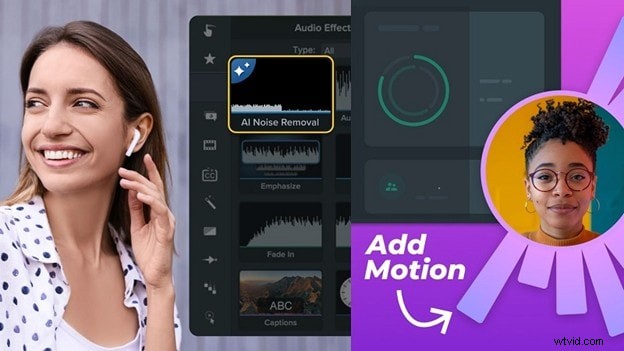
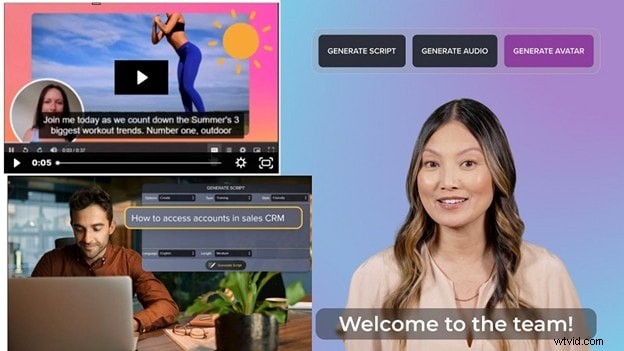
Camtasia adds AI tools designed for training and instructional workflows, which include:
- Auto Captions: Instantly generate captions, including dynamic, social-style subtitles.
- Text-to-Speech: Convert written scripts into natural-sounding voiceovers.
- Audio Enhancement: Improve clarity and reduce background noise for cleaner sound.
- AI Translation: Create multilingual versions of your content with translated captions and audio.
Part 5: Pros and Cons of Filmora and Camtasia
Camtasia
Pros
- Straightforward interface keeps all recording and editing tools within easy reach.
- Post-production is smooth, with fast trim, cut, and annotation tools plus ready-made effects.
- Multiple output options, including MP4 and GIF, allow flexible sharing.
Cons
- Works best as a standalone screen recorder, offering fewer features for team-based video collaboration.
- Upgrades require extra cost, as new versions are not included.
- No official mobile app for iOS or Android, limiting on-the-go use.
- Can feel heavy on mid-range systems, affecting performance.
Filmora
Pros
- Built-in screen recorder lets you capture your entire desktop or selected portions with ease.
- Available as both a subscription and a perpetual license, giving users flexible payment options.
- Smooth workflow since you can record and edit within the same platform, making turnaround faster.
- Packed with creative assets like transitions, effects, and templates to enhance videos quickly.
- Beginner-friendly interface with drag-and-drop editing that still includes advanced tools like AI features, motion tracking, and color grading.
Cons
- Free plan exports include a visible watermark.
- Some AI features rely on credits, which can limit heavy use.
Part 6: Final Verdict: Filmora or Camtasia? Which is Best for Your Needs?
When comparing Camtasia Studio vs Wondershare Filmora, the answer depends on your goals.
- If you are a teacher, trainer, or corporate communicator, Camtasia is ideal. Its quizzes, annotations, and screen recording lead the training market.
- If you are a YouTuber, marketer, independent creator, or a small business, Filmora is better off. Because of its AI tools, creative assets, and cost, it’s great for quick, stylish, and shareable videos.
So, which is better, Camtasia or Filmora? For learning, Camtasia. For creativity, Filmora.
Conclusion
As you can see, the difference between Filmora and Camtasia is night and day. For those needs, Camtasia is a great choice for organized training in which screen recording, cursor effects, and annotations are most important. Filmora, by contrast, is aimed at creators who are looking for quick and polished results, with the help of AI tools, templates, and better workflows.

Filmora
AI Video Editing App & Software
Best tool for making videos anywhere for all creators!
Simplify all your steps in video editing, from the pre-processing to finalizing, Filmora AI stays tuned.
Frequently Asked Questions
-
Can Filmora and Camtasia both be used for screen recording?
Yes. Camtasia excels in screen capture, recording screen, mic, system audio, and webcam all in high quality using its proprietary TREC format.Yes.
-
Which is better for beginners, Filmora or Camtasia?
Both are easy to learn. Camtasia is easy to use, it has a clean interface and great support through help materials and videos. Both are easy to learn.
-
Does Camtasia have a one-time purchase option?
Yes. Camtasia is available by perpetual license, although TechSmith is beginning to focus on annual subscriptions. You will be able to keep your one-time license version forever, but if you want the updates and new features, you need a subscription or maintenance plan.
-
Which software has better AI features for video editing?
Filmora provides more creative AI tools like auto captions, object removal, template-based editing, and music generation.
-
Is Filmora good for making tutorials and training videos?
Yes. Filmora supports screen recording, overlays, and audio editing—making it capable of tutorial creation.