
In the world of content creation, choosing the right tool is essential. This in-depth Canva vs Filmora 2025 comparison pits the versatile design powerhouse Canva against the dedicated video editing solution Wondershare Filmora. We explore core features, video editing power, AI capabilities, pricing, and user experience. Read on to find out which platform is the best fit for your specific design and professional video projects!
Part 1. Canva vs. Filmora: Core Purpose & Target Audience
When comparing Canva vs Filmora, both are valuable creative tools, but they were built with distinct goals in mind. Understanding their core purpose makes it easier to see which audience each platform serves best.
Canva: Design Versatility & Collaborative Features (Limited Video Editing)
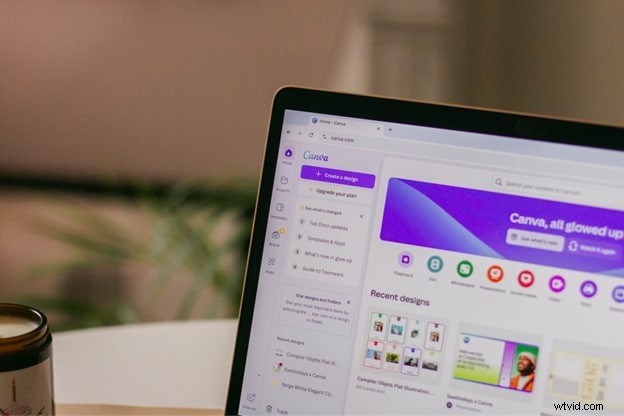
Canva is a cloud-based design platform for simple, accessible visuals. It works on browsers, desktops, and mobile devices, so users can design anywhere. The platform suits many creative needs like graphics, presentations, marketing, websites, and short videos.
Its core purpose is to remove complexity from the design process. Users can create professional visuals quickly, even without any formal design training. Canva emphasizes speed, ease of use, and consistent results across projects. This makes it valuable for individuals and teams producing content regularly with a clear brand identity.
Filmora: Advanced Video Editing Capabilities & Specialized AI Tools
 Secure Download
Filmora is a dedicated video editing application built for creative control. It works on desktop and online platforms, giving users flexibility in how they edit. Filmora focuses entirely on video, unlike Canva’s broader design approach.
Its purpose is to help creators turn raw footage into polished content. Users can start with simple edits and move toward advanced production. Filmora supports storytelling with tools that add depth, style, and precision. This makes it ideal for content creators, educators, and social storytellers seeking professional-quality videos.
Typical Users:
Canva
- Non-designers who want attractive results without technical complexity
- Marketers who need campaign visuals at scale
- Educators preparing slides, worksheets, or quick videos for lessons
- Small businesses that require consistent brand materials across channels
Filmora
- Video content creators producing vlogs, tutorials, or creative projects
- Educators making structured video lessons or explainer videos
- Social media storytellers who need engaging effects and advanced editing tools
In summary, Canva focuses on simplifying design for a broad range of visual formats, while Filmora provides a specialized workspace for detailed and creative video editing. Each tool fits a different set of needs, and choosing between them depends on whether design or video is your main priority.
Part 2. Canva vs Filmora Features: A Deep Dive into Video Editing Power & AI Tools
The real difference between Canva vs Filmora lies in what each platform is built to do best. Canva focuses on design versatility and team collaboration. On the other hand, Filmora is built around advanced video editing with the help of AI.
Canva
Drag-and-drop interface
Canva’s simplicity is one of its strongest advantages. The interface is clean and intuitive, making it easy for beginners to design. Users can create professional results without needing prior experience or training.
Massive template library
Canva provides thousands of ready-made templates across different formats. These include presentations, social media posts, websites, and even short video snippets. Every template can be customized to match a brand style or personal preference.
AI tools
Canva integrates AI features to make designing faster and easier. Magic Write generates text for captions, blog drafts, or social media posts. The background remover isolates subjects in photos with a single click. Auto-resizing adapts designs instantly for different platforms and formats. Canva also supports brand kits, content scheduling, and simple video editing tools.
Collaboration features
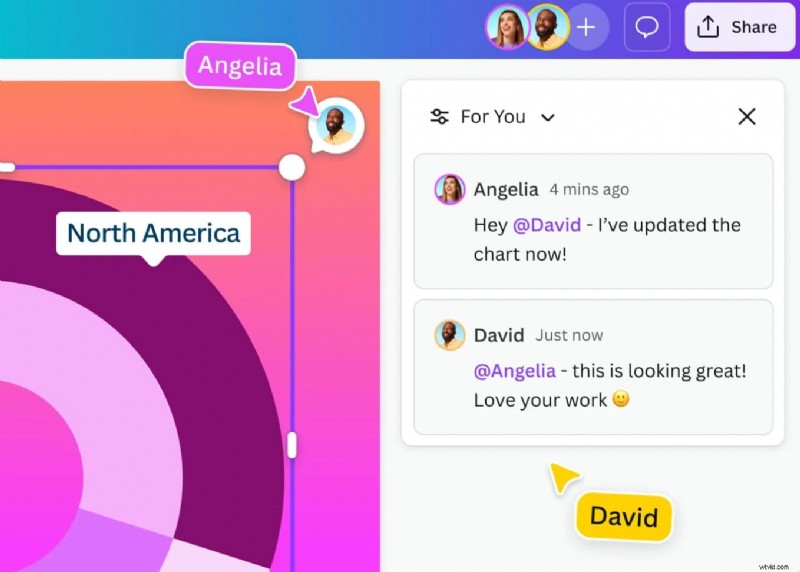
Canva is designed for teamwork. It allows real-time editing and threaded comments on projects. Templates can be shared across a team for consistent branding. Logos, fonts, and color palettes can be stored in brand kits. This ensures all projects stay aligned with the same design identity.
Filmora

Secure Download
Rich video-editing timeline
Filmora provides a professional yet approachable editing workspace. It supports multi-layer editing, combining video, audio, images, and effects in one project. Features like screen recording, slow motion, reverse playback, and Keyframing give creators more control.
Advanced features
Filmora goes beyond basic editing with a wide range of tools. It supports 4K video editing and proxy files for smoother performance. Stabilization tools help correct shaky footage, and fisheye correction adjusts distorted shots. Creative filters and 3D LUTs bring cinematic style through advanced color grading.
AI-powered enhancements
Filmora integrates AI to make editing faster and more effective. Text-to-Video converts scripts into videos automatically. AI auto-cutting trims clips with greater efficiency. Voice cloning supports narration, while dynamic captions sync perfectly with audio. Text-to-Speech and noise removal make videos polished with minimal effort.
Full Editing Toolkit
Filmora includes everything from AI-powered tools to basic editing features, such as transitions, filters, and professional color correction, to fine-tune your slideshow.
Part 3. User Experience & Learning Curve
Another key point in the Canva vs Filmora comparison is user experience. Canva emphasizes speed and accessibility, while Filmora balances simplicity with the depth needed for professional editing.
Ease of Use & Learning Curve
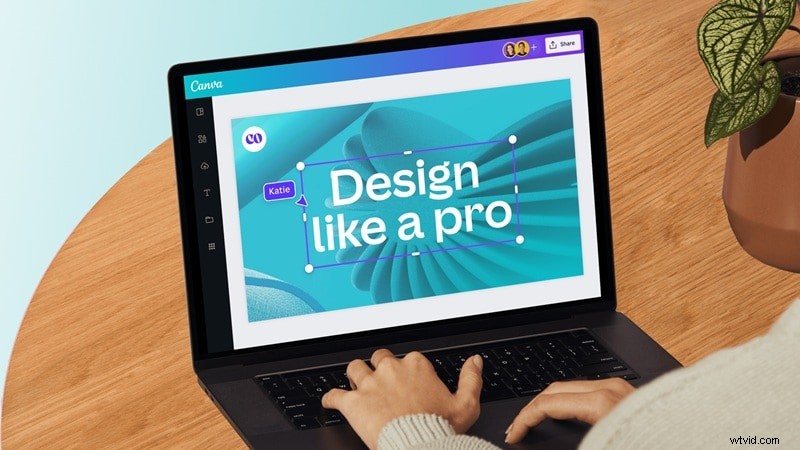
Canva: Canva is widely praised for being simple and beginner-friendly. Its drag-and-drop interface, clean menus, and clear layout make it easy to use. Even users with no design training can create professional-looking visuals. This makes Canva popular among marketers, educators, and small businesses who produce content quickly.
Filmora: Filmora is also approachable, especially for basic edits like trimming or adding music. It is simple enough for beginners who need to edit short clips. However, Filmora reveals more depth once users explore advanced features.
Secure Download
Tools like layered timelines or detailed effects require practice and patience to master. Compared with professional-grade editors, Filmora still feels lighter and more user-friendly overall.
Workflow Speed & Efficiency
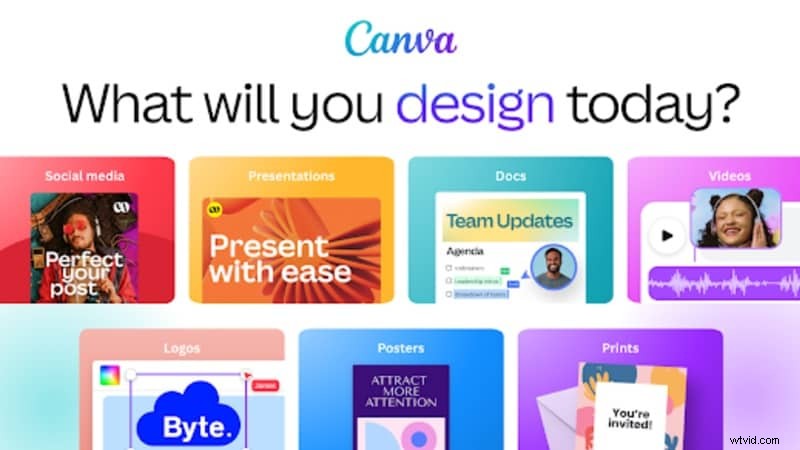
Canva: Canva is designed for efficiency. Its vast template library helps speed up production. Users can create social posts, presentations, or marketing materials within minutes. The focus is on visual quality with minimal technical effort. Canva’s workflow is ideal for quick turnarounds where design speed is essential.
Filmora: Filmora, by contrast, focuses on precision and creative control. Its timeline editing allows detailed adjustments at every stage of the video. This flexibility gives users more storytelling power, though projects often take longer. Beginners can finish simple edits fast, but advanced videos need setup and familiarity. Filmora rewards users willing to invest time in learning its tools.
Secure Download
Support & Community
Canva: Canva benefits from a large, active community and strong tutorials. Its customer support is responsive, helping both individual users and collaborative teams.
Filmora: Filmora also provides tutorials, guides, and responsive support. However, its user community is smaller and less collaborative compared with Canva.
Part 4. Pricing & Value
Pricing is often one of the deciding factors in the Canva vs Filmora comparison, since both platforms offer free access but differ in how their paid plans are structured.
Canva
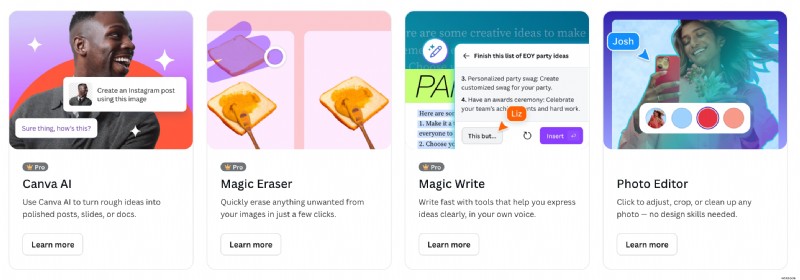
Canva provides a free tier that already includes a wide selection of templates and design tools. For users who need more, Canva Pro starts at around USD 12.99 per month when billed yearly. This plan unlocks advanced assets, premium templates, AI-powered tools like Magic Write and background remover, as well as brand kits and content scheduling.
Teams can also opt for Canva for Teams, which extends collaboration features and centralized brand management. It makes this tool more valuable for businesses.
Filmora
Secure Download
Filmora also offers a free plan, but exported videos may include a watermark. For paid access, you can choose from different plans based on your needs, including flexible subscriptions or a one-time perpetual license, which can be more cost-effective for long-term users.
In terms of value, Canva appeals more to those who need a wide range of design formats with strong collaboration tools, while Filmora’s pricing structure is attractive for creators focused mainly on video editing. The choice between Filmora vs Canva depends on whether your investment will go further in versatile design or advanced video production.
Part 5. When to Use Which?
When comparing Canva vs Filmora, the choice often comes down to what type of content you want to create and how much control you need in the process. Each platform has its strengths, and in some cases, they can even work together to deliver the best results.
Choose Canva if you need:
- Fast and simple creation of graphics, layouts, and short video snippets.
- A platform that supports collaboration with teams, ensuring consistent brand-styled outputs.
- AI tools for tasks like generating text, removing backgrounds, or resizing designs quickly.
Choose Filmora if you need:
- Greater control over video editing with effects, transitions, and precise cuts.
- Advanced options for storytelling, including multi-layer editing and professional effects.
- AI features are designed to enhance video workflows, such as Text-to-Video, voice cloning, or noise removal.
Combo Scenarios: Maximize Results by Combining Canva with Filmora
In many cases, Canva and Filmora can complement each other. For example, you can design branded visuals, titles, or thumbnails in Canva and then import them into Filmora for integration into your video.
Similarly, you can edit a polished video in Filmora and later use Canva to create promotional graphics, captions, or social media thumbnails. The Canva-Filmora combination works especially well for creators who manage content across multiple platforms.
Secure Download
Comparison Table: Canva vs. Filmora
| Aspect | Canva | Filmora |
| Core Purpose | Graphic design and multi-format content | Dedicated video editing with advanced tools |
| Ease of Use | Very beginner-friendly, minimal learning curve | Simple for basics, moderate for advanced use |
| Speed | Fast template-based workflow | Efficient with control and customization |
| Collaboration | Strong, real-time teamwork and brand kits | Individual-focused, ideal for content creators |
| AI Tools | Magic Write, background remover, auto-resize | Text-to-Video, dynamic captions, voice cloning |
| Pricing | Free tier, Pro from ~$12.99/month | Free plan available, paid from ~$9.99/month |
| Best For | Marketers, educators, small businesses | Content creators, educators, social storytellers |
Conclusion
In the Canva vs Filmora debate, both platforms offer unique strengths. Canva is unmatched in its ease of design, giving users access to AI-driven templates, simple editing tools, and strong collaboration features that make team projects seamless. It is an excellent choice for quick, design-heavy tasks such as presentations, marketing visuals, and short graphics.
Filmora, however, takes the lead when the focus shifts to video. With its layered editing environment, creative effects, and AI-powered tools, Filmora helps creators deliver professional-quality videos with more control and flexibility.
The best approach is to choose based on your main priority. For versatile design, Canva fits the bill, but for impactful video content, Filmora offers a stronger advantage.

Filmora
AI Video Editing App & Software
Best tool for making videos anywhere for all creators!
Simplify all your steps in video editing, from the pre-processing to finalizing, Filmora AI stays tuned.
Frequently Asked Questions
-
Can Canva Do Advanced Video Editing Like Filmora? Key Differences Explained
No, Canva is limited to basic video editing such as trimming, adding text, and simple transitions. Filmora, by comparison, supports advanced effects like green screen, color grading, motion tracking, and AI-powered editing, making it much more suitable for professional-quality videos.
-
Is Filmora good for beginners?
Yes. Filmora is designed to be approachable, with an intuitive interface that makes basic editing easy for beginners. At the same time, it includes advanced tools that users can explore as they grow more comfortable, making it a platform that adapts to both new and experienced creators.
-
Which tool has better AI features?
Both platforms integrate AI, but in different ways. Canva focuses on AI for design tasks, such as Magic Write for text generation, auto-resizing, and background removal. Filmora applies AI directly to video editing, offering features like Text-to-Video, voice cloning, dynamic captions, and noise removal. For video-focused projects, Filmora’s AI tools provide a more practical advantage.