
In today’s digital landscape, capturing your desktop has become essential—whether you’re crafting tutorials, streaming gameplay, or sharing real‑time insights. On Linux, one solution stands out: Kazam Screen Recorder. This guide covers everything from what Kazam offers, how to install it, its key features, and the best alternatives for Windows and macOS users.
1. What Is Kazam?
Kazam is a lightweight, open‑source screen recording tool tailored for Ubuntu, Linux Mint, Debian, and related distributions. It supports audio capture from microphones and speakers, provides a clean user interface, and offers basic editing options such as screenshot capture and mouse‑highlighting.
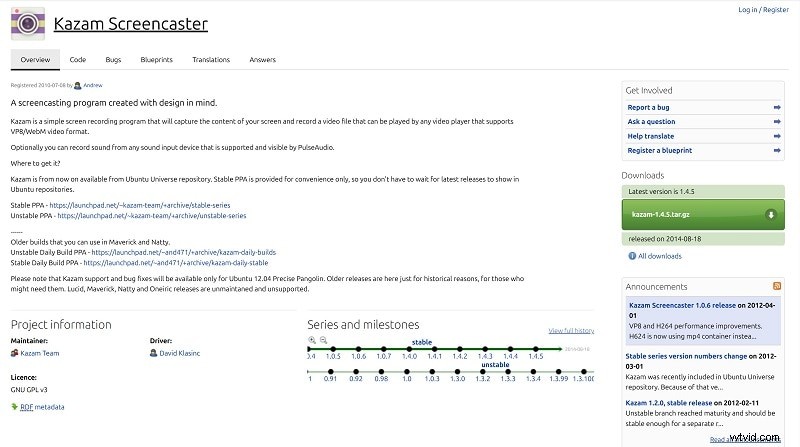
Available in multiple versions, Kazam remains free and devoid of watermarks, making it ideal for both casual and professional use.
| Kazam 1.4.5 | Developed and maintained by the Kazam Team via Launchpad |
| Kazam 1.5.3 | Community‑driven updates via Launchpad |
| Kazam 2.0 | Community‑maintained on GitHub |
2. Core Features
Across all releases, Kazam delivers these essential functions:
- Record a single window, full screen, or a user‑selected region.
- Capture screenshots on demand.
- Show mouse cursor, key presses, and click indicators.
- Overlay webcam feed as picture‑in‑picture or separate window.
- Export to MP4, WebM, or RAW formats.
Additional capabilities in newer versions:
| Kazam 1.5.3 | Live‑stream to Twitch or YouTube |
| Kazam 2.0 | Optical Character Recognition (OCR) for text extraction |
3. Installing Kazam
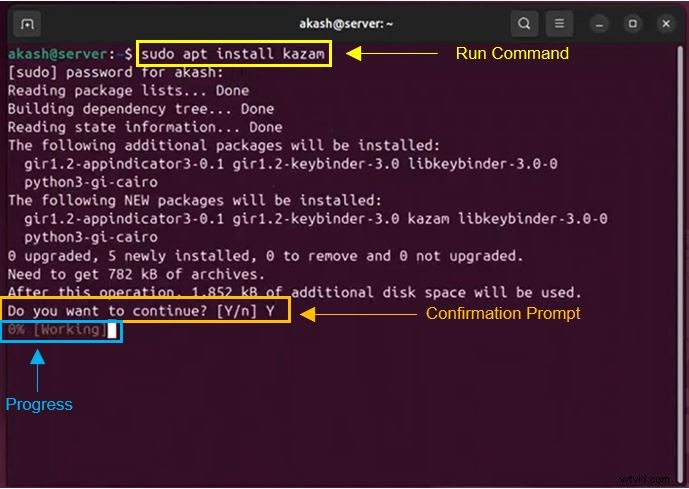
Installation is straightforward on Ubuntu, Linux Mint, or Debian. Open a terminal and run the following commands:
- Launch the terminal.
- Execute:
sudo apt install kazam - Confirm with
Ywhen prompted. - Wait for installation to complete.
- Launch Kazam from your application launcher.
4. Using Kazam
4.1 Start Recording
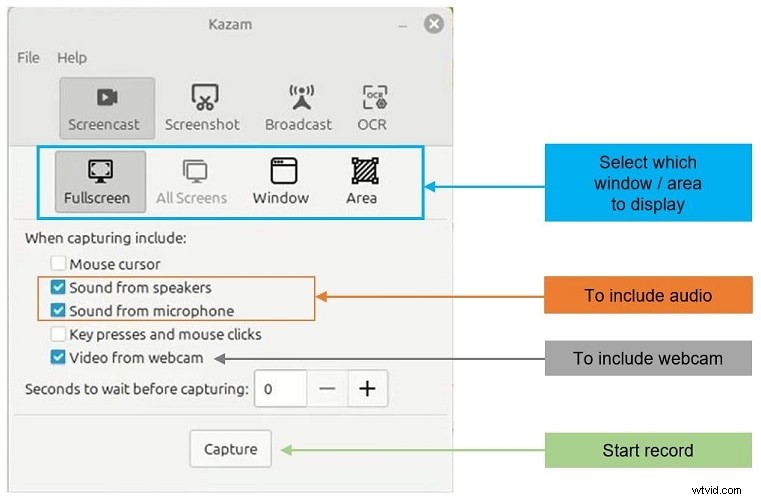
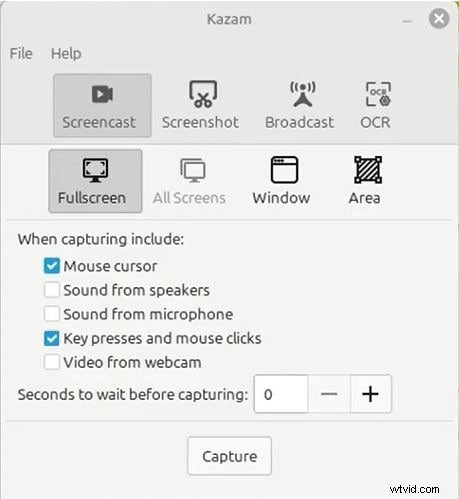
Upon opening Kazam, a recording window appears. Select the desired area and click Capture. Enable audio by checking the Microphone and/or Speaker boxes.
4.2 Enhance Visuals
Turn on the mouse cursor, key‑press, and click indicators to make tutorials easier to follow.
4.3 Save and Edit
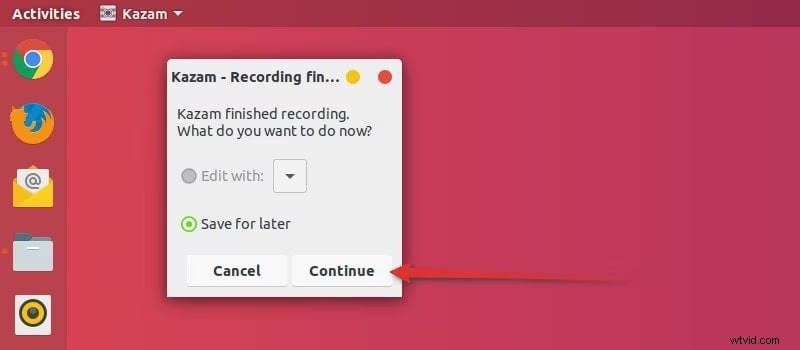
After stopping the recording, choose Save for Later or immediately open your preferred video editor. By default, recordings are stored in the Videos folder.
4.4 Live‑Streaming
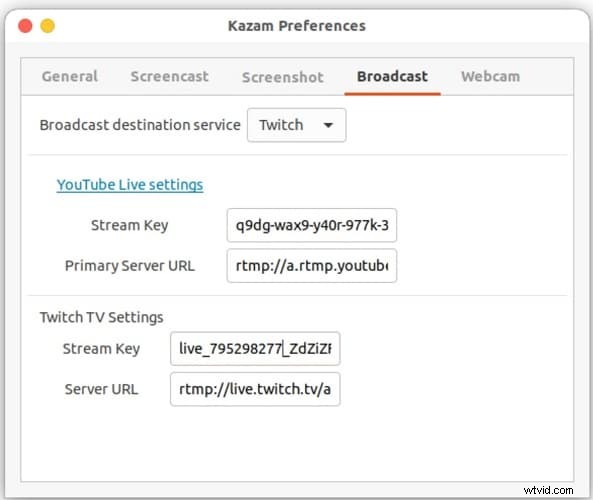
For real‑time content, log in to Twitch or YouTube, copy your stream key, paste it into Kazam, and hit Start Live.
4.5 Customize Settings
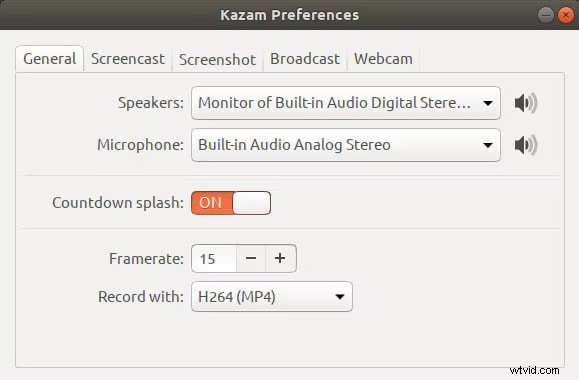
Adjust resolution, frame rate, and output format to match your device’s capabilities.
4.6 Keyboard Shortcuts
- Super + CTRL + W: Toggle main window
- Super + CTRL + R: Start recording
- Super + CTRL + P: Pause/Resume
- Super + CTRL + F: Finish recording
- Super + CTRL + Q: Quit
5. Pros & Cons
Pros
- Free, open‑source, and watermark‑free.
- Intuitive region selection and optional webcam overlay.
- Versatile across multiple Linux distributions.
Cons
- Core development has slowed; newer features are rare.
- Occasional compatibility hurdles on the latest Ubuntu releases.
- Limited editing capabilities and output formats.
6. The Best Alternative for Windows & macOS: Wondershare Filmora
While Kazam excels on Linux, Windows and macOS users need a comparable yet feature‑rich tool. Wondershare Filmora fills this niche, combining screen recording with robust editing in a single application.

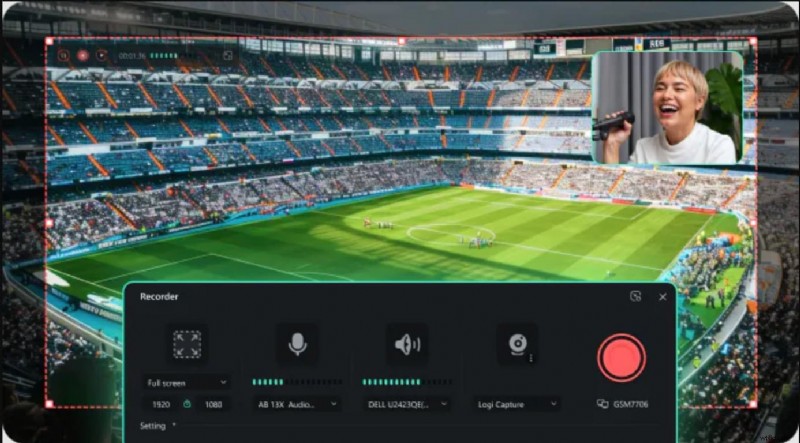
All‑In‑One Workflow
Filmora’s recorder is simple to launch and automatically opens the built‑in editor once recording stops, eliminating the need to switch apps.
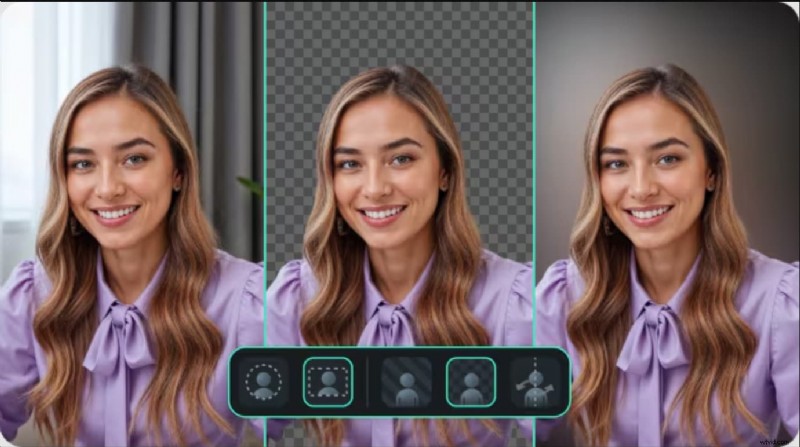
Customizable Backgrounds
Adjust webcam background with blur or removal options, choose frame shape, and toggle mirroring—all at a click.
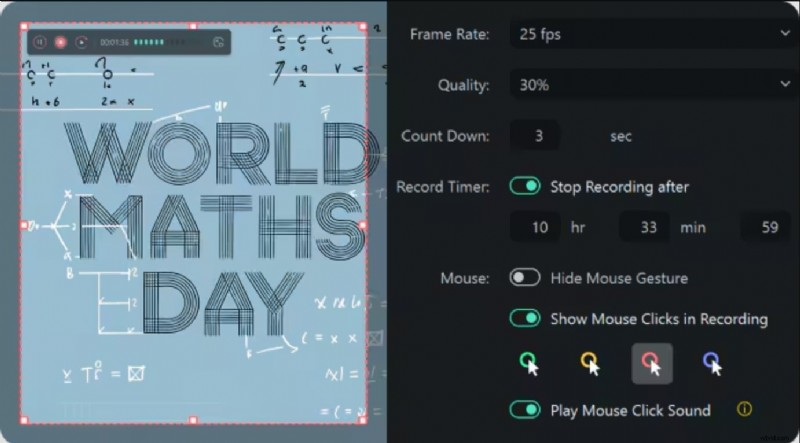
Advanced Recording Controls
Set frame rate, quality, countdown timers, and include or exclude the mouse cursor to match your content’s needs.
Custom Aspect Ratios
Filmora offers presets for YouTube, TikTok, and other platforms, or you can craft a custom ratio for any project.
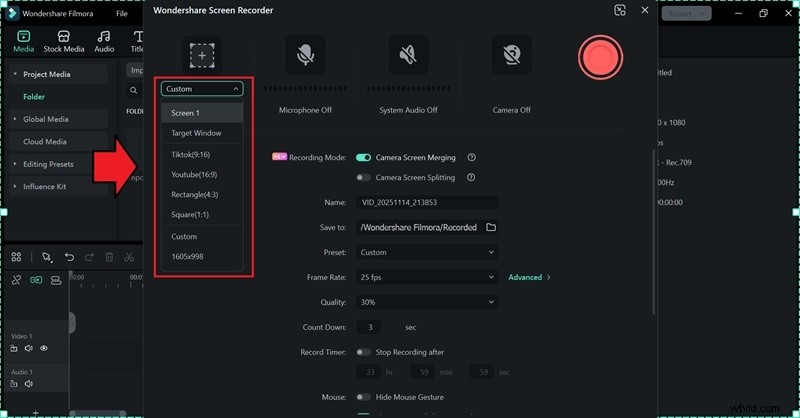
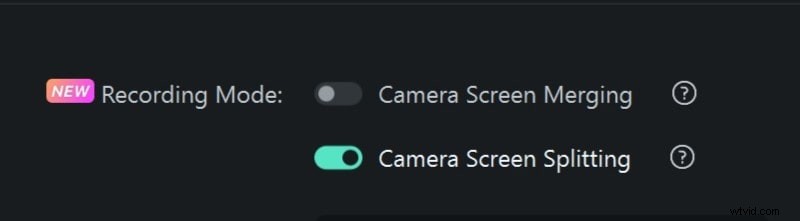
Camera Recording Modes
Choose between merging screen and webcam into one track or keeping them separate for flexible editing.
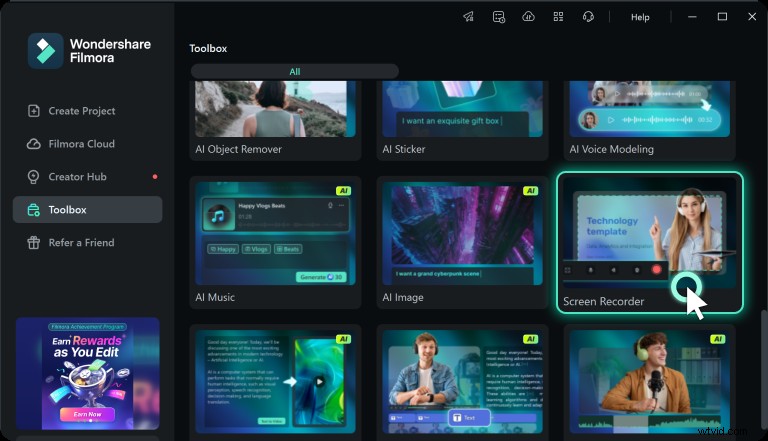
7. How to Use Filmora’s Screen Recorder
After installing Filmora, launch the app and locate Screen Recorder from the toolbox. Configure your capture area, audio sources, and webcam overlay. Hit the red button to start recording, then use the on‑screen controls to pause or stop. Once finished, Filmora opens the editor for trimming, cropping, and adding effects.
Conclusion
Kazam remains a trusted choice for Linux users seeking a straightforward, watermark‑free screen recorder. Its ability to stream live and integrate webcam overlays adds significant value. However, its development pace and limited editing options mean it may not satisfy every workflow. For Windows and macOS users, Wondershare Filmora delivers a comprehensive recording and editing suite that keeps your creative process seamless and efficient.
FAQs
- Does Kazam add watermarks? No, all recordings are watermark‑free.
- Can I edit Kazam recordings? Direct editing is not built into Kazam; you can, however, launch a third‑party editor via the Save for Later option. Filmora allows immediate post‑capture editing.
- Can I capture audio only? Yes—enable the microphone or speaker boxes as needed.