
Are you struggling to keep up when posting content on social media? Canva's social media scheduler might be the tool you're looking for. Scheduling social media posts is essential for maintaining a consistent online presence. And you can do this scheduling with Canva.
With Canva's Social Media Planner, you can save time, stay organized, and ensure your content reaches the audience at the perfect moment. In this guide, we'll show you how to use Canva's Content Planner. Let's dive in and boost your social media engagement!
In this article
Part 1. How to Schedule Social Media Posts on Canva
Canva allows you to design content for many purposes, including social media content. With Canva's Content Planner, you can view and organize your posts with a calendar, and then publish directly from Canva without switching apps. It currently supports X (Twitter), Pinterest, LinkedIn, Facebook, Slack, Tumblr, and Instagram.
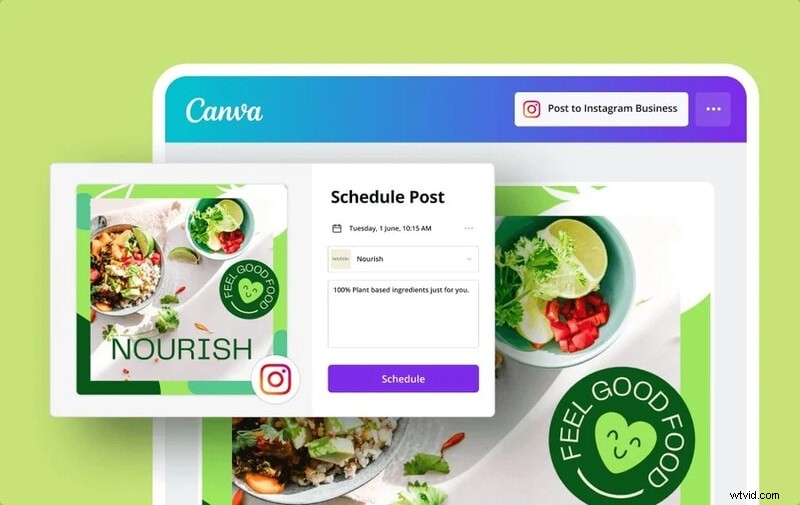
Here are the steps on how to schedule social media posts on Canva without switching apps:
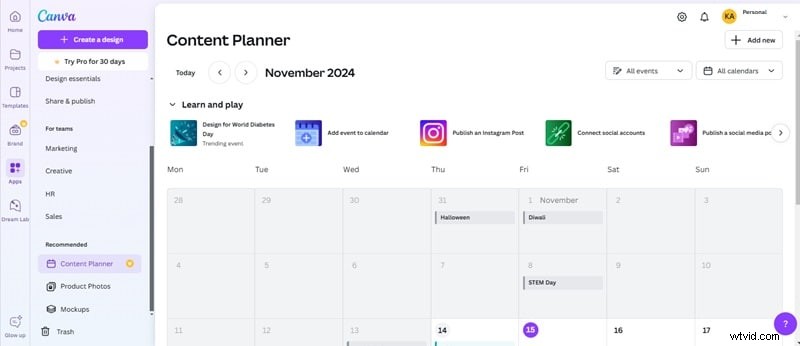
Step 1Access the Content Planner
From Canva's homepage, navigate to the side menu to click on Apps, Content Planner.
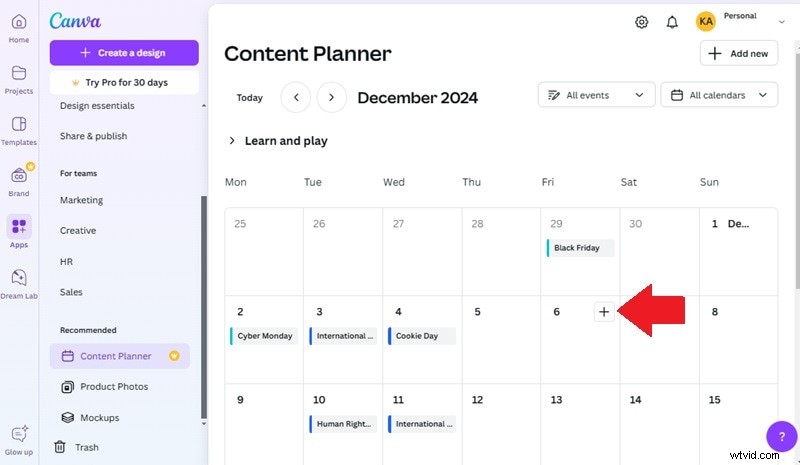
Step 2Choose a Date
Pick the date you want to schedule your post and click the Plus (+) icon.
Step 3Select a Design
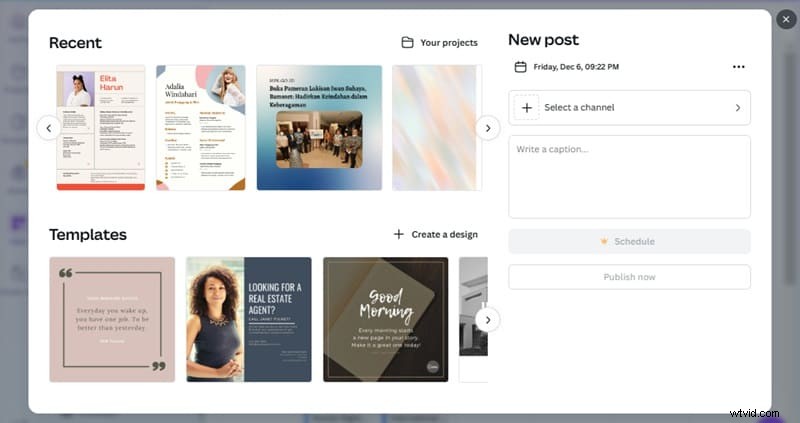
- For Existing Designs: Click on Recent to choose from your previous creations. If you don't see your design, click Your Projects to search for it.
- For New Designs: Click Create a design, pick a template, or use the search bar to find one. After designing, click Share, Schedule (you may need to click More first).
Step 4Set the Post Settings
Adjust the scheduling time and date; the time follows your local timezone. Then, click Select a channel and pick the connected social media account. If you haven't linked an account yet, click Connect and log in to your preferred platform.
Step 5Add a Caption and Schedule
Write a caption if needed, then click Schedule post to finish.
Tip: For Instagram, you may need to choose between Schedule or Post from your desktop to complete the process.
Part 2. Limitations of Canva's Social Media Scheduler
Canva's Content Planner is a convenient tool for scheduling posts. However, it does come with a few limitations that may impact users looking for more advanced features. Here are a few of them:
- Limited Platform Support: Currently, Canva's social media scheduler only supports a handful of platforms like X (Twitter), Pinterest, LinkedIn, Facebook, Slack, Tumblr, and Instagram. If you're looking to schedule content for platforms like YouTube or TikTok, you'll need to rely on other tools.
- Limited Post Types: Canva's social media scheduler primarily handles static images and text-based posts. Unfortunately, it lacks support for scheduling videos, carousel posts, or other multimedia content. This limitation can be a significant drawback if your social media strategy relies heavily on video content.
- Lack of Advanced Analytics: While Canva allows you to design and schedule posts, it doesn't offer comprehensive analytics or performance insights.
- No Bulk Scheduling: Canva's Content Planner does not offer bulk scheduling capabilities. If you have a large volume of posts to schedule at once, you may find this process time-consuming compared to other social media management tools that support bulk uploads.
If you need to manage multiple accounts, schedule diverse post types, or access detailed analytics, you might find Canva's social media scheduler limiting. In such cases, exploring other options can provide more flexibility and features. Up next, we'll explore an alternative solution to help you schedule YouTube's content seamlessly.
Bonus: Need to Schedule Videos? Top Alternative to Canva
If Canva's Content Planner doesn't meet all your needs, especially for scheduling video content, consider using Wondershare Filmora. Filmora has a Social Video Planner feature to share and schedule when to post after editing a video. Although it currently can only be accessed after repurposing a long video into a short one using the Smart Short Clips feature.
It not only helps you trim long videos into shorter ones, but also allows you to customize your video posts for various platforms. With features like AI-generated titles, scheduled publishing, and customizable video parameters, it ensures you maintain consistency in your video posts, which is key to building an engaged audience.
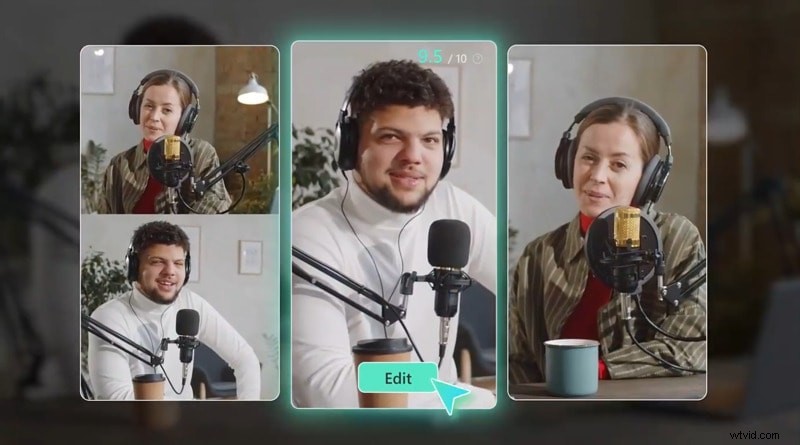


Here are the steps on how to convert long videos to shorts and share it directly from Filmora:
Step 1Launch Filmora and Open Smart Short Clips
Open Filmora on your computer and navigate to the Smart Short Clips feature from the list of available tools.

Step 2Import Your Video
You can either paste a YouTube link, upload a video file from your device, or select a file from Filmora Cloud.

Note: If using a YouTube link, it must be from your own channel.
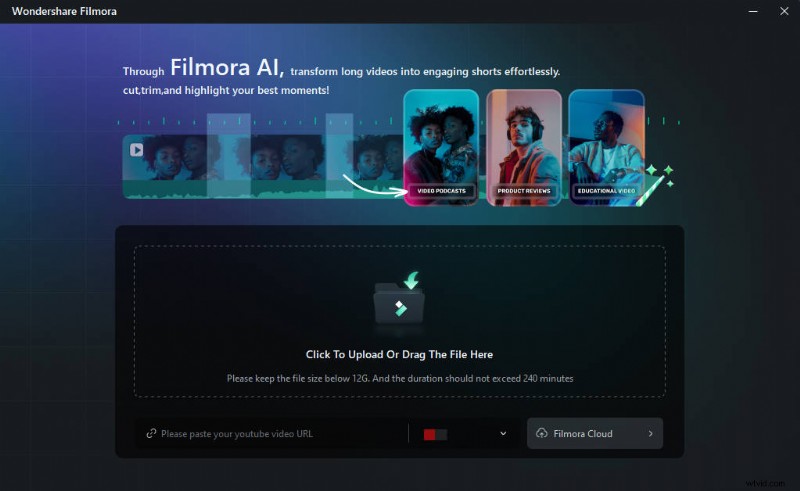
Step 3Customize Video Settings
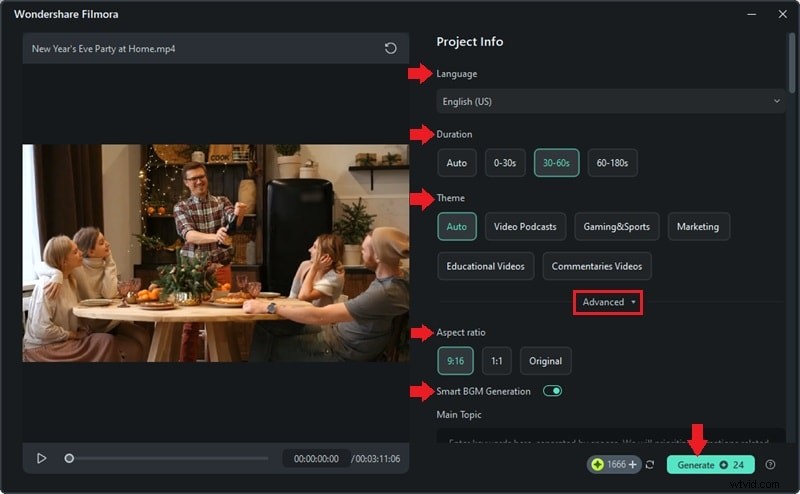
In the customization window, you can choose the video Language, set the clip Duration, and pick a Theme. For additional options, go to Advanced to adjust the Aspect Ratio and enable features of Smart BGM Generation for automatic background music. Click Generate when ready.
Step 4Select a Shortened Clip
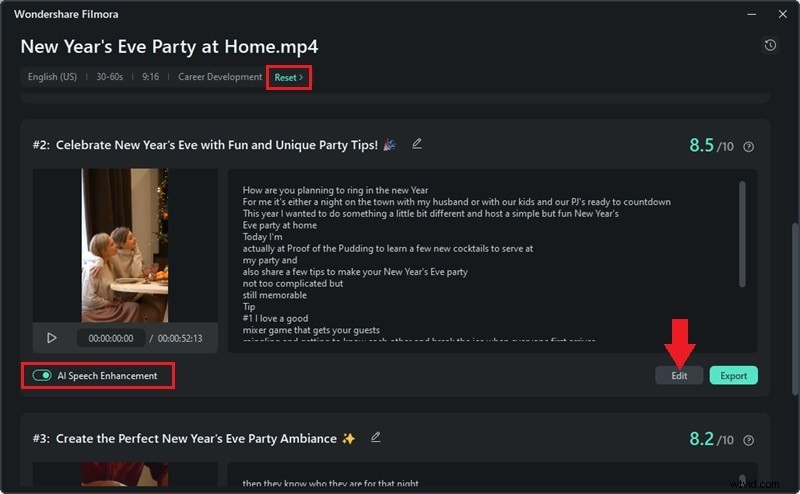
After analyzing your video, Filmora will create several shortened clips. Choose your preferred one. You can Reset to regenerate clips or apply AI Speech Enhancements for better audio quality. Click Edit to enter the editing mode.
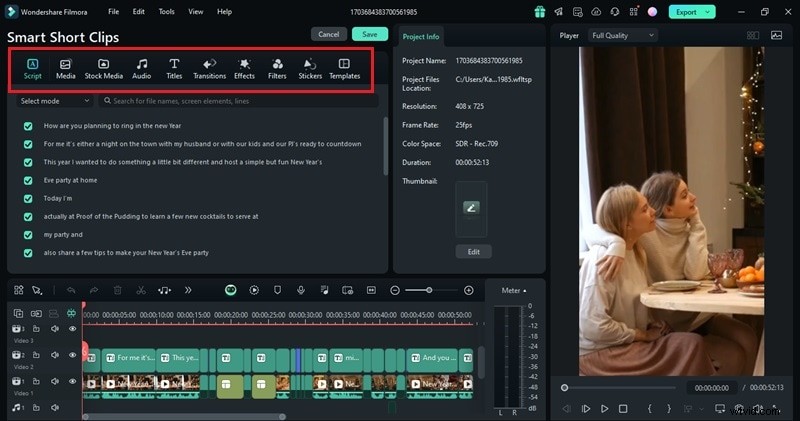
Step 5Edit Your Clip
In the editing workspace, make final adjustments to your clip. Add or edit captions, change fonts, and include elements like transitions, filters, and stickers.
Step 6Share Your Video Directly to Social Media Platforms
To export your video directly to social media, go to the Export window. Select Social Media and choose either YouTube, Vimeo, Instagram, Facebook and more. Then, fill in the required details such as title, resolution, and set the Schedule. Finally, click Save to finalize.
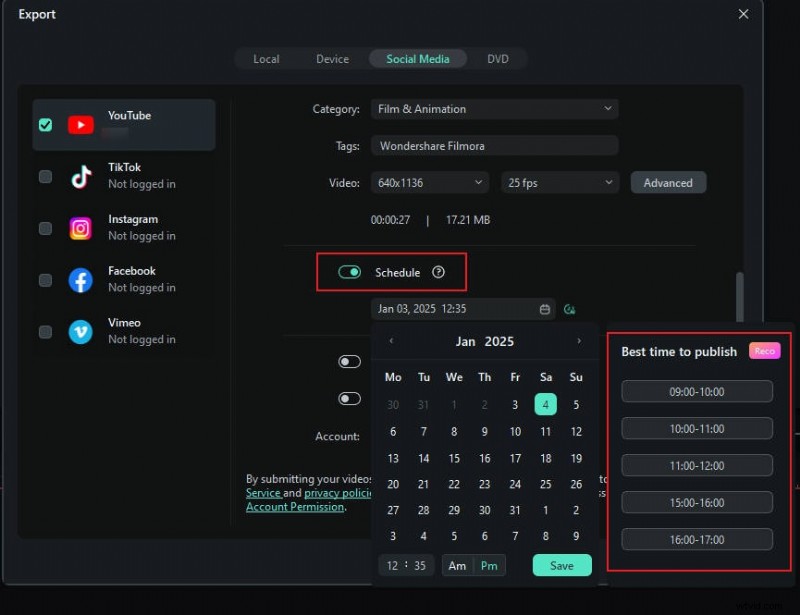
Note: The Social Video Planner is currently accessible only through the Smart Short Clips feature. You can make, schedule and monitor your shorts on YouTube, TikTok, Instagram, Facebook and Vimeo easilt and professionally through this feature.
Conclusion
Canva's social media scheduler offers an efficient tool to design and schedule posts for social media content. However, it still has limitations, such as it can only handle static images and text-based posts.
If you need to schedule video content like YouTube, Canva's Content Planner is not for you. You can consider using other alternatives like Filmora. With the right tool, you can streamline your social media strategy and boost your engagement effortlessly!