
Emojis are a powerful way to convey emotion and increase viewer engagement. While Premiere Pro doesn’t ship with a dedicated emoji library, you can easily embed emojis using three proven techniques: import image files, use system emoji shortcuts, or install third‑party plugins. This guide walks you through each method, then compares Premiere Pro’s workflow to Filmora’s one‑click emoji tools so you can choose the best solution for your projects.
1. Emoji Insertion Methods in Premiere Pro
Below is a quick reference of the most common approaches:
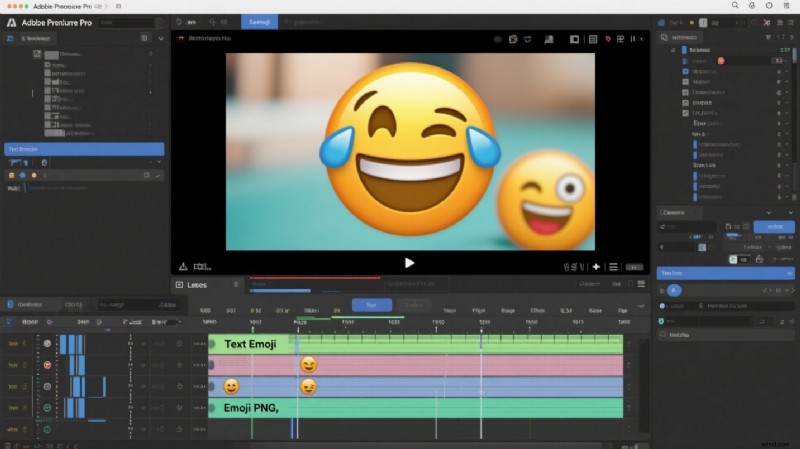
| Method | Description | Ideal For |
| Text‑Based Emoji | Insert directly from the system emoji picker. | Fast, lightweight additions in titles or captions. |
| Image‑Based Emoji | Import PNG or SVG files for full control over size, color, and animation. | High‑quality, design‑flexible projects. |
| Third‑Party Plugins | Advanced animated or custom‑styled emojis. | Power users seeking motion‑rich effects. |
2. Step‑by‑Step: Adding Emojis in Premiere Pro
2.1 Text‑Based Emojis
Mac
- Place a text layer on the timeline (Cmd+T). Click the T icon in the Program Monitor to open a text box.
- Double‑click the box, then press Ctrl+Opt+Space to launch the emoji picker. Choose an emoji and insert it.
- Fine‑tune the emoji’s font, size, and position in the Essential Graphics panel.
Windows
- Create a text layer (Win+.). The emoji panel will appear automatically.
- Select an emoji, then use Essential Graphics to adjust its size and placement.
2.2 Image‑Based Emojis
When a built‑in emoji isn’t sufficient, import a PNG/SVG file:
- Convert an emoji to an image using a free online tool.
- Drag the file onto the timeline.
- Use the Effect Controls panel to resize, recolor, or animate the emoji.
2.3 Third‑Party Plugins
Plugins such as Emojify or Motion Graphics Pack provide animated stickers and custom styles. Install via Adobe Exchange, then drag the plugin layer onto your sequence.
3. Quick Emoji Addition with Filmora
Filmora streamlines emoji integration with a built‑in library, AI sticker generator, and motion‑tracking. Below is a concise workflow:
3.1 Add Emojis from the Stickers Library
- Open a new project and import your video.
- Navigate to Stickers → Emoji and pick an icon.
- Drag the emoji onto the timeline, resize, and adjust opacity in the properties panel.
- Optional: Apply Motion Tracking so the emoji follows a moving object.
3.2 Generate Custom Emojis with AI Sticker Generator
- Go to Stickers → AI Sticker.
- Enter a prompt (e.g., “happy robot”) and select a style.
- Place the generated sticker on the timeline and tweak its settings.
3.3 Auto‑Generated Emojis in AI Captions
- Activate AI Captions from the toolbar.
- Enable the AI Emoji toggle to auto‑add relevant icons next to each caption.
- Export the finished video.
Conclusion
Premiere Pro offers flexible emoji solutions—whether you prefer quick text inserts, fully controllable image files, or dynamic plugins. If you’re looking for a more user‑friendly experience, Filmora’s integrated emoji tools can save time and add creative flair. Choose the workflow that best matches your production style and audience engagement goals.

Filmora – AI Video Editing App & Software
Perfect for creators who want to start editing without a steep learning curve.