
Adjusting audio pitch can completely change how a video feels. The built-in Pitch Shifter Premiere Pro lets creators modify voices for different effects, raising them for a playful, chipmunk-like tone or lowering them for a deep, monster-style sound. It's commonly used to match character voices, add cartoon effects, or create humorous edits.
In comparison, Filmora offers a simpler Pitch Changer designed for beginners who want quick results. Its Voice Changer presets make it easy to experiment without manual tuning. This blog explains how each tool works and helps you decide which one better fits your editing needs.

Part 1. What Pitch Shifter Premiere Pro Can Do
Before we dive deep into the process of pitch-shifting, we must understand this concept in the ecosystem of Premiere Pro. The following text features what the pitch-changer of this tool is capable of:
- Raise the Pitch: By increasing the pitch of audio we get a light, playful or chipmunk voice effect. It is a common method of the cartoons or comic scenes when humor and energy are needed.
- Reduce the Pitch: The lower the pitch the deeper and more intense the voices will be. It suits well to create monstrous sounds, dramatic readings or villain-like voices.
- Pitch and Audio Speed Controls: These two functions can be used together to produce exaggerated effects. Slowing and speeding up of the track produces more humor or tension which increases the impact of the scene.
- Minor Effects: Moving a voice only slightly helps to enhance its sound without making it sound unnatural. These minor tweaks are useful in enhancing readability, feeling or even keeping pace with the lips on the screen.
Tip:Pitch shifter Premiere Pro can also correct off-key speech tones or smooth dialogue transitions.
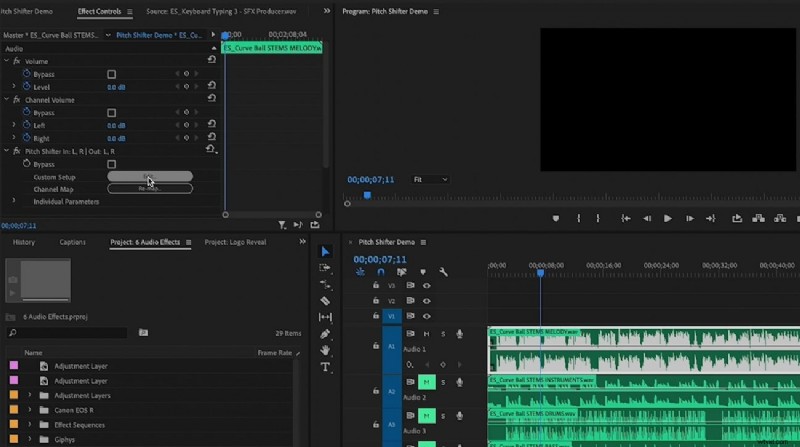
The text above was the theoretical knowledge on the pitch adjustment feature of this tool. The following table showcases the practical applications of this functionality:
| Creative Application | Explanation |
| Voice Change | Raises or lowers a voice to make it sound funny, deep, or unique without changing the speed. |
| Character Voices | Creates different voices for multiple characters in cartoons, games, or podcasts. |
| Sound Effects | Mixes pitch changes with echo or reverb to make robotic, alien, or dreamy sounds. |
| Mood Setting | Adjusts pitch slightly to make a voice sound more serious, playful, or mysterious. |
| Social Media Fun | Adds chipmunk or robot effects to make short video more entertaining and shareable |
Part 2. Step-by-Step Guide to Using Pitch Shifter Premiere Pro
With the Pitch Shifter on Premiere Pro, you can customize the sound to your desired extent. Users can manually adjust semitones to raise or lower pitch levels and fine-tune cents for subtle shifts. The effect also includes formant correction, which maintains natural voice quality even when pitch changes.
Additionally, editors can tweak mix levels to blend the altered and original sounds smoothly. Follow the guide below to learn how to use the pitch shifter on this platform:
Step 1
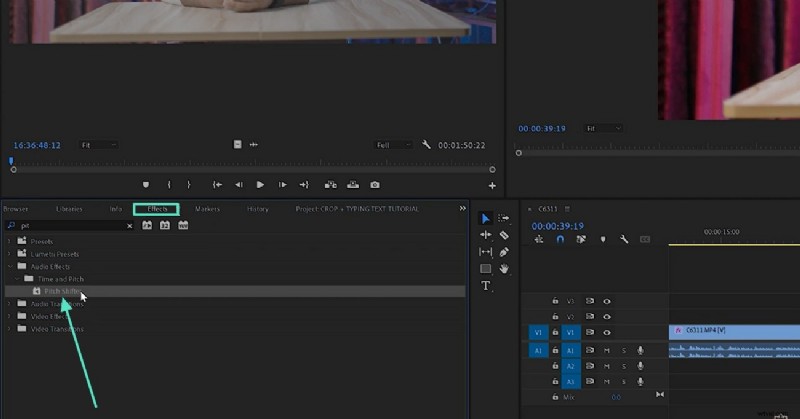
Import a Video and Enter the Effects Panel
- To begin with, import a video to Adobe Premiere Pro and drag the file to the timeline.
- Within the left interface, enter the "Effects" panel and select the "Pitch Shifter" option.
Step 2
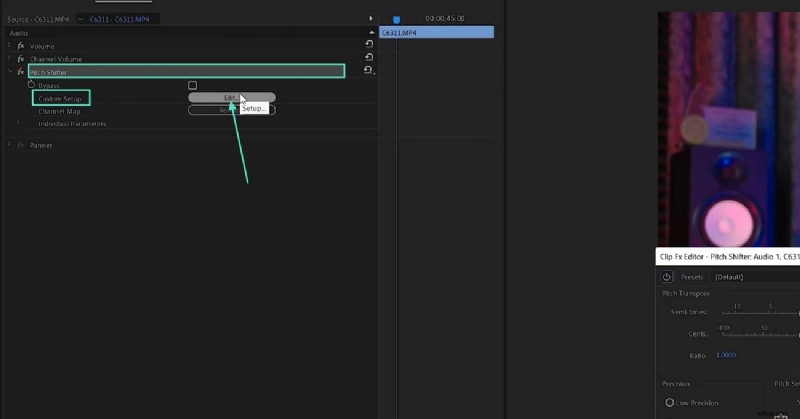
Edit the Custom Setup for the Pitch
- From the video timeline, select the in and out points of the effect and move forward.
- Enter the "Pitch Shifter" menu and select the "Edit" button next to the "Custom Setup" tab.
Step 3
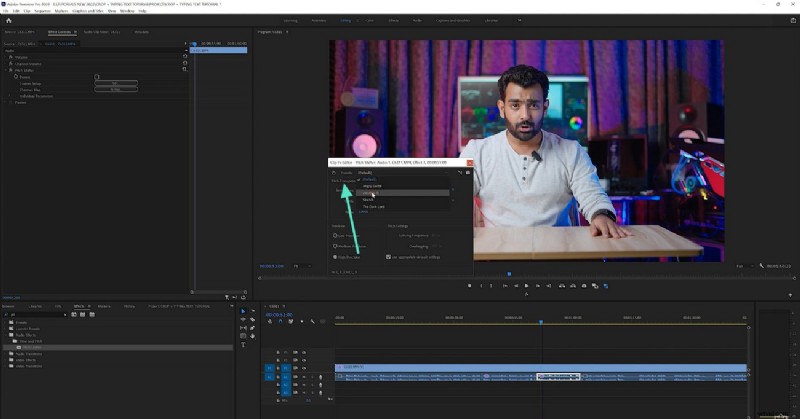
Pick a Preset for Changing the Pitch
- In the customization window, unfold the "Presets" menu and pick the desired option.
Step 4
Customize the Effects
- If you do not want to use a preset, select the "Default" option and use the sliders below.
- Drag the "Semitones" slider to adjust the pitch as low or high.
- Using the "Cents" bar, make subtle changes to the pitch.

Step 5
Export the Video with High Precision
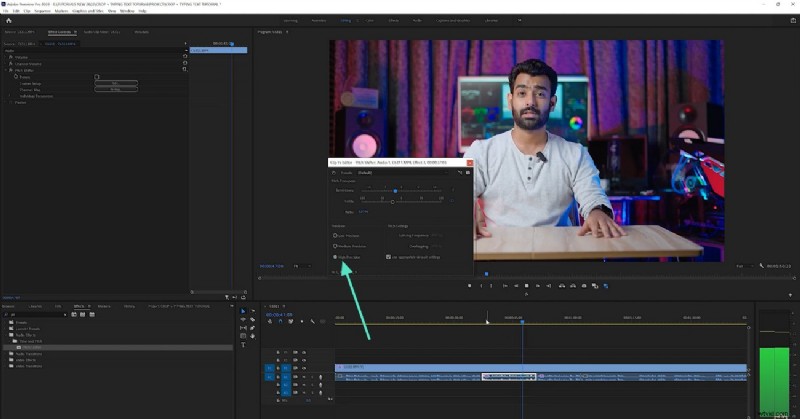
- Select the "High Precision" radio button to make the system highly complicit of your pitch specifications.
- Now, you can make further changes to the video or export it as is.
Part 3. Transform Voices Instantly with Filmora Pitch Shifter - A Better Option for You!
After exploring the capabilities of Premiere Pro pitch shifter, it can be concluded that this tool has limited customization. Besides, it does not offer any ready-to-use presets to apply one-click pitch adjustments. In comparison, Wondershare Filmora is a better alternative as it provides an automated pitch-adjustment tool to allow for customized results. Moreover, its dedicated voice changer has a range of audio effect presets.
This platform has a combination of automation and customization that delivers tailored outcomes. It allows you to transform your voice into the character or object of your choice. If you are looking for ready-to-use pitch changing presets, Filmora is a great choice to make.
 Secure Download
How to Adjust Voice Pitch in Filmora
Filmora is a versatile editing tool and offers 2 methods of changing the pitch of your audio. The following guides will show you how you can get the desired pitch using this Premiere pitch shifter alternative:
Method 1. Adjust Pitch Using Audio Controls
The pitch-adjustment tool in Filmora allows for manual selection of the pitch. The aim is to provide users with a custom sound using simple slider adjustments. If you do not want a consistent pitch throughout the clip, use the keyframing option to create variability. Follow the steps below and learn how to use this feature of Filmora:
Step 1
Import a Video in the New Project
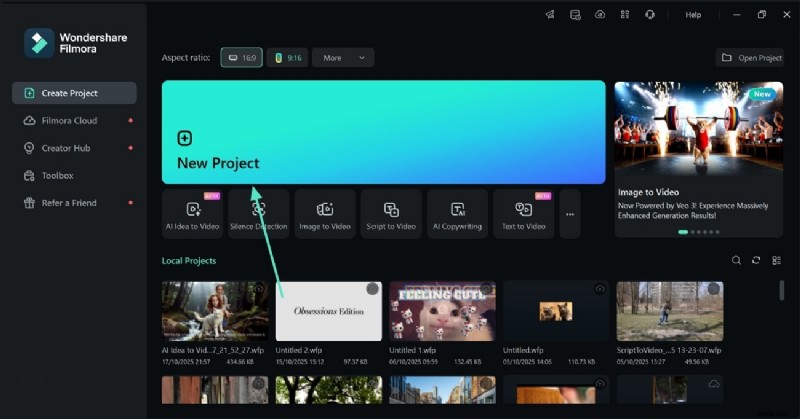
- To begin with, select the "New Project" button and import a video in the main editing interface.
Step 2
Begin to Adjust Audio
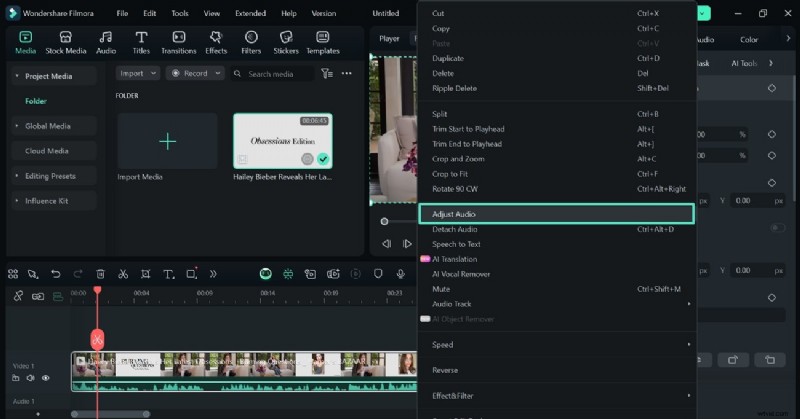
- Right-click on the video track and select the "Adjust Audio" option to open a panel.
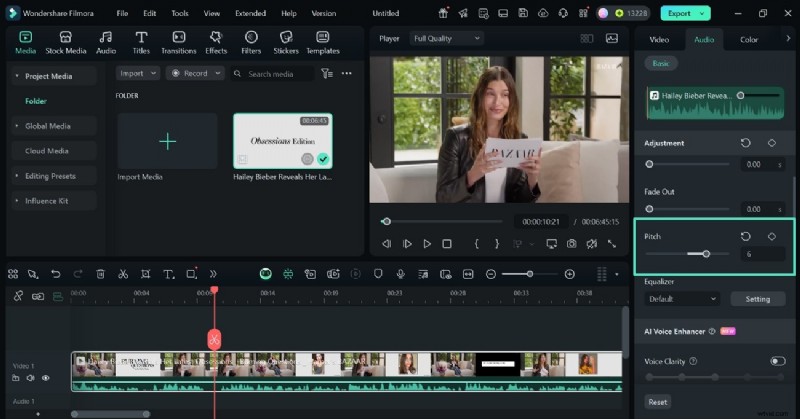
- Scroll down the audio panel and use the relevant slider to change the "Pitch."
- You can also enter a pitch figure to get the precise outcome.
Method 2. Use Voice Changer Effects
One trait that makes Filmora superior to pitch shifter Adobe Premiere Pro is the preset voice effects. Instead of extensively using the slider to get precision, users can just apply the one-click effects to get the desired results.
Secure Download
The following guide features instructions on using the voice changer effects on Filmora to adjust audio pitch:
Step 1
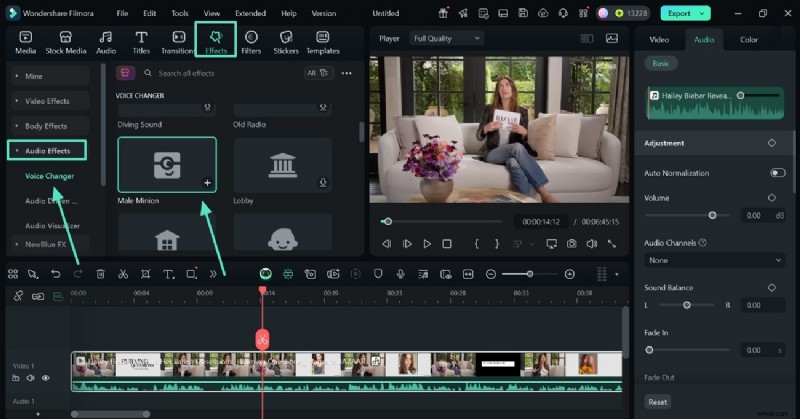
Apply the Audio Effect
- Using the top toolbar, select the "Effects" tab and enter the "Audio Effects" panel from the left.
- Select a suitable preset of sound effects to apply it to your video.
Step 2
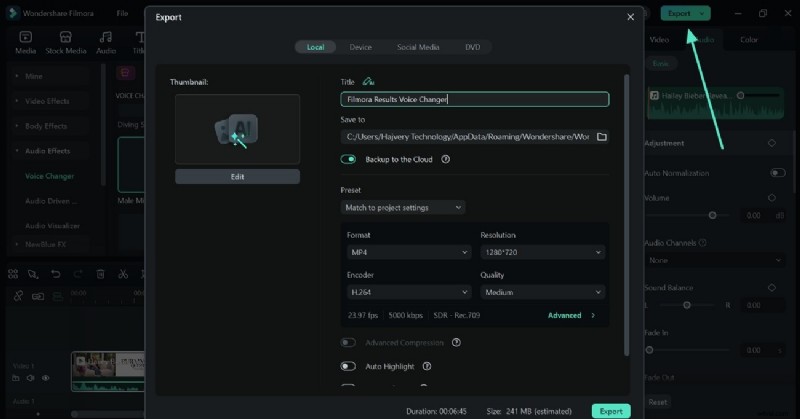
Export the Video to Your Device
- Once you are done editing the audio, use the top-right part of the screen to "Export" it.
Key Features To Note
- Voice Changer Presets: Enables users to apply one-click voice using the built-in presets, from child to robot.
- AI Audio Denoiser: Removes the excessive background noise and lets you pick the kind of noise you want gone.
- Pitch Adjustment Automation: Adjusts the audio's pitch automatically using sliders, without needing for extensive input.
- Equalizer and Audio Mixer: Provides customized equalization options through a dedicated audio mixing window.
- Audio Ducking: Manages the volume of music and speech to enhance the more important sound.
Part 4. Premiere Pro vs Filmora: Which Pitch Shifter Works Better?
After exploring how both editors handle voice transformation, let's take a closer look at how Wondershare Filmora and Adobe Premiere Pro compare in terms of pitch-shifting performance and ease of use.
While there are other tools that offer similar features, these two represent the most practical choices for both beginners and professionals.
| Aspect | Wondershare Filmora | Adobe Premiere Pro |
| Presets Availability | Offers ready-made voice presets such as Robot, Chipmunk, Child, or Radio, allowing instant sound changes. | No built-in presets. Users must manually adjust semitones and fine-tune settings. |
| Best For | Ideal for casual creators, vloggers, educators, and social media editors who need fast, creative results. | Better suited for experienced video editors and filmmakers who prefer detailed, manual control. |
| Additional Audio Effects | Includes built-in tools like De-reverb, Equalizer, AI Audio Denoiser, and Vocal Remover for cleaner sound. | Supports traditional audio effects like Reverb, Delay, and Equalization, but requires manual setup. |
| Learning Curve | Beginner-friendly and intuitive — easy to use without prior sound-design experience. | Steeper learning curve due to advanced configuration and technical terminology. |

Filmora
AI Video Editing App & Software
Best tool for making videos anywhere for all creators!
Your Perfect First Video Edit Starts Here - No Experience Needed
Conclusion
If you prioritize speed, simplicity, and built-in creative presets, Filmora clearly stands out as the more approachable pitch-shifting tool.
However, if you prefer full manual control and already work within a professional post-production environment, Premiere Pro remains a powerful option.
Ultimately, the best choice depends on your workflow — Filmora for instant creativity, Premiere Pro for precision editing.