
Animated text instantly captures viewers’ attention. In After Effects, you can craft letter animations in a wide range of styles—whether it’s a sequential entrance, a bounce, a fade, or a custom motion path.
These dynamic effects elevate intros, title sequences, brand promos, and any project that benefits from lively typography. Below, we walk through three proven methods to animate text in After Effects, plus an easy alternative with Wondershare Filmora.
Understanding After Effects Text Animation
After Effects remains the industry standard for motion design, offering granular control over every letter. Three core techniques form the foundation of text animation:
- Text Animators – Manipulate position, scale, opacity, and more on a per‑character basis.
- 3‑D Settings & Extrusion – Add depth, lighting, and true 3‑D geometry to your letters.
- Presets & Expressions – Speed up workflows with pre‑made animations or JavaScript‑based code.
While the flexibility can feel daunting, a clear step‑by‑step approach simplifies the learning curve.
For beginners seeking an even smoother path, Wondershare Filmora offers user‑friendly text animation tools—read on for a quick comparison.
Setting Up Your Project & Creating a Basic Text Layer
Before diving into animation, prepare your composition and type your text.
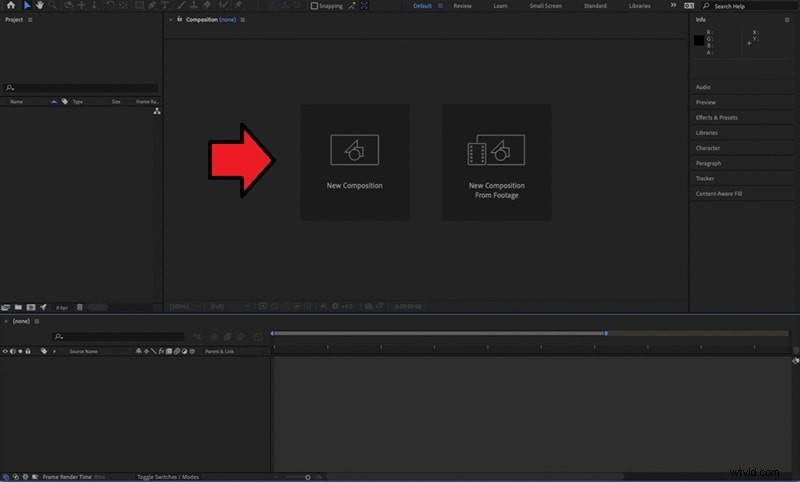
Step 1 – New Composition
Launch After Effects, click New Composition, set a name, choose 1080p, 30 fps (recommended), and define the duration. Hit OK.
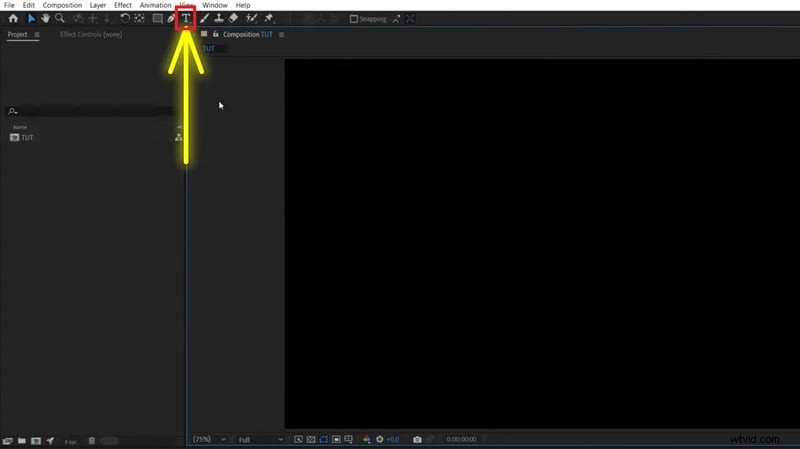
Step 2 – Type Tool
Select the Type Tool (T) and click in the preview to enter your text.
Step 3 – Customize
Adjust font, size, and color via the Character panel.

Method 1: Animating Individual Letters with Text Animators
Text Animators let you target specific letters and apply changes like position, scale, and opacity. Two components drive the process:
- Animators – Define what changes (e.g., movement, size).
- Selectors – Decide which letters are affected and when.
Multiple animators can be stacked for complex results.
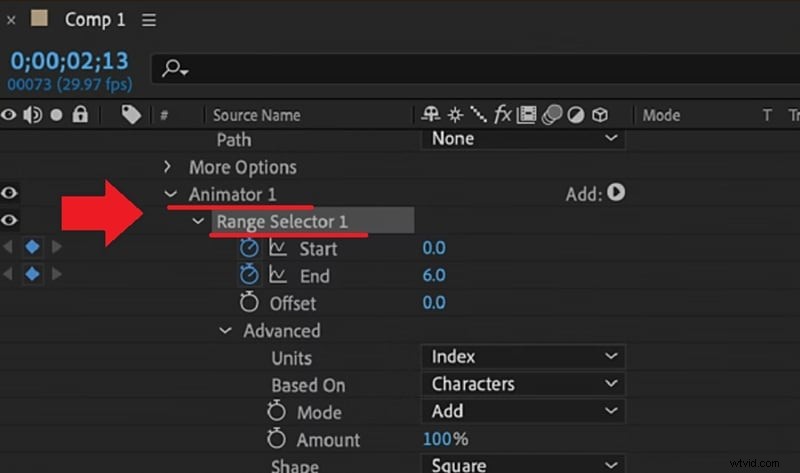
By setting distinct “states” for each letter and animating between them, you can create effects such as bouncing, sliding, or glitching.
Animators: Position, Scale, Opacity
- Position – Moves letters along X, Y, or Z axes.
- Scale – Changes letter size for pop‑in or shrink effects.
- Opacity – Fades letters in or out.

Range Selector Controls
- Start – Determines where the animation begins.
- End – Sets the animation’s endpoint.
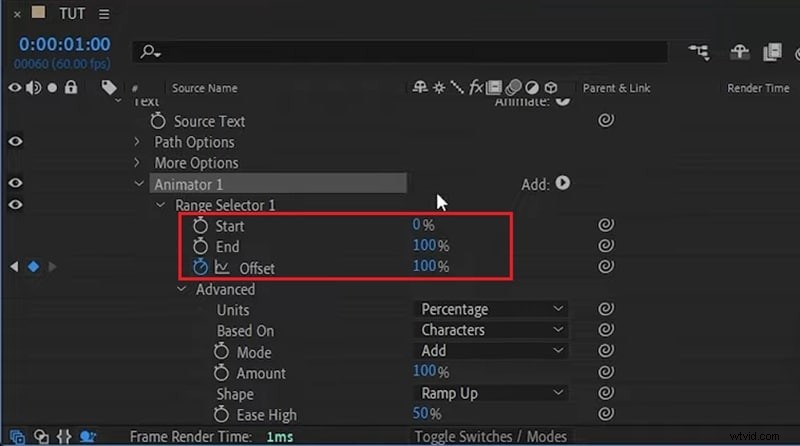
- Offset – Animates the selection over time; keyframe this to create a letter‑by‑letter reveal.
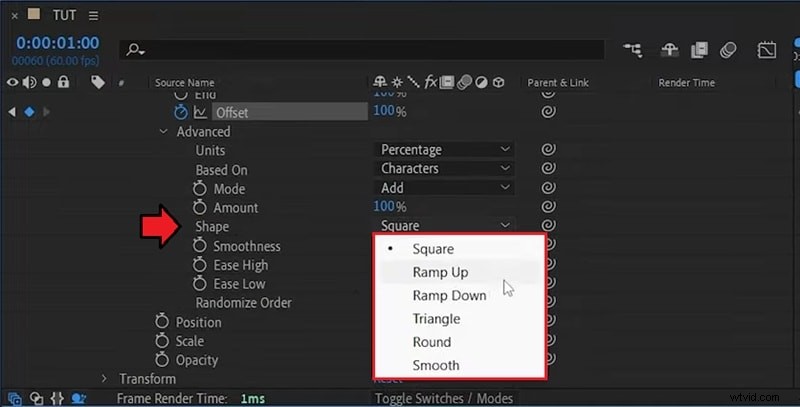
Shape Options
- Square – One letter at a time, no overlap.
- Ramp Up – Gradual build from left to right.
- Ramp Down – Fast start, easing toward the end.
- Triangle – Animate from both ends toward the center.
- Round – Smooth, circular transitions.
- Smooth – Even blending across letters.
Example: Bouncing Letters
Follow these steps to create a lively bounce effect.
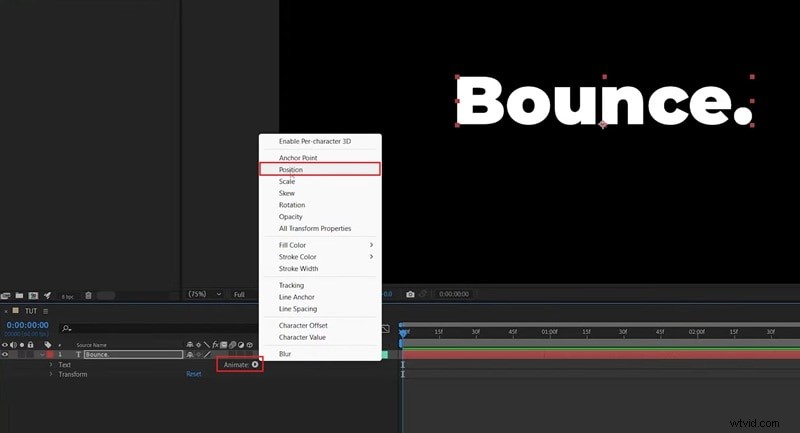
Step 1 – Add Position Animator
Expand your text layer, click Animate, and choose Position.
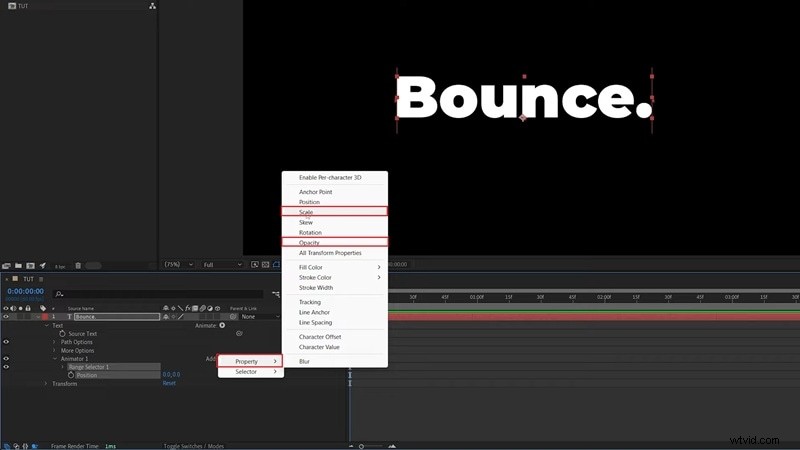
Step 2 – Add Scale & Opacity
In the Animator, select Add > Property > Scale and then Add > Property > Opacity.
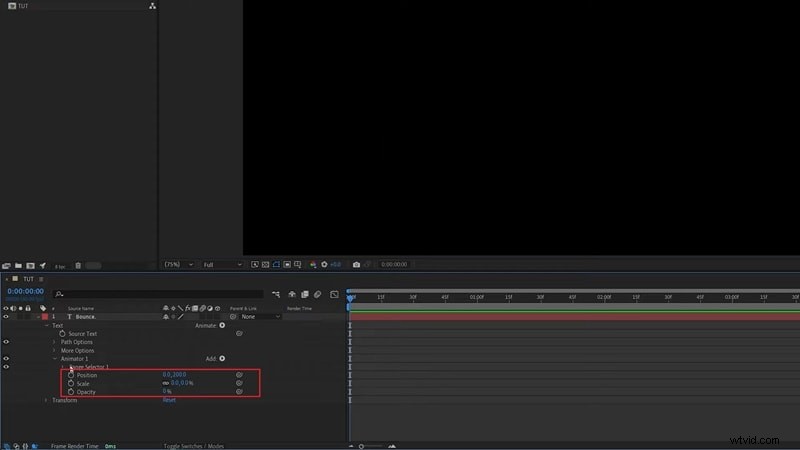
Step 3 – Set Initial Values
- Position Y – Increase the second value (e.g., 200 px).
- Scale – 0 %.
- Opacity – 0 %.
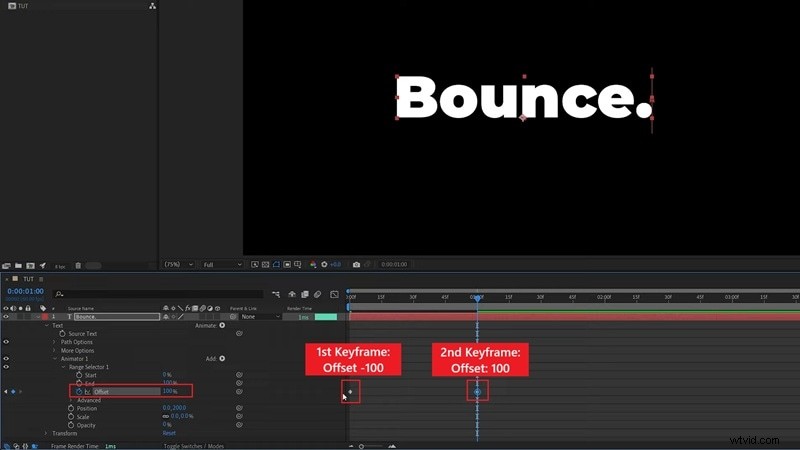
Expand Range Selector 1 and keyframe Offset from –100 % to 100 % over one second. Open Advanced and set:
- Shape: Ramp Up
- Ease High: 50 %
- Ease Low: 50 %
Step 4 – Duplicate Animator
Press Ctrl + D to copy Animator 1. Shift both Offset keyframes forward by about 10 frames.
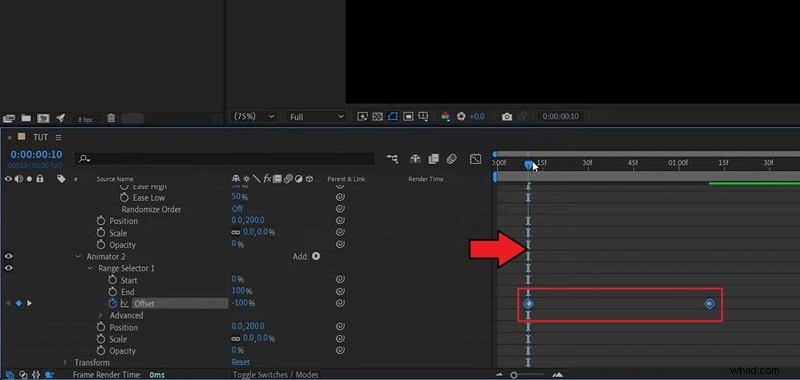
Step 5 – Fine‑Tune
- Position – Set to a negative value (half of Animator 1). E.g., 200 px → –100 px.
- Scale – 150 %.
- Opacity – Remove the property.
For more kinetic typography ideas, explore additional tutorials.
Method 2: Creating 3‑D Animated Letters
Take advantage of After Effects’ full 3‑D capabilities by adding depth, cameras, and lighting to your text.

Example: Spinning 3‑D Text
The steps mirror the 2‑D workflow but include extrusion and camera setup:
Step 1 – Add Position Animator
Step 2 – Add Scale & Opacity
Step 3 – Set Initial Values
- Position Y: 200 px
- Scale: 0 %
- Opacity: 0 %
Proceed with Offset keyframes, Advanced settings, duplication, and fine‑tuning as described in the 2‑D example.
Experiment with rotation on the Z‑axis or single‑axis spins for varied visual interest.
Method 3: Advanced Effects with Expressions & Presets
Expressions let you automate motion with concise JavaScript code, while presets offer ready‑made animations.
Adding Motion with Expressions
Expressions automate properties, reducing the need for manual keyframes.
To add an expression:
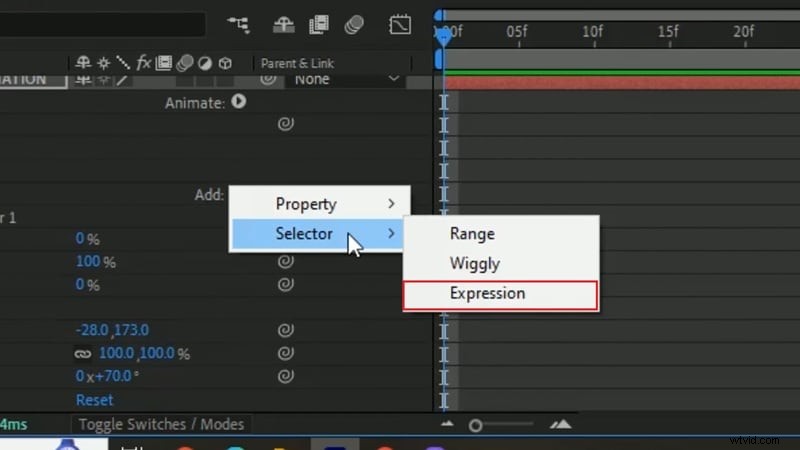
Step 1 – Expression Selector
Choose Add > Selector > Expression in the Animator.
Step 2 – Enable Editing
Alt/Option + click the stopwatch.
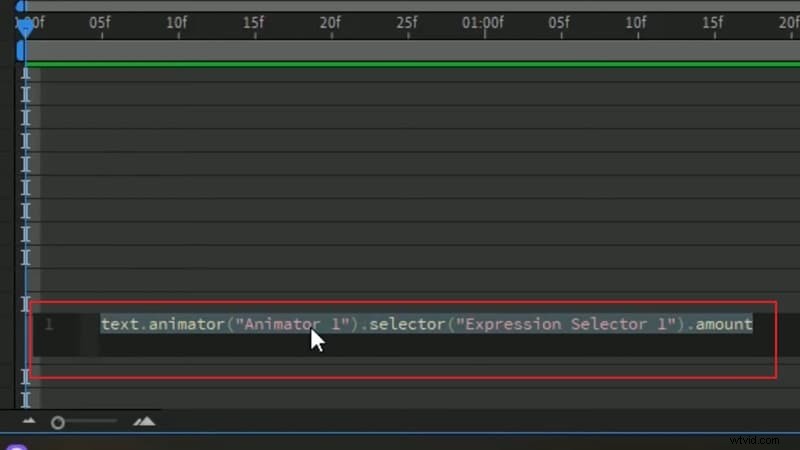
Step 3 – Enter Code
Example expressions:
| Wiggle | wiggle(frequency, amount) |
| Loop Offset | loopOut("offset") |
| Loop In | loopIn() |
| Loop Out | loopOut() |
See the full list of expressions on Adobe’s help site.
Applying Built‑In Text Presets
Preset animations are drag‑and‑drop and require no coding.
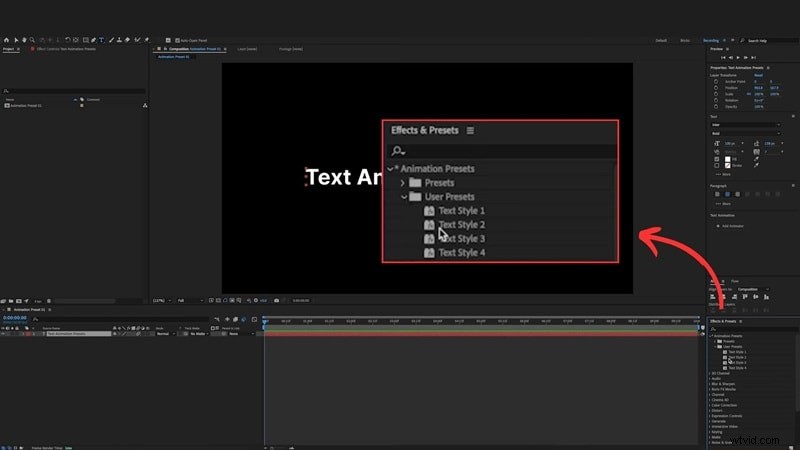
To apply a preset:
- Open Effects & Presets.
- Browse the Text category.
- Drag the chosen preset onto the text layer.
Adjust settings in Effect Controls as needed. Custom presets can be saved via the Animation menu.
Faster Alternative: Animate Letters with Filmora
If After Effects feels heavy, Wondershare Filmora offers a streamlined workflow.
Filmora provides over 200 animated text templates—drag one onto the timeline, then customize font, size, and timing with intuitive sliders.

Getting Started in Filmora
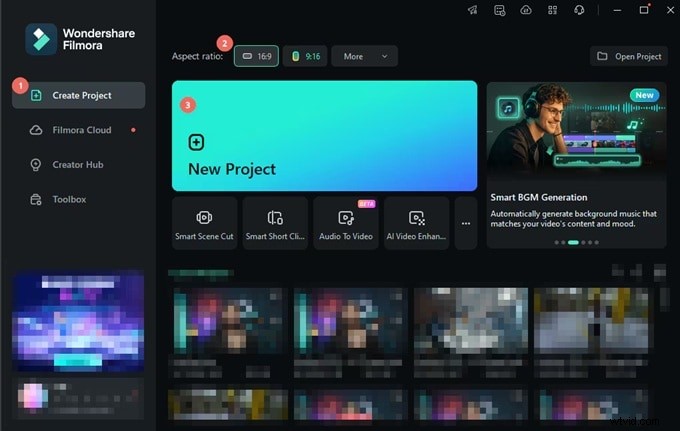
Step 1 – New Project
Open Filmora, click New Project, and select the desired resolution.
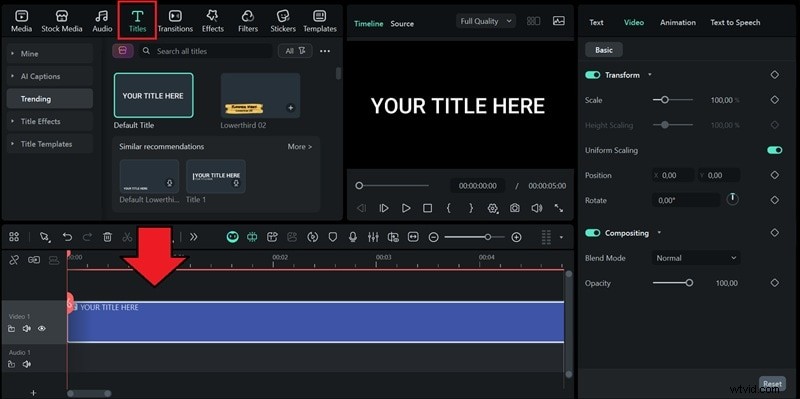
Step 2 – Add Text
Go to Titles, pick a style, and drag it onto the timeline. Edit the clip to change text, font, color, and spacing.
Step 3 – Apply Animation
In the text editor, select Animation, choose from typewriter, fade, bounce, slide, or 3‑D effects, and preview instantly.
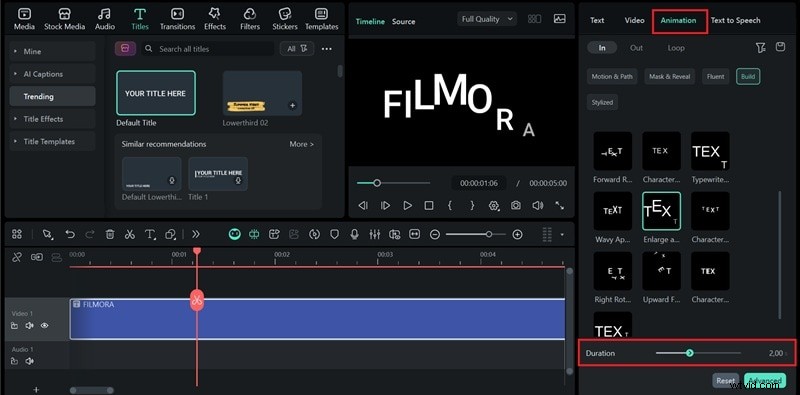
Use the Duration slider for timing control.
For advanced control, open Keyframe options to animate position, rotation, scale, or opacity.
Polishing Your Letter Animation in After Effects
Fine‑tuning can make a simple animation feel professional.
Timing & Easing (Graph Editor)
The Graph Editor shapes animation curves for smoother motion.
Step 1 – Open Graph Editor
Click the Graph Editor icon in the timeline.
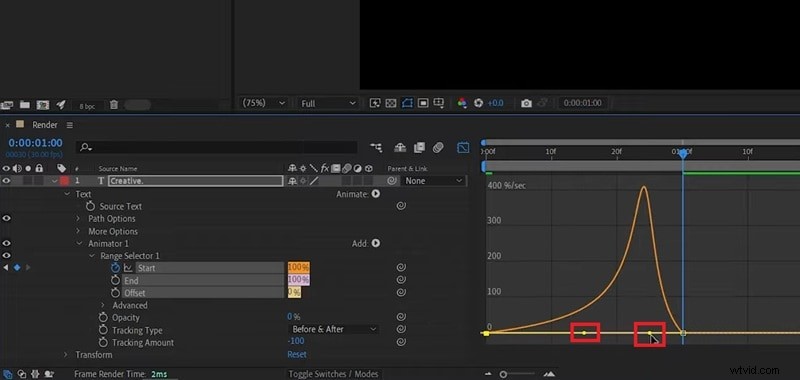
Step 2 – Speed Graph
Right‑click and choose Edit Speed Graph.

Step 3 – Adjust Curve
Drag handles to create smooth easing.
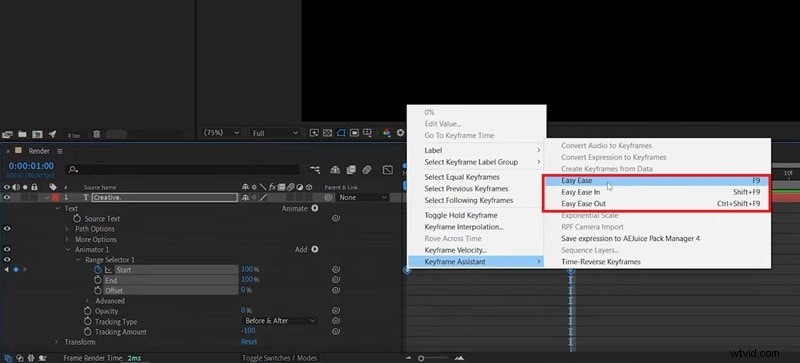
Easing Types
- Easy Ease – Softens start and end.
- Ease High – Controls landing smoothness.
- Ease Low – Controls departure smoothness.
Apply via Keyframe Assistant on selected keyframes.
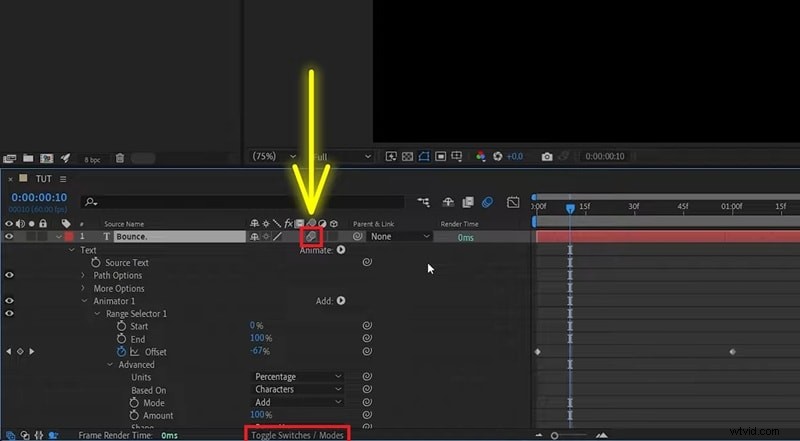
Motion Blur
Enabling Motion Blur adds realism to fast movements. Toggle the switch in the timeline and reveal additional modes if needed.
Render Settings
Proper export settings preserve animation quality.
| Format / Codec | H.264 (MP4) or Apple ProRes 422/4444 |
| Resolution | 1080p minimum |
| Frame Rate | 24 fps, 30 fps, or 60 fps for ultra‑smooth motion |
| Bitrate (H.264) | 15–25 Mbps (1080p) |
Enable Render at Maximum Depth for glow or shadows, and Use Maximum Render Quality for crisp text.
Common Issues & Quick Fixes
Even experienced users encounter hiccups. Below are frequent problems and their solutions.
1. Jittering Text After Render
Causes include:
- Font choice – Decorative fonts may misbehave; switch to Arial or Times New Roman.
- Essential Properties bug – Optical kerning can toggle to metric during render, causing flicker.
Fix: In the Character panel, set kerning to Metric before rendering.
2. Text Missing from Preview
Check layer visibility, order, and color contrast. Reset the Character settings if needed.
3. Preset or Expression Errors
Expressions often reference specific layer names. Update the code if you rename layers. Use Reveal Expression Errors to locate problems.
Conclusion
You now have a solid foundation for letter animation in After Effects, from basic animators to 3‑D depth and advanced expressions. Choose the workflow that fits your project timeline and creative vision.
For those who prefer speed over depth, Filmora’s drag‑and‑drop templates deliver polished results with minimal effort.
FAQs About After Effects Text Animation
- How do I animate letters individually? Use Text Animators with a Range Selector; keyframe the Offset to reveal each letter sequentially.
- Can I create kinetic typography? Absolutely—After Effects is designed for rhythmic, audio‑matched text motion.
- Where can I find free text animation templates? Mixkit and Jitters offer free packs, while Filmora’s library provides thousands of ready‑made titles.