
Want dynamic titles? Learn how to easily apply and customize 3D text in Premiere Pro using the best presets and templates. This ultimate guide covers everything from understanding the difference between a 3D text Premiere Pro preset and a template, to finding free and paid downloads, and the step-by-step process for customization. Start creating stunning 3D text effects today!
Part 1. Understanding the 3D Text Effect Premiere Pro Offers
Working with 3D text in Premiere Pro means adding depth and dimension to regular titles. Editors use this effect to make titles look more engaging on screen. Premiere Pro lets you style text with shadows, bevels, and motion so the result feels more layered and dynamic.
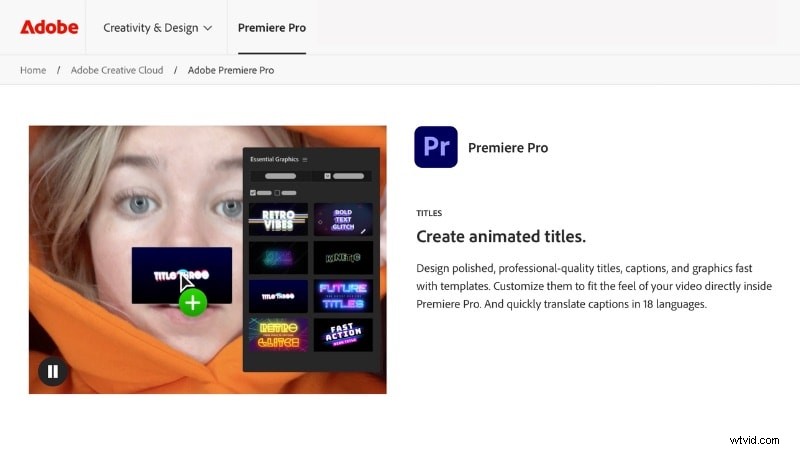
Unlike After Effects, the native 3D text effect Premiere Pro offers does not create fully modeled objects. Instead, it gives flat titles more presence through effects such as:
- Extrusion – makes the text appear thicker, as if carved out of a block.
- Shadows and bevels – define edges and add shadow to create depth.
- Rotation and perspective – tilts or spins text for more dramatic angles.
- Floating motion – creates movement to simulate text hovering on screen.
Still, Premiere Pro has some limits. It lacks the advanced 3D modeling tools found in After Effects, so complex animations or fully rendered titles are harder to achieve. You can build 3D text from scratch, but it takes time and repeated adjustments.
This is why the 3d text premiere pro preset free and paid options are so useful. Presets and templates already include styled effects, letting you apply them quickly while still leaving room for customization.
Part 2. The Difference Between 3D Text Presets and Templates in Premiere Pro
When searching for a 3D text template for Premiere Pro on the internet, you may see two keywords: presets and templates. Are they the same or serve different purposes? Knowing the difference might help you understand more about this feature.
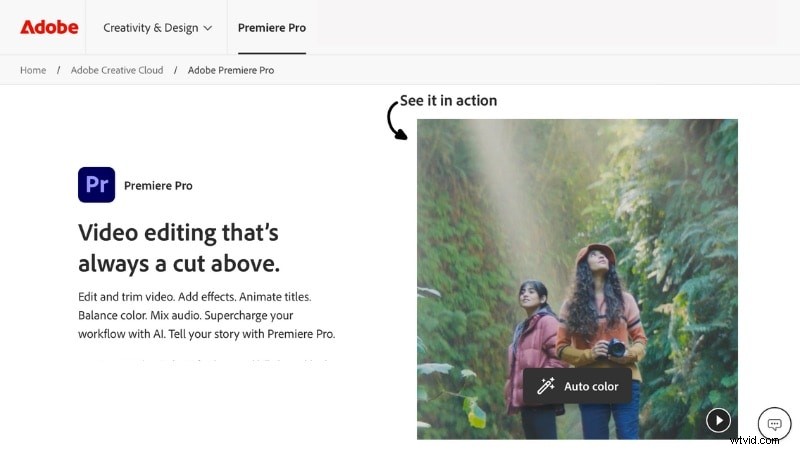
- 3D text presets are saved effect settings you can apply to titles in Premiere Pro. They add depth with features like extrusion, rotation, or shadows. After applying a preset, you still have control to adjust fonts, colors, and movement as needed.
- 3D text templates are pre-built title animations with design layouts, motion, and effects already included. You only need to replace the placeholder text with your own. Templates are best when you want a complete look without spending much time adjusting details.
3D text Premiere Pro presets adjust how your text behaves, while templates give you a full design with animation and layout. Both give your titles more impact, but the choice depends on your project.
Where to Get Free and Paid 3D Text Presets or Templates
- Motion Array: Offers both presets and templates, including free and paid options, with plenty of 3D text choices.
- Envato Elements: Focuses on templates with a wide library of animated 3D text designs compatible with Premiere Pro.
- YouTube Creators: Many creators share 3D text Premiere Pro presets for free in their videos' descriptions. They often also show how to apply it, making them a good starting point if you're testing styles.
Part 3. Step-by-Step Guide: How to Apply and Customize 3D Text Presets & Templates in Premiere Pro
Creating a 3D font in Premiere Pro can be done in two main ways. You can either build your own styles from scratch or start with ready-made presets and then adjust them. This section will show you how to apply both in Premiere Pro.
A. How to Create Custom 3D Floating Text in Premiere Pro (The Manual Way)
Building from scratch offers full control but takes more time. For example, making a 3D floating text in Premiere Pro requires several steps inside the Essential Graphics and Effect Controls panels. Here's how to create one:
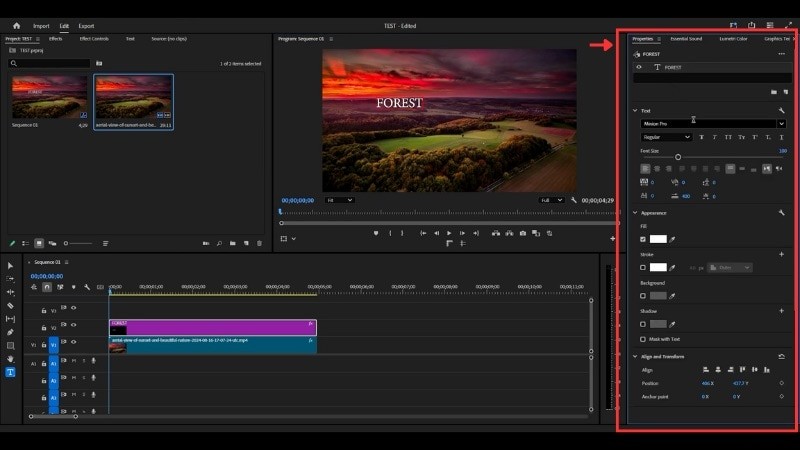
- Select the Type Tool and type your title in the preview window.
- Adjust the font, size, and color in the Properties panel.
Step 2
Apply the Basic 3D Effect
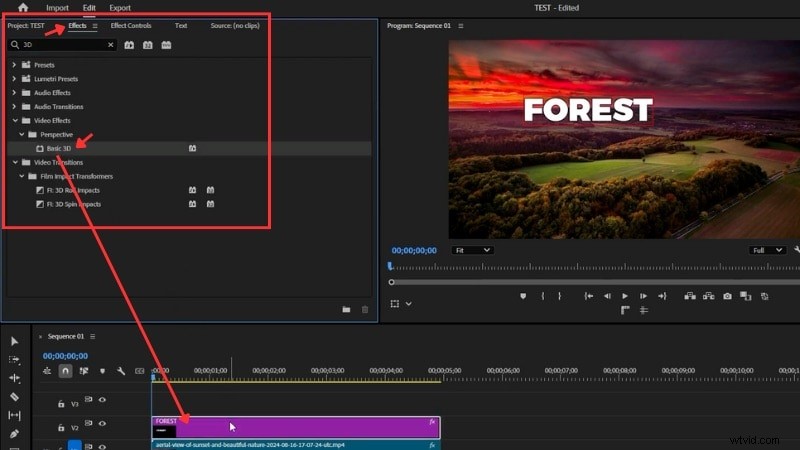
- Go to the Effects panel and search for Basic 3D, then drag it onto your text layer.
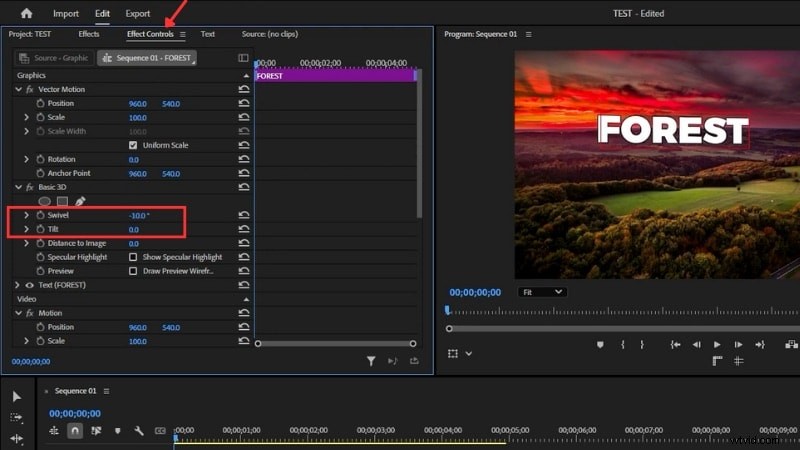
- In Effect Controls, adjust Swivel and Tilt to set the angle.
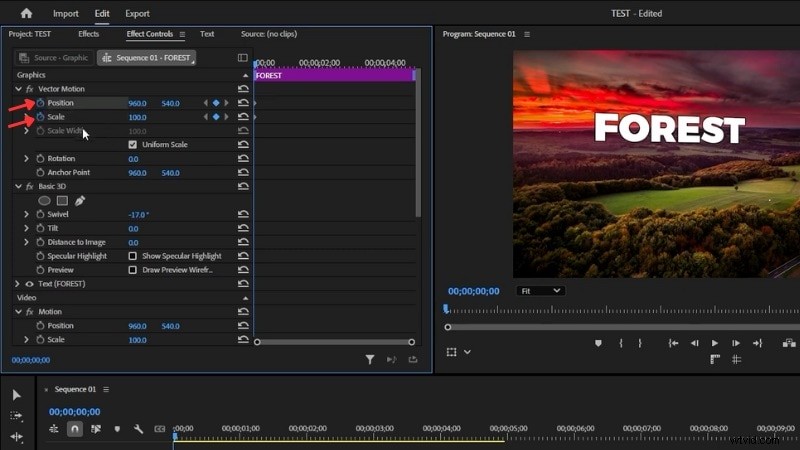
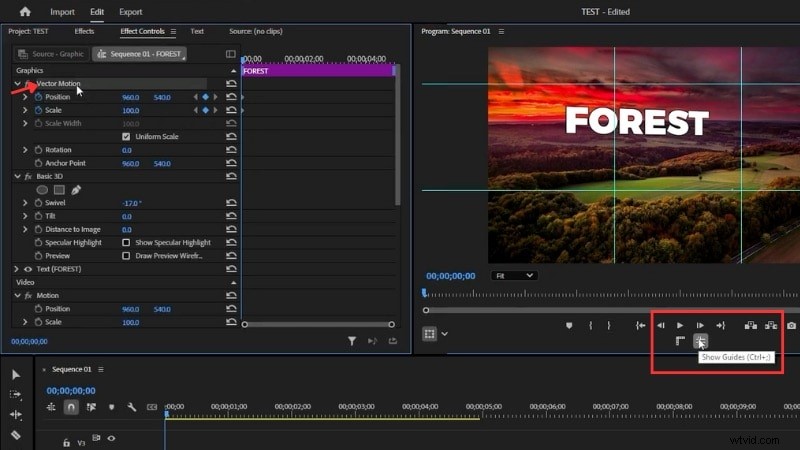
- In Effect Controls, click the stopwatch next to Scale and Position.
- Turn on Guides from the toolbar for alignment.
- Under Vector Motion, position the text on the guides.
Step 4
Animate the Floating Effect
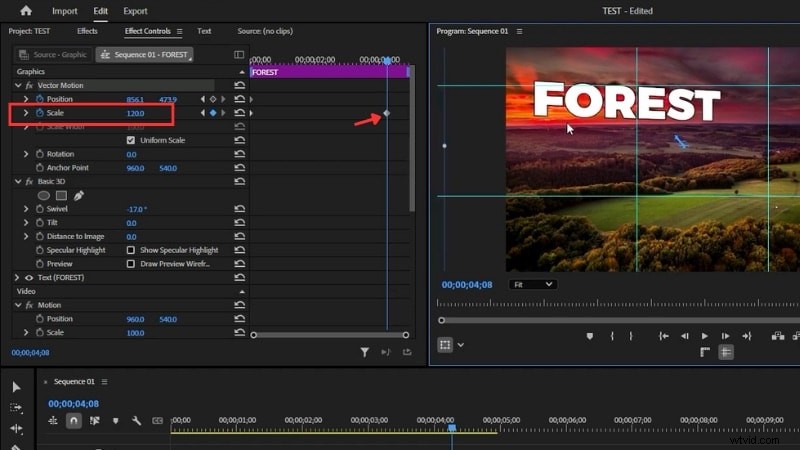
- Move the timeline ahead a few seconds.
- Increase Scale by around 20%.
- Reposition the text so it stays aligned with the guides.
- This creates a smooth floating effect that makes your 3D text look like it hovers on screen.
B. How to Customize a 3D Text Premiere Pro Preset or Use a 3D Font
Working with a 3D text Premiere Pro preset gives you a quick starting point. After importing a preset or template, you can adjust fonts, colors, and even animation speed to fit your project. Here's how to customize it:
Step 1
Import the Preset to Premiere Pro
- Download the 3D text Premiere Pro preset or template file.
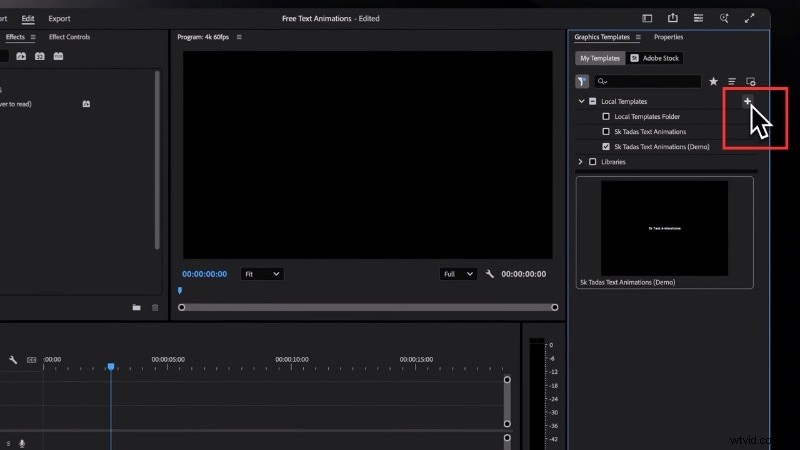
- Open Essential Graphics (or Graphics Templates in newer versions).
- Click the Plus icon and select the folder to import it.
Step 2
Add It to the Timeline
- Drag the imported preset into your timeline.
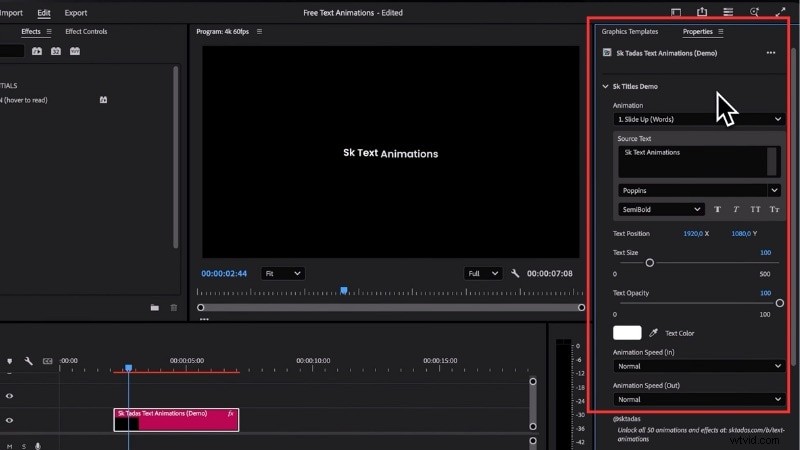
- Select the text layer and open the Properties panel (enable it under Window if hidden).
Step 3
Edit Text and Style
- Replace the placeholder text in the Source Text box.
- Choose your font, adjust size, color, opacity, and reposition as needed.
Step 4
Adjust Animation Settings
- Pick from the available animation styles (such as slide-in, zoom, tracking reveal, blur reveal, or fade).
- Use the controls to change animation speed for the in and out transitions.
- If you want different animations for text in and out, split the layer and assign separate animations.
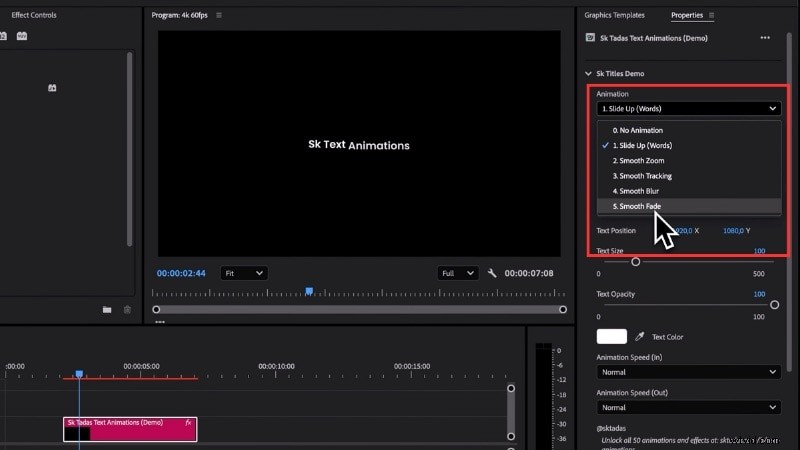
By using a 3D text Premiere Pro preset or template, you can save time compared to creating effects from scratch.
Competitive Edge: Why Filmora is the Easiest Alternative to Native 3D Text Premiere Pro Effects
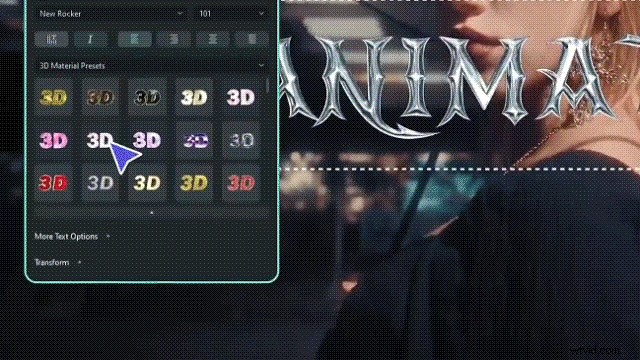
Even with presets and templates, working with 3D text in Premiere Pro can still feel time-consuming. If you're looking for professional results without the complexities of native 3d text premiere pro tools, Wondershare Filmora is the game-changing alternative. It bypasses the need for a 3d text plugin premiere pro and offers hundreds of built-in 3D templates to cut your editing time by up to 80%.
 Secure Download
With Filmora, you can create 3D text from scratch or start with Filmora's preset library. Either way, the process is faster and more accessible. It's suitable for both beginners and more advanced creators who want results without a steep learning curve.
Follow the instructions below to learn how to create 3D Text in Filmora:
Step 1
Add a 3D Text Layer
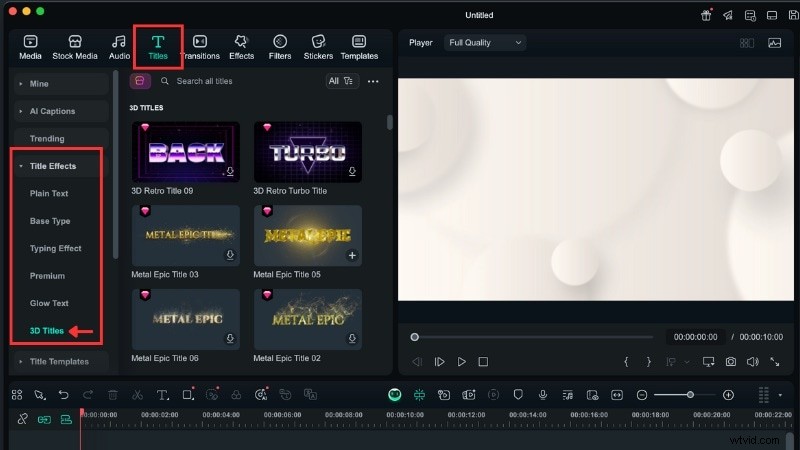
- On the editing workspace, go to Titles > Title Effects.
- Scroll down to find the 3D Titles category.
- Preview any style by clicking on it, then drag and drop your choice into the timeline.
Secure Download
- Select the text track on the timeline and open the editing panel on the right.
- Under Text > 3D Basic, replace the placeholder text and adjust the font, size, and color.

Step 3
Adjust the 3D Animation (Optional)
- To change the entry or exit motion, go to Text > 3D Animation > In or Out.
- Choose from the available animation styles and apply them to your text.
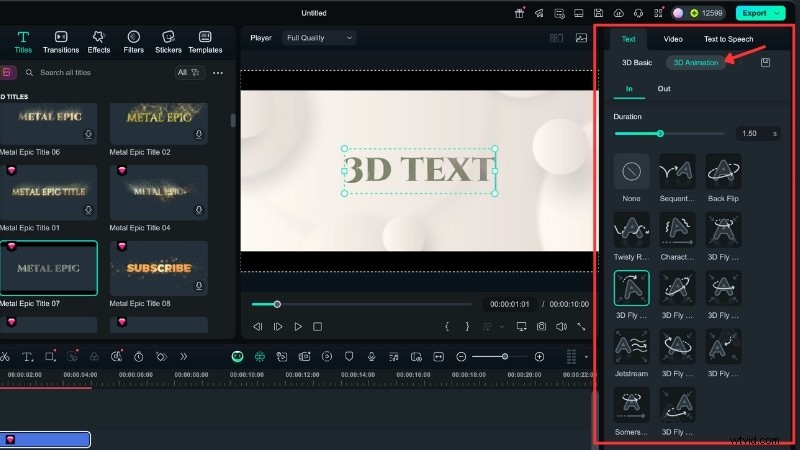
With these simple steps, you can find 3D text templates and customize them in minutes. Filmora provides a simpler alternative to Premiere Pro for users who want quick results without a steep learning curve.
Watch this video to see more of what Filmora can do when adding text to a video:
Conclusion
Using 3D text in Premiere Pro adds depth and style to your project, but the process can take time. You can create effects from scratch or speed things up with presets and templates.
There are many 3D text Premiere Pro preset free and paid options online, giving editors the flexibility to try different looks. These resources save time while still letting you adjust fonts, colors, and motion.
If you want a simpler workflow, Filmora is a practical alternative to the 3D text effect Premiere Pro offers. Download Filmora today and start creating 3D titles in just a few steps.

Filmora
AI Video Editing App & Software
Best tool for making videos anywhere for all creators!
Simplify all your steps in video editing, from the pre-processing to finalizing, Filmora AI stays tuned.
Frequently Asked Questions
-
Can I animate 3D Text in Premiere Pro without a 3D Text Plugin?
Yes. Premiere Pro has built-in tools such as Basic 3D and keyframes that let you animate text. You can adjust scale, rotation, and position to create movement without installing extra plugins.
-
Do 3D text presets slow down Premiere Pro?
Most presets run smoothly, but performance depends on your system. Heavy effects like multiple shadows or detailed animations may use more resources. So, keeping projects organized helps maintain playback speed.
-
What file type do Premiere Pro 3D templates usually come in?
They are often delivered as .mogrt (Motion Graphics Template) files or standard project files (.prproj). You can import .mogrt files through the Essential Graphics panel.
-
Do I need After Effects installed to use 3D text templates in Premiere Pro?
No. Many 3D text templates are designed to work directly in Premiere Pro. Some advanced templates may require After Effects, but most .mogrt templates can be used without it.