
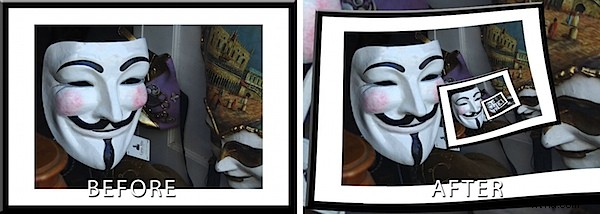
In previous posts I’ve introduced the Pixel Bender add-in for Photoshop CS4 and CS5 and the Droste filter created by Tom Beddard. This post I’ll show you how to create the classic frame in a frame image effect using these tools.
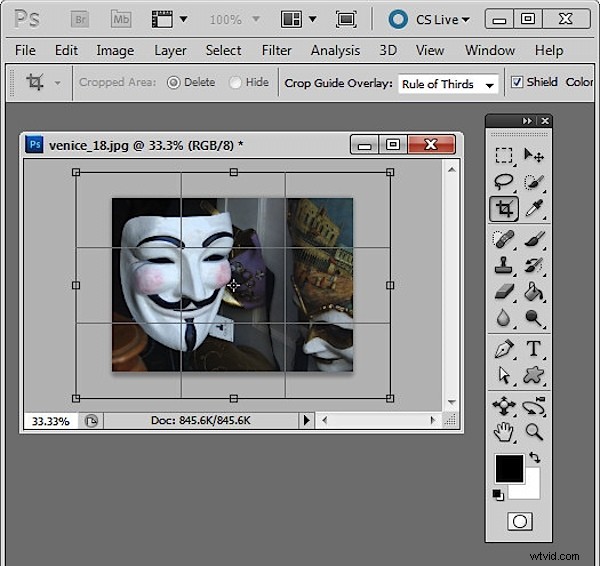
The critical part of this effect is getting the image right before you start. You need a framed image so start by opening an image to use. Add some white canvas around the flattened image by first setting the background color to White. Select the Crop tool and drag over the image. Let go the mouse button and then hold the Shift + Alt (Option) key as you drag outwards on a corner handle to add an extra canvas around the image.
Convert the background layer to a regular layer.
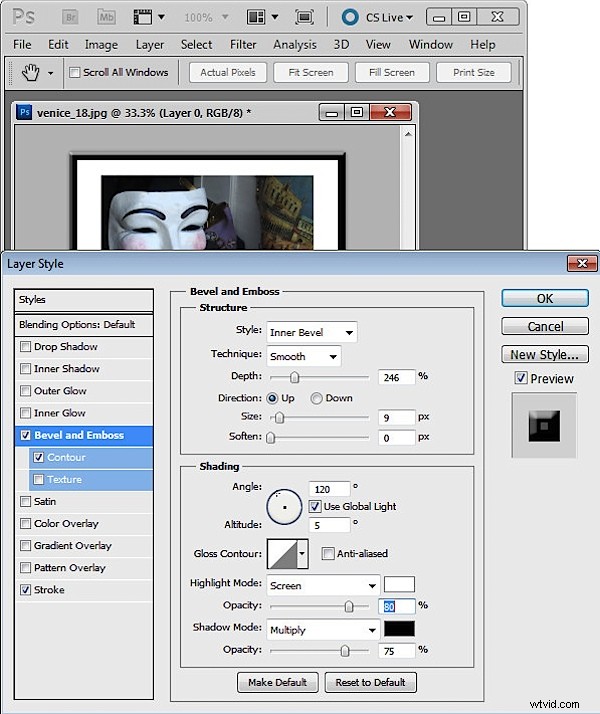
Now add a frame border. I did this using a Layer Style to add a black Stroke to the inside of the image and then I used Bevel and Emboss and Contour to make the frame more dimensional. Check the image dimensions – they must be below 4096 x 4096 – so size the image down if it is too big. Flatten the image and save it as a .jpg image. Close and reopen the image.
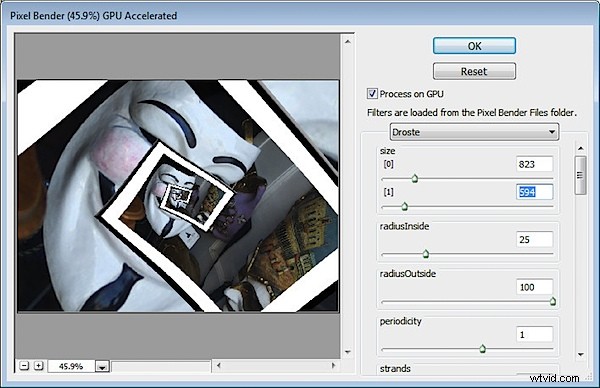
Now launch the Droste filter by choosing Filter > Pixel Bender > Pixel Bender Filter and select Droste.
Hold Alt (Option on the Mac) as you click on the Reset button and then set these values:
Set Size [0] and Size [1] to the dimensions of your image – width and height.
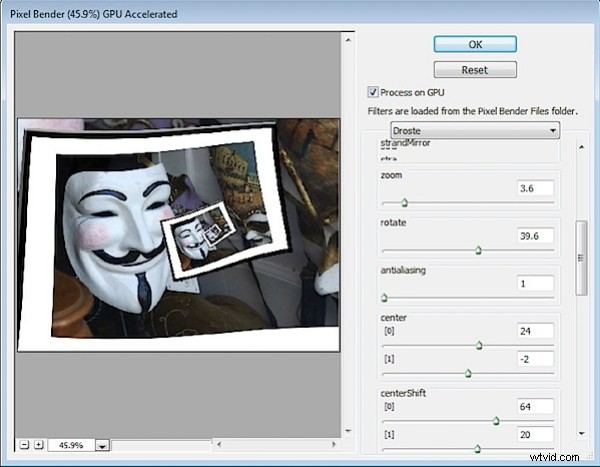
Adjust the CenterShift [0] and [1] values so that the part of the image you are most interested in seeing in the frame is where you want it in the effect – in my case I wanted the mask on the left but you may want the image in the center or on the right.
Adjust the Rotate slider to rotate the image so the frame is aligned as you want it to be. If you want the ‘frame’ to start other than where it appears, use the Zoom slider to move into the image – I did this so the composition would look better.
Adjust the Center [0] and [1] values to adjust the positioning of the effect in the image area.
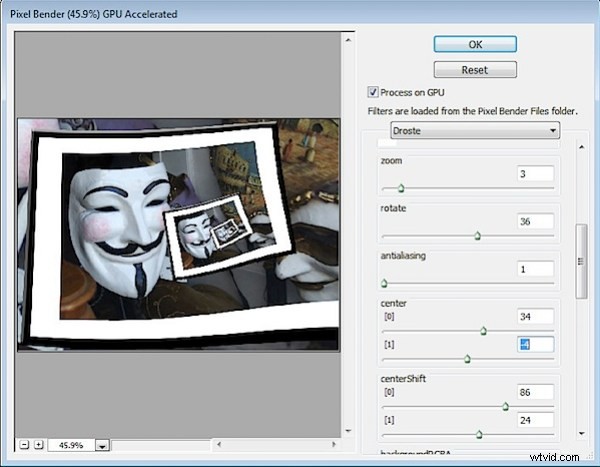
Adjust the RadiusInside and RadiusOutside values to adjust the size of the image frame effect – in this case I wanted to have the main mask well outside the frame so it would be a focal point.
Finish off by fine tuning the values you have already set to ensure the best result. Click Ok to finish.