
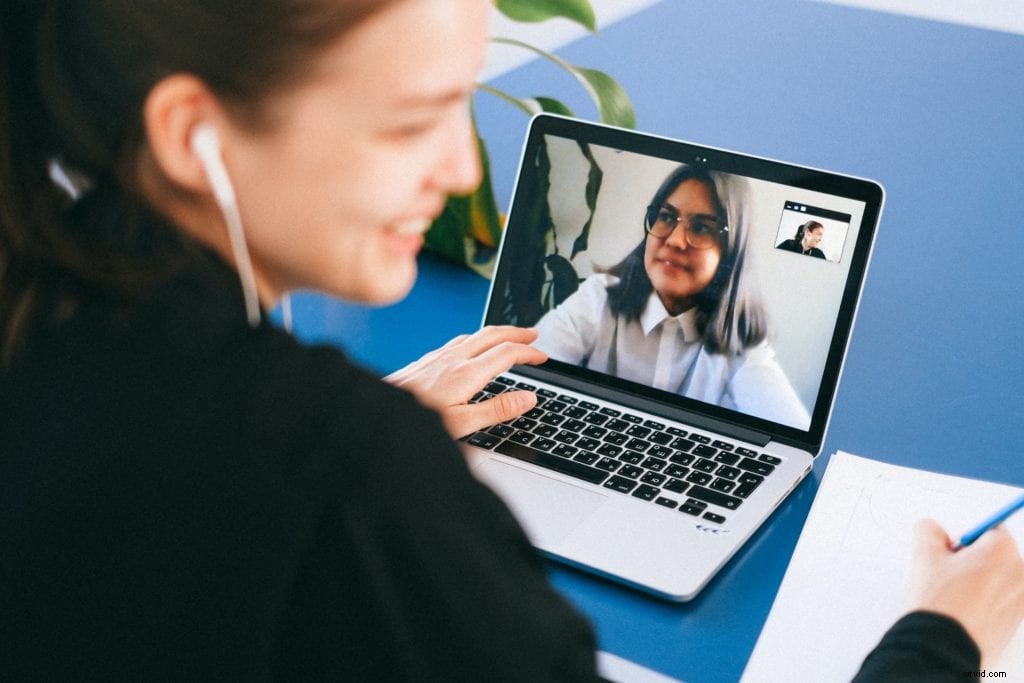
 Skip the frantic note-taking during your next video conference call. Now there’s an alternative guaranteed to save you time, help with training, and clue-in anyone who missed a meeting. That alternative is screen recording.
Video conferencing tools like Zoom can record an entire meeting. But conferencing apps can only do so much. They don’t provide you with the editing capabilities to enhance important meetings.
You can launch a screen recording tool equipped with video editing to maximize the full potential of your next virtual meeting. You can pair Screencast-O-Matic with popular video conferencing apps like Google Meet, Skype, or Zoom to create new resources for your staff or help with the following:
Turn Recordings into Valuable Resources
Keeping Notes
No need to scribble down notes if you start recording video calls. Save your videos of your meetings directly to your computer to reference later.
If you prefer word-for-word transcripts of meetings, no problem. You can easily upload the videos of your meetings to a transcription service which will turn the audio of your video into text.
Sales Training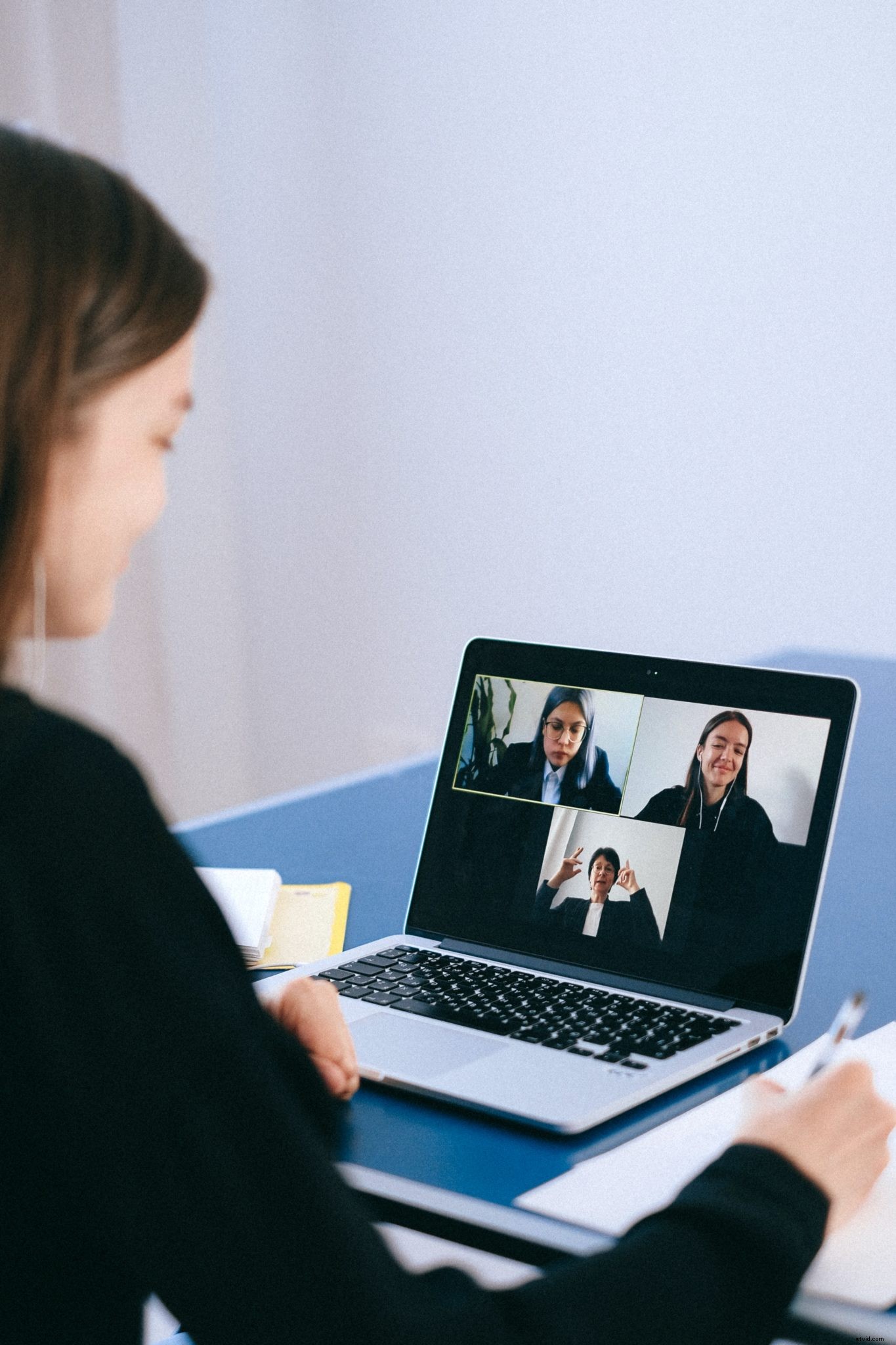
Recording your next online sales pitch could be the key to closing more deals.
Some companies require employees to record their video conferences with potential clients. The videos can be shared, reviewed, and used to improve sales training.
Missed Meetings
Skip the long recap emails. Start recording your virtual team meetings. Employees who miss a meeting can watch it on their own time.
You can upload your recordings to Screencast-O-Matic where a link is provided to share with your co-workers or employees.
The biggest benefit of recording your meetings is the ability to make your meeting more efficient and viewer-friendly using a video editor. Here are a few ideas to try following your next video conference.
Editing a Video Conference Call
Meetings whether in-person or online get a bad reputation for wasting time. So cut the unnecessary portions out of your recording.
Use either the cut tool in Screencast-O-Matic’s Video Editor to completely remove a portion of your video. You can try the speed option to time-lapse a section to save time. Directions for all of these tools are featured in the online cheat sheet.
Don’t forget to check your audio. Video conferences can have a wide range of audio levels with people dialing in from various locations.
The video editor can adjust audio levels. Use the volume tool to highlight the audio portion you want to adjust.
Add music to enhance ‘boring’ video conference meetings. Screencast-O-Matic also offers free stock music to use in the background of recordings.
Adding Slides or Graphics
 Fix or enhance the visual elements of your conference call. You’ll often see graphics or slides added to recorded webinars or video calls.
Using video or image overlay tools can dress up recording or cover up a screen share gone-bad. Instead of seeing a sea of faces, overlay the video with related visuals.
There are a ton of overlay tools designed to add layers on your video including text, shapes, arrows, and more.
Adding a Webcam
Launching Screencast-O-Matic to record your next meeting gives you the ability to record yourself as well as the meeting. Try the webcam option in the recorder.
It’s a way to interject your own thoughts and narration to the meeting.
Add Notes to Your Video
Hosting video content within Screencast-O-Matic offers you a convenient way to host and manage videos. Among the many options is a feature called ‘Notes.’ Adding notes (or timestamps) to your videos helps viewers navigate through a meeting and save time.
Note the timecode for each new section or topic within the video. Then enter the subject line in the available text box. It’s like creating bookmarks with a video.
Viewers will see the sections and timecodes when opening a recording within Screencast-O-Matic. The video will automatically skip forward to the selection a viewer picks.
So get the most out of your next video conference call by saving it.
Using videos help employees across timezones, continents, and even through a pandemic. With the help of Screencast-O-Matic, you can save those video conferences to help employees long after meetings are over.