
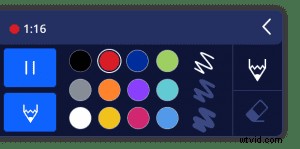
 It’s even easier to create fun and engaging video messages right in your browser apps. We’ve just added drawing tools to ScreenPal™, the free Chrome extension for quick, authentic video messaging.
Click the ScreenPal icon from any text or comment field in your favorite web apps, start recording your video message, and draw anywhere on your browser to annotate your video message.
Give clear and friendly feedback
 Video messaging is a great way to give clear feedback to students, colleagues, or direct reports in a way that’s friendly and constructive.
With ScreenPal, you can record your screen to show exactly what you’re referring to in your feedback. And now you can draw circles, arrows, underlines, and even smiley faces to annotate your message.
Clear up confusion
Jumping into a long email thread? Looking to minimize back-and-forth comments in a project review? Share a video message to clear up any confusion, and use the drawing tools to highlight your points.
You can record your screen and even use the drawing tools to circle those places in your team’s communication threads where you see miscommunication or confusion and use your video message as an opportunity to clarify the issues and make sure everyone is aligned and gets back on track.
Illustrate an idea–literally
Use ScreenPal drawing tools as a mini-whiteboard! Draw or scribble out your idea over your screen. Sketch out ideas for how to improve a landing page, mark up thoughts on a design comp, or draw out a process flow chart to show your thinking as you narrate your idea.
Share quick insights
You might be reviewing your team’s KPIs and notice an interesting trend. Or see a compelling ad on social media that could serve as inspiration for your own marketing. Capture and share those thoughts in a quick video message, and use the drawing tools to focus your viewer’s attention on what captured yours.
Be authentic
Show your personality in your messages! Draw a quick smiley face or doodle on your screen to convey a light and fun tone. Add quick and casual elements of delight to your asynchronous video messages to help build connections with your team, your students, and anyone you’re communicating with through video.
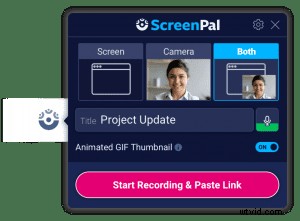 Try out ScreenPal now – it’s completely free and works where you do. Install the free Chrome extension, click the icon in any browser-based email message, text box, or comment field, and record and share your video message. Then check out our 5 tips to make your day more productive with ScreenPal or browse our getting started resources for help with the extension.
Looking to create project-based videos for training, professional development, instruction, and more? Try Screencast-O-Matic’s free screen and webcam recorder! Record up to 15 minutes at a time for free, draw and annotate your screen, easily trim your recording and add music, upload your own captions files, and more.