
Adding subtitles to your YouTube videos dramatically enhances accessibility and widens your audience. It benefits viewers who are deaf or hard of hearing, non‑native speakers, and anyone who prefers reading over listening.
Accurate captions also give YouTube context about your content, improving discoverability and recommendation accuracy.
In short, subtitles extend your reach—and the best part is, adding them is a breeze. Follow these simple steps.
Step 1: Upload Your Video
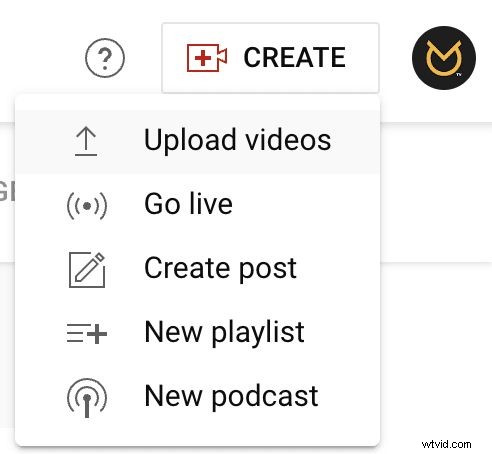
First, upload your video to YouTube as usual if you haven’t already.
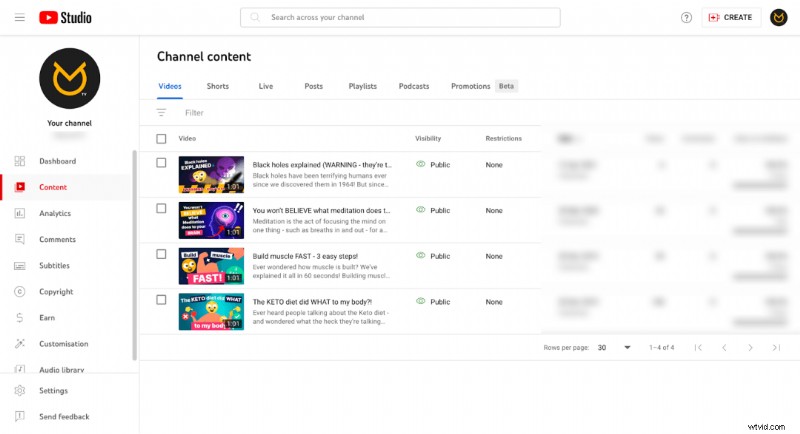
Step 2: Open the Video in YouTube Studio
Once the upload finishes, open YouTube Studio and locate your video in the Content menu. Click the video to open its details page.
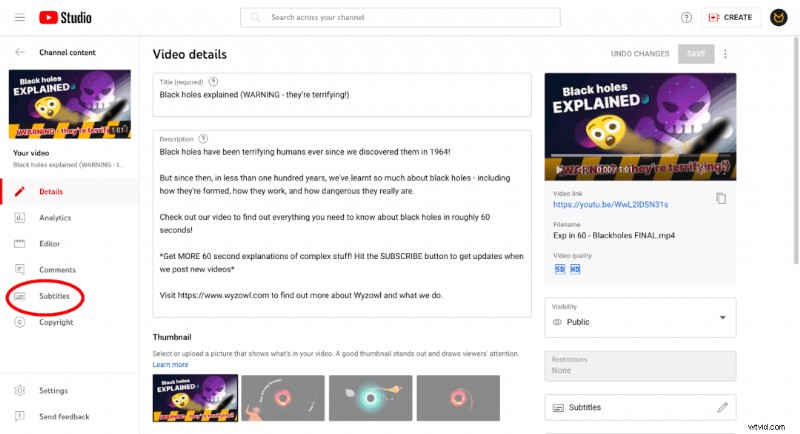
Step 3: Click “Subtitles”
On the left side of the video details page, click the “Subtitles” option.
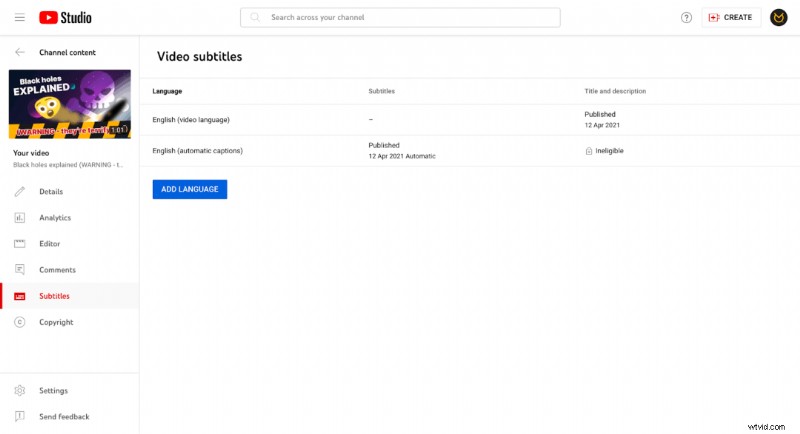
You’ll see any subtitle languages already set up. The ‘Add Language’ button lets you add additional ones.
Step 4: Review & Edit Transcriptions and Timings
To edit the actual subtitles, click “Subtitles” on the right‑hand side of the video details page.
This displays a preview of your video with a transcription. YouTube automatically transcribes where possible, but a quick review ensures accuracy.
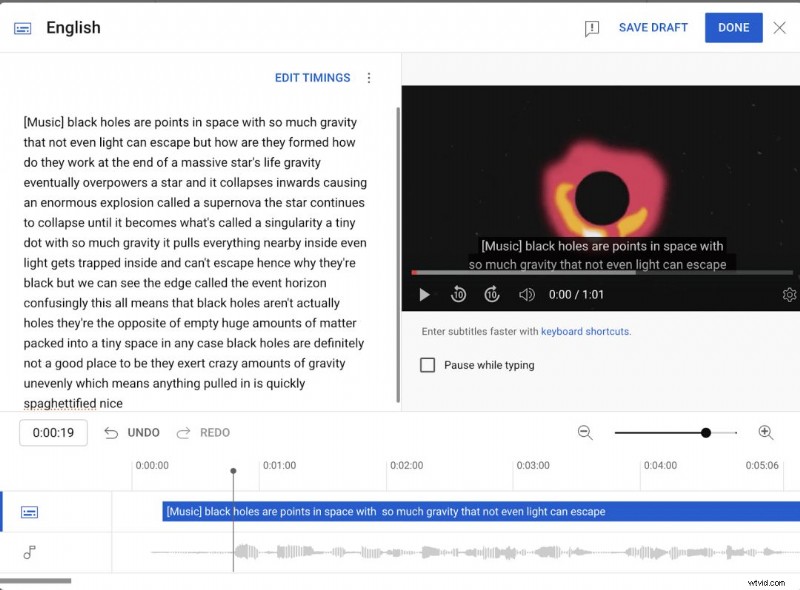
Use the ‘Edit Timings’ button to correct errors and fine‑tune when each line appears. Start and end times are adjustable for each snippet.
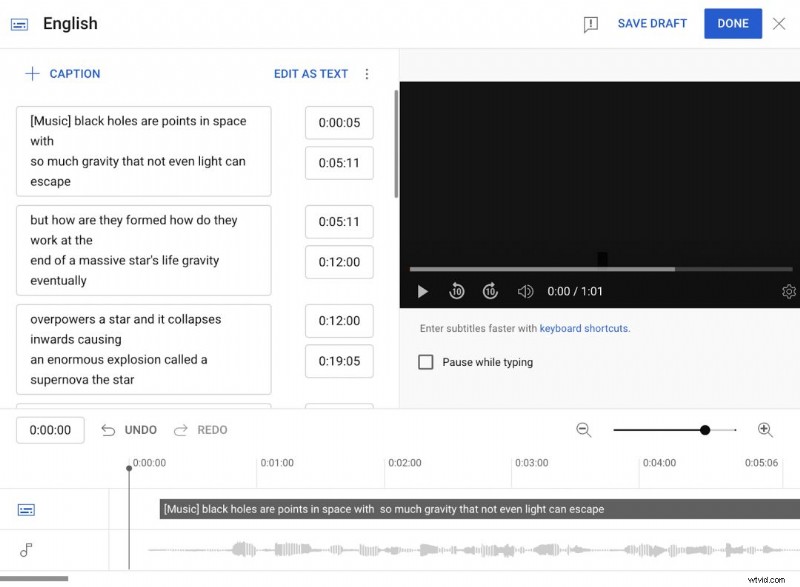
Listen to the audio as you add subtitles to make timing easier. The ‘Pause while typing’ checkbox lets you pause the video during edits, speeding up the process.
Break long speech sections into separate subtitles for better readability.
Step 5: Save the Subtitles
Don’t forget to save your changes. After saving, YouTube may take a few hours to process the subtitles.
Once processed, the languages appear as options for viewers. Adding subtitles in multiple languages maximizes accessibility.
Closed captions and subtitles both provide on‑screen text, but they serve slightly different purposes. Closed captions are typically used for accessibility, while subtitles are often translated for language support.
Thanks for Reading
That’s it! With just a few steps, you can make your YouTube videos more accessible.
Subtitles significantly widen the potential reach of your content, and YouTube Studio’s user‑friendly interface makes the process straightforward.
To expand your audience and boost engagement, add subtitles to your next upload. Accurate transcriptions paired with translations help you connect with viewers worldwide—good luck!

Samantha is Copy Team Manager at Wyzowl. She has written over 1,000 scripts and hundreds of articles on video marketing, so what Samantha doesn’t know about video isn’t worth knowing!