
Whether you’re producing a product tutorial, teaching a virtual class, or capturing a team meeting, recording your screen alongside your webcam can elevate your content’s professionalism and engagement.
Can You Record Your Screen and Facecam at the Same Time?
Absolutely. Modern screen‑recording solutions allow you to capture both your desktop and webcam concurrently, offering options for resolution, region selection, and audio tracks.
Many of the best tools also provide basic editing—trimming, captioning, and clipping—directly within the platform, streamlining the post‑production workflow.
Key Factors to Consider When Choosing a Screen Recorder with Facecam
Before you pick a tool, evaluate these critical attributes to ensure optimal quality and workflow efficiency:
Multi‑Source Recording
Look for software that records from multiple inputs—screen, webcam, external cameras, or microphones—simultaneously.
Device Compatibility
Confirm the tool supports the operating systems and devices you intend to use. Web‑based options run on both Windows and macOS, while some desktop or mobile‑only applications have specific requirements.
Separate Audio & Video Tracks
Separate tracks provide cleaner audio, easier mixing, and the flexibility to repurpose clips or quotes.
Integrated Editing Features
All‑in‑one solutions reduce the need for external editors. Look for AI‑assisted trimming, auto‑captions, and layout customization.
Local Recording
Local capture avoids bandwidth throttling, ensuring consistent 4K quality regardless of internet speed.
Audience Interaction & Sharing Options
Live‑streaming, real‑time collaboration, and instant sharing enhance engagement for educators and streamers alike.
Top 8 Screen Recorders with Facecam (2026)
Our selection spans free and premium options, ranked by recording fidelity, device support, and user experience.
Best Online Recorders with Facecam for Mac & Windows
1. Riverside
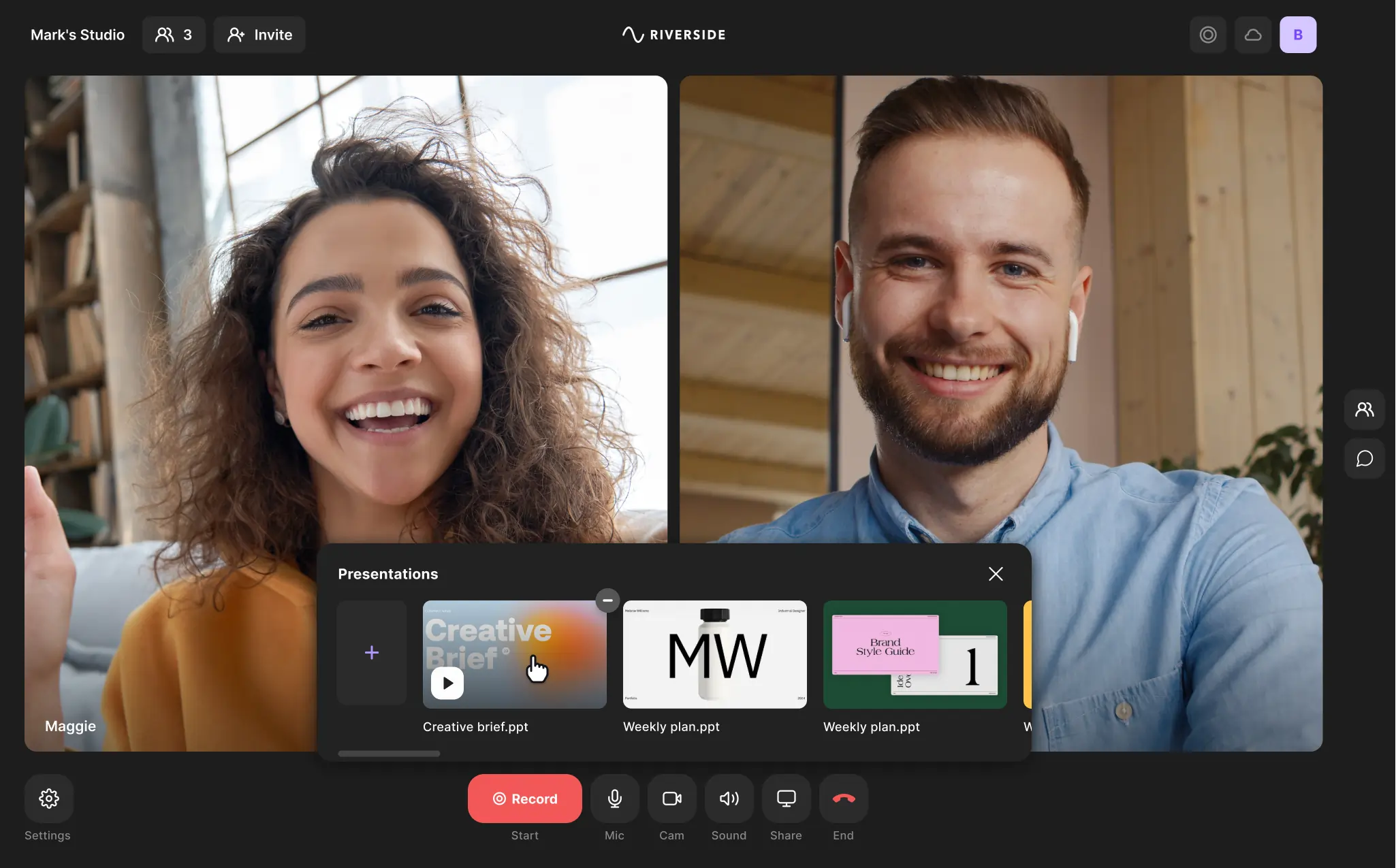
- Price: Free tier; paid plans start at $15/mo
- Facecam & Screen Resolution: Up to 4K
- Features: Local recording, 48kHz WAV audio, 10‑person sessions, AI transcriptions, text‑based editing, Magic Clips, teleprompter, presentation recorder, phone‑as‑secondary camera
- Pros: Highest quality, automated editing, separate tracks, live editing
- Cons: No screen annotation tools
2. Loom
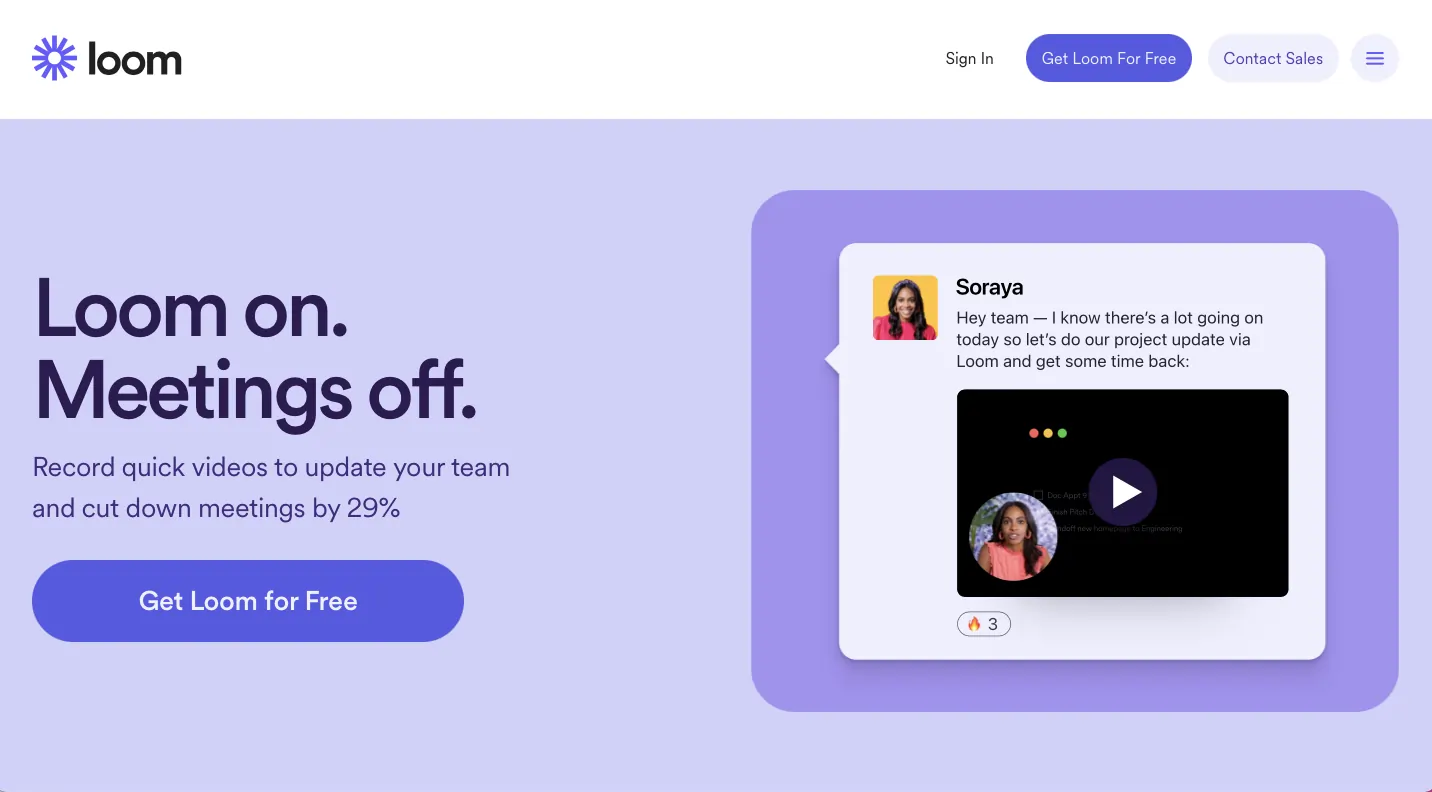
- Price: Free plan; paid tiers from $12.50/month
- Facecam & Screen Resolution: Full HD to 4K (Chrome extension limited to 720p)
- Features: Simultaneous webcam & screen capture, AI‑generated titles, transcripts in 50+ languages, interactive videos, live streaming
- Pros: Intuitive, easy sharing and embedding
- Cons: Inconsistent audio quality, limited built‑in editing
3. OBS Studio
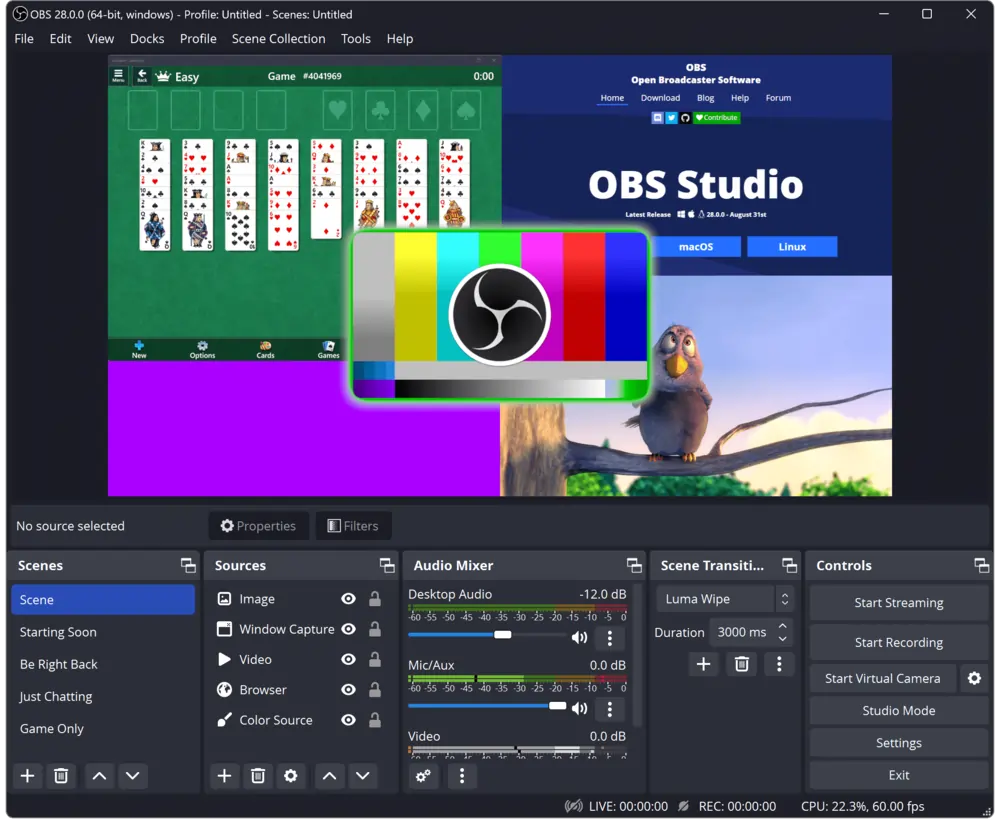
- Price: Free
- Facecam & Screen Resolution: Up to 4K
- Features: Real‑time audio/video mixing, scene transitions, per‑source audio filters, extensive customization
- Pros: No file length limits, platform‑agnostic, robust for gaming streams
- Cons: Steep learning curve, no native simultaneous screen & webcam capture, lacks built‑in editing
Best Screen Recorder with Facecam for Mac
4. QuickTime Player
- Price: Free (pre‑installed on macOS)
- Facecam & Screen Resolution: Up to 4K
- Features: Screen or region capture, audio/video export in multiple formats, separate track export
- Pros: Convenient for Mac users, no additional downloads
- Cons: Cannot record screen and webcam simultaneously, may strain memory on older Macs
Best Screen Recorder with Facecam for Windows
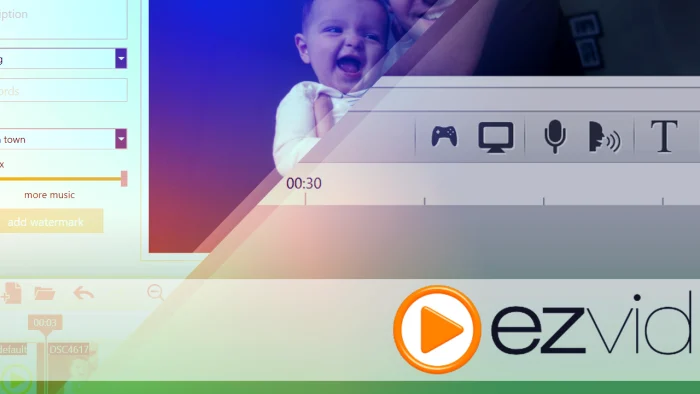
5. Ezvid
- Price: Free
- Facecam & Screen Resolution: Up to 4K
- Features: Voice & facecam capture, screen drawing, playback speed control, built‑in editing, no watermark, text‑to‑speech narration
- Pros: User‑friendly editing, narration support, no watermarks
- Cons: Limited to local recordings, 45‑minute export cap, lacks advanced transitions
6. Bandicam
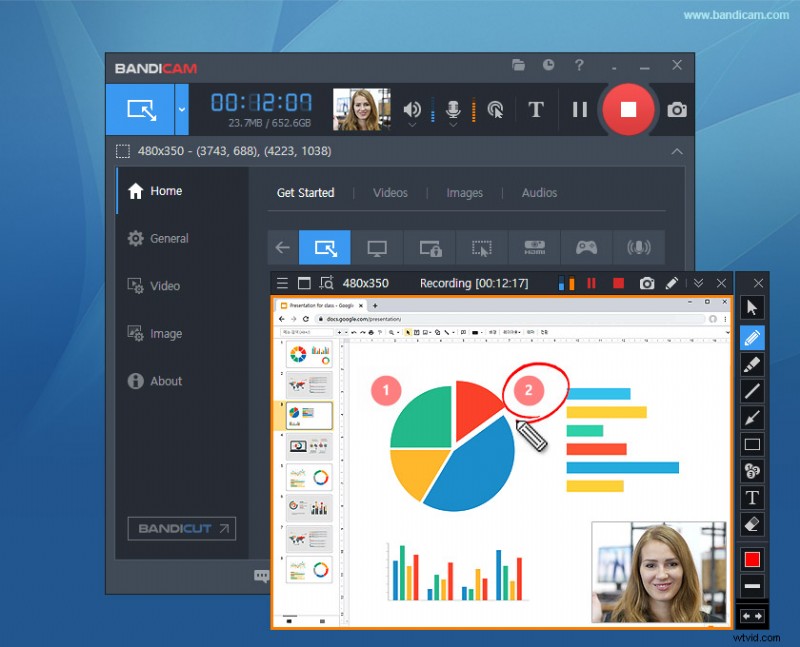
- Price: Free tier; one‑time license $40 for full features
- Facecam & Screen Resolution: Up to 4K Ultra HD with compressed file sizes
- Features: Scheduled recordings, export to MP4/AVI/WAV, direct YouTube upload
- Pros: One‑time purchase, high‑quality output, optimized for gaming
- Cons: Limited free‑tier recording time, basic editing
Best Mobile Screen Recorder with Facecam (Android & iOS)
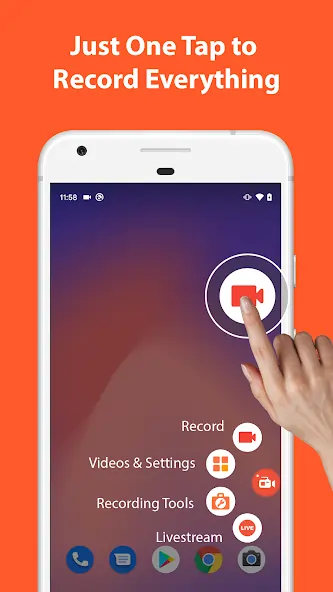
7. AZ Screen Recorder
- Price: $3.49/month
- Facecam & Screen Resolution: Up to 4K
- Features: Video editing tools, GIF creation, multi‑input support, video compression, reaction capture, adjustable facecam size
- Pros: Easy to use, affordable, simultaneous screen & facecam capture
- Cons: Background noise capture, limited advanced edits
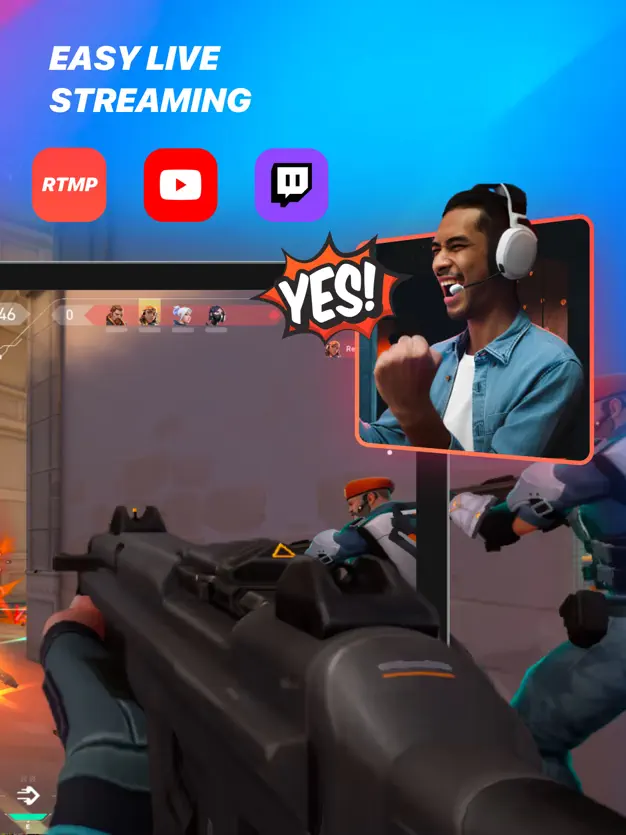
8. Mobizen
- Price: Free (ad‑supported)
- Facecam & Screen Resolution: Up to 4K
- Features: High‑definition recording, customizable orientation, quick‑record button, live streaming, picture‑in‑picture mode, subtitles, filters, trimming, volume control, video library
- Pros: Simultaneous recording, screen mirroring, versatile editing
- Cons: Ads during use, significant battery drain
How to Record with Riverside (Step‑by‑Step)
1. Create or join a Riverside studio; share the guest link (no downloads needed).
2. Verify your microphone, camera, and screen capture settings before entering the studio.
3. Click Share Screen and choose a window, browser tab, or desktop. For slides, upload via the Presentation Recorder.
4. Hit Record and begin your session.
5. Stop when finished, wait for the upload, then edit and export using Riverside’s built‑in tools.
FAQs on Screen Recorders with Facecam
Which mobile apps record screen and front camera?
AZ Screen Recorder and Mobizen support simultaneous screen and front‑camera capture on Android and iOS.
Can Zoom record my screen and face?
Yes—enable Record video during screen sharing and select a layout that includes both the shared screen and participants.
Can OBS record webcam and screen simultaneously?
OBS requires a manual workaround: add webcam and screen as separate sources, then start recording. This can be resource‑intensive. For smoother experience, consider Riverside or Loom.