
A transparent logo can play an important role in brand marketing. It can be added to various places, such as product pages, business documents, brand ads, etc. So how to make logo transparent easily? The following contents will introduce 3 methods for your options. Want to make a marketing video with a transparent logo? MiniTool MovieMaker can help you.
Since a logo with a transparent background can satisfy various needs of company branding, the background eraser is what you need to remove background from image. These two recommended tools provide this feature of background eraser to help you make logo transparent successfully.
Method 1: Using Graphic Design Software on Desktop: Photoshop
Photoshop is the most powerful graphic design software that provides many excellent features with you to help edit pictures and design logos, etc. including its magic eraser that can help you easily remove the background.
As the most widely used software, Photoshop will become convenient for you if you have mastered its basic functions. So how to remove background in Photoshop? Here’s a detailed guide to help you make logo transparent for various purposes later.
Step 1. Upload the logo image into Photoshop and make sure that it is not in lock mode.
Step 2. On the left side toolbar, left-click the Eraser icon to choose the more specialize eraser, and the magic eraser is powerful to remove background from this image.
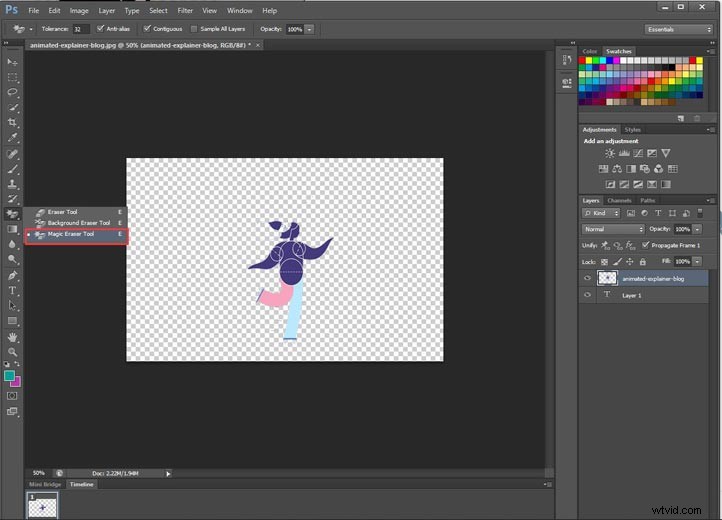
Step 3. When you have finished, click Save as in the File tab above the menu bar and choose the PNG format so that your transparent logo has high quality.
Method 2: Using Online Tool: Kawping
As a transparent background maker, Kawping is a free online tool that offers the eraser feature to help users easily make logo transparent. Furthermore, it’s user-friendly and it offers many functions for beginners in photo and video editing.
What’s more, there is a precise eraser to adjust the transparent background. With it, you can fine-tune the transparent logo until it meets your need for brand marketing. Next, here is a detailed guide.
Step 1. Go to Kawping’s website, and click Get Started to upload your content.
Step 2. Select the Eraser button to on the right menu, and drag & drop to erase the background manually.
- If you want to adjust the eraser’s size to fine-tune, slide around the point of sensitivity.
- If you want to erase a large section of the background automatically, you should turn to the magic wand. Click the Magic Wand button to select the background you want to remove, and then click the Remove Pixel button to erase it, which just need one step to erase the whole background.
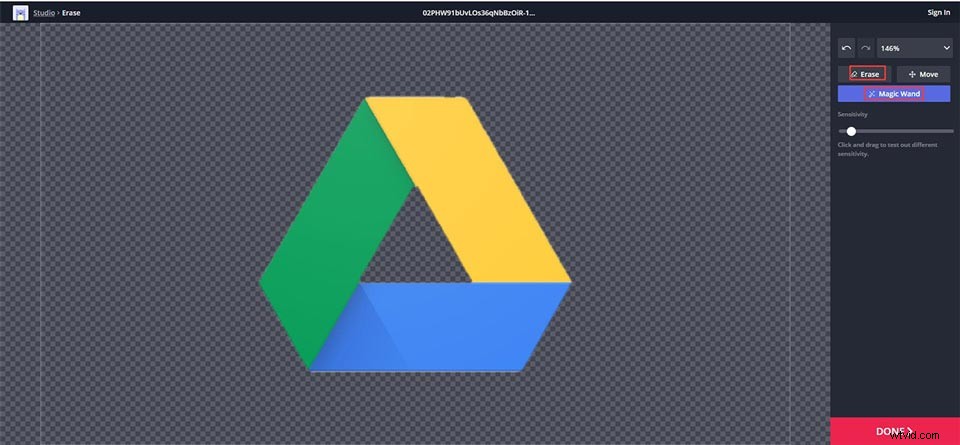
Step 3. Click Done to go back to the Studio, and then click the Publish button to download your transparent logo.
Method 3: Using Photo Editor: Lunapic
As a popular photo editor, Lunapic has many free features for users, including Eraser tool and Transparent Background. It’s convenient to use Lunapic due to its clear-arranged toolbar to directly navigate to the appropriate tool.
Let’s take Transparent Background as an example to explain how to use Lunapic to make logo transparent. Additionally, there are other transparent tools: Eraser, Magic Wand, etc.
Step 1. Find the Transparent Background tool in the Edit tab, and click it to upload the logo you want to make it transparent.
Step 2. Click the background to make it transparent.
Step 3. Click the Save button or directly share your transparent logo on social media platforms.
Bottom Line
When you have gotten the transparent logo using the above-recommended tools, you can overlay this logo on your business page naturally.
If you have any questions or suggestions when you use the above-recommended tools, please feel free to contact us via admin@wtvid.com or leave your comments in the below section.