
A couple of years ago, creating a video from a single photo sounded like science fiction. Now it’s an everyday reality with AI advancements. Behind that magic “Generate video from photo” button, AI analyzes your photo, spotting facial features, body posture, and background elements, then predicts movement or even syncs lip-sync with audio.
The result? Still photos turned into dynamic videos you can use anywhere, from marketing clips to explainers, social posts, or even heartfelt tributes. And the best part: you don’t really need editing skills.
How to Make an AI Video from a Photo
So, you've got your photo and a big idea, but zero editing skills or a lack of time? No problem. Flixier's AI Image to Video tool makes it insanely easy to turn a single image or photo into a dynamic video with just a few clicks. Here's how you can do it:
Step 1: Launch Flixier's AI Image to Video Generator in Your Browser
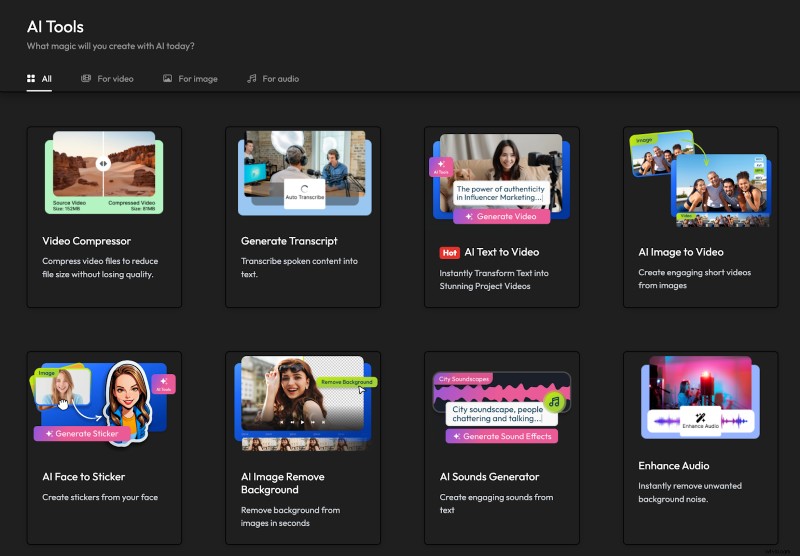
Head to flixier.com and click the Start Editing blue button. No sign-ups, no lengthy downloads, no installs. Once you've opened the video editor, look for the AI Tools on the left side menu and click on it, then choose the AI Image to Video feature.
Step 2: Upload your Image(or Images)
You can drag and drop your files into Flixier or import them from cloud storage services like Google Drive, OneDrive, or Dropbox.
Pro tip: The better the image quality, the better the final video will look.
Step 3: Generate a video from your image
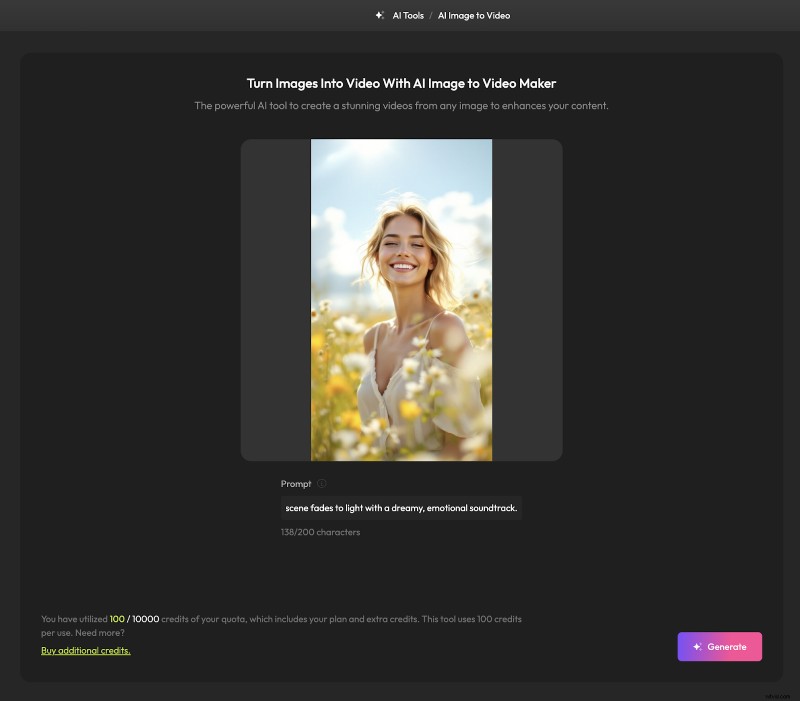
Now, it's time to tell AI what you are looking for. Use the Prompt box to describe in as much detail as possible the video you'd like from the photo provided.
You have up to 200 characters, so feel free to get specific(camera movement, style, mood, animation type).
The prompt we used for the image above: “The woman turns slowly in a field of wildflowers, wind catching her hair, as the scene fades to light with a dreamy, emotional soundtrack.”
Then, simply click the Generate button, and just like that, your static image will become a mini-motion masterpiece.
Step 4: Save your video
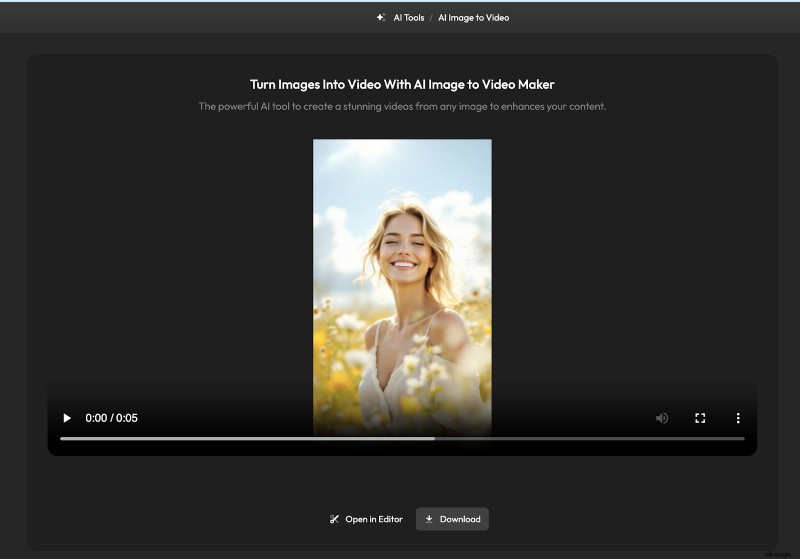
Once generated, tap the Download button to save it as a high-quality MP4 file on your device.
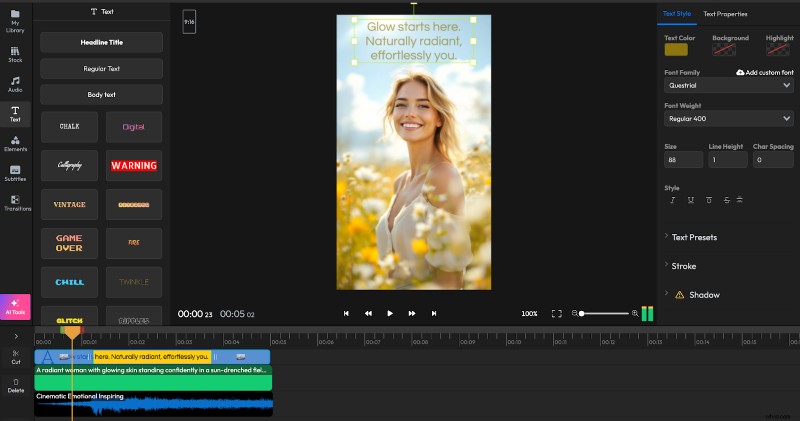
Or, you can tap the Open in Editor button to automatically add your newly generated video to the editable timeline for further tweaks. Perhaps you want to add text to video, replace background music, insert your own footage, etc.
3 Tips for better AI videos from photos
Even the best AI might need some extra help from you. Can anyone put together a video slideshow, but to make it look great? Takes a bit of know-how. So, we've rounded up these tested tips to get you cleaner results, smoother animations, and overall more engaging content.
Note: these tips apply whether you choose to use Flixier or any other AI-powered tool.
1. Use high-resolution images
This is the basics: image quality matters. Since AI will "read" your image to understand facial landmarks, identify object details, or distinguish background separations, it is important to have a clear photo. A blurry or pixelated image will confuse the algorithms, and more often than not, the results will show awkward transitions, jittery motion, or just weird outputs.
Standard guidelines to pay attention to:
- Resolution: Aim for at least 1080p or higher
- Lighting: Upload only well-lit images, with natural light ideal.
- Focus: The main subject should be sharp, so avoid images with motion blur or heavy filters.
Pro tip: For headshots or portraits, try framing the face from the shoulder up so AI has more data points to work with for lip-syncing, expressions, or realistic motion. If you're using old photos, you might need to clean them up a little bit before uploading them.
2. Keep scripts short and clear
The quality of your script matters, too. Your message's tone, pacing, and clarity will help AI understand it better or confuse it further.
- Keep it under 200 characters
- Use short sentences that sound natural.
- Write conversationally.
- Emphasise key points.
3. Use neutral backgrounds for a clean look
More focus and less clutter. AI might be smart, but they do have their limits, mostly when it comes to separating the subject from the background. A busy, patterned or colourful background can mess with motion prediction.
To keep things clean and professional:
- Shoot with a plain backdrop: white, black, green, or soft gradients work best.
- Blur the background a little bit to bring more focus to your subject.
- Use background removal tools like the one in Flixier's editor to isolate your main subject. Swap it with a solid colour. This is crucial for those talking head videos, product explainers, or testimonial-style content.
Pro tip: a neutral background gives you the freedom to re-edit, overlay text, stickers, or change background later.
And there you have it! Your complete guide to turning a single photo into a scroll-stopping AI video in minutes and with just a few taps.
What used to take hours, expensive software, and expert-level skills now takes seconds, and it's all happening in your browser. All thanks to tools like Flixier's AI Image to Video generator.
Need to create dynamic content for Instagram? Build product demos? Making personalised messages? Or test the latest AI tech? This workflow has you covered.
Don't be afraid to try and test. These AI tools are best because they're fast, forgiving, and fun.