
This post introduces how to put pictures into videos with a few clicks on Windows 10.
An image speaks a thousand words. Add that over your million-dollar video and increase the value of your content incrementally. Learn to add pictures to a video without compromising on the quality of the video or the photo. So how to add pictures to videos on your Windows 10?
Why We Want to Add Picture to Video
Have you seen logos in videos that are crafted professionally? You can do the same by adding a picture on videos and setting the opacity just right. Voila, you have a video with an embedded logo at hand. They also act as watermarks for your videos, along with augmenting the editing quotient.
Other times you create family vacation montages or a YouTube video for your reaction, an informative channel. Insert pictures over the video to add context, fun quotient to the content.
TV shows, news programs, and others use overlays for adding elements to the screen. Credits and news roll are some of the most frequently used examples. Turns out it can be done by putting a picture on a video, along with minor calibration.
How to Add Picture to Video with FilmForth
FilmForth has been around in the free video editors segment for a while now. Apart from the standard editing tools, it offers several unconventional yet valuable features. The kind of features that are missing from the bigwigs of the segment.
Now let us learn to put a picture on a YouTube video. We have taken the most popular video on YouTube, the Baby Shark Dance, with over 8 billion views. That’s more than the population of the world. Babysitting, parents have watched or heard it at least once—an evergreen song liked by every toddler and child.
Back to the topic, we will add a picture over the video and paste our logo over the existing logo. Before moving forward, you must know that you can do this process multiple times to add numerous pictures over the video.
 Download for Free
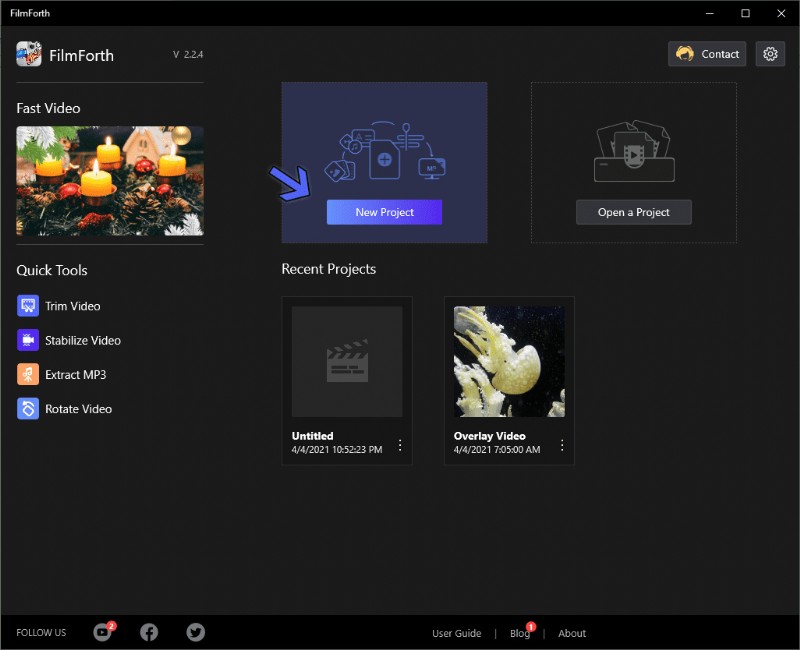
Step 1. Install FilmForth from the Microsoft store and launch the program once installed. Select the New Project to create a new project.
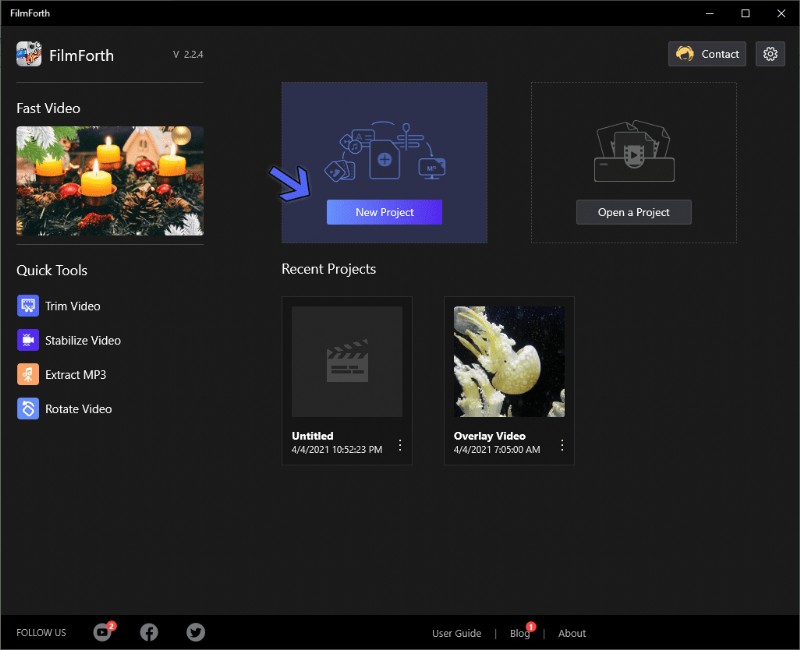
How to Put A Picture on a Video
Step 2. Time to add the video by clicking on the Add Video/Photo clips button. And, if that is too much work for you, there is the drag and drop button.
Step 3. Now, we will use what is called the Picture in Picture feature. There are two ways to access it.
- The first is a shortcut, which involves clicking on the Picture in Picture button in the timeline feed.
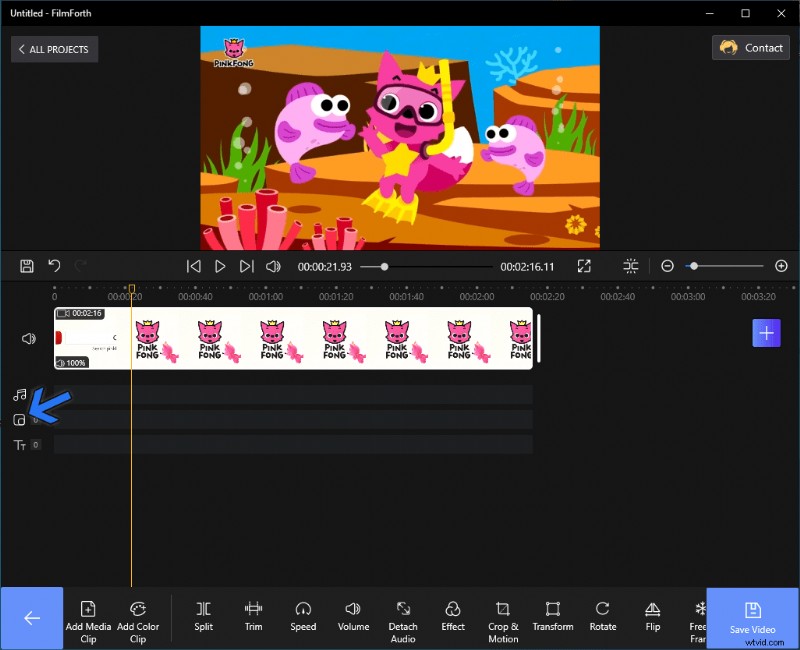
Shortcut And the Picture in Picture
- The other one involves going to the project’s home screen and accessing the Picture in Picture option by clicking on the button.
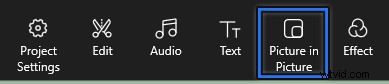
Picture in Picture
Step 4. After that, select the Add Pic in Pic button. That will open the dialogue box to browse for the pic that you want to add.

Add Picture in Picture
Step 5. As mentioned earlier about replacing the video’s logo, we have a neat and simple logo ready in the form of a picture. We added a baby elephant over the original watermark/logo of the video.
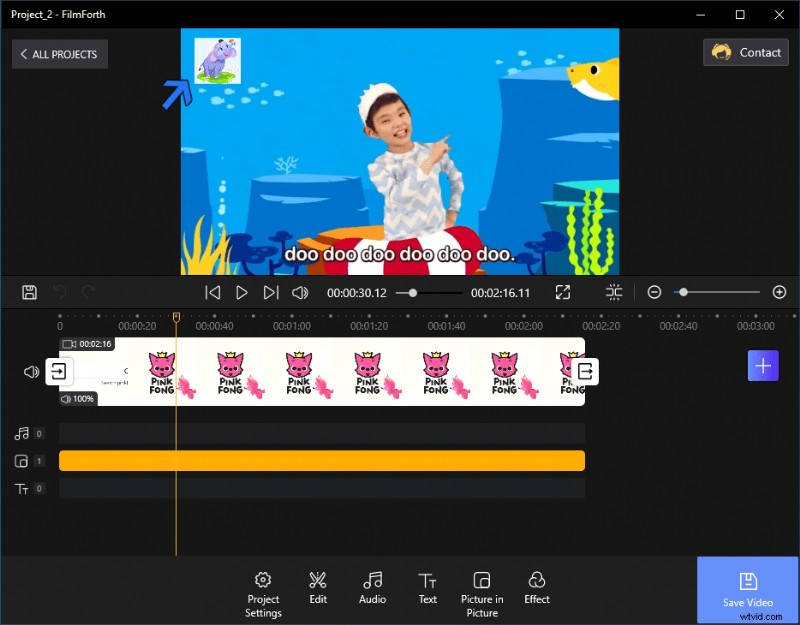
Added a Logo of the Video
Bonus: Calibrate the Picture
Here are some tips that can make your video more outstanding by using FilmForth: such as Dimensions, Rotate, Opacity, Effects, etc.
- Resize
You can resize by the blue circular button on the right side of the picture. Pull and push to manage the dimensions of the photo.
Logo Resize
- Rotate
The button on the right border above the resize button can rotate the image/video in both directions.
- Opacity
Calibrate opacity so that it doesn’t come off as intrusive or off-putting on the video.
Step 1. Head to the Opacity menu from the toolbar in the Picture in the Picture section.

Opacity via FilmForth
Step 2. Next thing, you will be in the opacity menu. Slide the button to set the opacity of the picture. It ranges from 100 to 0%, where the lowest will make your picture disappear from the video.
Set it at a sweet spot where it’s not obtrusive while still being adequately prominent for the viewers.
Opacity Effect
- Effects
Why should the video have all the fun? Apply different effects on the added picture. You can always revert to the original effects by selecting none in the effects menu. Also, here is more information about adding special effects to the video.
Conclusion
Add as many pictures as you want on a video. Make sure to set the appropriate duration for each picture. Set the opacity right, and pictures will add entertainment quotients to the videos.
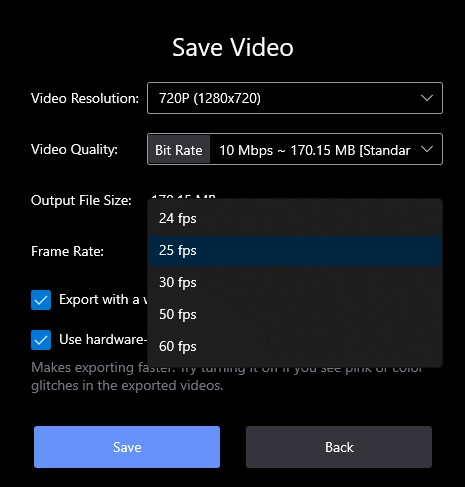
Besides adding pictures, users can also stabilize shaky videos, remove background from videos using Chroma key, and much more. Also, give your 4K videos a try on the editor and publish them in 60FPS along with the ultra HD resolution.