
Sometimes, you may need to rotate image in pursuit of a better visual experience. When it occurs, how can you do it simply? This post will give you 4 ways about how to rotate image in Microsoft Word, in Photoshop, and online. If you want to rotate videos or rotate GIF on your computer, you can try MiniTool MovieMaker.
This post will give you step-by-step guides about rotate image on the computer. Now, let’s focus on the following steps.
How to Rotate Image in Microsoft Word
Microsoft Word is a common application for both work and life. If your picture in Word is in the wrong orientation, how to rotate image in Microsoft Word.
Method 1. Rotate image with degrees
Step 1. Open the Word document.
Step 2. Tap on the image that you want to rotate is to present the picture tools.
Step 3. Click the Format on the top of the Word window.
Step 4. Click the Rotate Objects icon to present rotation options: Rotate Right 90°, Rotate Left 90°, Flip horizontal, Flip vertical, and More Rotation Options.
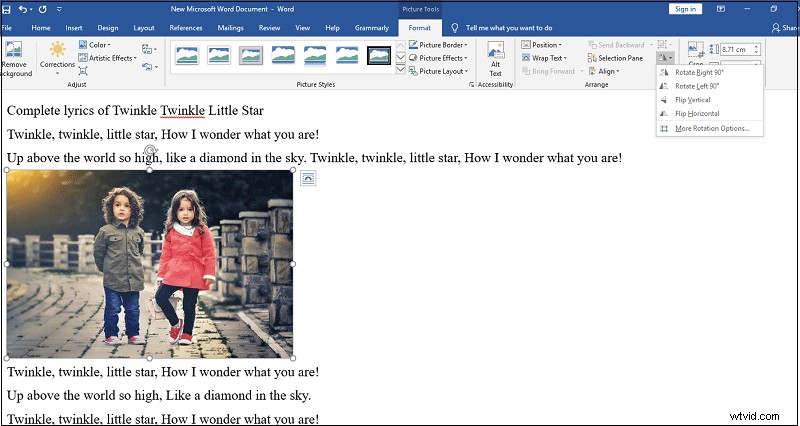
Step 5. Click Rotate Objects icon to choose the Flip horizontal or Flip vertical.
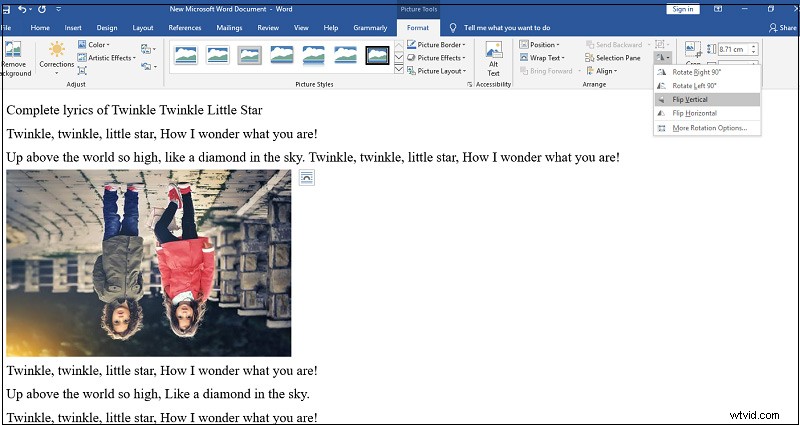
Step 6. Choose Rotate Right 90° or Rotate Left 90°.
Step 7. Click the More Rotation Options and enter the desirable degree in the rotation area.
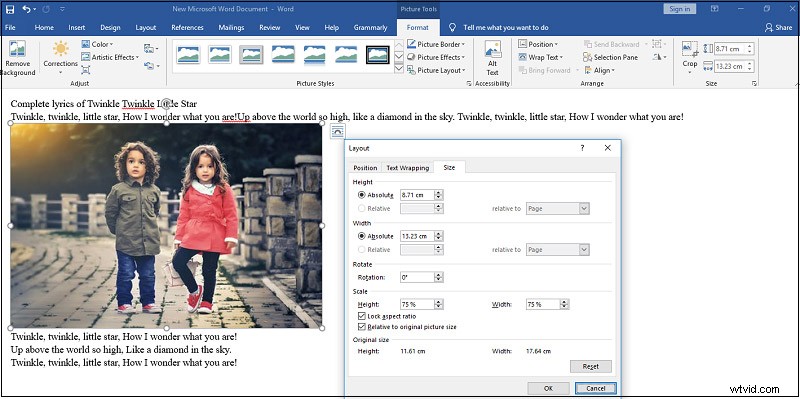
Method 2. Rotate image with the mouse
Step 1. Open the Word document.
Step 2. Select the image you want to rotate.
Step 3. Tap on the circular arrow, drag the mouse to rotate the image to the degree you desire.
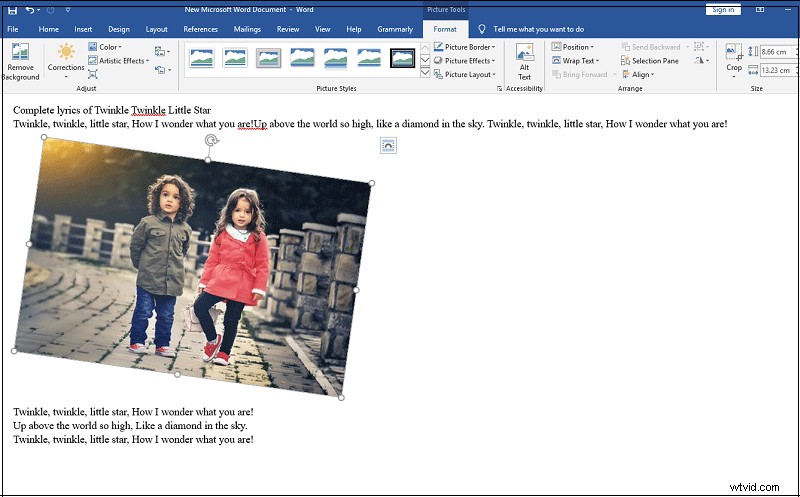
Method 3. Rotate image with 3-D rotation.
Step 1. Open the Word document.
Step 2. Right-click the image and click the Picture Format > 3-D rotation.
Step 3. Select Presets to choose a preset.
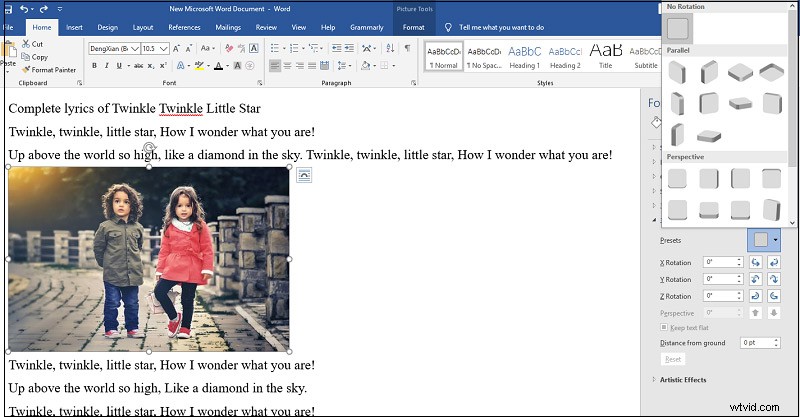
Step 4. Enter the degree in X, Y, and Z rotation part, and then release mouse to save the image in Word.
How to Rotate Image in Photoshop
Here’re the steps about how to rotate image in Photoshop.
Step 1. Download, install, and launch the Photoshop.
Step 2. Click File > Open to import your image.
Step 3. Click Image > Image Rotation.
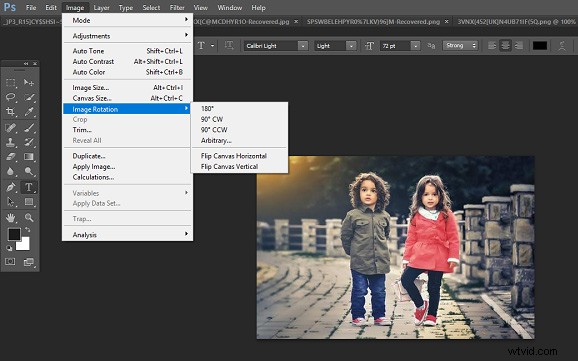
Step 4. Select the rotation style: Rotate image 180°, 90° CW, 90° CCW.
Step 5. Click the Arbitrary to enter any angle you want.
Step 6. Tap on the Flip Canvas Horizontal to flip image horizontally. Or tap on the Flip Canvas Vertical to flip image vertically. (optional)
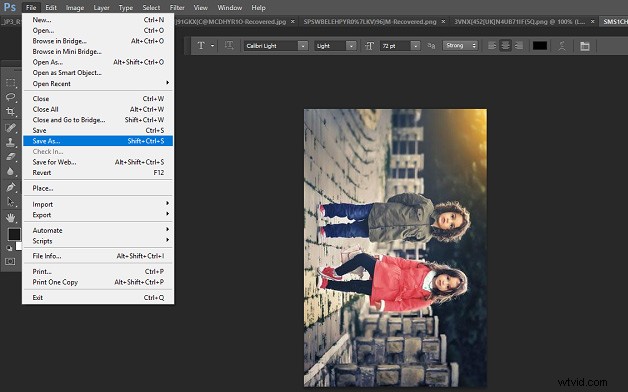
Step 8. Tap on the File > Save as to save the image on the computer.
Bottom Line
This post illustrates 4 ways to rotate image, including how to rotate image in Microsoft Word and how to rotate image in Photoshop. If you learn about other ways to rotate image, you can share your methods in the below comments area.