
When you take a photo or create an image on your devices, some personal information is saved in the photo as metadata. How to remove metadata from photos? This post offers you 4 solutions to protect your privacy. Just explore them in this post!
Most digital devices will store some metadata (also known as EXIF data) when you take a photo. Depending on the device, it could include location coordinates, time, device model, camera type, and more. How to remove EXIF data from the photo? The following content covers 4 solutions for different devices.
If you are looking for a free video editor to create videos from photos, you can try MiniTool MovieMaker.
How to Remove Metadata from Photos on Windows
Windows enables you to remove the metadata from photos without using any third-party applications. Here’s a guide on how to remove EXIF data from the photo right on your Windows device.
1. Open the folder that contains the photo you want to remove metadata from. Select and right-click on the photo and click Properties in the dropdown menu.
2. Tap on the Details tab on the new window appearing with properties. You can see a scrolling list of elements related to the photo there.
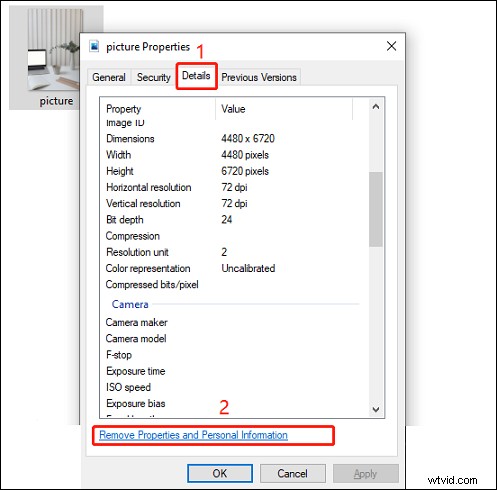
3. Select Remove the following properties from this file and select all of the property values you want to remove. Click OK to remove the data.
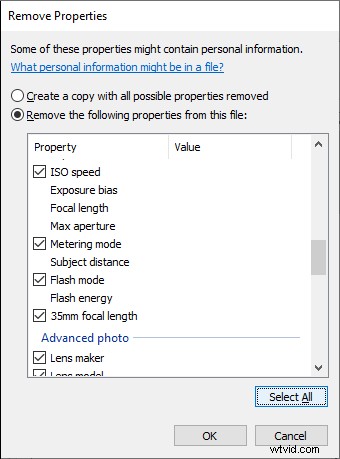
4. Select Create a copy with all possible properties removed if you want to retain a copy of the file with the metadata.
How to Remove Metadata from Photos on Mac
If you’re on a Mac system, you cannot edit or wipe out all aspects of EXIF data. You do have the option to remove the location data to safeguard your privacy entirely. You can follow these steps to remove location data from your photos.
1. Open the intended photo in Preview.
2. Go to Tools and select Show Inspector.
3. Click the information (i) tab. If there is a GPS tab, select it and click Remove Location Info. If there is no GPS tab, your photo has no location data attached.
If you want to geotag your photos, you can check this post: 4 Best Apps to Geotag Photos for Android and iOS.
How to Remove Metadata from Photos on Mobile Devices
If you want to remove photo metadata on an Android or iOS device, you may need to use a third-party app.
On Android:
You can download an EXIF editor app on Google Play Store. Here we recommend Photo Exif Editor. Once you have installed the app, you can follow the following guide to remove EXIF data.
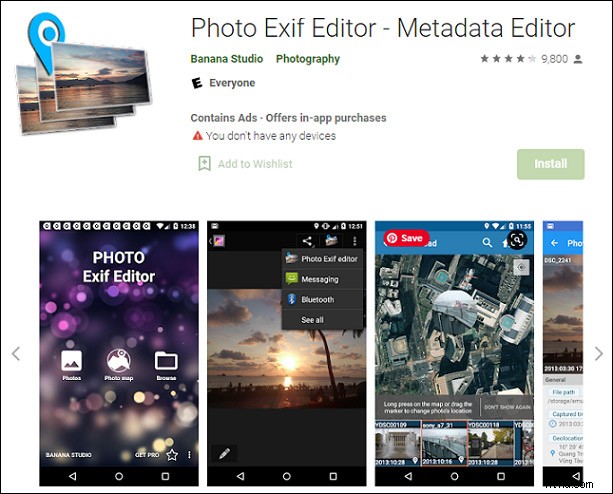
- Open the Photo Exif Editor on your device.
- Go to Photos and select the image you want to remove EXIF data from.
- Click on the EXIF icon on the top right corner. Select the tags you want to remove.
- Tap on the save icon to save the photo on your phone.
On iOS:
For the following instructions, we will use the ViewExif app (priced at $0.99) by Skyjos. You can download this app from the App Store. After download, let’s see how to remove metadata from photos on iPhone with ViewExif.
- Launch the app and allow ViewExif to access your photos.
- Hit Done after you select your photos or albums.
- Select the photo you want to edit.
- Choose the eraser tool and click Remove Metadata. You’ll see prompt requesting permission for the app to modify the photo. Select Modify and the metadata will be removed.
Conclusion
To sum up, we introduce 4 solutions for how to remove metadata from photos on different devices: Windows, Mac, Android, and iOS. You can try the suitable methods according to your device.