
How to Create an Anime Super Speed Dash Effect
Anime fans love the exhilarating “super speed” dash that blurs motion into a streak of light. This guide shows you how to build that effect in Filmora, from shooting to final polish.
What You Need
- Computer (Windows or macOS)
- Raw footage of your character in motion
- Wondershare Filmora (latest version)
Step 1: Record Your Footage
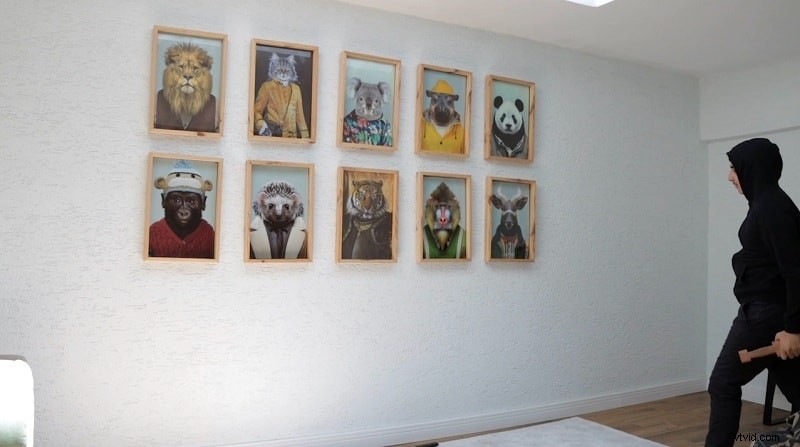
Capture a clean background shot first, then film your character performing fast actions—jumping, sword swings, dancing, etc. Shoot indoors for controlled lighting.
Step 2: Install Filmora
Download the newest version of Filmora from the official site. Follow the on‑screen prompts to install on Windows or macOS.
Step 3: Import and Arrange
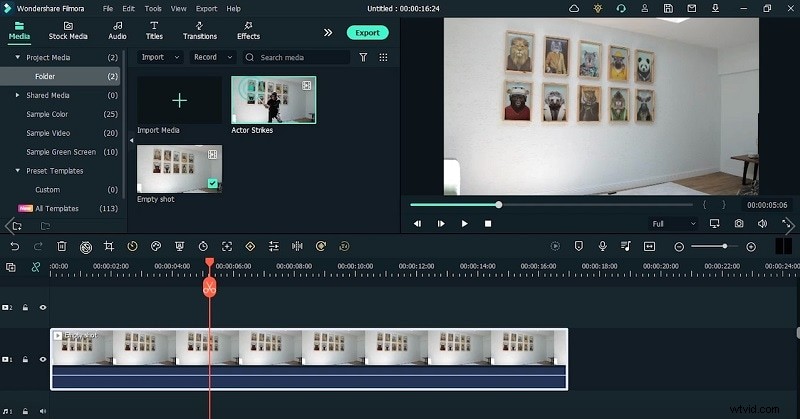
Open Filmora, click Import to bring in your clips, then drag them onto the timeline. Keep background and action footage on separate tracks for easier editing.
Step 4: Trim & Freeze
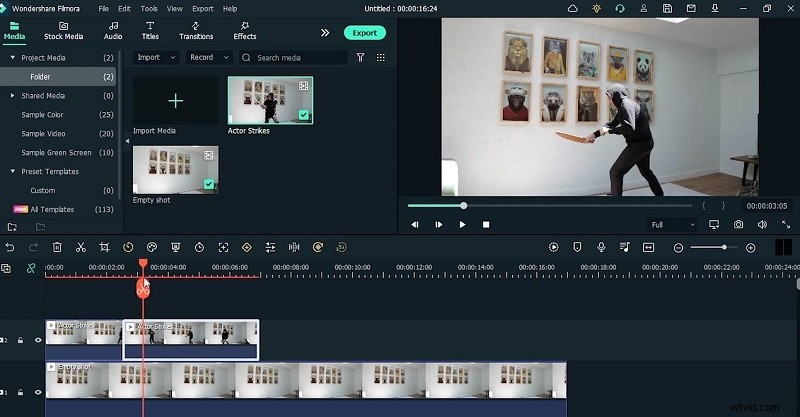
Use the Split tool to isolate each action segment. Right‑click the clip, choose Freeze Frames to capture stills where the motion will be intensified.
Step 5: Mask the Subject
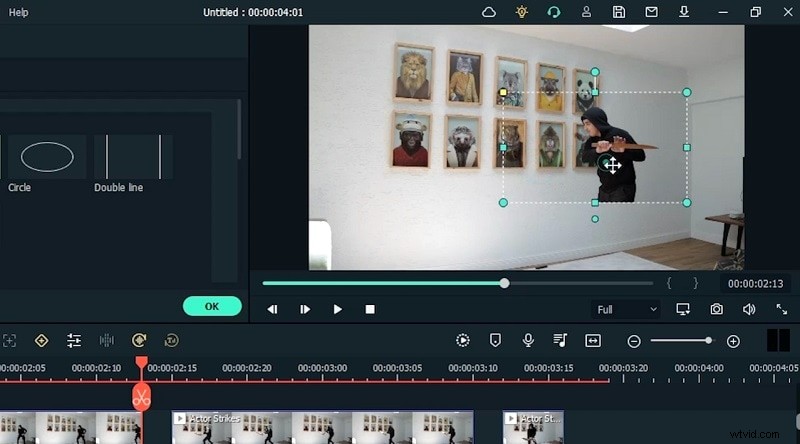
Double‑click a clip to open the Mask window. Select the Rectangle shape, frame your character, and set the Blur Strength to soften edges.
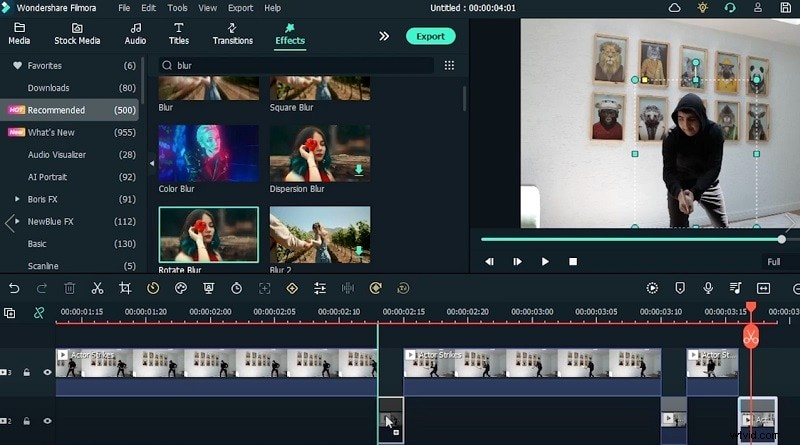
Step 6: Apply Rotate Blur
Navigate to the Effects menu, pick Rotate Blur, and drag it onto the masked clip. Adjust sliders until the motion blur looks cinematic.
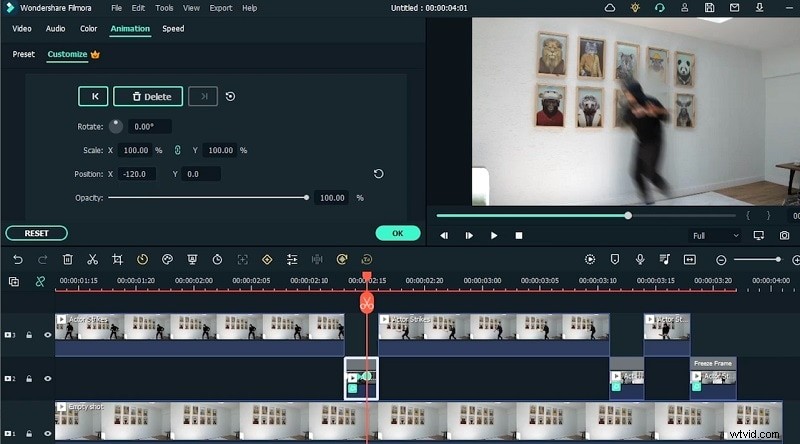
Step 7: Add Keyframes
Enable Animation for each clip. Insert keyframes at the start of the action, then adjust Scale and Position to create a fast‑forward feel.
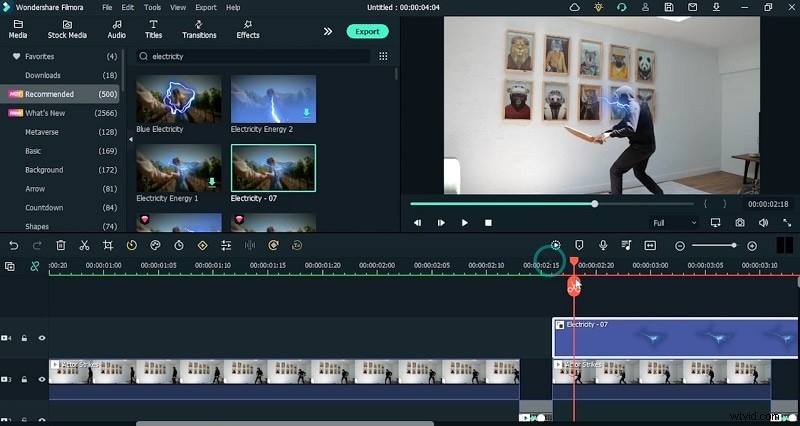
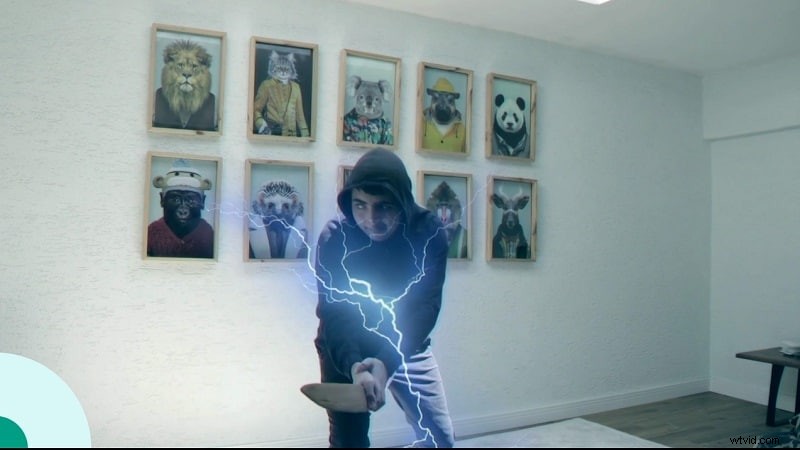
Step 8: Enhance with Elements
Layer additional visual flair: Electricity, Wind, Blur, and LUTs. Drag these onto the timeline above your main clip, tweak duration and intensity.
Step 9: Final Preview & Export
Play the sequence to ensure all transitions sync. Export as MP4 or MOV; both formats work seamlessly on social media.
Quick Recap
With raw footage, Filmora’s masking, freeze frames, and rotate blur, you can craft a convincing super speed dash that thrills viewers. Download Filmora, follow these steps, and bring your anime action to life.