
Crafting a clone‑effect video starts with solid preparation. Secure a sturdy tripod, a high‑quality camera, and a consistent shooting space to maintain frame dimensions throughout the shoot. Once you have your footage, Filmora turns your raw clips into polished, multi‑clone productions.
Tools You’ll Need
- Tripod and high‑resolution camera
- Quiet, vibration‑free shooting area
- Computer (Windows or macOS)
- Filmora video editor (latest version)
- Your recorded video files
How to Make a Video with a Cloning Effect
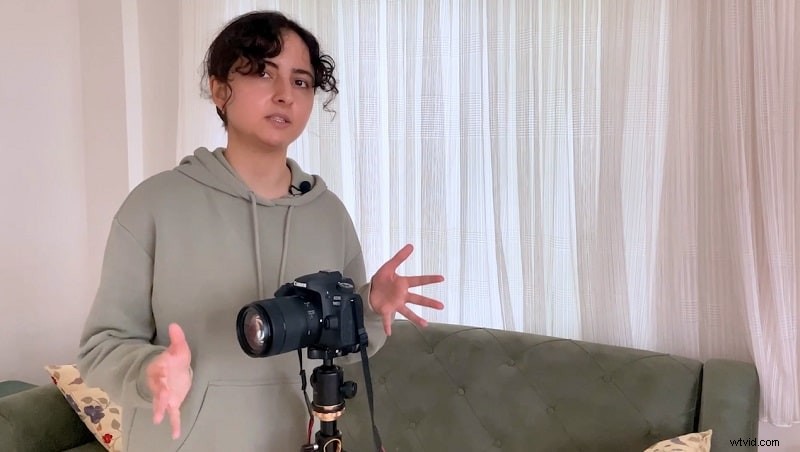
1. Record the Footage
Capture three separate clips of the same scene from identical angles and lighting. Consistency in camera position and scene layout is crucial for seamless cloning later.
2. Download and Install Filmora
Visit Wondershare Filmora’s official site and download the latest version compatible with your OS. Follow the installer prompts to complete installation.
3. Import Footage and Place on Timeline
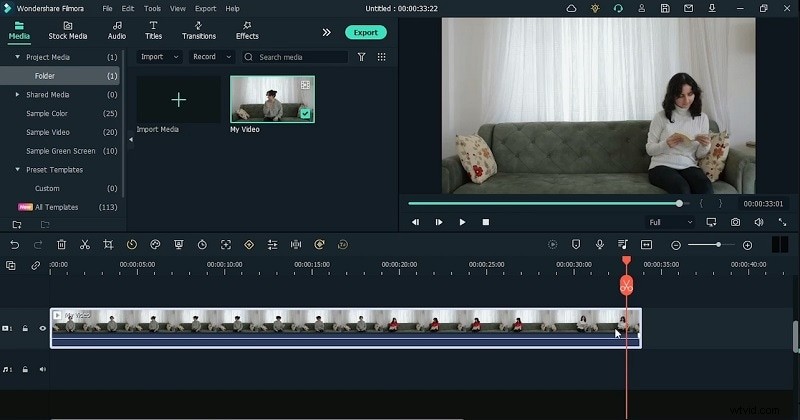
Open Filmora, click Import to bring in your clips. Drag each file onto the timeline, ensuring they’re aligned for easy editing.
4. Split the Clips into Scenes
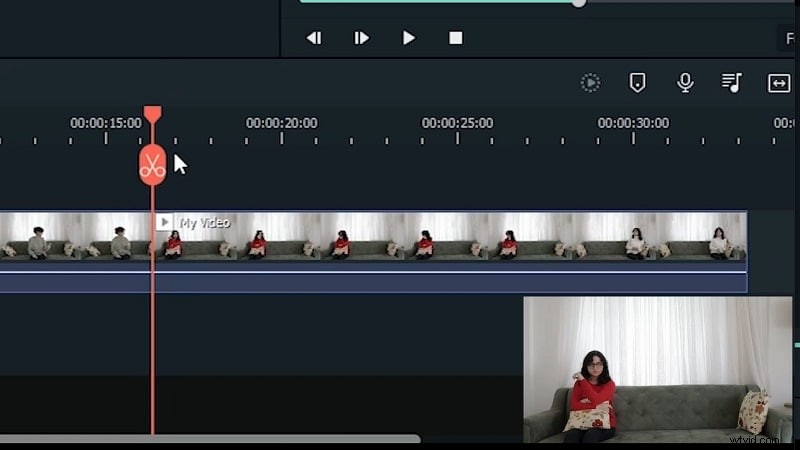
Use the Split Scissor tool to divide each clip at precise timestamps. Remove any unwanted sections to keep the timeline clean.
5. Apply Masking for Cloning
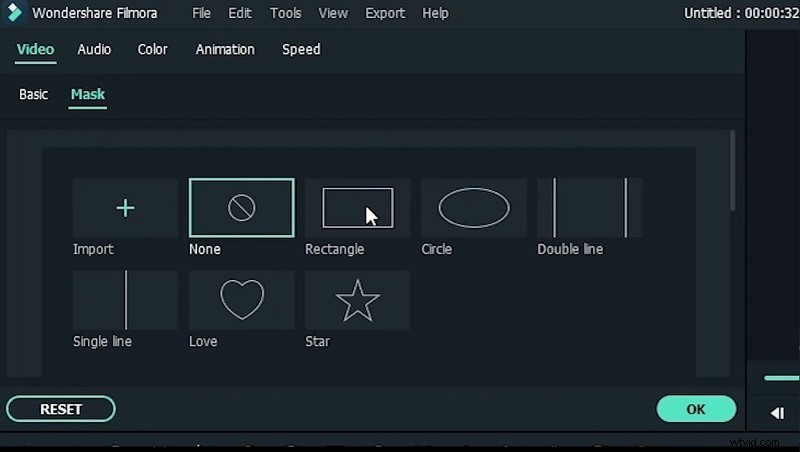
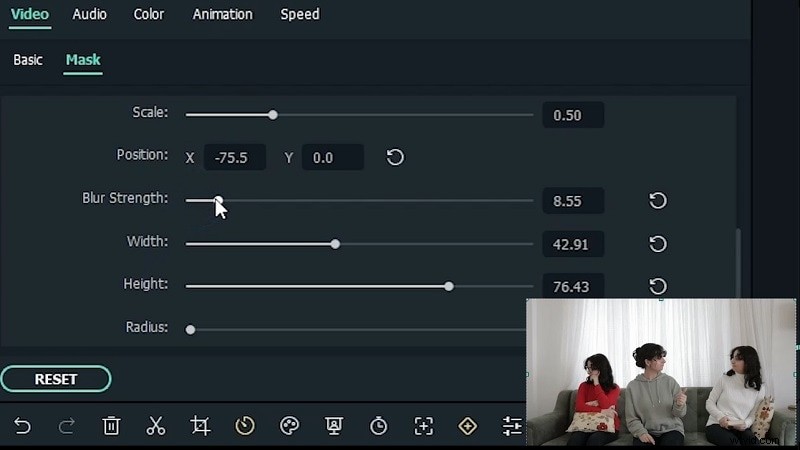
Overlay the first clip on the second, then double‑click to open the edit window. Select a mask shape from the Mask menu, drag it onto the clip, and adjust its size and position to match the background.
6. Refine Edges with Blur
In the edit window, slide the Blur Strength to soften mask edges, creating a realistic blend. Repeat for all overlayed clips.
7. Add Creative Transitions
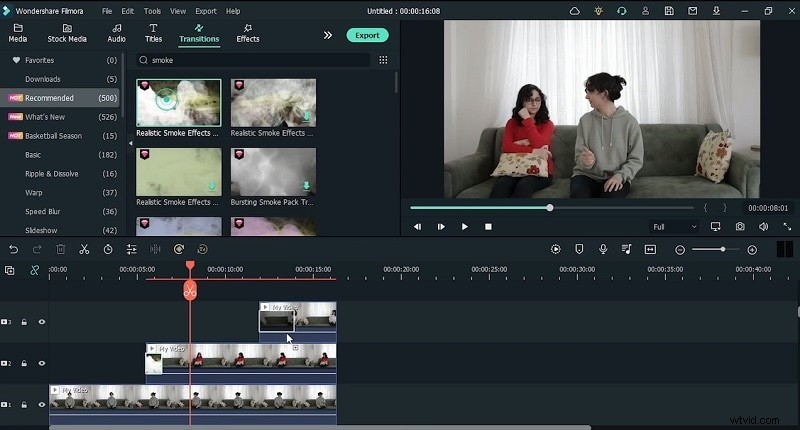
Navigate the Transitions library and choose effects like smoke or dissolves. Drag transitions to the start and end of each clip to enhance flow.
8. Preview and Export
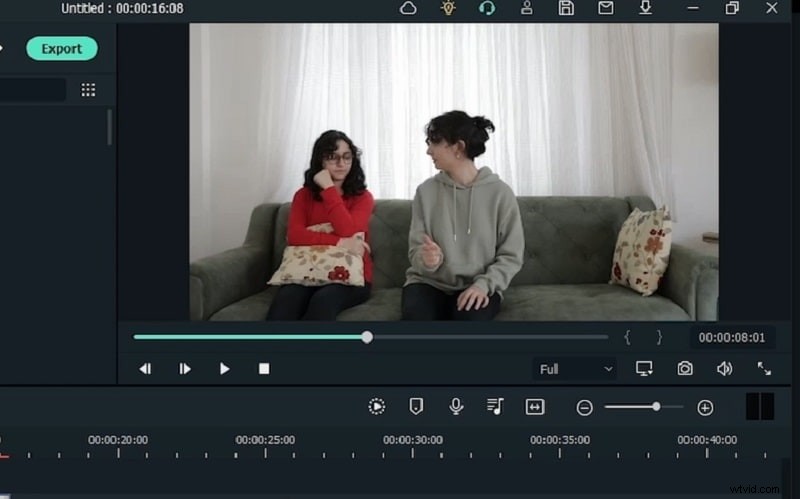
Click Export at the top of the interface. Set your resolution, format, frame rate, and destination folder. For online sharing, select a platform preset and upload directly.
By following these steps, you’ll transform simple footage into a compelling clone‑effect masterpiece that showcases your editing skill.