
GIFs have never gone out of style. They’re the silent, looping visual that still dominates social media, capturing moments in seconds and going viral faster than any other format.
In this guide we’ll walk you through the most reliable ways to turn any iPhone video into a crisp, shareable GIF, from Apple’s native tools to popular online services.
Table of contents
- What Is an Animated GIF?
- Why Convert Video to GIF on iPhone?
- How to Make a GIF Using Clideo
- Other Ways to Create GIFs on iPhone
- Tips for Creating High‑Quality GIFs
- Frequently Asked Questions
- Conclusion
What Is an Animated GIF?
An animated GIF is a sequence of static images that loop continuously. Though it’s often mistaken for a video, it’s actually an image format that delivers motion without sound.
GIFs first gained popularity when mobile video quality was limited. Today they’re still the go‑to format for quick, expressive reactions on every platform.
Key attributes of GIFs include:
- No audio track
Common uses:
- Highlighting a standout moment from a longer recording
- Embedding animated elements in video projects or slideshows
- Crafting unique, shareable memes
Frame rate (FPS) controls how smooth the motion appears. Higher FPS yields smoother motion but increases file size.
Why Convert Video to GIF on iPhone?
Converting to GIF offers several practical advantages:
- Smaller file size means faster upload and download times
- Perfectly captures a single emotional beat or action
- Instant compatibility with virtually every social platform
- Autoplay on Facebook, Instagram, Twitter, and more – no extra clicks required
Now let’s get into the how‑to.
How to Make a GIF Using Clideo
Clideo’s browser‑based editor is a powerful, no‑install solution. Open it in Safari, upload a clip from your camera roll, and the wizardry begins.
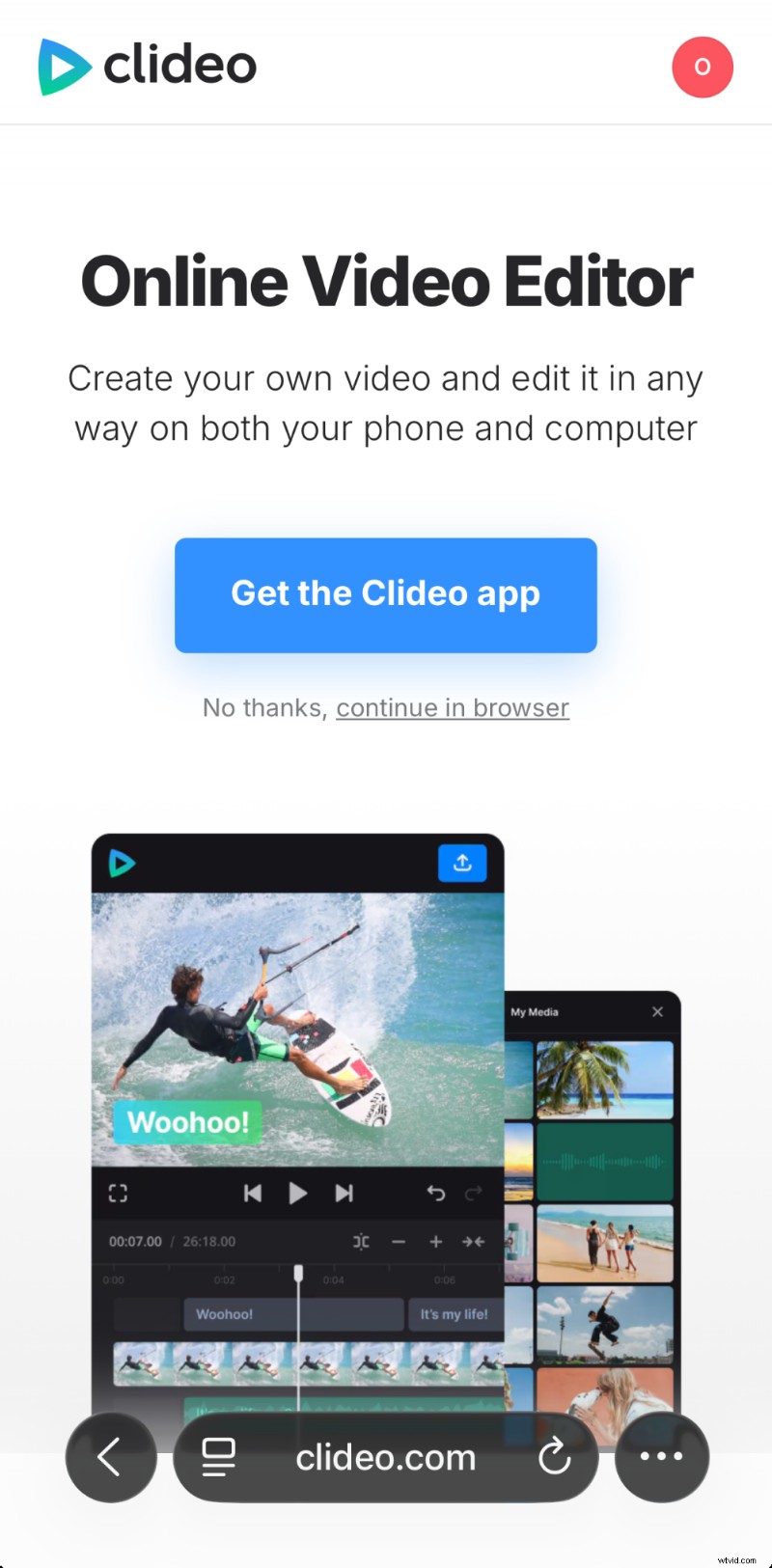
Clideo also offers an iPhone app for offline editing if you prefer a native experience.
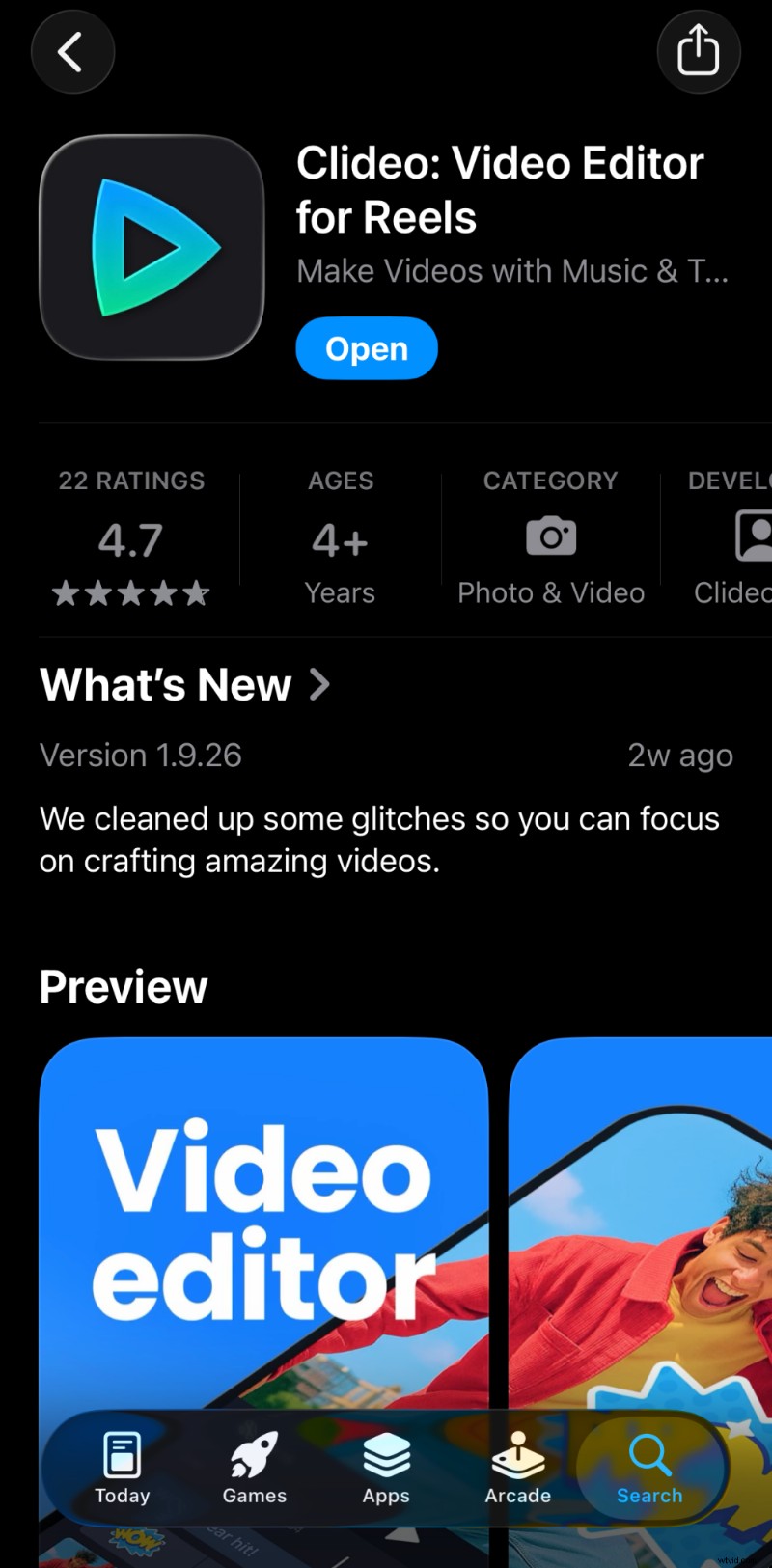
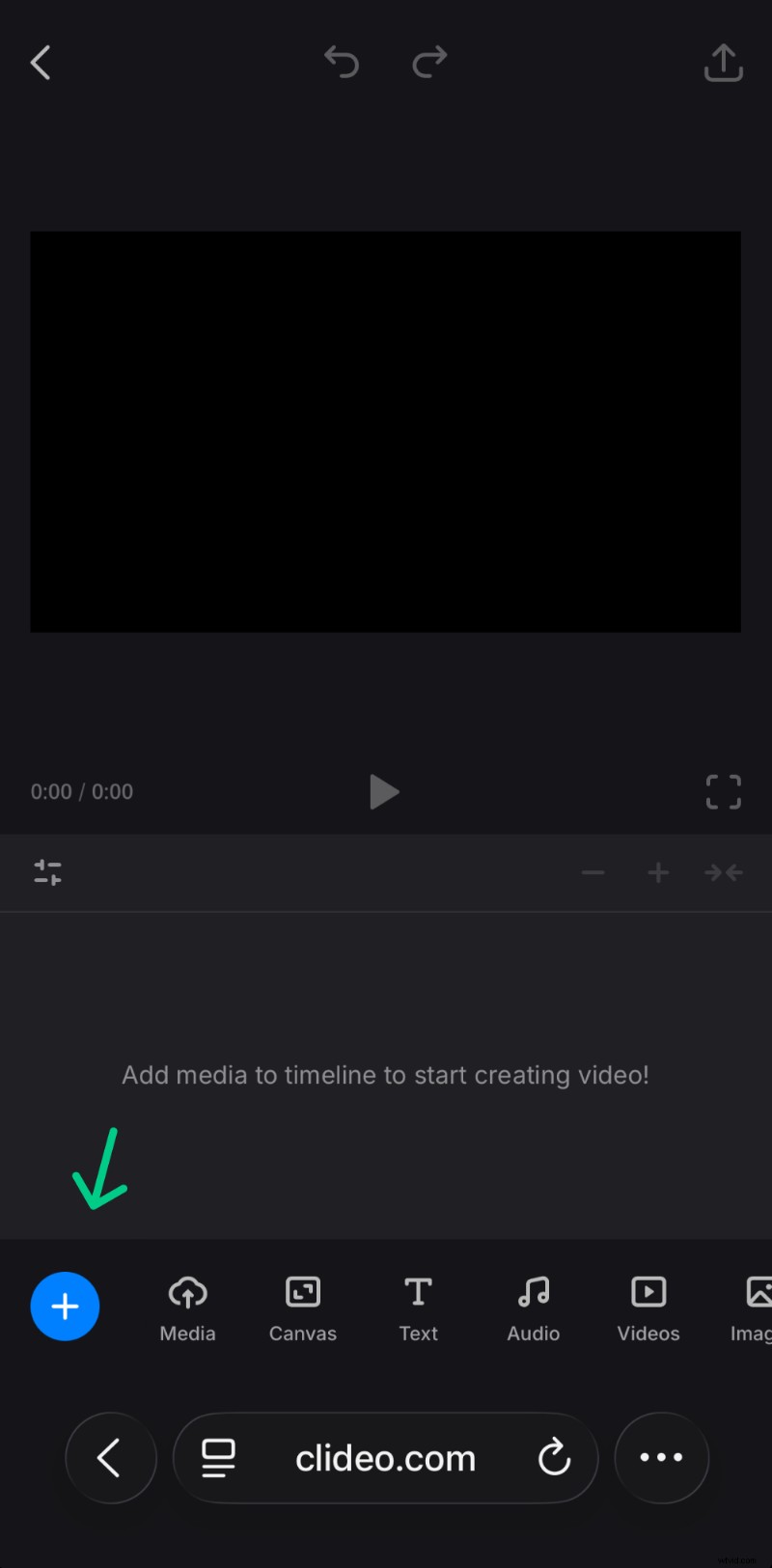
Upload Your Video
Tap the blue button, then use the "+" icon on the editing canvas to select your video. You can also import from cloud storage or record directly.
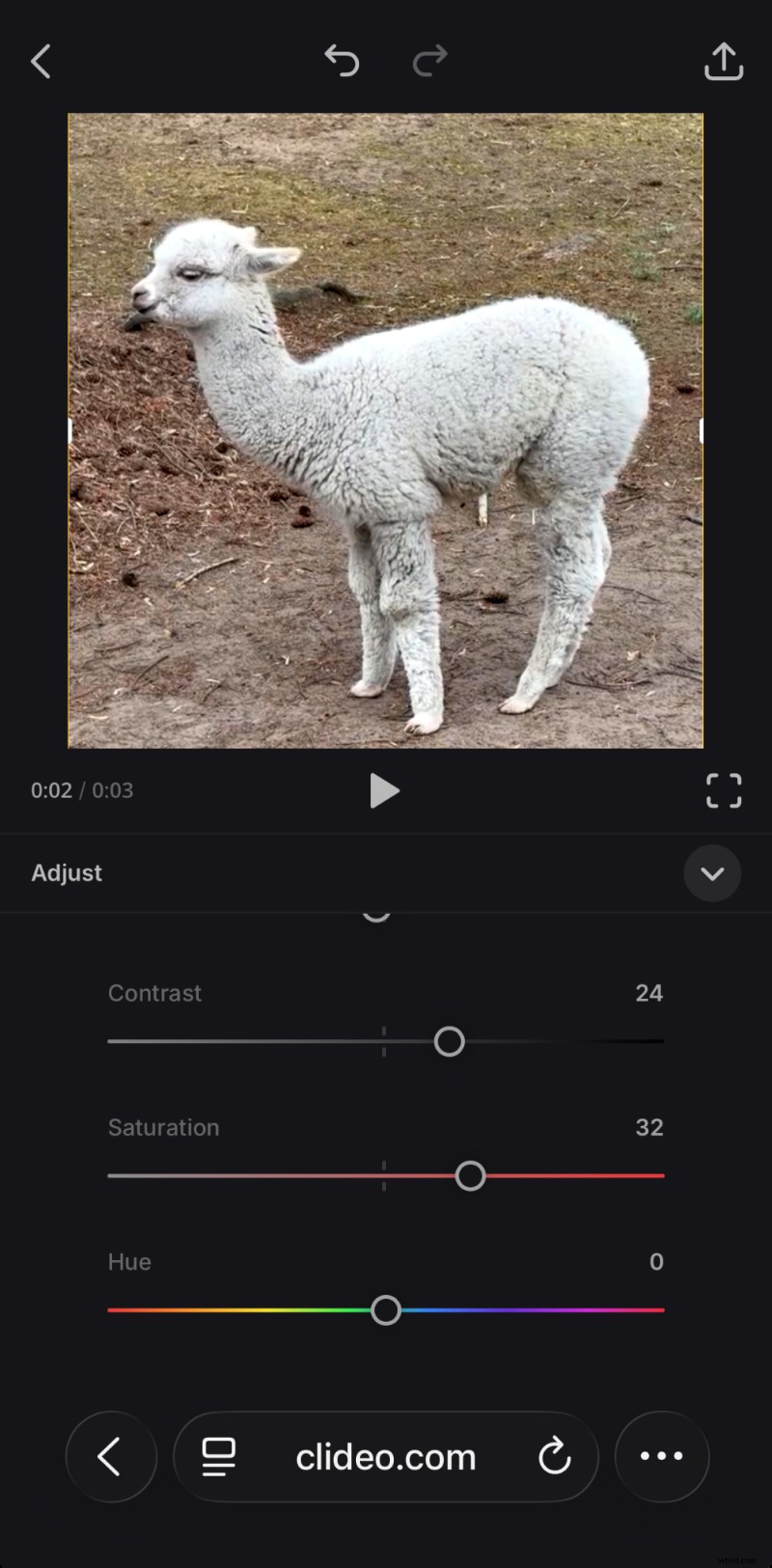
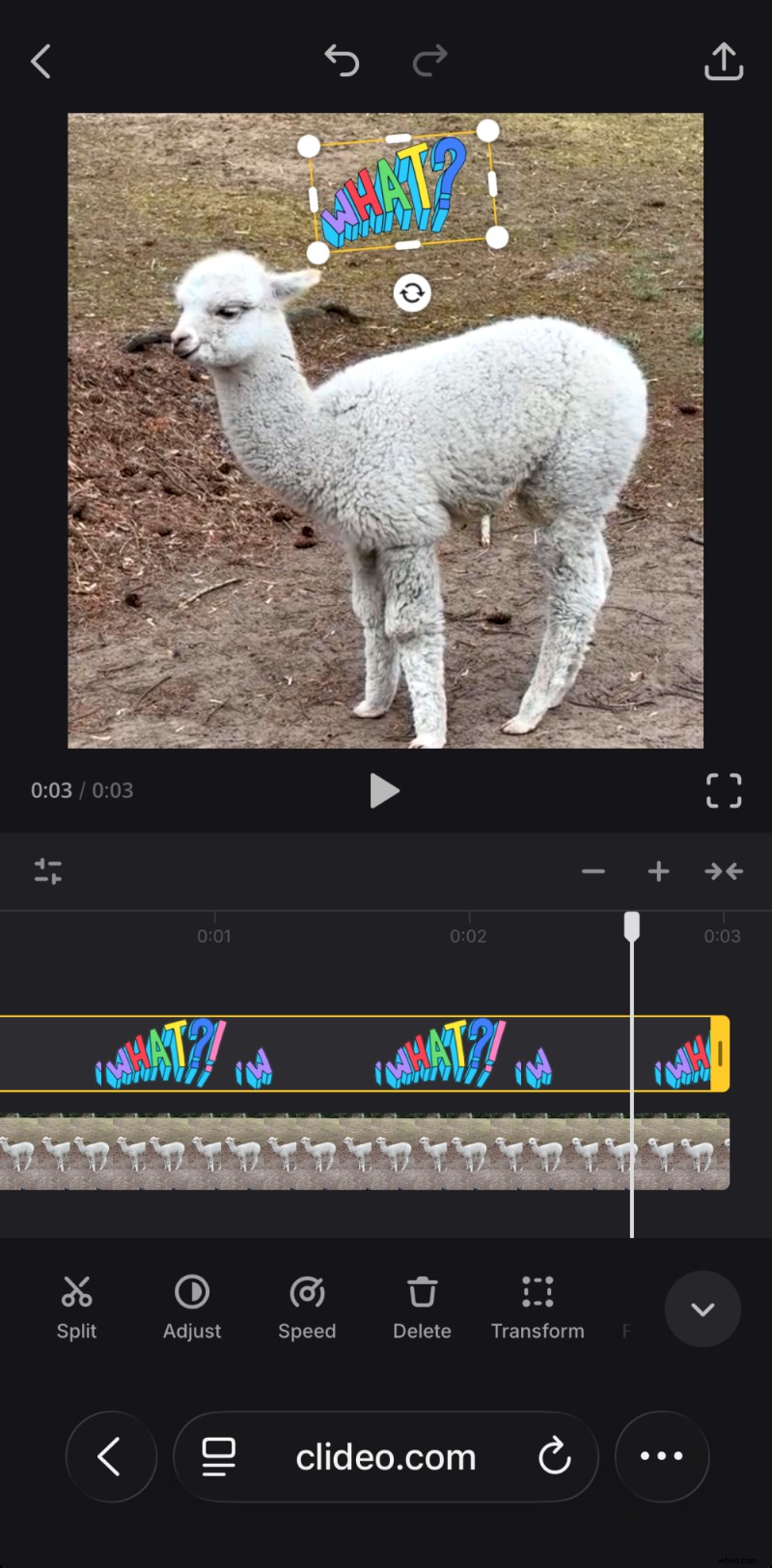
Edit Your Video Clip
Trim, crop, adjust brightness, speed, or apply filters via the bottom toolbar. You can also add text, stickers, shapes, or emojis.
Export and Download
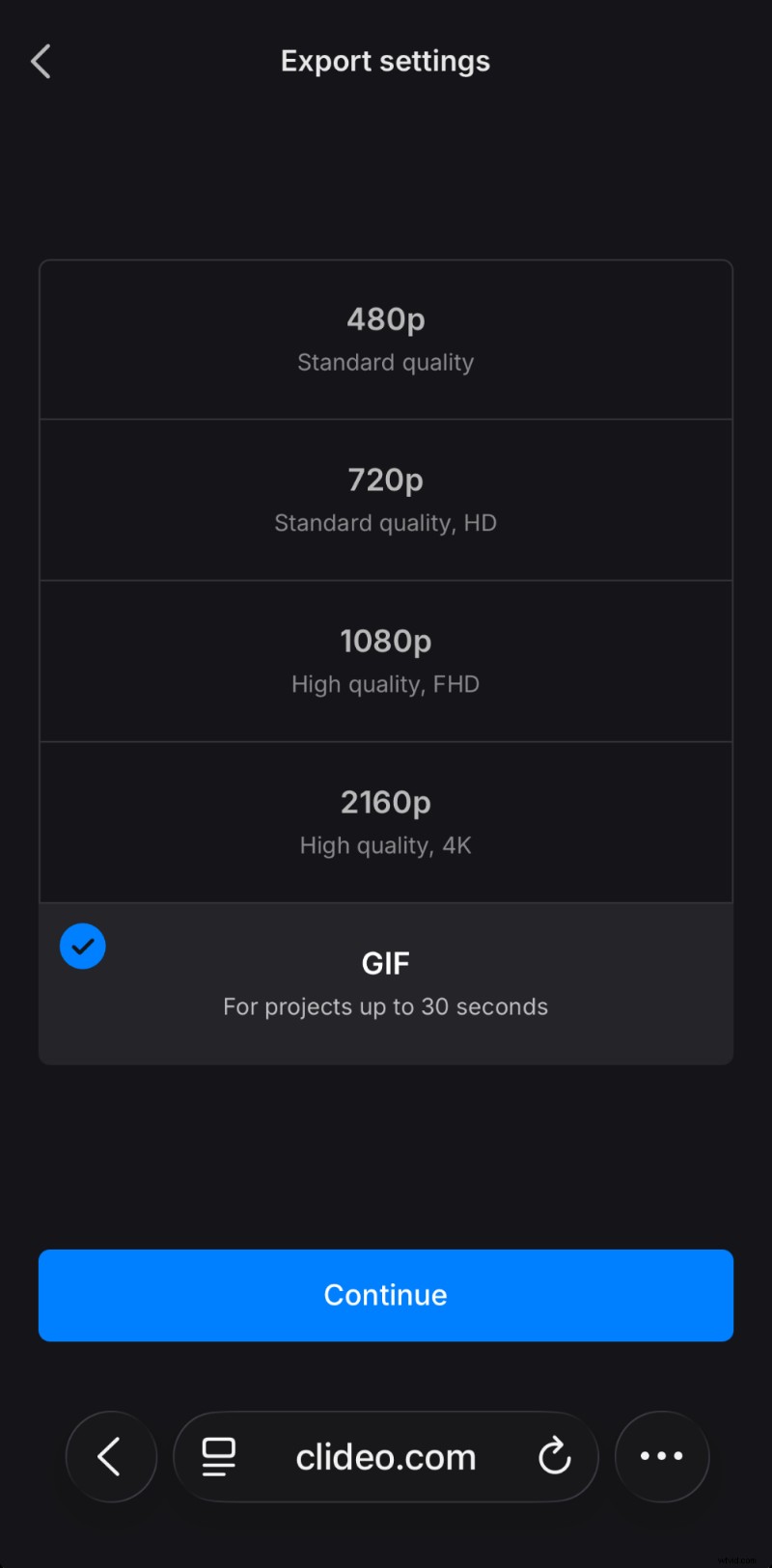
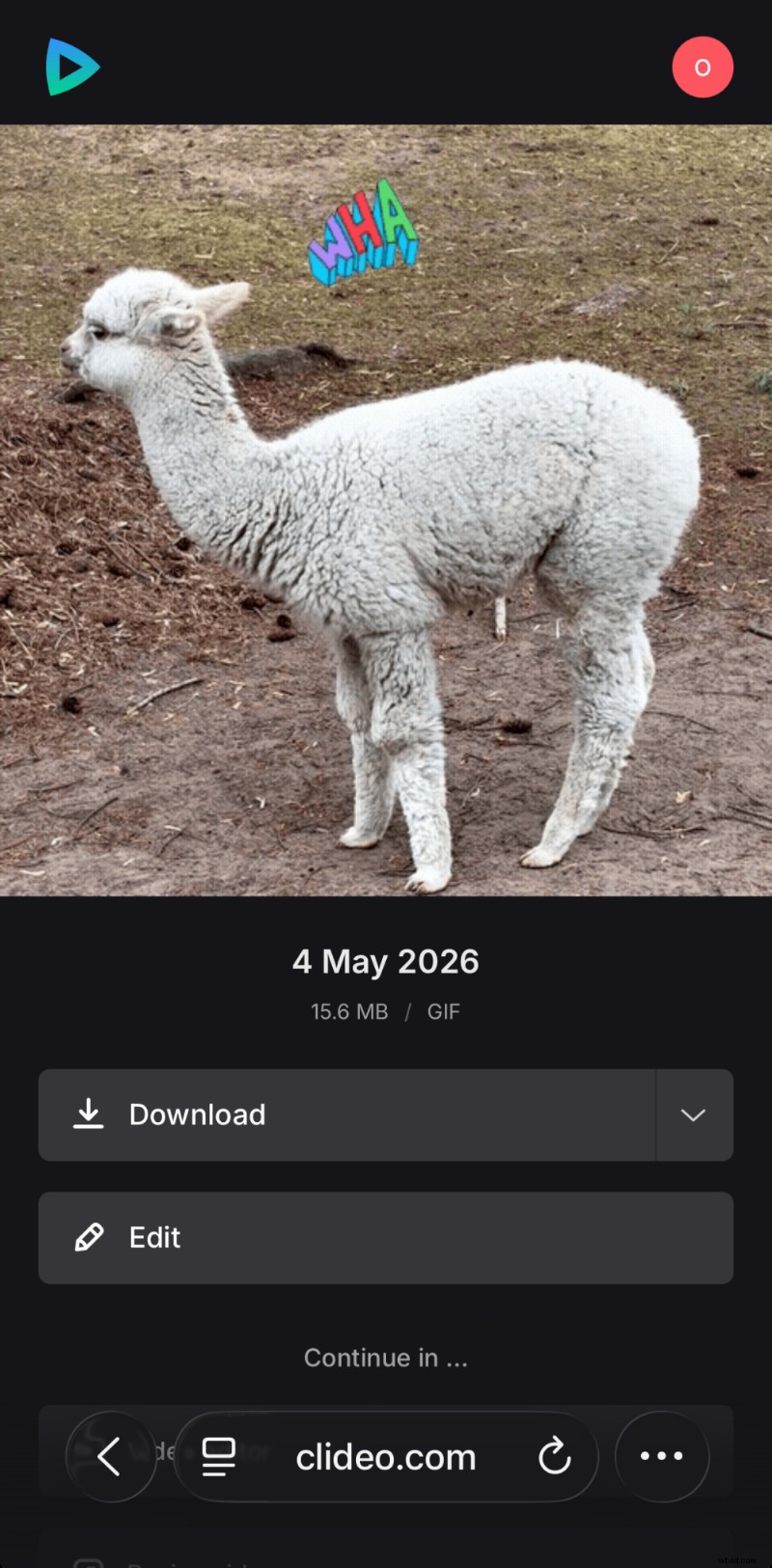
When satisfied, tap the "+Export" button and choose GIF (max 30 seconds). After processing, download the file to your desired location.
Why Use Clideo?
- Fully browser‑based with optional offline iPhone app
- User‑friendly interface
- Comprehensive editing toolkit
- Additional single‑purpose tools for subtitles, translations, and more
Other Ways to Create GIFs on iPhone
Beyond Clideo, iPhone users have several built‑in and third‑party options.
iPhone Shortcuts App
The native Shortcuts app lets you build a custom GIF converter workflow. It’s free, works offline, and keeps your data local.
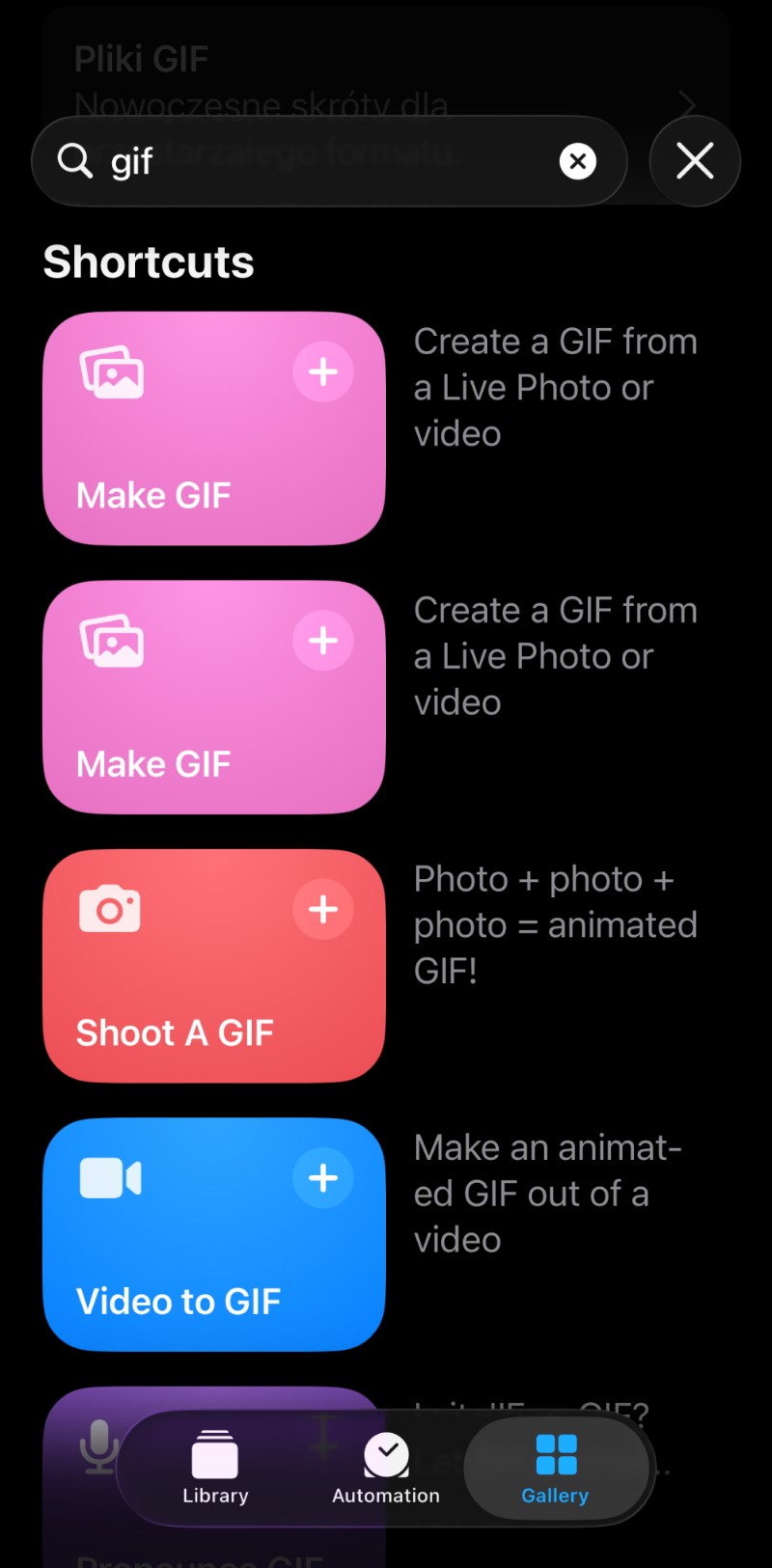
Detailed steps for setting up a GIF converter can be found in the official Shortcuts guide.
- Free, built‑in
- Offline & private
- Highly customizable
- Limited editing options
If you own an iPhone 13 or newer, Shortcuts is a convenient starting point.
GIPHY
GIPHY’s app and website offer a richer editing suite. Create an account, upload, trim, choose public or private, then download.
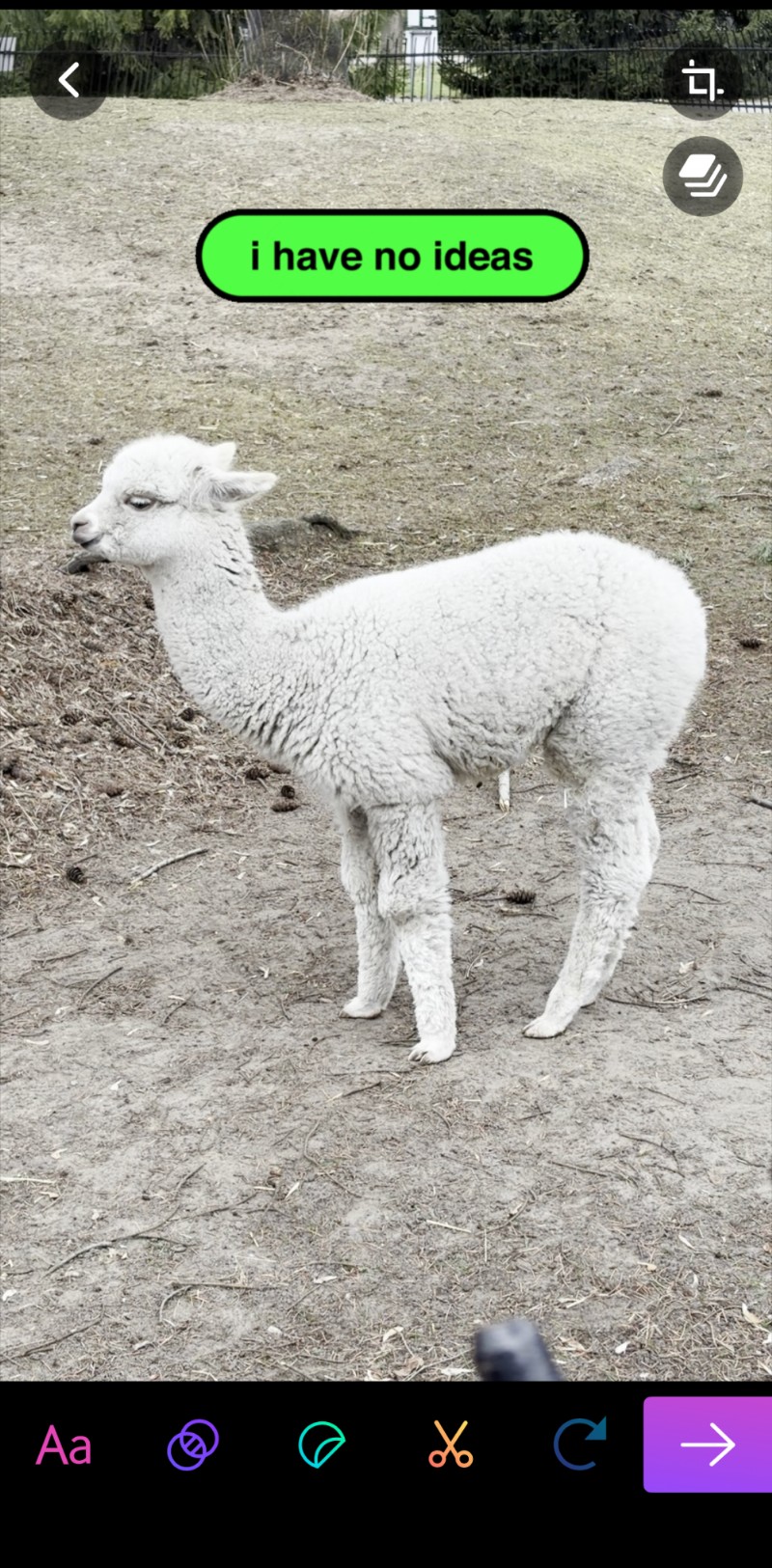
- Add stickers, captions, and other embellishments
- Share directly to social media without saving locally
- Built‑in library of popular GIFs for inspiration
- Video uploads to external servers
- Primarily a GIF maker
- May consume phone storage
For on‑the‑go creation with advanced editing, GIPHY or a professional app is ideal.
Tips for Creating High‑Quality GIFs
- Keep it short: Aim for 3–5 seconds even if the tool allows longer loops.
- Optimize frame rate: 15–20 FPS works well for most clips; increase only for high‑motion footage.
- Mind file size: Large GIFs (50 MB+) defeat the purpose of quick sharing.
- Capture the moment: Select the exact snippet that conveys the emotion you want.
- Enhance with text & stickers: A well‑placed caption can elevate the impact.
Finding that perfect 3‑second slice can be a time‑consuming but worthwhile effort.
Frequently Asked Questions
Can I convert any video to GIF on iPhone?
Yes. All major formats—MOV, MP4, AVI—are supported by Shortcuts, GIPHY, and Clideo.
What settings yield the best quality?
15–20 FPS, 480–720 p resolution, 2–5 seconds. Increase FPS only for fast action.
Can I add text after converting?
Yes, using Clideo’s editor you can overlay concise captions before exporting.
Why is my GIF file large?
High resolution, high FPS, or a long duration will inflate file size.
Conclusion
Whether you prefer a quick browser solution, a native shortcut, or a dedicated app, iPhone users have multiple reliable ways to transform video into engaging GIFs. Try each method to find the workflow that best suits your style.