
While file extensions such as MP4 and MOV are frequently cited, the codec that compresses the video is equally critical. Among the most widely adopted codecs today is HEVC—also called H.265 or High‑Efficiency Video Coding—which reduces file size while preserving visual fidelity.
HEVC has become the standard for streaming and digital storage of high‑resolution video, including 4K and 8K. It works seamlessly inside common container formats such as MP4, MOV, and AVI on a variety of platforms.
Understanding HEVC is essential for anyone who wants to optimize video quality, storage, and bandwidth. This guide explains the technology behind HEVC, why it matters, and how you can open, edit, and create HEVC files.
Table of contents
- What is HEVC (High Efficiency Video Coding)?
- How HEVC codec works
- Advantages and disadvantages of HEVC/H.265
- How to check if a video uses HEVC
- How to open HEVC files
- How to create HEVC files
- HEVC common uses
- HEVC vs other codecs
- HEVC licensing
- Future of HEVC
- Frequently asked questions
- Conclusion
What is HEVC (High Efficiency Video Coding)?
High Efficiency Video Coding (HEVC), also known as H.265, is a video compression standard that delivers superior video quality and compression efficiency compared with its predecessor, H.264. HEVC introduces several innovations—such as larger coding units, advanced prediction, and adaptive filtering—that enable the same visual quality at roughly half the bitrate.
By compressing up to 50% more efficiently than H.264, HEVC allows content creators to store and stream high‑resolution video—4K, 8K, and HDR—without overwhelming bandwidth or storage limits. Native support for high dynamic range (HDR10, Dolby Vision, HLG) further enhances color accuracy and contrast.
How HEVC codec works
HEVC’s strength lies in its sophisticated compression techniques, which refine every stage of the encoding pipeline without compromising image fidelity.
The core technical features include:
- Coding Tree Units (CTUs): HEVC divides frames into flexible, multi‑level units, allowing more efficient partitioning of detail.
- Intra‑picture and inter‑picture prediction: The codec exploits spatial and temporal redundancy by predicting pixel values within a frame and across adjacent frames.
- Motion vector prediction: Instead of re‑encoding entire frames, HEVC tracks motion to encode only changes, reducing unnecessary data.
- Deblocking filters and Sample Adaptive Offset (SAO): These post‑processing steps smooth block edges and correct sample errors, yielding cleaner images.
- Context‑Adaptive Binary Arithmetic Coding (CABAC): An entropy coding method that packs data tightly, minimizing file size.
- Parallel processing tools: Tiles and wavefront parallel processing enable simultaneous decoding of multiple sections, speeding up playback on modern CPUs.
Collectively, these mechanisms preserve high‑quality video at lower bitrates, making HEVC ideal for streaming, storage, and high‑resolution playback.
Advantages and disadvantages of HEVC/H.265
While HEVC offers compelling benefits, it also presents challenges that professionals must weigh.
Advantages
- Smaller file sizes while maintaining visual quality.
- Reduced bandwidth consumption for streaming—roughly half the data needed for equivalent H.264 quality.
- Support for 4K, 8K, and HDR content.
- Faster playback on mobile devices with limited data plans.
- Wide color gamut and HDR content support.
Disadvantages
- Limited support on older devices and legacy software.
- Encoding typically requires 3‑10× more CPU/GPU resources than H.264, especially for high‑resolution media.
- Licensing complexity can slow adoption in certain products.
Despite these hurdles, HEVC remains the codec of choice for streaming services and manufacturers seeking high‑quality video at efficient bitrates.
How to check if a video uses HEVC
Determining whether a file is encoded with HEVC requires inspecting its codec information, not just its container format.
Common methods include:
- Mac: Open the file in QuickTime Player, choose Window > Show Movie Inspector to view codec details.
- Windows: Right‑click the file, select Properties, then the Details tab; some versions display the codec.
- iPhone/iPad: In the Photos app, tap the i icon on a video to reveal its codec.
- Android: Most devices do not expose codec info natively; a third‑party app is often required.
- Third‑party players: Launch the file in VLC Media Player and open Codec Information from the menu.
- Playback clues: Smooth playback on newer hardware but failure on older devices can hint at HEVC usage, though it is not conclusive.
For a definitive answer, a media player or file‑info utility that displays codec metadata is recommended.
How to open HEVC files
Modern operating systems and media players generally support HEVC playback out of the box. Windows 10+, macOS High Sierra+, iOS, and recent Android releases include native HEVC decoders.
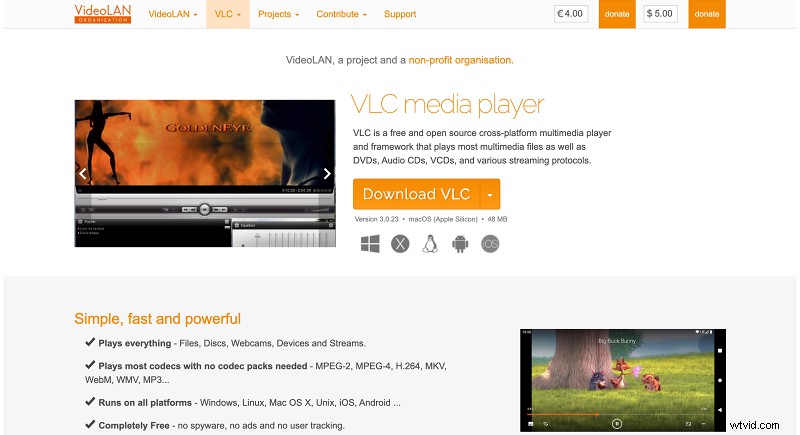
If you encounter playback issues, the most straightforward solution is to use a player with built‑in HEVC support, such as VLC Media Player.
Should the video still fail to play, consider these steps:
- Update software: Keep your OS and media player current to benefit from the latest decoder improvements.
- Install HEVC extensions: Windows PCs may require the optional “HEVC Video Extensions” from the Microsoft Store.
- Check hardware capabilities: Older CPUs or GPUs can struggle with HEVC decoding; ensure your hardware meets minimum requirements.
- Try an alternative player: If the default app fails, open the file with VLC or KMPlayer.
- Convert the file: When compatibility remains an issue, re‑encode the video to H.264 or another widely supported format.
In most cases, updating your system or installing the necessary codec will resolve playback problems.
How to create HEVC files
Creating HEVC content involves encoding raw footage with an H.265 encoder. The result is a file that delivers the same visual quality at a lower bitrate compared to H.264.
Common methods include:
- Export from a video editor: Adobe Premiere Pro, Final Cut Pro, and DaVinci Resolve all offer HEVC export options.
- Desktop converters: HandBrake and FFmpeg can re‑encode existing videos to HEVC.
- Online converters: Browser‑based tools like Convertio and Clideo support HEVC output without local software.
- Native recording: Many smartphones, action cameras, and screen‑capture apps record directly in HEVC.
- Professional capture: Broadcast‑grade cameras and live‑streaming rigs often embed HEVC encoding for low‑latency, high‑resolution delivery.
Before converting, keep these points in mind:
- File‑size savings: A 20‑second 1080p clip that is ~40 MB in H.264 may shrink to 20‑25 MB in HEVC without noticeable quality loss.
- Encoding time: HEVC demands more CPU/GPU resources; expect longer export times on older hardware.
- Playback compatibility: Content encoded in HEVC may not play on older devices or legacy editing software.
HEVC is the codec of choice when you need high‑resolution video—especially 4K—with efficient compression and lower bandwidth usage.
HEVC common uses
HEVC’s efficient compression makes it ideal for:
- 4K and 8K streaming to platforms that demand high‑quality, bandwidth‑efficient delivery.
- Mobile video playback where data consumption is a concern.
- Live video, streaming services, and video conferencing that benefit from reduced bandwidth requirements.
- Long‑term video storage and archiving to conserve disk space.
- Smart TVs, streaming devices, and high‑end smartphones equipped with HEVC decoders.
- HDR, 360‑degree, and VR content that requires efficient handling of massive data streams.
- OTT services such as Netflix and Amazon Prime Video, which rely on HEVC to deliver premium content at manageable data rates.

HEVC vs other codecs
Choosing a codec involves balancing compression efficiency, visual quality, and device compatibility.
HEVC offers superior compression to H.264 but demands more computational power, which can be a drawback on low‑end hardware.
Other royalty‑free codecs like VP9 and AV1 provide even higher compression but vary in platform support. VP9 enjoys widespread adoption on web browsers, while AV1 is rapidly gaining traction thanks to its open‑source licensing and improved efficiency.
Ultimately, HEVC remains a solid choice for devices and services that already support it, providing a good compromise between efficiency and compatibility.
HEVC licensing
HEVC is not an open standard; licensing fees apply for hardware and software implementations. However, most commercial platforms—including streaming services and device manufacturers—incorporate these fees into their operating costs, so end‑users typically pay nothing to play HEVC content.
Because licensing can be complex, some vendors opt to avoid HEVC in favor of more straightforward codecs, which can limit availability on certain devices.
Future of HEVC
As demand for high‑resolution, high‑quality video grows, HEVC is poised to remain a key player. Ongoing research into AI‑driven compression techniques promises further efficiency gains, while the emergence of newer codecs like AV1 offers potential alternatives.
In the near term, HEVC will continue to power streaming, broadcasting, and storage solutions, especially where bandwidth and storage constraints are critical.
Frequently asked questions
Is HEVC a file extension like MP4 or MOV?
No—HEVC is a codec, not a container format. Containers such as MP4, MOV, and MKV can hold HEVC video streams.
How can I check if a video uses HEVC?
Inspect the file’s codec metadata using a media player or file‑info tool that displays codec information.
How do I open an HEVC file?
Use a player that supports HEVC (e.g., VLC), update your system, install the required codec extension, or convert the file to a more widely supported format.
How do I create an HEVC file?
Record, export, or convert a video using an H.265 encoder in your editing software, camera, or online converter.
Why do some HEVC videos not play?
Older devices or apps lacking HEVC support, or insufficient processing power, can prevent smooth playback.
Convert videos with confidence
Accurate, secure, and user‑friendly conversion tools ensure your HEVC content remains intact during format changes.
Conclusion
HEVC delivers substantial file‑size savings and high‑resolution video quality, making it a popular choice for streaming and storage. However, its licensing complexity and limited compatibility on legacy hardware mean that H.264 may still be the safer option for universal playback.