
Do you have a catchy sound bite or a song stuck in your head that you only find in a video format? Extracting audio from any MP4 file is now simpler than ever—no software installation, no technical know‑how, just upload, select your desired format, and download.
MP4 has become the standard for video files, while MP3 remains the most popular audio format. However, WAV and FLAC also offer distinct advantages in terms of file size, bitrate, and quality. Choosing the right format depends on your specific needs.
- Audio formats explained
- How to convert MP4 to MP3 using Clideo
- Conversion tips
- Frequently asked questions
- Conclusion
Audio formats explained
MP4 is a container that can hold video, audio, images, and subtitles, whereas audio formats store only sound data. Understanding the differences helps you pick the right format for your project.
- MP3 – MPEG‑1 Audio Layer 3. It’s the most common format for digital music because its lossy compression keeps files small while maintaining acceptable quality. Almost any device can play MP3, though extreme compression can reduce clarity.
- WAV – Waveform Audio File Format. Uncompressed and high‑fidelity, WAV is ideal for editing and archiving but produces large files.
- FLAC – Free Lossless Audio Codec. Offers lossless compression, preserving original quality while reducing size compared to WAV.
- OGG – Open‑source format from Xiph.Org. Provides good quality at lower bitrates but lacks universal support.
- AAC – Advanced Audio Coding. Widely used on Apple devices; generally outperforms MP3 at the same bitrate.
Other formats exist, but these are the most relevant for everyday use. Remember that sample rate and bitrate also impact output fidelity.
How to convert MP4 to MP3 using Clideo
Clideo’s browser‑based tools require no downloads and work from any device. The Audio Cutter is perfect for extracting or trimming audio from videos.
- Supports MP4, AVI, HEVC, FLV, MP3, WAV, FLAC, OGG, and more.
- Google Drive integration lets you upload and save directly to the cloud.
- All‑online—no installation, no compatibility worries.
- Intuitive interface: upload, adjust, export.
Upload an MP4 file
Open Clideo’s Audio Cutter, click Choose file, and select your video from your device or cloud storage (Google Drive/Dropbox).
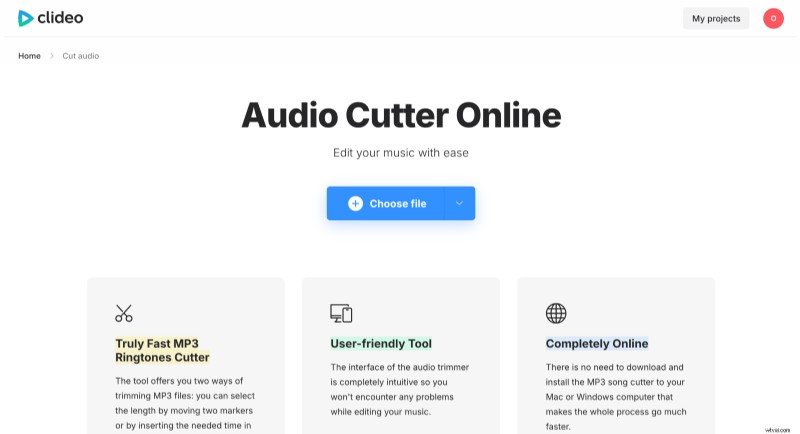
Extract audio from video
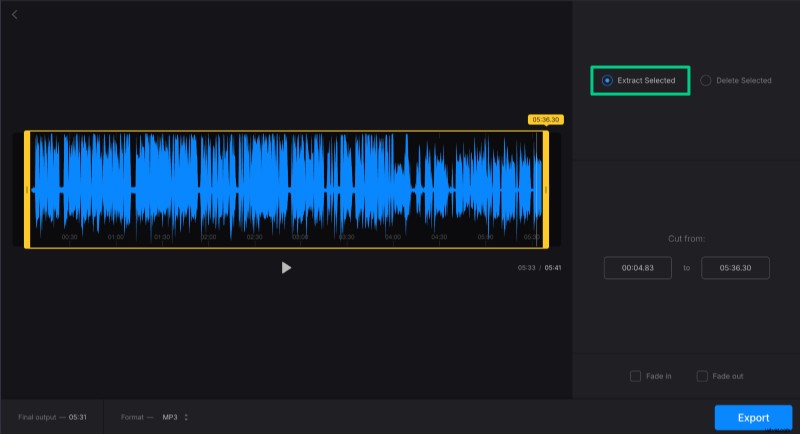
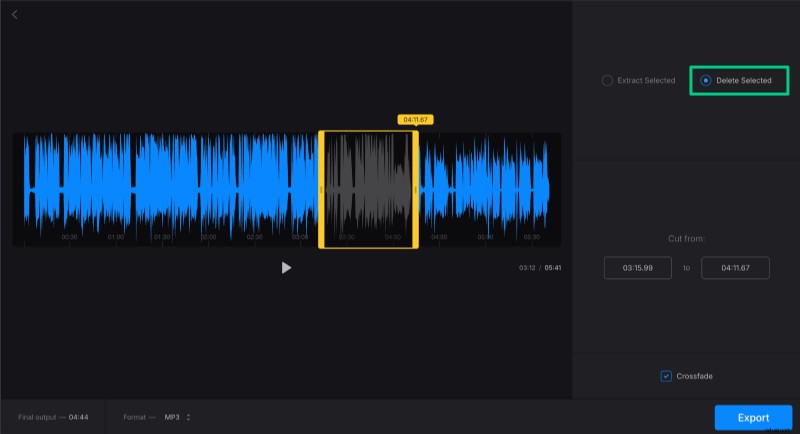
The default setting is Extract selected, which keeps only the portion inside the yellow markers. Drag the markers or enter precise timestamps. You can also add fade‑in/out or use Delete Selected to cut a middle section, optionally applying Crossfade for smooth transitions.
Convert video to an audio format
MP3 is the default output, but you can switch to WAV, FLAC, OGG, or AAC via the dropdown at the bottom left.
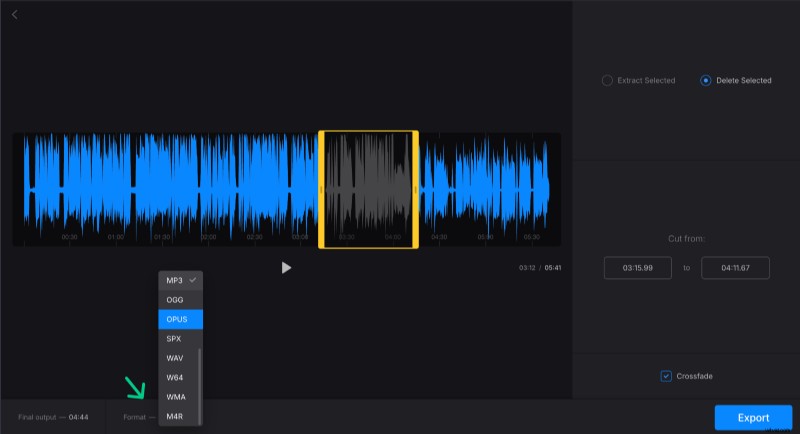
Click Export to begin conversion.
Download the converted audio
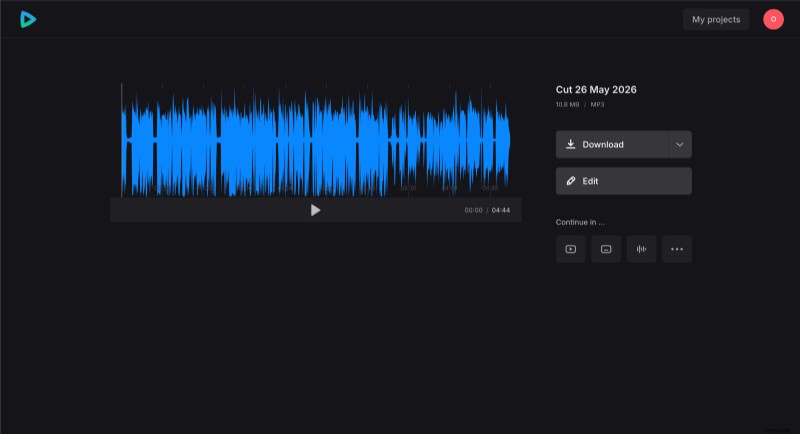
After the export completes, you can preview the file and save it to your device or cloud. If adjustments are needed, click Edit to return to the editor.
Tips for conversion
- Match format to purpose: MP3 for casual listening, WAV/FLAC for editing or archiving, OGG for open‑source workflows.
- Trim precisely: keep only the segment you need.
- Check source quality: an over‑compressed MP4 may yield poor audio; look for a higher‑quality clip if possible.
- Use online tools for quick jobs; desktop applications are better for large files or sensitive data.
With these steps, converting MP4 to MP3 (or other formats) is straightforward and reliable.
Frequently asked questions
What is the difference between MP3 and WAV formats?
MP3 employs lossy compression to reduce file size while maintaining acceptable quality, making it ideal for casual listening and sharing. WAV files are uncompressed, delivering higher fidelity but with larger file sizes, which is preferable for editing and archiving.
Can I convert multiple MP4 files to audio at once?
Yes. Many converters support batch conversion. For instance, Convertio.co allows batch processing in your browser, and VLC Media Player offers desktop batch conversion.
How do bitrate settings affect audio quality during conversion?
Bitrate determines data per second; higher bitrates generally mean better quality but larger files. Converters often let you choose Variable Bitrate (VBR) or Constant Bitrate (CBR) to balance size and fidelity.
Is it safe to use online MP4‑to‑audio converters?
Online tools are convenient but upload your files to third‑party servers. For sensitive or large files, offline desktop solutions are safer, eliminating internet‑based privacy concerns.
Can I adjust advanced audio settings when converting MP4 to audio?
Advanced settings such as sample rate, bitrate, and channel configuration are available in most premium converters. Free tools may offer basic options, while desktop software typically provides full control.
Conclusion
Whether you’re producing a podcast, editing a lecture, or turning a music video into a soundtrack, converting MP4 to audio is effortless with a reliable online tool like Clideo. The process is quick, secure, and requires no additional software.