
You converted a video to a GIF and it looks worse than a 2003 screenshot: fuzzy edges, banded colors, and a 40 MB file for six seconds of footage. What went wrong?
Short answer: GIF is a 35‑year‑old format that limits resolution, frame rate, duration, and colors to just 256 entries. When you ignore these constraints, the result is often a low‑quality, oversized file. The good news is that small, targeted changes can dramatically improve both appearance and size if you understand the mechanics.
Table of Contents
- What Are Animated GIFs?
- Why Do GIFs Appear Blurry and Large?
- Choosing the Right Source Material
- Trim and Crop Before Converting
- Color Reduction Strategies
- Setting the Correct Frame Rate
- Adjusting Resolution for Web Use
- Text and Overlay Best Practices
- Consider Alternatives to GIF
- Quick GIF Compression Checklist
- Frequently Asked Questions
- Conclusion
What Are Animated GIFs?
GIFs are a ubiquitous format for short, looping animations—used in social media, marketing emails, ads, and more. Each frame is a still image with its own timing and transparency, stitched together by the GIF specification.
Three core limitations drive the common quality issues:
- 256‑color palette – GIFs are 8‑bit, so each frame can display only 256 colors. When a color isn’t in the palette, the encoder dithers, creating grainy noise in smooth gradients.
- Lossless LZW compression – Unlike video codecs that store only frame differences, GIF compresses each frame independently. LZW is efficient on flat areas but poorly compresses detailed, shaded imagery, leading to large files.
- Coarse frame timing – Timing is measured in centiseconds (10 ms). While you can theoretically reach 100 fps, browsers rarely exceed 50 fps, and a 30‑fps source results in uneven delays (30 ms, 30 ms, 40 ms…).
Why Do GIFs Appear Blurry and Large?
Blurriness originates from dithering on complex gradients—think skies or skin tones. File size balloons because each frame is stored separately, duplicate frames persist, and high resolution inflates data volume.
Choosing the Right Source Material
GIF excels with simple graphics: UI flows, cartoons, charts, or static background footage. Avoid footage with gradients, motion blur, variable lighting, or natural skin tones.
Good Candidates
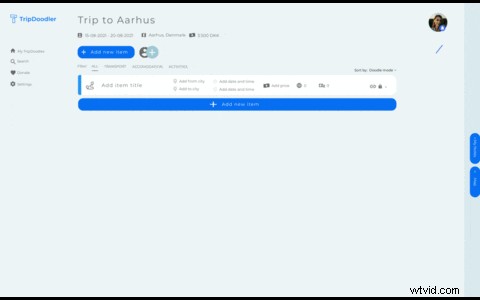
- Screen recordings (UI, cursor movements)
- Flat‑color animations and illustrations
- Charts and diagrams
- Clips with minimal background motion
Not Ideal
- Gradients, skies, skin, hair
- Motion blur or low light changes
Trim and Crop Before Converting
Keep GIFs concise—aim for 2–6 seconds. Trim ruthlessly; each frame costs space. Remove duplicate frames to cut size without visual loss. For email marketing, target <200 KB; for web, <1 MB is optimal.

How to Trim and Crop
- Mac: QuickTime Player → Edit → Trim; iMovie for cropping.
- Windows: Photos app → Edit & Create → Trim or Crop.
- Mobile: Built‑in Photos app handles both.
- Online: Clideo’s GIF Maker trims, crops, and exports in one step.
Color Reduction Strategies
Most converters auto‑select a 256‑color palette. Manually reducing colors or desaturating the source forces the encoder to use a tighter palette, often cutting file size by 30–50 %.

Practical Tips
- Desaturate slightly before converting.
- Apply a posterize filter to lower color count.
- Avoid neon‑heavy palettes; they strain the 256‑color limit.
- Use text colors that exist in the video’s palette.
Setting the Correct Frame Rate
Choose a frame rate that divides evenly into 100 ms: 50, 25, 20, 10, 5, 4, 2, or 1 fps. For UI or text animations, 10–12 fps is adequate; for smooth motion, 20–25 fps balances quality and size. Re‑export 30‑fps videos at 20 fps before GIF conversion.

How to Change FPS
- Mac/Windows: HandBrake → Video tab → Framerate 20/25 → Encode.
- iPhone/Android: CapCut → Export settings → Frame rate.
- Online: Clideo’s Video Converter adjusts frame rate during export.
Adjusting Resolution for Web Use
Higher resolution increases file size with little perceptible benefit. Aim for 320–640 px on the long edge (average web GIF ≈ 480 p). Small GIFs also hide dithering better.

Resize Before Export
- Mac: QuickTime → File → Export As → 480p.
- Windows: HandBrake → Picture tab → width 640px → Encode.
- Online: Clideo’s Resize Video tool.
Text and Overlay Best Practices
Solid‑color text compresses well, but sharp edges can cause jaggedness if the text color isn’t in the GIF palette. Use colors present in the video, avoid bright reds on natural footage, and opt for bold, thick fonts.

Text Color Guidelines
- Match text colors to the video palette.
- Avoid overly saturated colors.
- Use the largest, boldest font available.
Consider Alternatives to GIF
GIF’s limitations make other formats attractive:
- Animated WebP – 50–80 % smaller, better quality, browser‑wide support.
- Animated PNG (APNG) – similar size or smaller, lossless, modern‑browser compatible.
- Animated AVIF – smallest size, top quality, limited browser support.
- Looping MP4 – often >90 % smaller than GIF, highest quality, near‑universal playback.
Creating WebP/APNG
- FFmpeg:
ffmpeg -i input.mp4 output.webporoutput.apng. - GIMP: File → Export As → select WebP or PNG, check “Animation.”
- Photoshop: File → Export → Save for Web → choose WebP or PNG animation.
Looping an MP4
Looping is handled at playback, so no special export is needed. For HTML pages, add autoplay muted loop playsinline to the <video> tag. Most media players and social platforms loop short videos automatically.
Quick GIF Compression Checklist
- 2–6 second clip focused on a single action.
- Source: screen recording, cartoon, or flat‑color animation.
- Trimmed and cropped.
- Desaturated or simplified color palette.
- Frame rate: 25, 20, or 10 fps (avoid 30 fps).
- Resolution: 320–640 px long edge.
- Text overlays use palette‑matching colors.
Following these steps yields a clean, lightweight GIF that performs well across platforms.
Frequently Asked Questions
Why do GIFs look grainy? The 256‑color limit forces dithering when a color isn’t represented in the palette.
How do I reduce GIF file size? Trim length, lower frame rate, reduce resolution, and decrease color count in that order of impact.
What’s the best frame rate? 10–25 fps: 25 fps for smooth motion, 10–12 fps for mostly static content.
Can GIFs have transparent backgrounds? Yes, but transparency is binary—pixels are either fully transparent or fully opaque, which can cause jagged edges.
Should I use something other than GIF? Often. If you control the host, animated WebP or looping MP4 will load faster and look clearer.
Conclusion
While GIF’s legacy persists, its inherent constraints make it suboptimal for high‑quality video content. By selecting suitable source material, trimming aggressively, simplifying colors, and setting appropriate frame rates and resolutions, you can still produce effective GIFs. For most modern use cases, however, animated WebP or looping MP4 offer superior quality and efficiency.