
If you want to add cinematic flair to your Instagram posts, slow‑motion videos are a must‑have. This guide explains how to capture new slow‑motion clips and transform existing footage for both Stories and Reels, using Instagram’s native tools and a free, reliable third‑party editor.
Why Slow‑Motion Is Trending on Instagram
Slow‑motion captures motion in a way that regular speed cannot, making everyday moments feel dramatic and engaging. Whether you’re sharing a workout, a fashion look‑book, or a playful moment, a well‑executed slow‑motion clip can boost views and interaction.
Part 1 – Edit Existing Videos with FlexClip
Instagram’s built‑in editor doesn’t allow you to change the speed of a video after it’s been recorded. For that, FlexClip offers a free, web‑based solution that’s quick and user‑friendly.
Step 1: Upload Your Clip
Navigate to the Media tab, upload your footage, and add it to the timeline. Choose the 9:16 aspect ratio for optimal Story/Reel display.
Step 2: Adjust the Speed
Click the Speed icon in the top menu and reduce the rate to your desired value (e.g., 0.5x for half‑speed).
Step 3: Enhance Your Video (Optional)
Layer on filters, transitions, animated text, background music, voice‑over, or a watermark to elevate the final product.
Step 4: Preview & Export
Use the Preview button to review the slow‑motion effect. When satisfied, download the file to your device and upload it to Instagram.
Quick Tips
- Fix blurry Story videos by shooting in high resolution and keeping the lens clean.
- Resolve music playback issues by ensuring the original audio is not muted and using a supported file format.
- Reduce lag by closing background apps before recording.
Part 2 – Capture Slow‑Motion Directly in Instagram Stories
Instagram’s Boomerang mode includes a native SlowMo effect that slows the clip to half speed.
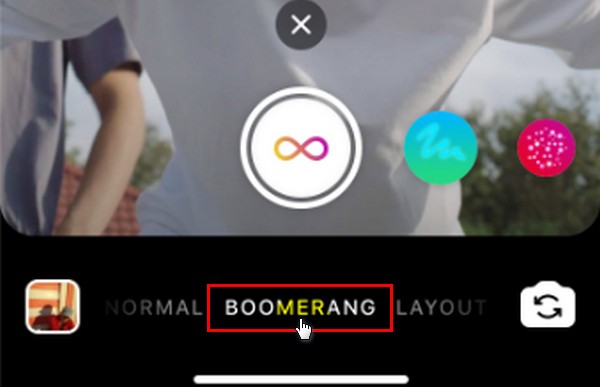
Step 1: Open Boomerang Mode
Launch the Stories camera, swipe to the Boomerang icon (∞ symbol), and start recording.
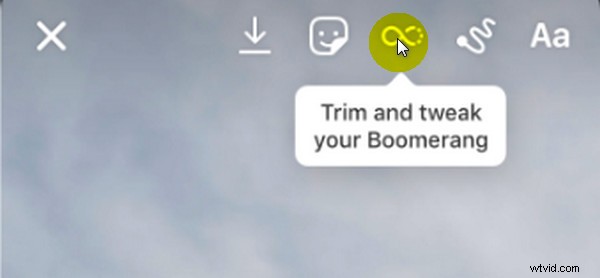
Step 2: Apply the SlowMo Effect
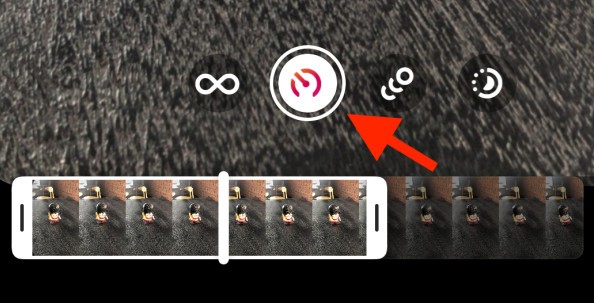
After recording, tap the infinity icon in the top right, select the SlowMo effect (second from left), and preview.
Step 3: Add Creative Elements
Enhance with text, GIFs, or drawings just as you would with any Story.
Step 4: Share
Tap Your Story to publish the slow‑motion clip. For speeds other than 0.5x, use FlexClip after recording.
Part 3 – Record Slow‑Motion in Instagram Reels
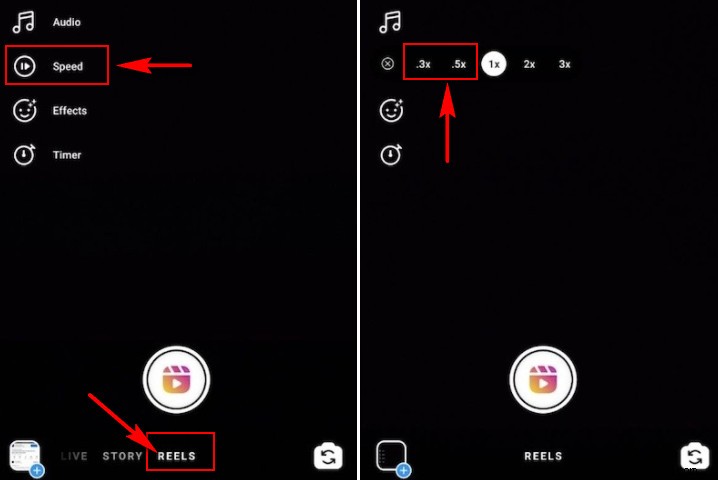
Reels lets you set the speed before you start recording, offering 0.3x or 0.5x options for a dramatic effect.
Step 1: Enter Reels Mode
From the main feed, tap the camera icon, then select Reels at the bottom.
Step 2: Set the Speed
Tap the Speed icon, choose 0.3x or 0.5x, and optionally add music or effects.
Step 3: Record & Edit
Press the record button to capture your footage. Afterward, add filters, stickers, or a trending song to complete the Reel.
Final Thoughts
Whether you’re creating a fresh slow‑motion clip or remixing an existing video, the steps above make the process straightforward. Share your creations and let your audience experience moments in vivid detail.
About the Author
Sandy is a seasoned photographer with a decade of experience capturing life’s nuances. Passionate about video production, she continually explores new techniques and tools to enhance storytelling.