
Skip to a section
- How to get Twitch stream key
- How to get YouTube stream key
- How to get Facebook stream key
- How to get Twitter stream key
- How to get LinkedIn stream key
- What to do with them
[#TOC1]How to get Twitch stream key[#TOC1]
- Open Twitch.tv - make sure you’re logged in, and click on your avatar on the top right.
- Click the Settings tab.
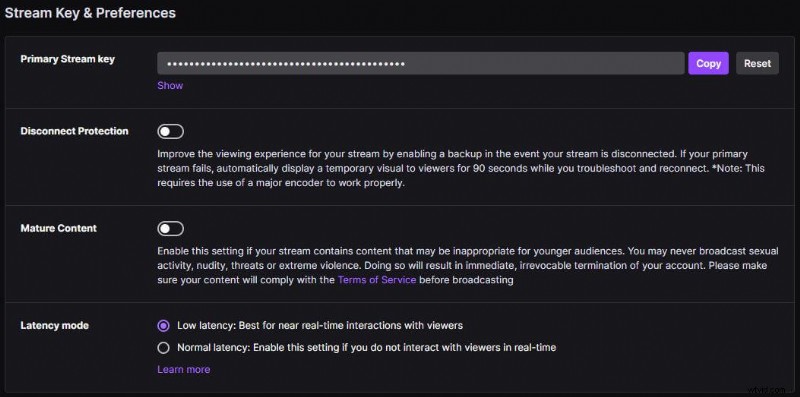
- Go into the Channel and Videos tab which takes you to the Twitch dashboard. You might also have to switch from Channel to Stream on the left navigation menu if you’re not already there by default.
- Click the Copy button to copy your stream key, it’s censored by default for privacy reasons.
Note: If you’ve already done this in the past and your Twitch stream is not working, it might be because your Twitch Stream Key is not up to date anymore. Twitch recently reset all the keys so you have to do this again and refresh it in your streaming app.
[#TOC2]How to get YouTube stream key[#TOC2]
- Open YouTube.com - make sure you’re logged in, and click on your avatar on the top right.
- Click the YouTube Studio tab. If it’s your first time in this tab, you might have to verify your account first. It should prompt you to do so.
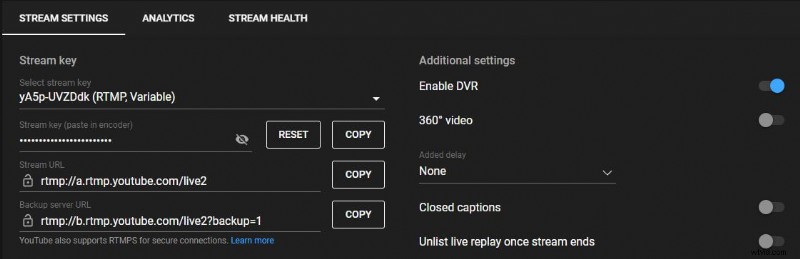
- Click the Go live button on the top right and switch to the Stream tab on the left navigation menu.
- Click the Copy button to copy your stream key, it’s censored by default for privacy reasons.
- You can also copy the stream/server URL right under it if your streaming software requires it. (Welder does require it)
[#TOC3]How to get Facebook stream key[#TOC3]
It depends if you want to stream on your personal profile or on your Facebook page. Let’s cover both.
Personal profile
- Open Facebook.com - make sure you’re logged in to your personal profile, and click the Live Video button under where you’d write a new post.
- Switch back to the previous version of Live Producer on the top left. (if you’re in the new one by default)
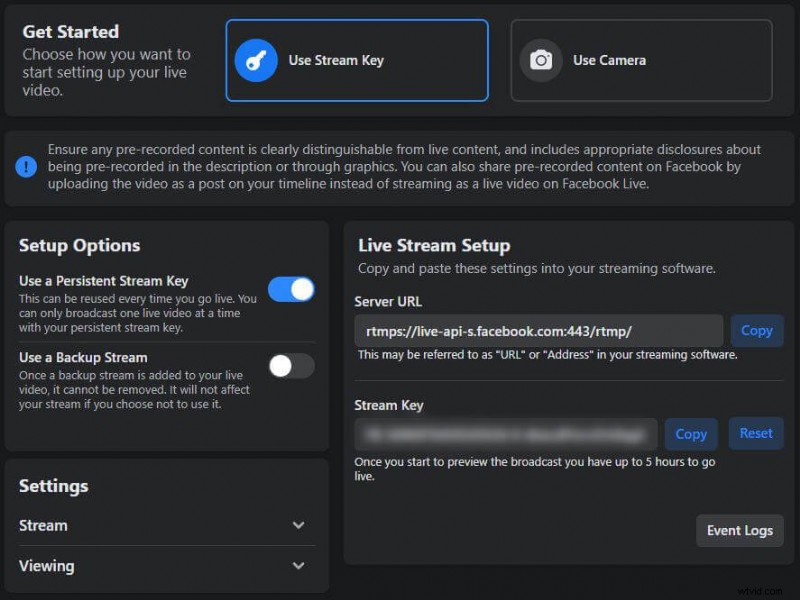
- Click on the Use Stream Key button.
- Click the Copy button to copy your stream key.
- You can also copy the stream/server URL right under it if your streaming software requires it. (Welder does require it)
Facebook Page
- Open Facebook.com - make sure you’re logged in to your preferred page, and click the Live button under where you’d write a new post.
- Switch back to the previous version of Live Producer on the top left. (if you’re in the new one by default)
- Click on the Use Stream Key button.
- Click the Copy button to copy your stream key.
- You can also copy the stream/server URL right under it if your streaming software requires it. (Welder does require it)
[#TOC4]How to get Twitter stream key[#TOC4]
- Open Twitter.com - make sure you’re logged in, click More on the left navigation menu, and go to Media Studio
- Click the Producer tab at the top navigation bar
- Click on Create Broadcast
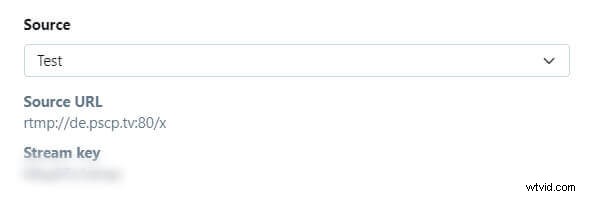
- Go to Source a create a new source - choose a name and select the region which makes the most sense for you
- Copy the stream key manually
- You can also copy the stream/server URL if your streaming software requires it. (Welder does require it)
[#TOC5]How to get LinkedIn stream key[#TOC5]
Important: LinkedIn live is only available to approved users. You can request access here.
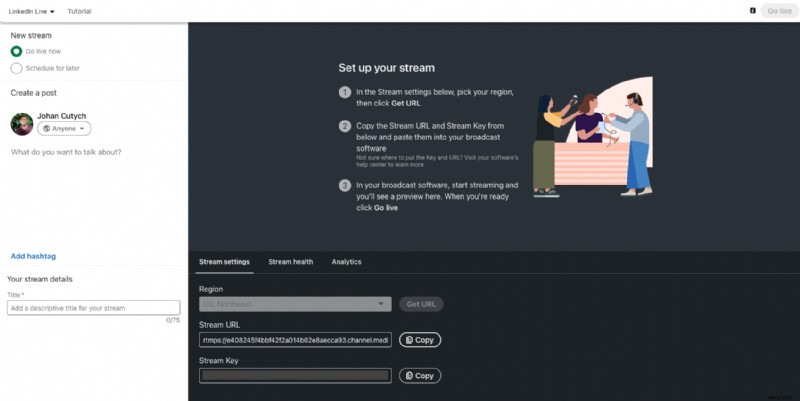
- Make sure you’re logged in to LinkedIn and go to the custom stream page.
- Select Go live now under New stream.
- Click Create a post and select the profile or page you want to stream to.
- Go to the Stream settings tab, pick the region closest to you and click Get URL.
- Copy the stream key
- You can also copy the stream/server URL if your streaming software requires it. (Welder does require it)
[#TOC6]What to do with them?[#TOC6]
Now you know where to find all the streaming keys. But what to do with them?
Simply head to our LIVE Studio (if you don't have an account yet, just create one, it's free and you don't need a credit card) enter the studio and in the top right corner click on Add destinations (yellow text). You will see a popup with all the major platforms and inputs where you can paste the streaming key.
As soon as you paste all the streaming keys of platforms you want to live stream to click on GO LIVE (top right corner, red button) and Welder will multistream to all of them withing a second. BOOM you are live!