
Demystify the process of preparing your videos for social exports so you can start posting to all of your channels.
To the social media manager’s dismay, each social media platform tends to have a slightly different requirement for posting video content. As a result, you’re not often able to use the same video export for all social media channels. For example, you could export a 16:9 sixty-second MOV video file and upload it to YouTube, but you wouldn’t be able to upload the file to Twitter, as they don’t support MOV from the desktop. Additionally, you could export a 9:16 video for Instagram. While it would fit perfectly within the stories or reels, Instagram would crop it in the primary Instagram feed, as it only supports 4:5, 1:1, and 16:9 there.
With that in mind, let’s look at demystifying this process a few simple steps.
Getting Your Video Ready
How to Change Your Aspect Ratio
Before we look at what the most prominent social media sites accept, you need to know how to prime your video so it’s ready for the social media platform. In most cases, this simply comes down to adjusting your timeline aspect ratio and choosing the correct format.
However, it’s often impractical to edit your content in the delivery aspect ratio. Therefore, edit your content in the default resolution you filmed it in. Once that’s done and you’ve found the desired social media resolution from the list below, we can then change the timeline resolution.
To do this, you simply need to open the timeline settings and input the correlating social media resolution. For example, in the image below, I’ve changed the timeline resolution from 1920×1080 to 1080×1920. This is the 9:16 ratio needed for Instagram and Facebook stories.
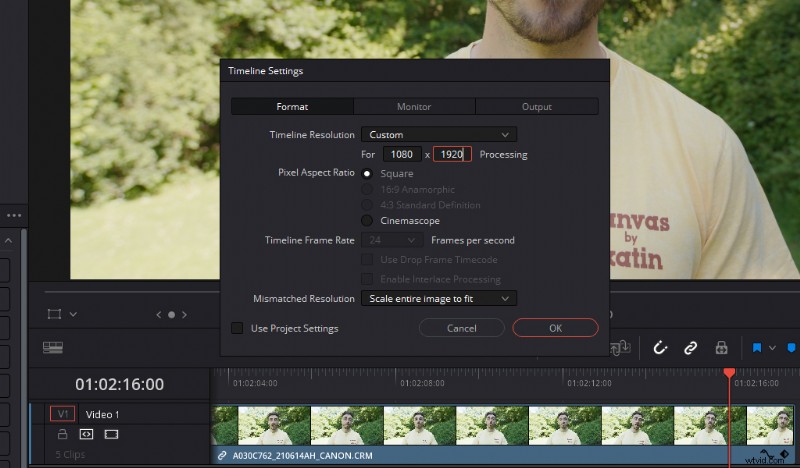
When you change your timeline resolution, you may notice that something unexpected happens, and your frame now looks like this:
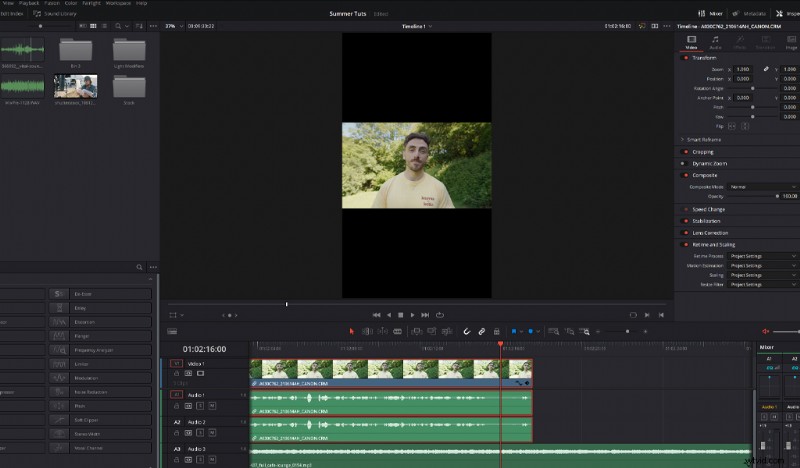
You have a 9:16 timeline, but your media is locked into its default 16:9 ratio and, as a result, is scaled down to fit the composition. This is because scaling options are often set at “fit” by default. To fix this, you can either change the scaling option to fill or adjust the zoom settings until your media clip fills the composition.
Ways to Reposition Your Video Clip
Depending on where your subject is framed, you may also need to reposition your video clip. Because the geniuses behind editing software understand how crucial vertical content is in the modern age, you can now find auto reframe tools in Premiere Pro and Resolve.
For example, in DaVinci Resolve, you select the clip, and in the inspector, press auto to reframe. Then, Resolve will analyze the motion and subjects within the clip and reposition them within the new 9:16 aspect ratio.
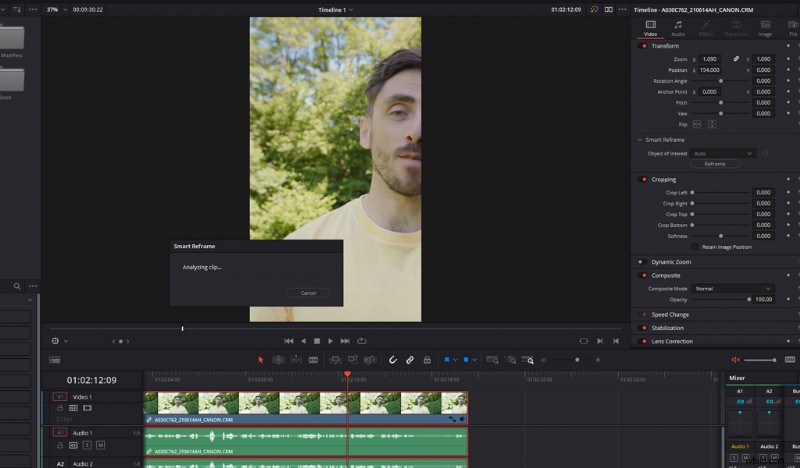
It’s worth noting that if your content is solely being delivered for 9:16, it may be more beneficial to film the entire project vertically. Thankfully, I’ve already written a guide on how you can do just that.
Rendering Social Video
With your timeline set to the correct aspect ratio and your media repositioned, it’s now time to render. Again, editing software is now extremely user-friendly for social media, so you’ll often find social media-ready export presets.
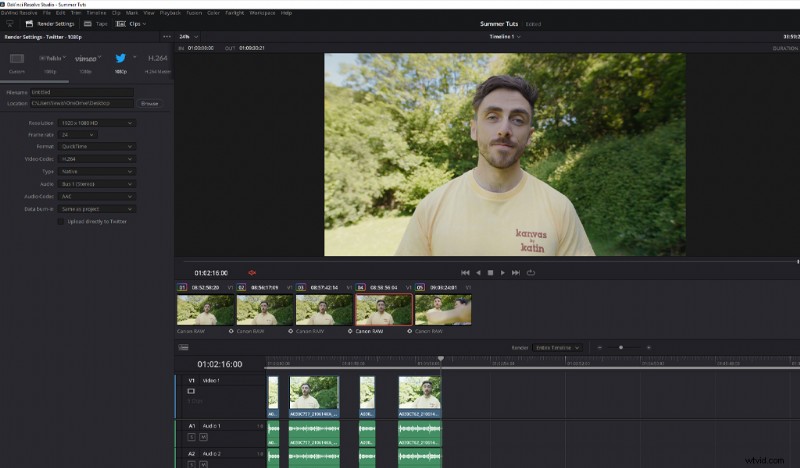
However, if your software doesn’t house these presets, you’ll need to choose the corresponding codec from the list below.
Recommended Social Media Formats
Throughout the following lists, you’re going to see an abundance of numbers and words that may look like gibberish if you’re unfamiliar with video editing.
For example, an accepted YouTube render is 1920×1080 (16:9), MOV, H.264, 59 minutes.
Let’s break that down:
- 1920×1080 is the resolution of the video clip.
- 16:9 is the aspect ratio that the resolution creates. A smaller video, such as 1280×720, will still have the same aspect ratio despite being smaller in width and height.
- MOV is the file format.
- H.264 is the encoding profile codec (how the video is compressed).
- And, of course, 59 minutes is the time for how long the video can be on that platform.
You may also find that it requires a specific bitrate. Please note that the settings below are the recommended settings. That means, in most circumstances, you could use a video that isn’t specifically the recommended resolution. However, the video will either be cropped to fit the video player, or your video will receive black bars so the mismatched resolution fits in its entirety.
- Facebook Feed: Ratio 9:16 to 16:9, 1 second to 240 minutes
- Facebook Marketplace: Ratio 9:16 to 16:9, 1 second to 240 minutes
- Facebook In-Stream: Ratio 9:16 to 16:9, 5-15 seconds
- Facebook Stories: 1.91:1 to 9:16, 1-120 seconds in length
- Facebook Search Results: Ratio 1:1, 240 minutes max
- H.264 video with AAC audio in MOV or MP4 format
- Instant Feed: 1.91:1 to 4:5, 1-120 seconds
- Instagram Stories: 16:9 to 4:5 and 9:16, 1-120 seconds
- Instagram Explore: 1.91:1 to 4:5, 1-120 seconds
- (For the specifications that list “9:16 to 16:9,” this means that you can also incorporate 1:1 and 4:5 video)
Your video file can have a frame rate of up to 30fps. And, while many formats are accepted, the internet-friendly H.264 is suggested.
- Instagram Stories & IGTV: 9:16 (1080×1920)
- IGTV (landscape video): 16:9 (1920×1080)
- Instagram feed/Gallery posts: 4:5 (1080×1350)
- Instagram feed/Gallery posts: 1:1 (1080×1080)
- Videos on the feed can be 3-60 seconds long
- Videos on Stories can be 3-15 seconds long
- Videos on IGTV can be 15 seconds to 10 minutes in length
- Maximum resolution: 1920 x 1200 (and 1200 x 1900)
- Additional resolutions: 1280×720 (landscape), 720×1280 (portrait), 720×720 (square)
- Aspect ratios: 1:2.39 – 2.39:1 range
- Maximum frame rate: 40fps
- Maximum bitrate: 25Mbps
- Maximum length: 2 minutes and 20 seconds
- MP4 video format with H264 format with AAC audio
- Twitter Fleets: 1080×1920, MP4
If uploading through mobile, you can also upload with MOV video formats.
TikTok
- Recommended resolution: 1080×1920
- Aspect ratio: 9:16 or 1:1 with letterboxing
- Maximum length: 60 seconds
- Maximum file size: 287.6MB
- File type: .mp4, .mov, .mpeg, .3gp, or .avi
Snapchat
- Video formats: MP4 or MOV recommended
- Resolution: 1080×1920
- Aspect ratio: 9:16
- Maximum file size: 32MB
- Recommended formats: .mp4 and .mov
- Video length: Between 3-60 seconds
Technology is continuously advancing, as is the way we consume media. As a result, you’ll often see the recommended settings either shift or have new formats added to the list. So, it’s preferable to seasonally visit the media specifications page for each platform to see if the recommended settings have changed or if there’s anything new added to accommodate the latest gadget.
For more on editing for social media, check out these articles:
- How to Master the PC to Instagram Workflow for Posts
- Premiere Pro’s Auto Reframe Makes Social Media Videos a Breeze
- 18 Time-Saving Ways to Automate Social Media Tasks
- Social Media Image Sizes & Dimensions Cheat Sheet
- SOCIAL PACK: 50+ FREE Social Media Marketing Elements and Designs
Cover image by Makyzz.