
From cutting a clip to adding text, get started with DaVinci Resolve using this breakdown of the most essential tools and techniques.
No matter your skill level with editing, no matter the program you’re used to using, learning a new program can be tricky. DaVinci Resolve is no exception to this rule.
How to Add Titles and Text
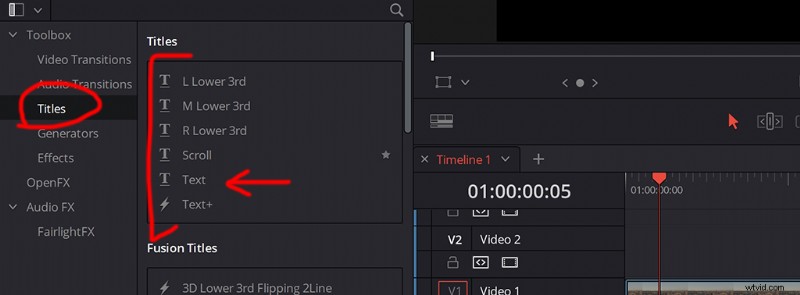
When I first started editing in Resolve, the time came to add a simple title on top of my footage. For a split second I sat there and really fought the urge to immediately Google the answer. Instead, I tried just looking around. Adding a title is super simple and I found the tool in no time.
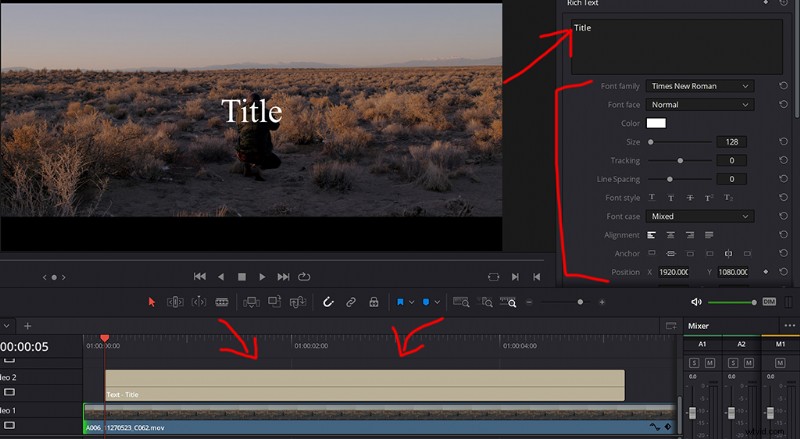
To add a title simply find the “Titles” section under “Toolbox” to choose between the type of text you want. There’s “lower Thirds” as well as “Scroll” to choose from.
Then you simply drag and drop it over your clip. From here, you’ll find all the adjustments and customizations for the title, allowing you to change the size, font, drop shadow, opacity, and basically anything else you think to do with a title.
How to Slice/Cut
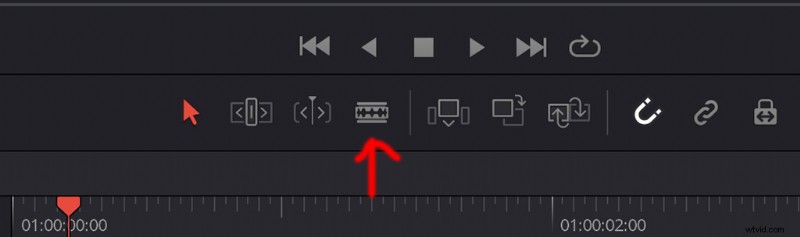
The single most important part of video editing, editing! You can cut your clip up in several ways. First, find the clip you want to work with in the media pool. Then you can set your in and out points within the clip, choosing what you want to bring down to your timeline.
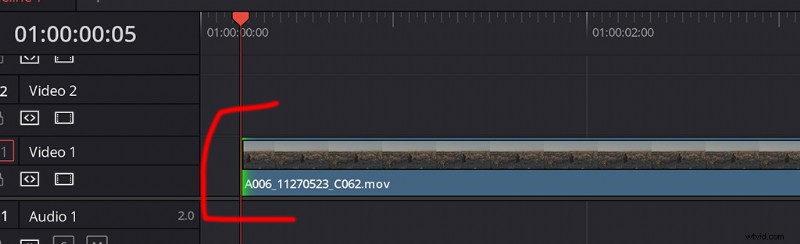
Once the clip is in your timeline, you can use the Blade tool, allowing you to find a particular place on the clip that you want to cut at (separating the clip into two once you’ve done this). Or, you can drag the ends to whatever point in the clip you’d like.
How to Change the Aspect Ratio/Letterbox
This might be a little further along in your edit. But again, at some point I had to Google this and am here to tell you that changing and viewing the aspect ratios available is super simple.
Just go to Timeline at the top, then look for Output Blanking.
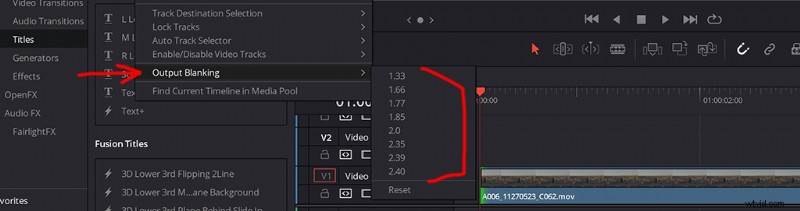
From here you’ll see you have the option to choose from a plethora of aspect ratios. Now, this doesn’t change the resolution of the footage or timeline. Instead it basically just adds letterbox bars for you.
How to Add Keyframes/Digital Zoom
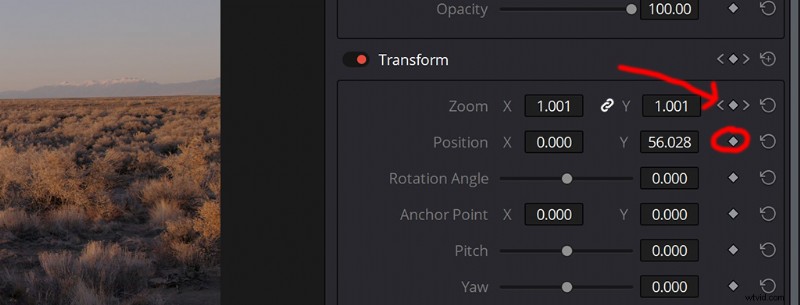
You might find yourself immediately wanting to digitally zoom in on a clip, or set keyframes for one reason or another on your titles, or images or whatever! Adding keyframes is super simple. To do this, just go to the Transform tab to the right under Inspector. Then you’ll see options to Zoom as well as change the Position of your clip.
This is where you’ll set Y and X axis points to either push in or pull out. To set a keyframe, just hit the Keyframe when you want the Zoom or movement to start. Then, scroll through the clip and change the X or Y axis to be where you want and hit the Keyframe again.
How to Export
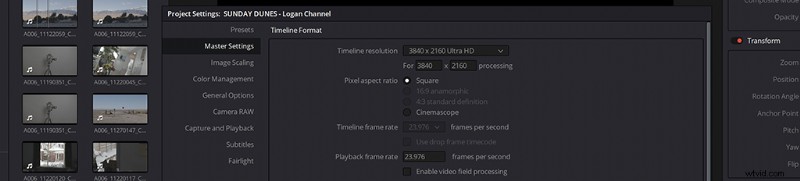
The first piece of advice I’ll give on exporting in Resolve is to make sure your Timeline settings match what you’re trying to export. The best way to check and make sure is to go to File>Project Settings then choose the right resolution you want to export at. Then once you’ve done this, click the “Deliver” icon at the bottom to move over to the “Render” page.
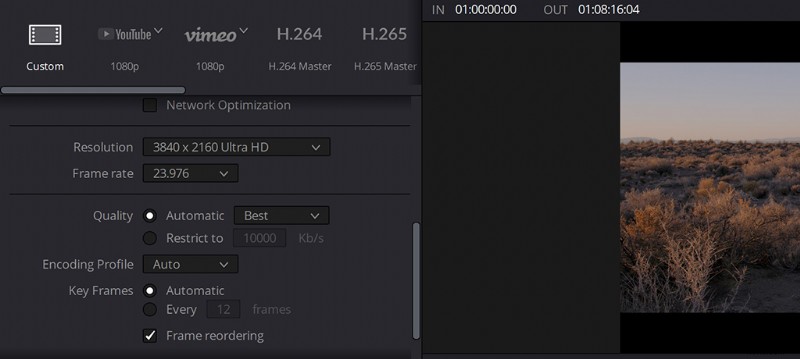
As you can see in the image, the two settings match. This allows me to choose whatever codec I’d like to export to as well as where I want it exported to. Exporting in Resolve is, in my opinion, simpler than other NLE’s due to its straightforward visual layout.
If you’re looking to learn even more about DaVinci Resolve, check out our tutorial on the software for beginners.
Unlock even more video editing secrets:
- The 5 Essential Phases of Video Editing
- 7 Things Every Good Online Video Needs
- How to Make Lower Thirds Like a Pro
- 7 YouTube Channels on Filmmaking, Camera Reviews, and Gear
- 9 Essential Cuts Every Video Editor Needs to Know
Cover image by Djavan Rodriguez.