Have you ever wanted to put text into your video and make it look like it really lives in the scene? No, this isn’t another 3D Camera Tracking Tutorial — this time, you’ll learn how to add shadows to your text, making it appear as if it’s really in the shot. We’ll also touch on another powerful effect called Shatter. As with our previous video tutorials, all of the tools and effects used here come standard with After Effects.
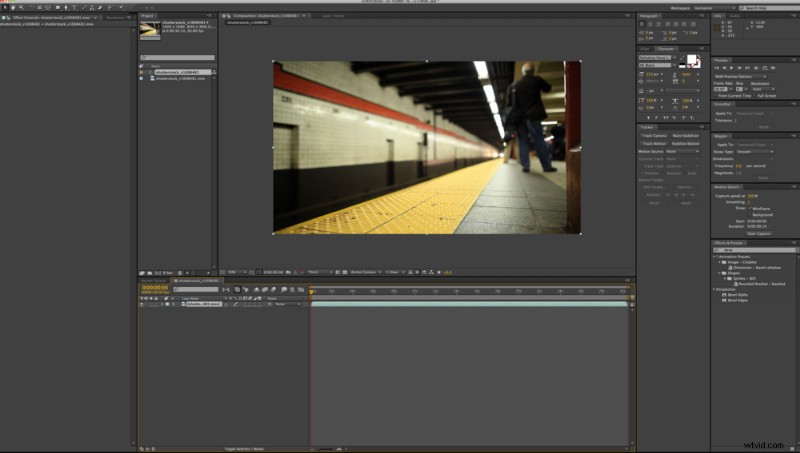
Step 1
Go to File > Import > File and input your footage of choice. To create the final clip in this tutorial, I used New York City Subway Train Arriving by Shutterstock contributor Duncan Frazier:
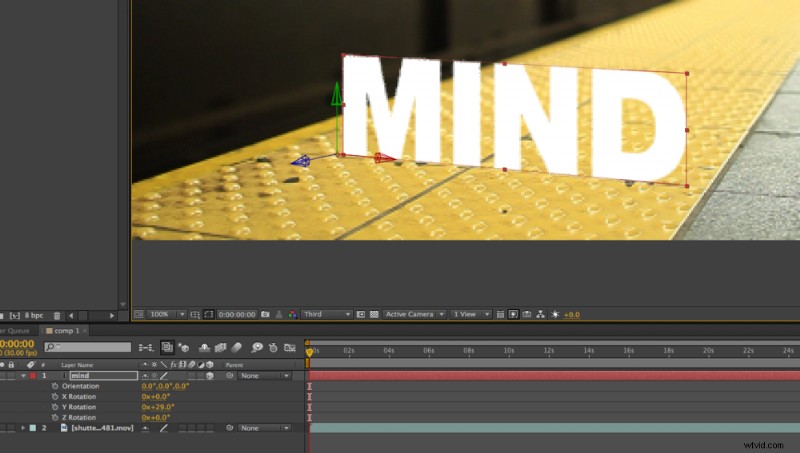
Step 2
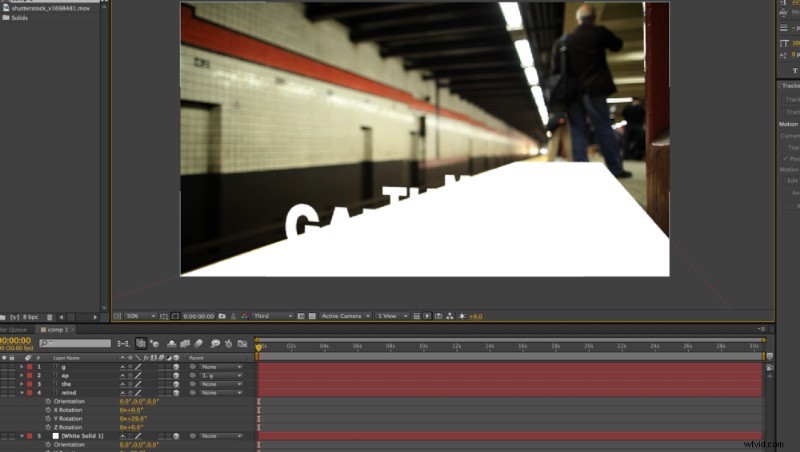
Start adding your text, making it into 3D layers by checking the “3D” box on each text layer. Rotate your layers so that they fit with the perspective of the scene.
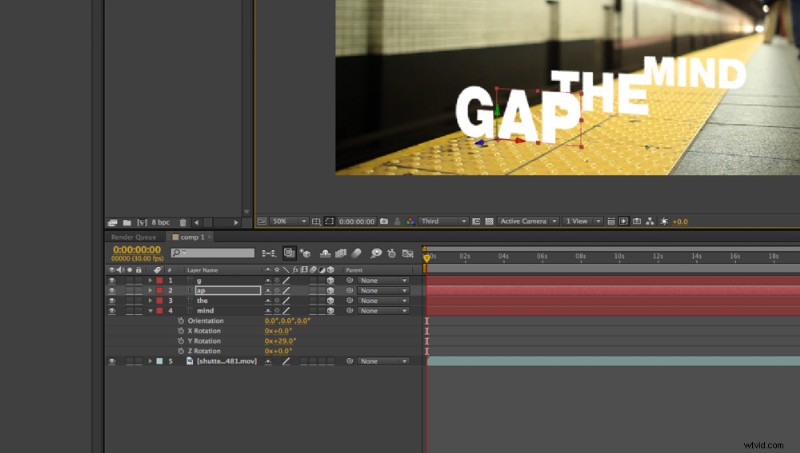
Step 3
For this scene, we know that the letter “G” gets shattered in the end, so we’ll want to keep that as a separate layer. I also parented the “AP” to the “G” with the “Parenting” Piq Whip, so that I can animate the whole word consistently.
Step 4
Since the footage file will not be a 3D layer, we need a plane for the shadows to project onto. Go to Layer > New > Solid and create a new white (#ffffff) Solid. Make your new Solid a 3D layer and rotate and place it within the composition so it fits the perspective of the clip. This will be your plane for the shadows, sometimes called a “shadow catcher”.
Step 5
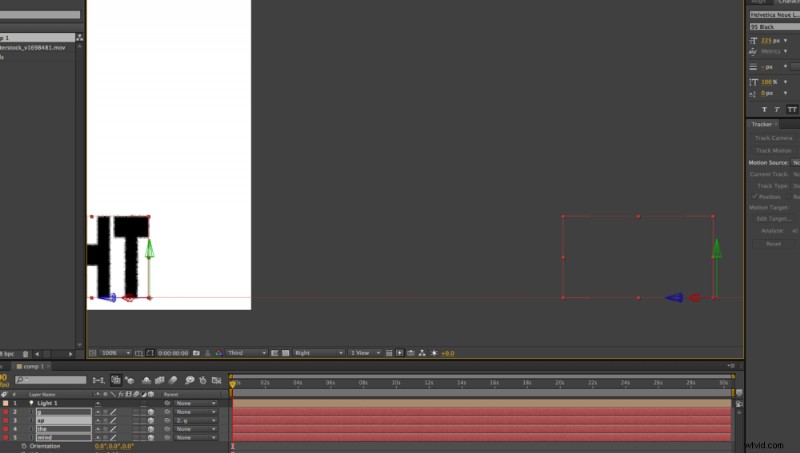
The next — very important — step, is to change your camera view from Active Camera to Right. Align the bottoms of your text layers to your new Solid plane so that they’re on the “ground.”
Step 6
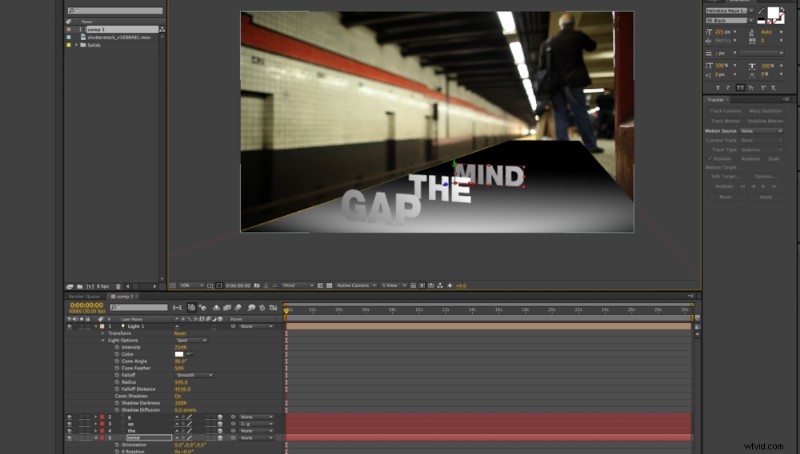
Now we’ll add a light, so that we can begin creating our shadows. Go to Layer > New > Light and make sure that the Cast Shadows check box is selected. You’ll see what is pictured above. Don’t be alarmed; the next step reveals all.
Step 7
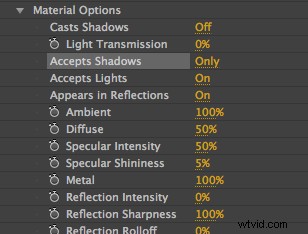
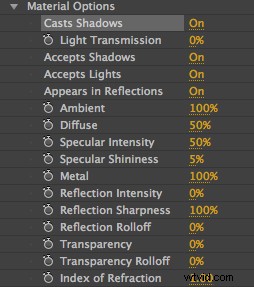
Go to your Solid and open Material Options, which is located under the layer options. You’ll see a selector that says Accept Shadows. Make sure you Alt-Click this selection so that it says Accept Shadows: Only.
Then go into each text layer’s Material Options and turn on Cast Shadows.
Step 8
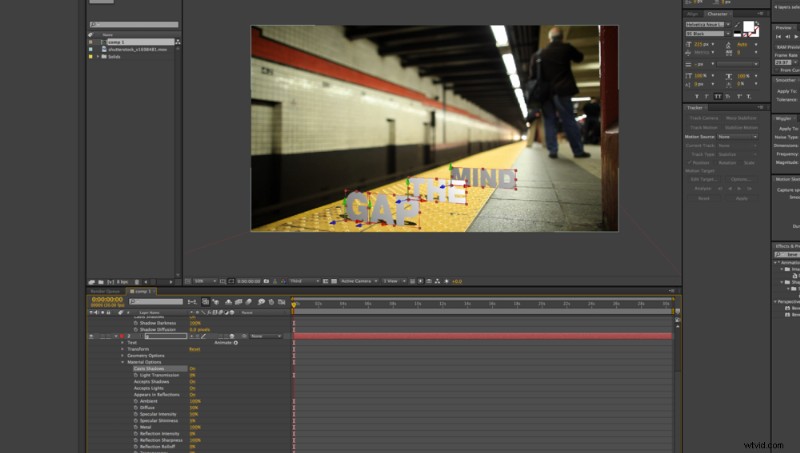
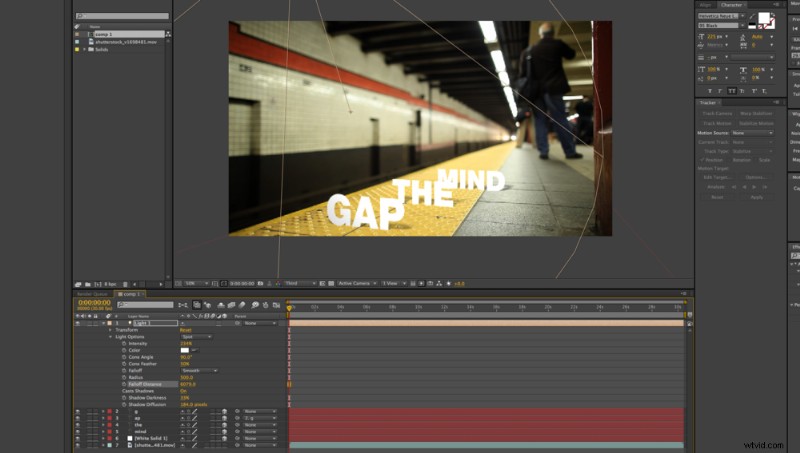
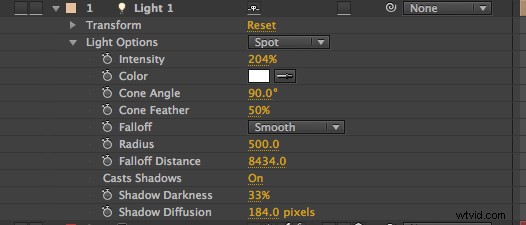
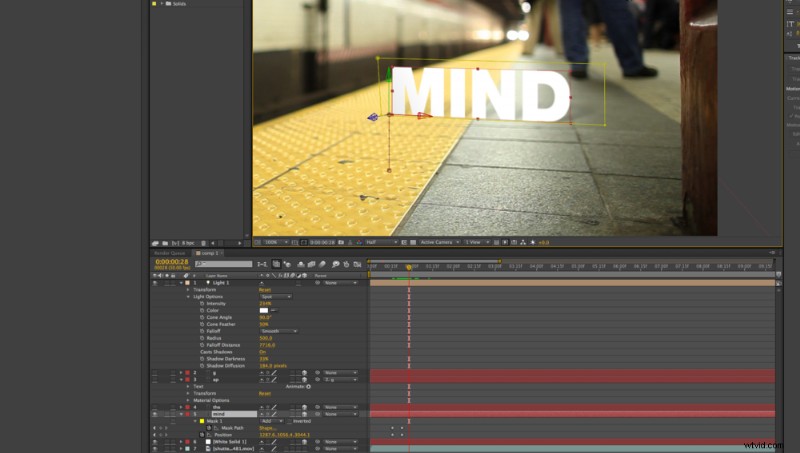
Adjust your lighting to make your shadows and text appear the way you want them to. The settings used here are below.
Step 9
Add a mask to your text layers and animate them rising out of the ground plane.
Step 10
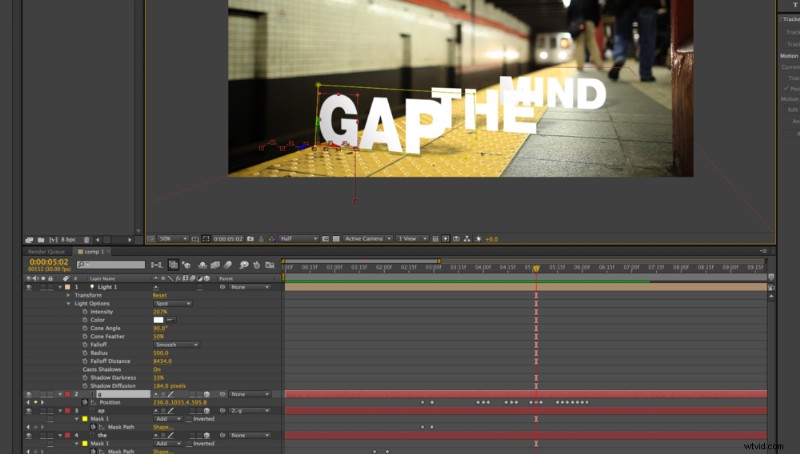
Change the position of your “G” layer so that it hops all the way to the edge.
Step 11
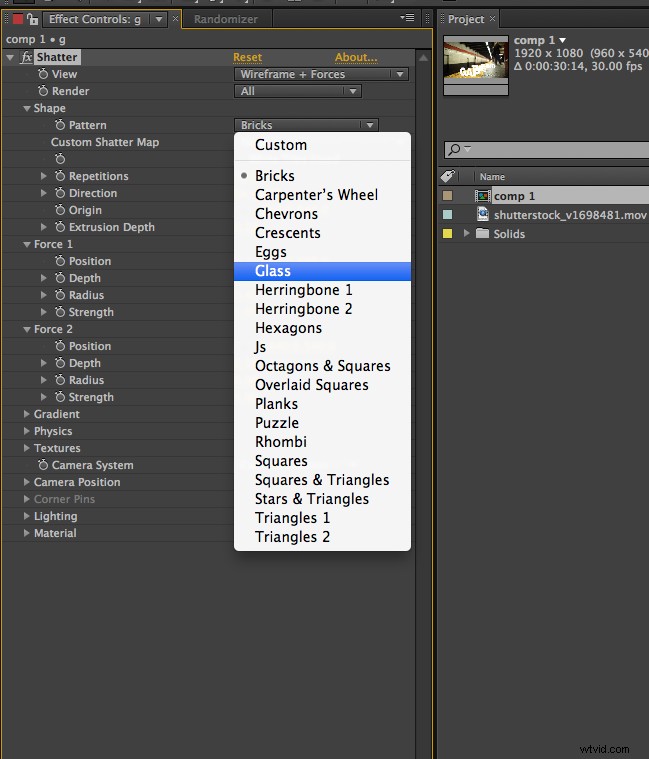
Now it’s time to add the Shatter effect. Go to Effect > Simulation > Shatter. After Effects’ Shatter is a very versatile tool — we’ll only be scraping the surface here, so you should definitely play around with it further later on.
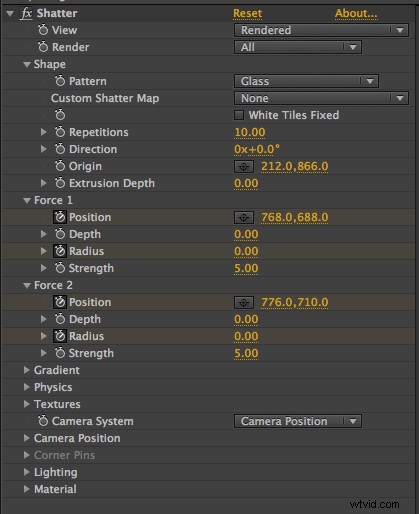
Change your Shape Pattern to Glass and your Extrusion Depth to 0.00. Also change the Origin under Shape to mark where you would like the shatter to occur.
Step 12
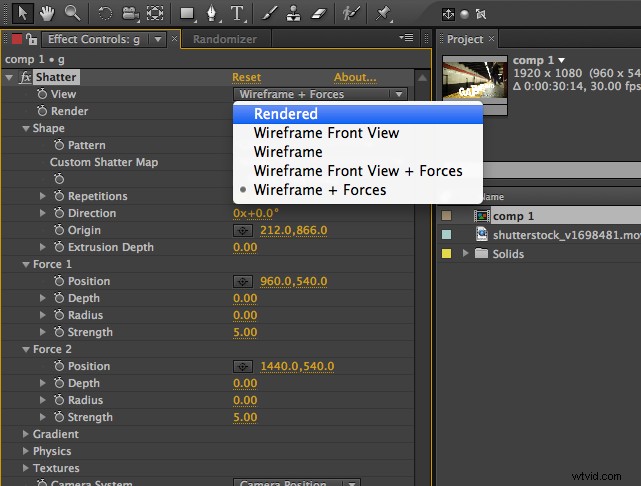
My personal preference is to change your View to Rendered, so that you can see the finished product. Change your Forces (1 and 2) to have 0.00 set for both their Depth and Radius.
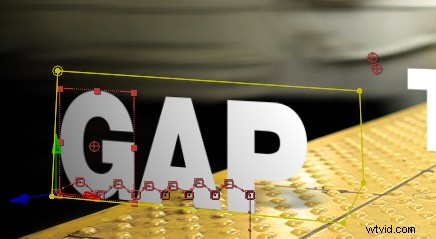
Step 13
Next, you need to animate your Forces. Open up the Shatter controls in your timeline under the “G” layer and key both of your Forces’ positions to follow the path of the train. You also need to key your Radius from 0 to 4 so that your layer actually shatters.
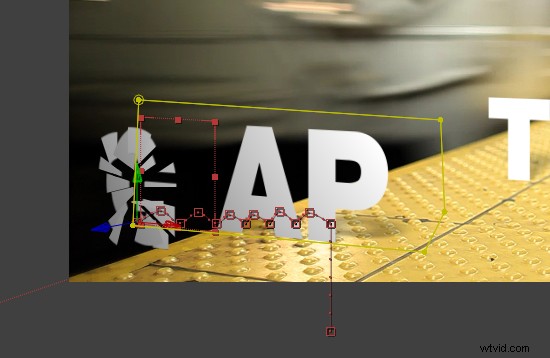
Step 14
Use your scrubber to see your animation. If it looks good, you’re all done! Below are the settings I used for my Shatter effect.
Like this tutorial? Check out these other great After Effects lessons from Shutterstock: