
Artgrid is all about giving creators creative freedom, and streamlining the video creation process is a key element in achieving that. That’s why with an Artgrid subscription, for example, you can use the footage you download in any video project, and once you download a clip with an active subscription, it is yours to use forever. In short, as an Artgrid user, you can rest assured that you’re covered.
The new Aspect Ratio feature on Artgrid is all about streamlining the workflow. How? By allowing creators to change the aspect ratio of a clip and see how it would look in square and vertical (portrait) video. This eliminates the need to speculate whether a clip would look good in a square or portrait video, and lets you choose only the clips that look exactly right.
You won’t need to wait until the editing stage to find out that a clip looks bad in a vertical video and then go back to look for a new one. In short, as an Artgrid user, you can rest assured that your video will look good, regardless of its aspect ratio.
YouTube vs. Social Media Videos
While YouTube and other video hosting platforms display videos in widescreen format, social media channels, mostly viewed on mobile, show them in either square or portrait. So if you want to create a video that looks good on all platforms, you can choose Artgrid clips that look good in all aspect ratios.
How to Use the Aspect Ratio Feature
You can use the feature either from the Artgrid homepage, a story page or a clip page. On the Artgrid homepage or a story page, click on the drop-down menu on the right side of the screen above the clips’ grid where it says ‘Wide’ and choose ‘Square’ or ‘Vertical.’
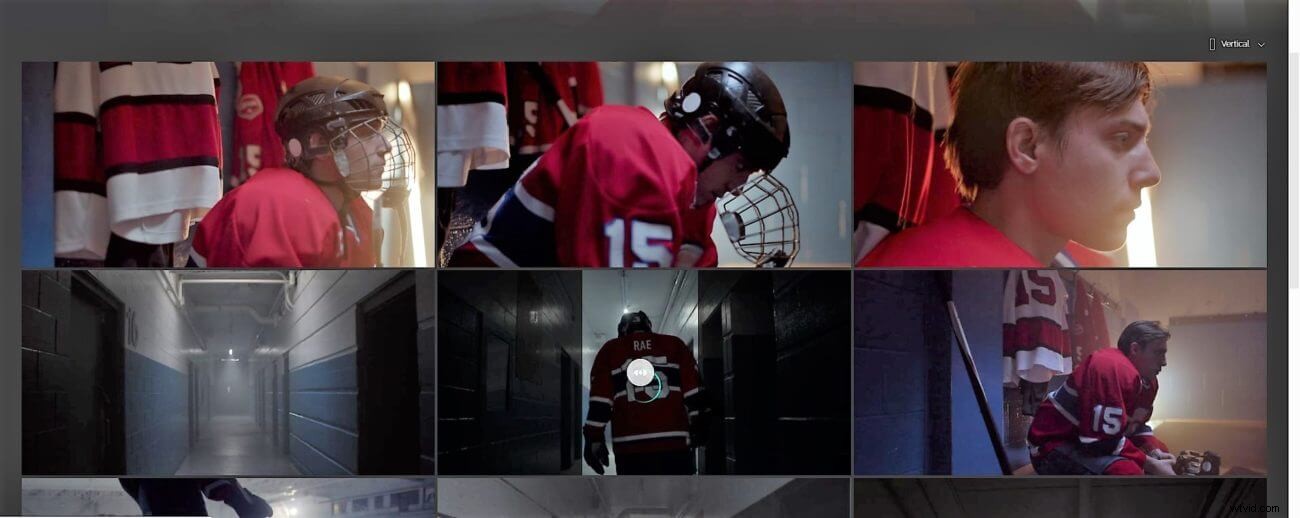
Changing the aspect ratio on a story page to portrait. Taken from the story ‘Hockey Player‘ on Artgrid.
If you’re on a clip page, click on the blue rectangle in the bottom right corner of the video and choose the aspect ratio you want.
Once you change aspect ratio, you can move the cropping area across the clip to see what it captures and what it doesn’t.
You can deactivate the feature by clicking where you activated it and going back to ‘Wide.’
To find out more about the recommended aspect ratios, dimensions and export settings on each social media channels, check out the following posts:
- How to Post a YouTube Video on Instagram.
- Why and How to Produce a Tailor-Made Social Media Video for Each Channel.
- Everything You Need to Know about Aspect Ratio.
- How to Post the Best Quality Videos to YouTube.
- How to Post the Best Quality Videos on Facebook.
- How to Upload the Best Quality Video to Instagram.