
Versatile Video Editor – Wondershare Filmora
Wondershare Filmora offers an intuitive interface and powerful editing capabilities, making it a top choice for creators who want to add professional audio to their videos.
With a vast library of effects, precise controls, and detailed tutorials from the official channel, Filmora turns a simple editing session into a polished production.
When you add the right audio track, you instantly elevate the impact of your video. This guide explains where to find royalty‑free music, how to download it safely, and how to integrate it into your projects using Filmora.

In this article
Part 1 Audio Music Downloads using reliable methods
Explore proven ways to acquire high‑quality, royalty‑free audio. Choose the method that best fits your workflow and project requirements.
Method 1: Download interactive audio from trusted online libraries
Numerous websites host royalty‑free tracks that you can use for any project—commercial or personal. These files are ready for import into Filmora and other editors.
• Bensound
Bensound offers an extensive collection of free tracks. Browse by genre, preview each track, and download the one that matches your video’s mood.

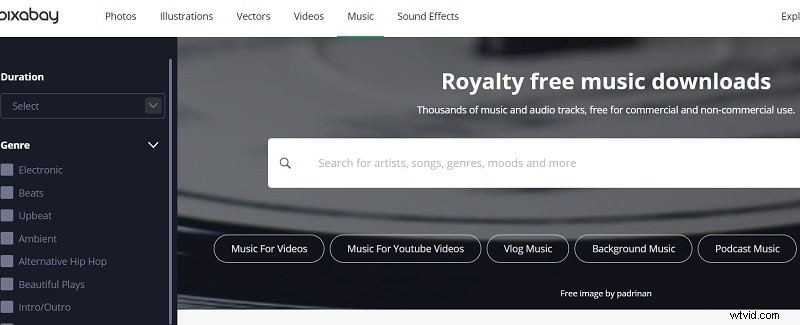
• Pixabay
Pixabay’s audio library is another excellent resource. Search by theme or keyword, listen to previews, and download the soundtrack that fits your scene.
Method 2: Extract audio from YouTube using a reliable downloader
After locating a suitable clip on YouTube, use a reputable downloader to extract the audio track. Trim the file to the desired length before importing it into Filmora.
Method 3: Record your own custom audio
For unique projects, consider recording original audio. High‑quality microphones and basic editing tools let you capture clear sound, then export it in a compatible format for use in Filmora.
Part 2 The Best Program to Include Audios in Your Media Content
Filmora’s user‑friendly interface, powerful features, and extensive audio library make it an ideal tool for adding music to videos.
Key features include:
- Large selection of royalty‑free tracks and sound effects.
- Clear, accessible controls for seamless audio integration.
- Built‑in transitions and effects that sync with audio.
- Real‑time preview before exporting.
- Easy media import and export options, including direct upload to YouTube or Vimeo.
Below is a step‑by‑step process for incorporating audio into a Filmora project.
Step 1: Install the application
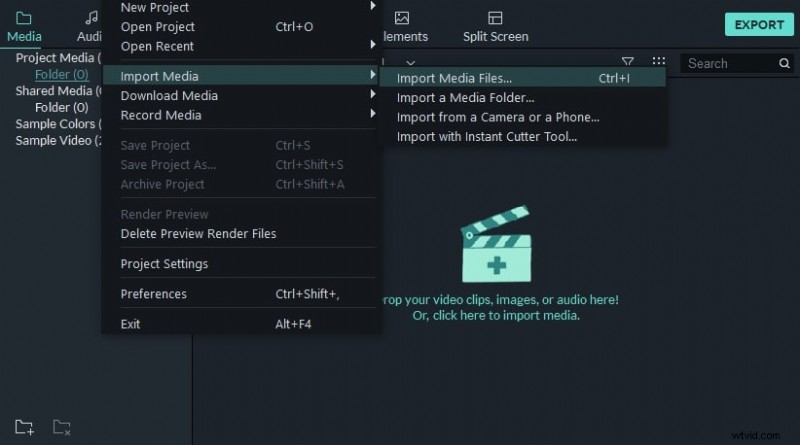
Download the correct version for Windows or macOS from the official Filmora website. Follow the installation wizard, then launch the program and import your media by clicking Import Media Files on the timeline.
Step 2: Detach existing audio (if needed)
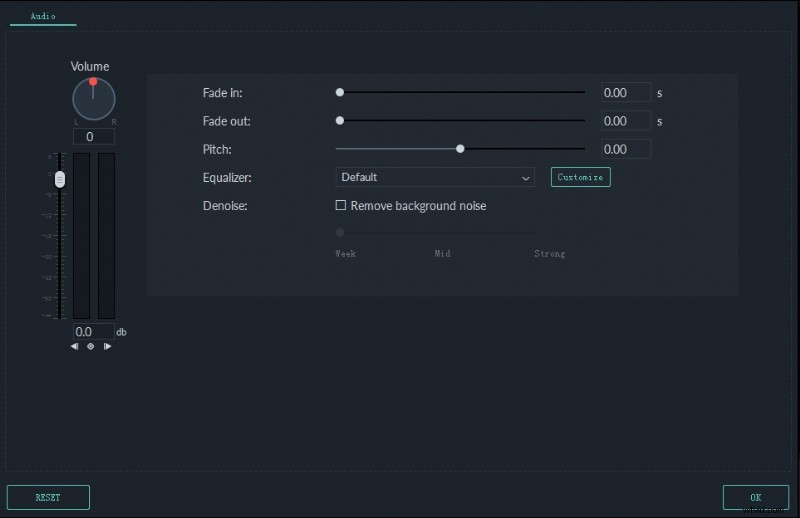
Right‑click the imported clip, select Detach Audio, and move the audio track to the timeline. Use Adjust Audio to reduce background noise or refine volume levels before proceeding.
Step 3: Insert the new audio track
Navigate to Audio > Sound Effects in the left panel, choose your desired track, and drag it onto the timeline. The new audio will automatically sync with your video.
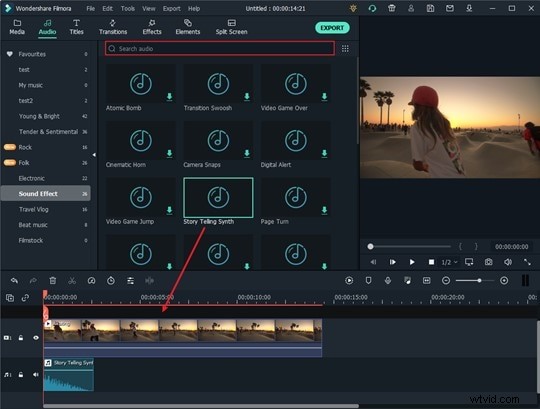
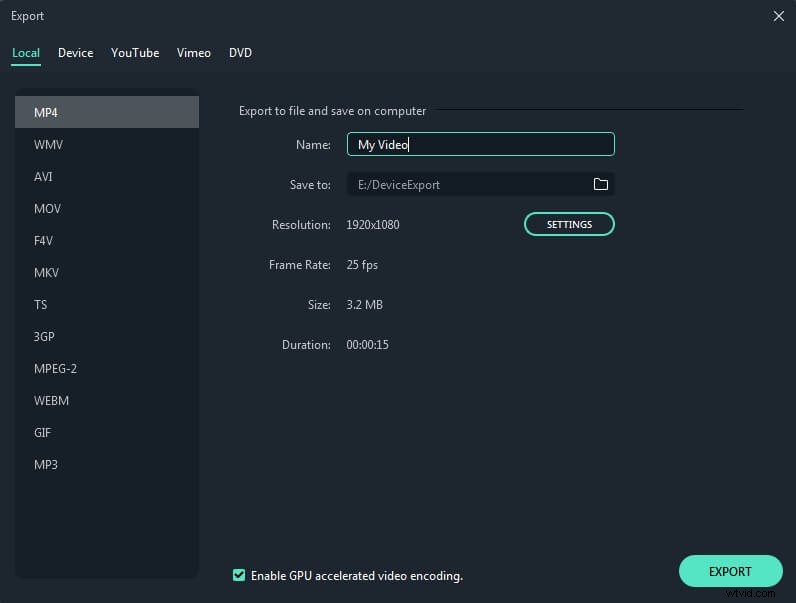
Once satisfied, click Export to save your video. You can export to various formats and resolutions, or directly publish to social media platforms.
Filmora’s streamlined workflow means even beginners can produce polished videos with professional‑sounding audio.
Wondershare Filmora
Get started easily with Filmora’s powerful performance, intuitive interface, and countless effects!

AI Portrait – The best feature of Wondershare Filmora for gameplay editing
The AI Portrait add‑on lets you remove video backgrounds without a green screen, adding creative borders, glitch effects, pixelation, and more.

Conclusion
By following the methods above, you’ll gain access to a wide range of high‑quality, royalty‑free audio. Use Filmora to seamlessly integrate these tracks, enhancing the emotional resonance and professionalism of your videos.
FAQs
A: You can find a vast collection of royalty‑free audio on sites like Bensound and Pixabay, each offering diverse genres and moods for quick preview and download.
A: With Wondershare Filmora, simply install the app, import your video, detach any existing audio if desired, select Audio > Sound Effects, drag the chosen track onto the timeline, and export the finished video.