
Music can be enjoyed, studied, or edited. Whether you’re a musician, teacher, or audio enthusiast, slowing a track while preserving its pitch is essential for accurate learning and creative projects. This guide shows you how to do that with professional software, a free online tool, and a handy mobile app.
Slow Down Music on Windows & Mac with Wondershare Filmora
Wondershare Filmora is a popular, user‑friendly video editor that also excels at audio manipulation. Its intuitive interface and powerful features make it ideal for slowing tracks without pitch distortion.
Key Features for Audio Editing
- Detach Audio from Video – work with audio separately.
- Mute Video & Audio Denoise – clean up unwanted noise.
- Audio Mixer & Equalizer – fine‑tune sound.
- Custom Speed Control – adjust tempo precisely.
Step‑by‑Step Process
- Import the Music File
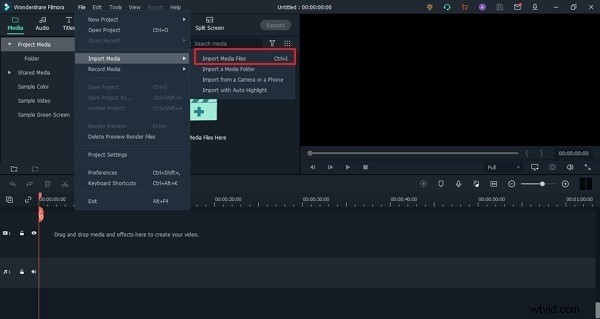
Open Filmora, create a new project, and selectImport Media > Import Media Filesfrom the File menu. Choose the MP3 you want to slow down. - Place on Timeline
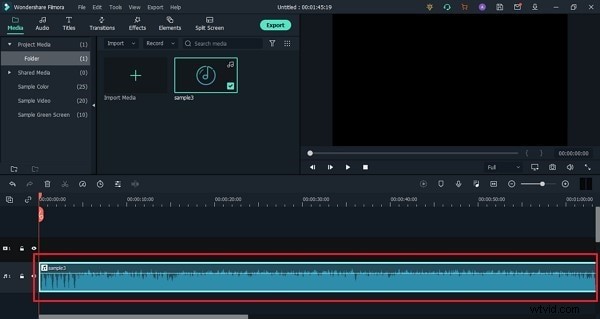
Drag the imported file from the Project Media folder onto the timeline. - Adjust Speed
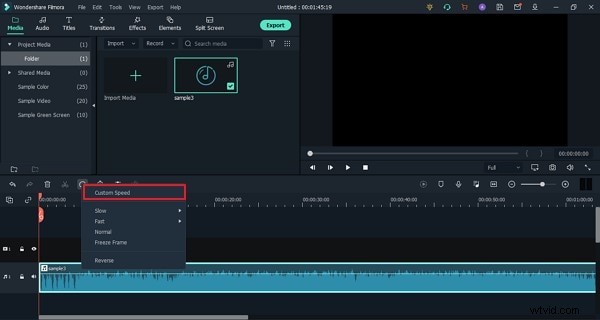
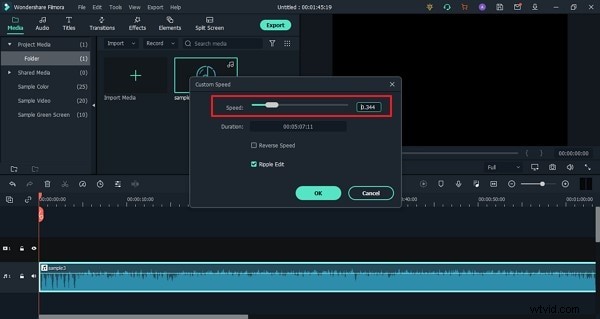
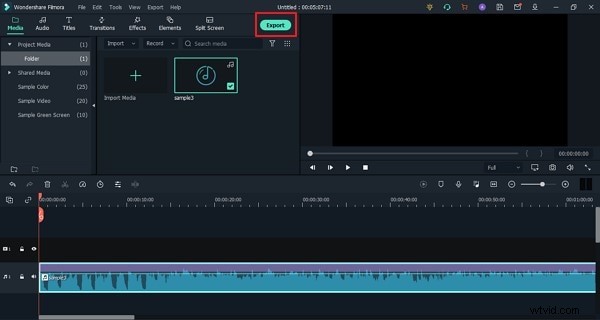
Click the audio clip, choose theSpeedbutton above the timeline, then selectCustom Speed. Drag the slider left to lower the tempo; Filmora will display the updated duration. - Export the Result
ClickExport, select theLocaltab, chooseMP3as the format, and save your slowed track.
Slow Down Music Online with Audio Trimmer
If you prefer a browser‑based solution, Audio Trimmer offers a quick, installation‑free method. It supports MP3, FLAC, AAC, WAV, and more, preserving audio quality while you adjust tempo.
How It Works
- Upload Your File
ClickChoose Fileand select the track from your device. - Set the Speed
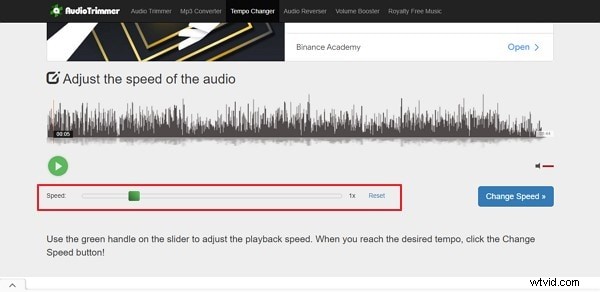
Use theSpeedslider to lower the tempo. The interface updates in real time. - Apply & Download
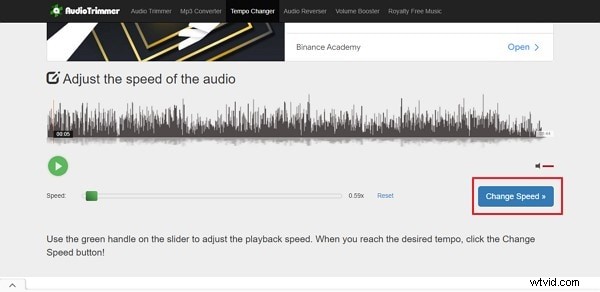
TapChange Speed, thenDownloadto retrieve the edited file.

Fast Mobile Solution: Music Speed Changer App
On the go? The Music Speed Changer app lets you adjust tempo from 15% to 500% of the original speed, with built‑in equalizer and recording features. It supports a wide range of audio formats.
Using the App
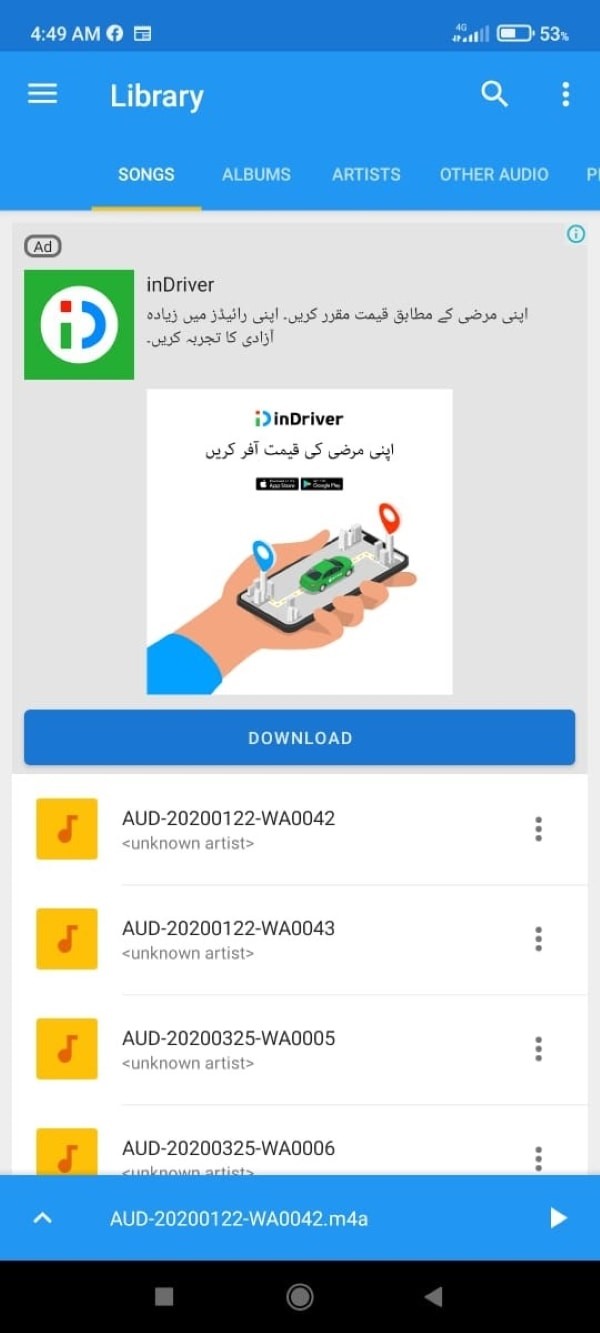
- Open & Import
Launch the app and select the track you wish to edit. - Adjust Tempo
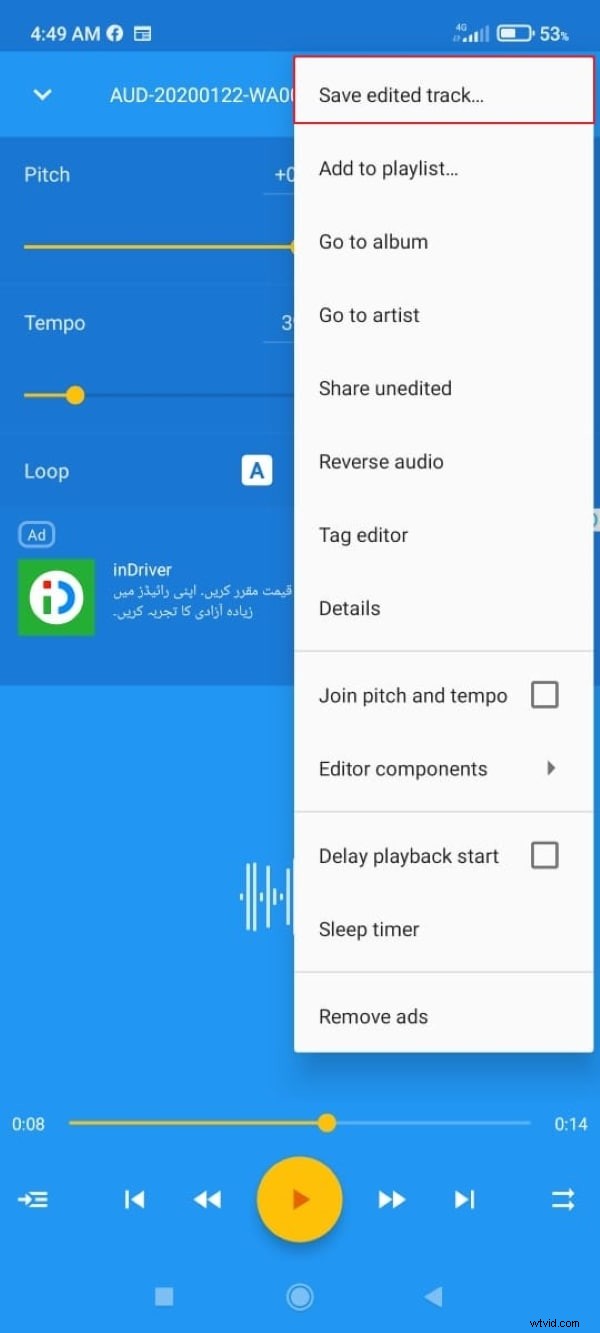
Tap the upward arrow, then move theTemposlider left to slow the music. - Save the Edited Track
Tap the three dots and chooseSave Edited Trackto export the new file.

Final Thoughts
Whether you’re editing on a desktop, using an online tool, or tweaking tracks on a smartphone, slowing a song without pitch change is straightforward with the right tool. Filmora offers a full-featured desktop solution, Audio Trimmer provides quick web editing, and the Music Speed Changer app delivers on‑the‑go convenience.
Versatile Video Editor - Wondershare Filmora
An easy and powerful video editor. Numerous effects to choose from.