
Audacity is a widely used, free, open‑source audio editor that lets you shift pitch without sacrificing fidelity. This guide walks you through the process step‑by‑step and includes practical volume‑adjustment tips.
In this article
Part 1: What is Pitch, and How Does It Work?
Pitch is the perceptual attribute that makes a sound high or low. It is directly linked to the frequency of the sound wave: higher frequencies produce higher pitches, and lower frequencies produce lower pitches. While amplitude determines loudness, pitch distinguishes the melodic quality of a tone. Understanding pitch is essential before you start editing, as it influences how changes will be perceived by listeners.
Part 2: How to Change Pitch in Audacity?
Pitch shifting is a common requirement in music production, podcast editing, and audio restoration. Audacity offers a dedicated Pitch Change effect that preserves the overall sound quality when applied correctly.
Step 1: Select the Audio Portion
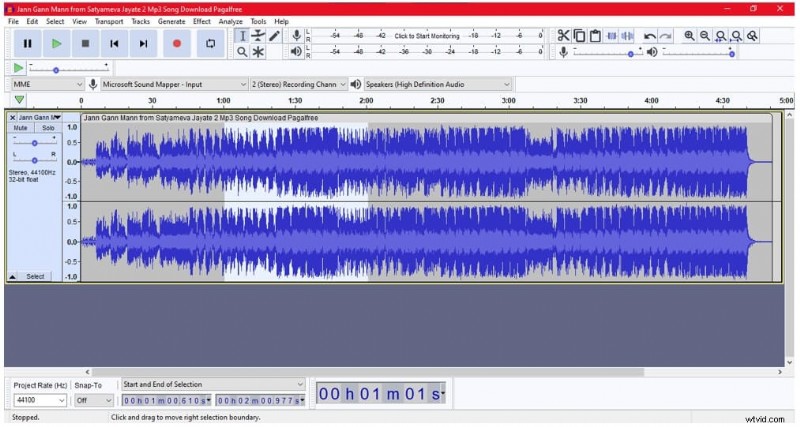
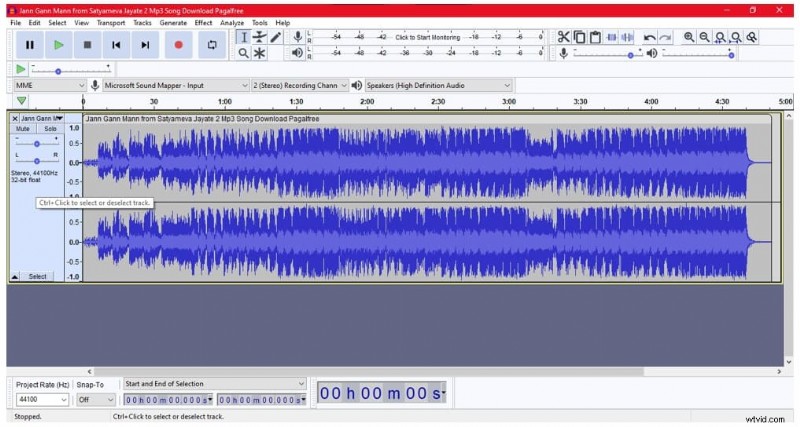
Open Audacity and import the file you wish to edit. Use the selection tool to highlight the section where you want to modify the pitch.
Note: Only the selected segment will be affected.
Step 2: Open the Effect Menu
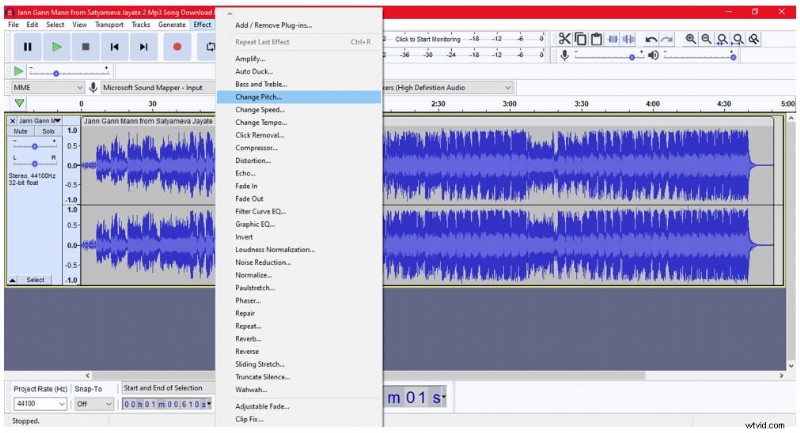
Navigate to the Effect menu and choose Pitch Change. You’ll also find related options like Change Speed and Change Tempo, which alter pitch indirectly by adjusting playback speed.
Step 3: Adjust Pitch
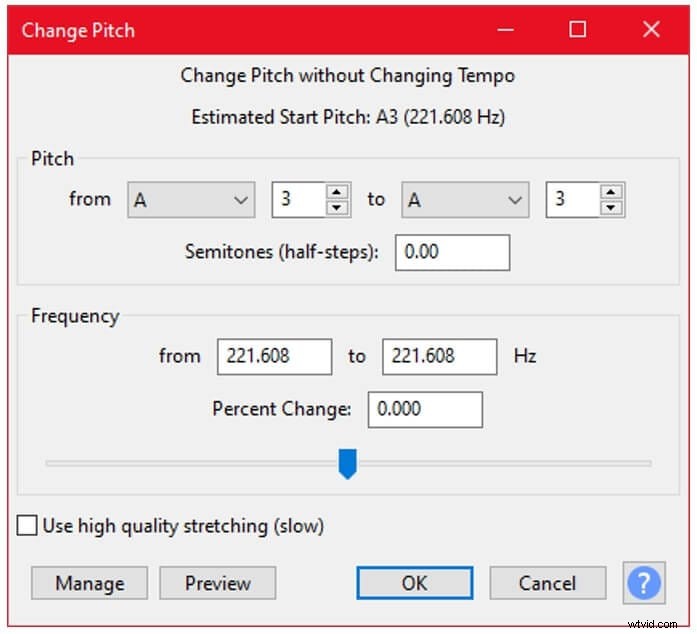
Use the slider to shift the pitch up or down. Moving the slider to the right raises the pitch; moving it to the left lowers it. For precise control, you can set the From and To values directly.
Bonus Section: How to Adjust Sound Volume in Audacity
Volume irregularities are common in recorded material. Audacity provides multiple methods to normalize or amplify audio while preserving clarity.
Step 1: Add an Audio File
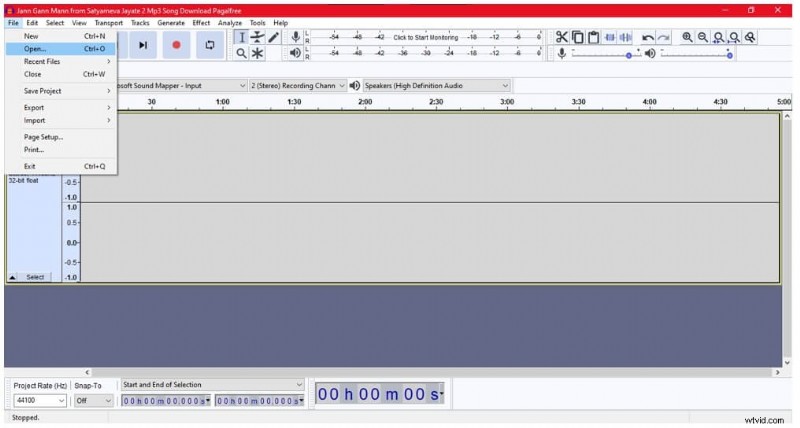
Launch Audacity, click File > Open, and select your audio file. Avoid using the system volume knob, as it only affects playback, not the actual file data.
Step 2: Increase/Decrease Audio Gain
Adjust the gain slider on the track’s left side to boost or reduce overall loudness. For targeted amplification, select a region, go to Effect > Amplify, check Allow Clipping if necessary, and set the desired level.
Conclusion
Whether you need to correct pitch inconsistencies or fine‑tune volume, Audacity’s built‑in tools provide reliable, high‑quality results. By following the steps above, you can confidently reshape your audio while maintaining its original character.