
Digital Audio Workstations (DAWs) empower creators to edit, record, and produce audio with precision. Among the many options available, Beautiful Audio Editor distinguishes itself with a rich feature set and seamless browser support.
In this article, we’ll walk through what Beautiful Audio Editor offers, its strengths and weaknesses, how to get started, and the best alternatives for 2026.
In this article
Part 1. What Is Beautiful Audio Editor?
Beautiful Audio Editor is a web‑based DAW that runs smoothly on Chrome and Firefox. It excels in offering a comprehensive suite of frequency‑based effects and supports multi‑track editing, giving users full control over each track’s level, pan, and volume. Files can be stored directly on Google Drive or downloaded locally, making it flexible for both casual and professional workflows.
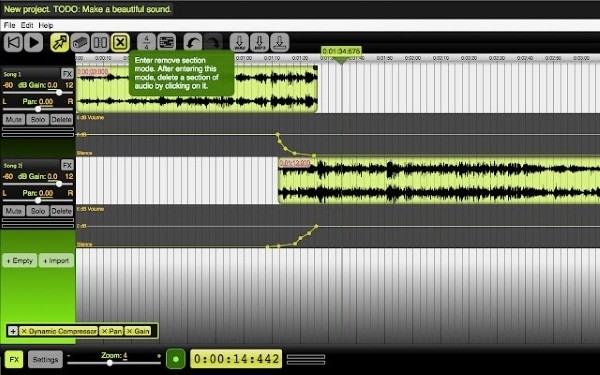
One standout feature is the ability to adjust track levels from complete silence to 6 dB higher than the original signal—ideal for creating smooth fade‑ins and fade‑outs without additional plugins.
Part 2. Key Features, Pros & Cons
The editor combines a user‑friendly interface with powerful tools, making it suitable for podcasts, mixes, and general audio production. Below are its main capabilities:
• Editing Tools
Multi‑track editing lets you fine‑tune each track’s volume and pan. Built‑in actions such as Move, Split, Duplicate, and Delete streamline workflow.
• Recording
Beyond editing, the editor records directly from your microphone, delivering high‑quality audio without the need for external software.
• Effects Library
Gain, dynamic compression, reverb, low/high‑pass filters, pitch shift, time‑stretch, and more are available. Speed adjustments are also supported.
• Custom Envelopes
Volume envelopes allow you to craft bespoke fade‑ins and fade‑outs, and the interface supports zooming, drag‑and‑drop, and precise editing.
2.1. Pros & Cons
Benefits
- You can export projects as 16‑bit WAV or 128‑bit MP3 files.
- The editor is free to use—no registration required.
- Files are stored both online (Google Drive) and offline.
- Audio envelopes and dozens of effects are available during editing.
Drawbacks
- Projects larger than 300 MB or 45 minutes may cause the editor to crash, limiting its use for high‑volume productions.
Part 3. How to Use Beautiful Audio Editor
Follow these simple steps to start editing:
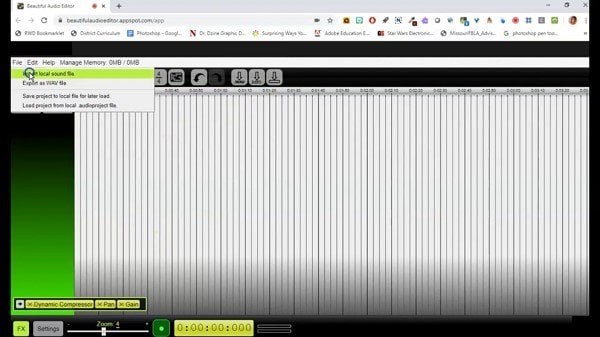
- Open the editor and import a local audio file via the File > Import local sound file menu.
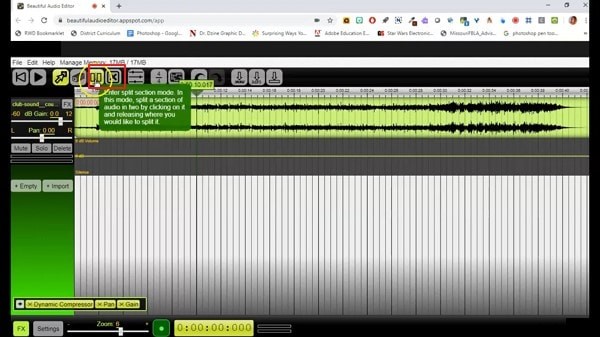
- To split a track, position the playhead where you want to cut and click the Split icon. Remove unwanted sections with the Remove tool.
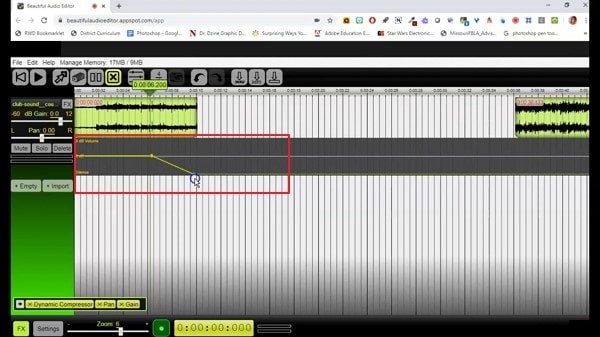
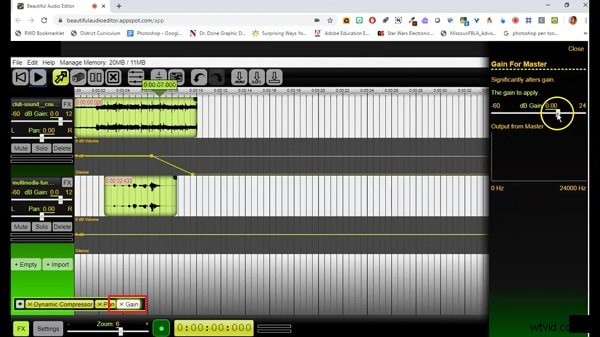
- Apply fades by selecting start and end points on the fade line—drag down for fade‑out, up for fade‑in.
- Adjust volume or gain by selecting the Gain option in the bottom‑left corner and sliding the control.
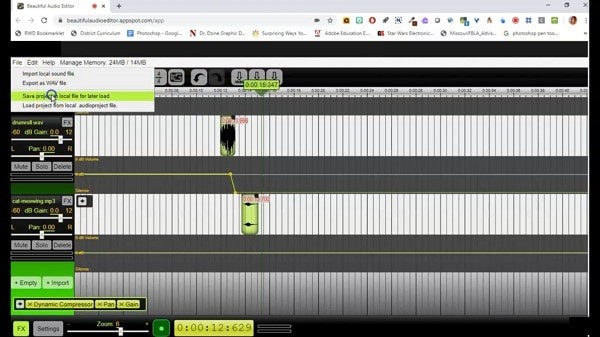
- Rename files by double‑clicking them. Save your project locally with File > Save project to a local file for later load.
Part 4. Best Alternatives for Beautiful Audio Editor
If Beautiful Audio Editor doesn’t meet all your needs, consider these reliable options:
1. TwistedWave
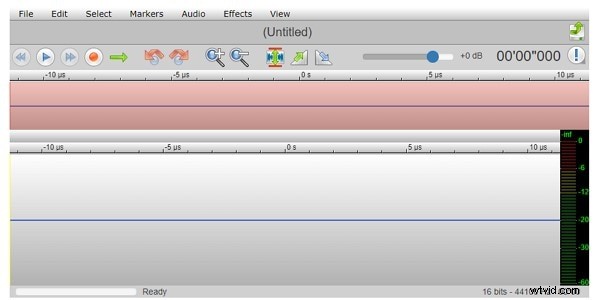
A clean, browser‑based editor with a wide range of effects—Reverse, Graphic EQ, Fade, Amplify, and Normalize. It integrates directly with SoundCloud and Google Drive for quick sharing.
2. Bear Audio Editor
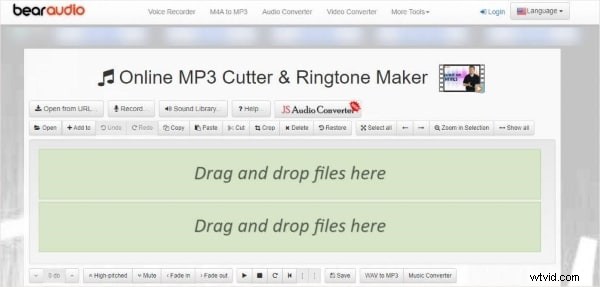
Free, web‑only editing with trimming, cutting, fade controls, pitch and volume adjustment. Supports MP3, OGG, and WAV input; outputs to OGG, WMA, WAV, MP3, and M4R.
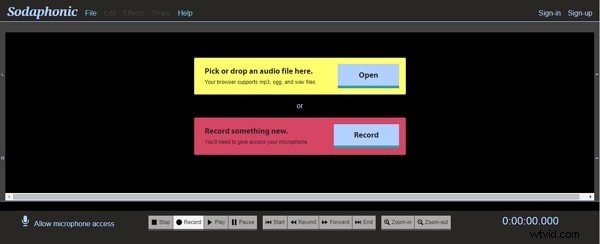
3. Sodaphonic
Works directly with Dropbox and Google Drive, offering tools like Normalize, Silence, Reverse, and more. Includes recording via microphone and standard editing actions.
4. Wondershare Filmora Audio Editor
For those who want a more feature‑rich desktop solution, Filmora provides an audio equalizer, denoise, detach audio from video, voice‑over insertion, and background music placement—all with a drag‑and‑drop interface.

Beautiful Audio Editor remains a compelling choice for online audio editing, especially given its free access and extensive feature set. Try the alternatives above to find the tool that best fits your workflow.