
Audio waveforms reveal the amplitude and duration of sound clips, making it easier to pinpoint edit points and keyframe effects in Final Cut Pro. While the waveform size naturally reflects volume—larger for louder clips and smaller for softer ones—users often encounter issues where the waveform disappears or wish to add dynamic visual effects. This guide explains how to display waveforms, add animated visualizers, and offers an all‑in‑one alternative with Filmora.
In this article
- Show audio waveforms in FCP.
- Add waveform animation with two methods.
- Explore an integrated workflow in Filmora.
Part 1 – How to Show Audio Waveforms on Clips in FCP?
With FCP’s timeline, you can zoom, resize, or change the appearance of clips to view audio waveforms clearly.
Key options include:
- Expand a clip to edit audio at the channel level.
- Separate audio and video to work on them independently.
- Show reference waveforms that remain visible even when the volume drops.
The reference curve displays the maximum possible resolution of a sound, allowing you to see subtle details when the actual waveform is compressed.
- Navigate to Final Cut Pro > Preferences and click Edit.
- Check the Show reference waveforms box.
When you adjust a clip’s volume, the reference waveform stays visible, making editing more intuitive.
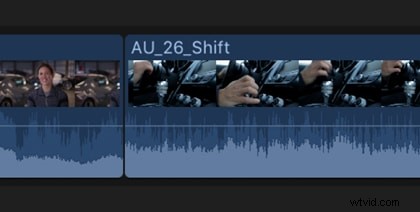
Tip: Press Control+Option+1 to display large audio waveforms on the timeline.
Part 2 – How to Add Audio Waveform Animation in FCP? (2 Ways)
1. Pixel Film Studios Audio Visualizer
Pixel Film Studios’ FCPX Audio Visualizer Volume 2 lets you render up to 48 audio frequencies with full control over left/right outputs, smoothness, scale, radius, and animation—all from within FCPX.
Designed to integrate seamlessly, the visualizer works as a title effect you can drag onto media, preview in real time, and fine‑tune from the inspector.
Choose from preset layouts—circles, lines, rectangles, and custom shapes—and adjust spread, color, rotation, and more.
2. Audio Waveform Animation Templates
Motion Array offers 21 ready‑made waveform templates that include titles, fonts, logos, sound effects, and color palettes. Simply select a style, import your audio, and export ready for social media. Subscription required to download.
Part 3 – All‑in‑One Alternative: Create Waveforms in Filmora
For editors who prefer a single platform, Wondershare Filmora provides built‑in visualizers and a vast royalty‑free music library. No additional plugins or templates needed.
Browse the library and preview tracks like “Phonk Uplifting Pissed Off” (01:39) or “As The World Spins On” (03:43). 
After selecting a track, open the Effects tab and choose from 25 audio animation styles in Audio Visualizer:
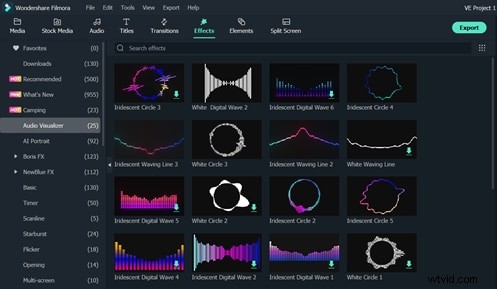
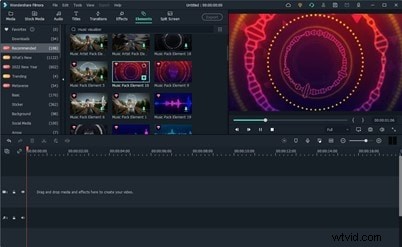
Alternatively, search Elements > Recommended for preset waveform animations. Preview, tweak, then export to share on platforms like YouTube, Instagram, or TikTok.
Conclusion
Whether you’re a social media creator, musician, or VJ, the techniques above give you powerful ways to visualize audio in Final Cut Pro or Filmora. For those who want a quick, all‑in‑one solution, Filmora offers the most streamlined workflow.