
Sound settings often receive little attention, yet they are the key to delivering immersive audio whether you’re streaming a movie, enjoying music, or hosting a virtual meeting. By fine‑tuning equalizers, bass, treble, and surround‑sound options, you can dramatically improve clarity, depth, and impact across every device—from TVs and car stereos to laptops and smartphones.
This guide explains how precise audio adjustments elevate your listening experience and shows how Wondershare Filmora’s powerful editing tools can help you perfect every track.
Table of Contents
- Why Use Wondershare Filmora?
- Step‑by‑Step: Adjusting Sound Settings in Filmora
- Advanced Audio Options
- Best Practices for Optimal Audio
- Understanding Sound Settings Across Devices
Part 1: Fine‑Tuning Audio with Filmora
Why Choose Wondershare Filmora?
Filmora is more than a video editor; it’s a comprehensive audio‑enhancement platform. Whether you’re producing a podcast, editing a music video, or adding soundtracks to a film, Filmora delivers a suite of tools—including an equalizer, volume control, noise removal, and export options—that empower creators to shape sound with precision.
Step‑by‑Step Guide to Adjusting Sound Settings in Filmora
Step 1: Import Your File
- Launch Filmora and drag your audio or video file into the timeline. Filmora supports MP3, WAV, MOV, MP4, and many other formats.
Step 2: Access Audio Adjustment Features
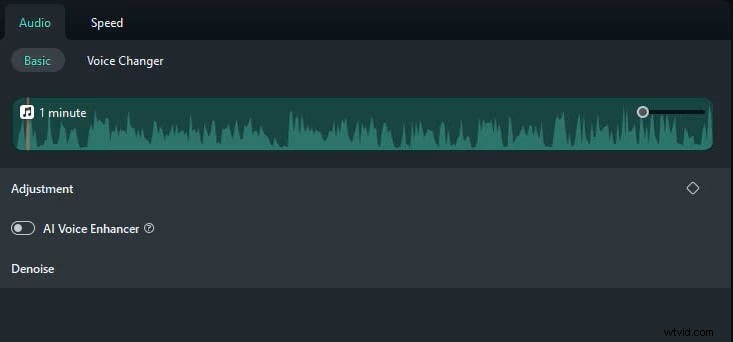
- Click the audio track on the timeline to reveal the Audio tab, which offers:
- Equalizer – adjust bass, mid‑range, and treble frequencies.
- Volume Control – set overall level or add keyframes for dynamic changes.
- Noise Reduction – eliminate background hiss, hum, or wind.
Step 3: Make Precise Adjustments
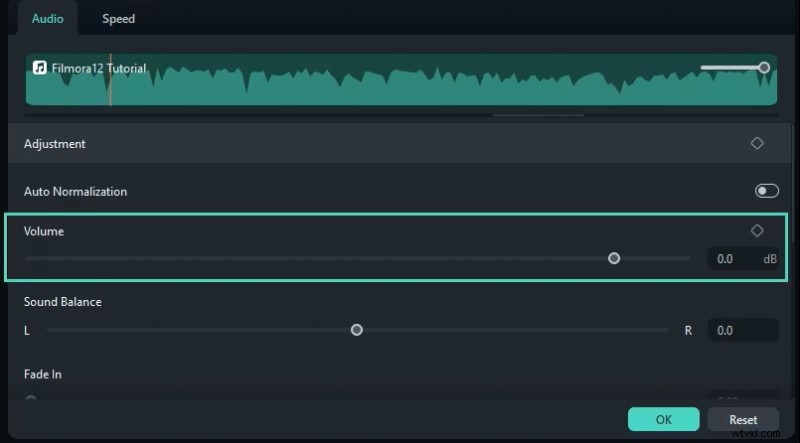
- Equalizer: Choose from presets such as “Rock,” “Pop,” or “Classical,” or fine‑tune each band to craft a custom sound profile.
- Noise Reduction: Toggle the feature to clean up ambient noise, improving clarity.
- Volume Control: Set a consistent level and use keyframes to smooth transitions.
Step 4: Preview and Export
- Listen to the adjusted track by pressing the play button. Re‑visit any sections that need further tweaking.
- Export the final audio in your preferred format—MP3, WAV, or others—for use in future projects or as a standalone file.
Part 2: Advanced Sound Settings & Features
Exploring Advanced Options
Modern devices offer a range of sophisticated audio controls that cater to every listening preference:
- Surround Sound (Dolby Atmos, DTS:X) – creates a 360° audio field for an immersive movie or gaming experience.
- Bass Boost – deepens low frequencies for genres like hip‑hop, EDM, or action film soundtracks.
- Treble Adjustment – sharpens high frequencies, enhancing vocal clarity and instrument detail.
Part 3: Best Practices for Optimizing Audio
General Tips for Superior Sound
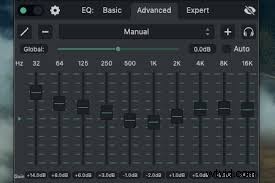
Use these strategies to fine‑tune audio across all platforms:
- Start with the device’s preset modes—e.g., “Movie,” “Music,” “Game”—then tweak from there.
- Adjust settings based on room acoustics: reduce bass in small rooms to avoid boominess; boost it in larger spaces for fullness.
- Match audio profile to content: emphasize mids for speech‑heavy material, and use balanced presets for music and films.
Regular Maintenance for Audio Devices
Consistent upkeep ensures lasting performance:
- Speakers: Keep drivers dust‑free and inspect cables for wear.
- Headphones: Store in their case to prevent tangles; clean ear pads regularly for optimal sound transfer.
Part 4: Understanding Sound Settings Across Devices
What Are Sound Settings?
Sound settings encompass a range of adjustments—volume, bass, treble, balance, equalizer presets, and advanced features like surround sound—that shape how audio is delivered to your ears.
Properly calibrated settings can reduce distortion, boost key frequencies, and create a balanced soundscape tailored to your environment.
Device‑Specific Sound Settings
Each device offers unique options. Below is a snapshot of common settings across platforms:
- TVs: Modern models (LG OLED, Sony Bravia, Vizio) provide “Movie,” “Music,” “News,” and “Game” modes, along with Dolby Atmos support for an immersive experience.
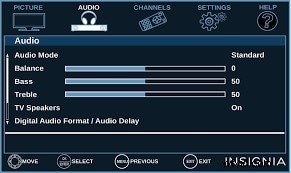
- Cars: Vehicle infotainment systems (e.g., Toyota Camry, Corolla) allow balance, fade, and equalizer adjustments to suit cabin size and user preference.

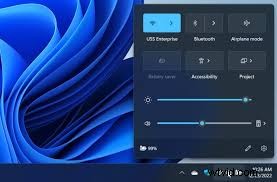
- Computers: macOS users can tweak output via Audio MIDI Setup; Windows users may use built‑in sound settings or third‑party tools like Boom 3D for enriched 3D audio.
Impact on Audio Quality
Strategic adjustments can dramatically elevate the listening experience, from clearer dialogue to more powerful bass and sharper highs, providing a tailored soundscape for every scenario.
Gesture of Confidence
Fine‑tuning equalizer settings empowers users to shape audio with confidence, ensuring that vocals and instruments occupy their intended sonic space.
Amplified Interactivity
Surround‑sound technologies immerse listeners, enhancing gameplay and film viewing with realistic spatial audio.
- Custom profiles let users prioritize bass for electronic music or balance for classical pieces, ensuring comfort and preference alignment.
Conclusion
Mastering sound settings—whether through device presets or advanced editing in Filmora—lets you enjoy crystal‑clear audio tailored to your preferences. Apply these techniques in any environment, from a cozy living room to a high‑performance home theater, and experience audio that truly captivates.