
Even the most engaging podcast can falter if its audio suffers from background hiss, muffled speech, or uneven levels. Listeners will quickly drift away when they’re forced to contend with poor sound quality.
Fortunately, AI‑powered audio enhancement is reshaping the landscape. Tools like Adobe Podcast Speech Enhancement enable creators to transform raw recordings into studio‑grade audio with just a few clicks.
Unsure where to start? This guide walks you through the leading podcast audio enhancers and shows you how to produce professional‑quality sound without the usual hassle.
In this article
-
- Use Cases of Adobe Podcast AI Enhance
- How to Enhance Podcasts With Adobe?
-
- Step‑by‑Step Guide to Enhancing Podcast Audio with Filmora AI Voice Enhancer
-
- Final Thoughts
Part 1. What is Adobe Podcast Speech Enhancement?
Adobe Podcast Speech Enhancement functions as a virtual audio engineer, leveraging advanced AI to cleanse recordings and deliver crisp, studio‑quality voices. Whether the audio originates from a noisy room or basic gear, Adobe’s AI can elevate it to professional standards.
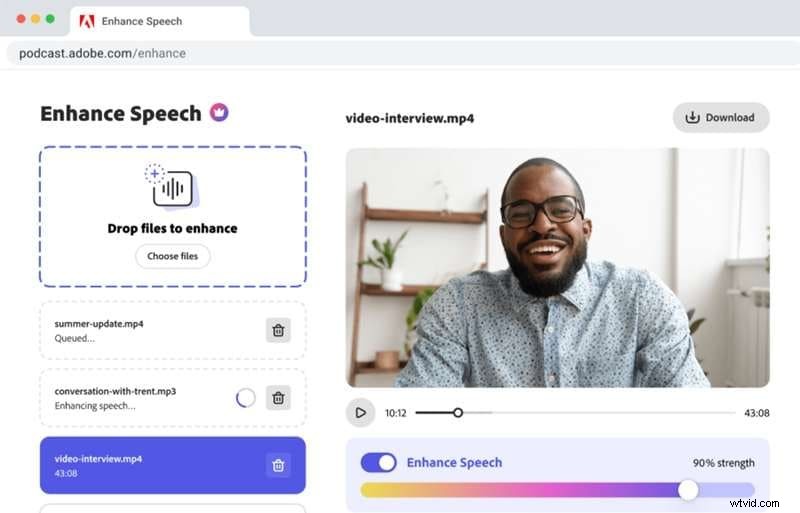
Key features include:
- Support for MP4, MOV, and other common formats, making it easy to improve any file.
- Batch processing—upload multiple episodes at once to save time.
- Customizable enhancement strength, letting you choose a natural or polished sound.
- Generous free processing limits: up to 4 hours of audio per day and 1 GB file size, making it a hassle‑free solution.
Use Cases of Adobe Podcast AI Enhance
Adobe’s tool is ideal for a range of professionals who rely on clear voice recordings. The table below illustrates typical use cases and the benefits of enhancement.
| Target Users | When Audio Enhancement Helps |
| Podcasters | Fix echoey home recordings, eliminate background noise, and balance levels for a polished episode. |
| Content Creators | Improve audio for YouTube videos, Instagram reels, and other social media, ensuring voices stand out. |
| L&D Professionals | Clarify online courses, training materials, and webinars for smooth, engaging learning. |
| Audiobook Narrators | Remove unwanted noise, even voice levels, and deliver an immersive listening experience. |
| Voice‑over Artists | Polish recordings for ads, animations, and narrations so every word sounds crisp. |
How to Enhance Podcasts With Adobe?
Follow these simple steps to achieve clear, professional audio in minutes:
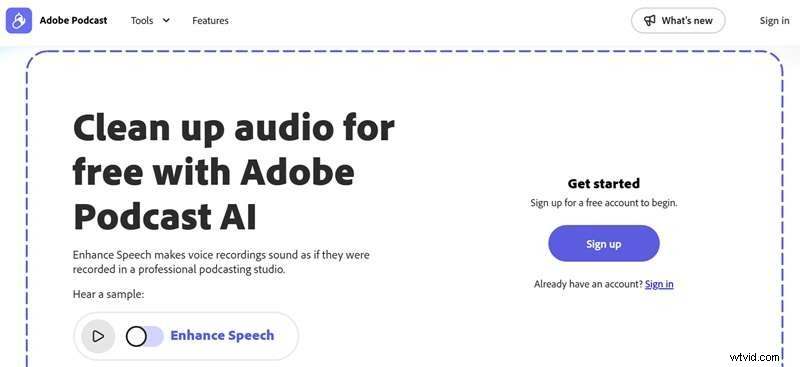
Step 1: Sign In
Navigate to Adobe Podcast Audio Enhance and log in. If you’re new, signing up is quick and includes a 30‑day free trial.
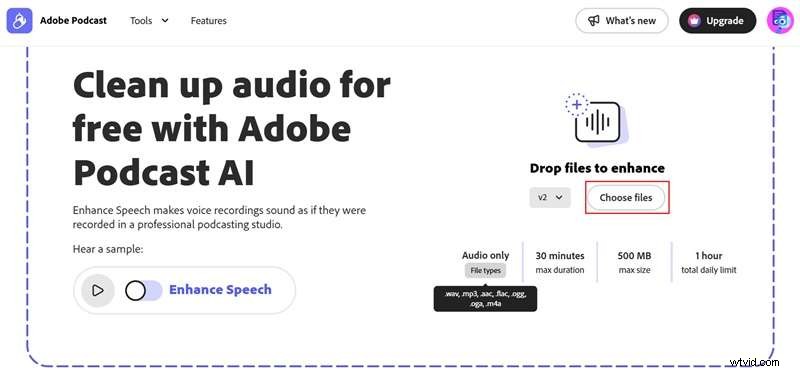
Step 2: Upload Your Audio
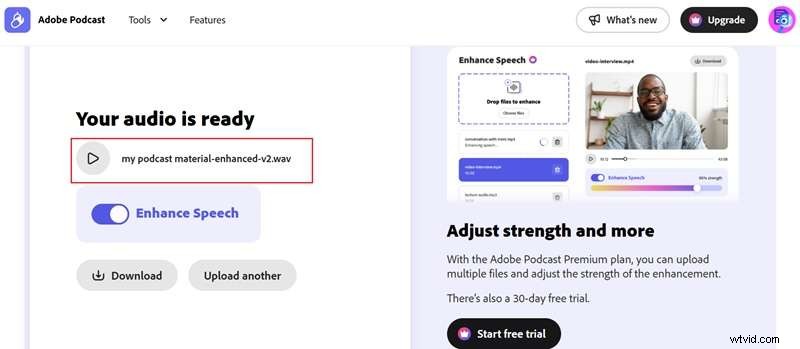
Click "Choose File" to upload your recording. The tool accepts various formats; check the site for any size or format limits beforehand. The AI will automatically process the audio.
Step 3: Preview and Download
Listen to the enhanced version, toggle "Enhance Speech" on and off to compare, and download when satisfied.
Part 2. Best Alternative to Adobe Podcast Voice Enhancer
While Adobe delivers solid enhancement, its limits on duration, file size, and daily usage can hinder full‑length podcast projects. Frequent upload errors and the lack of advanced controls in the free tier further constrain creators.
Wondershare Filmora offers a more powerful, flexible alternative that removes these constraints.
Why Filmora stands out:
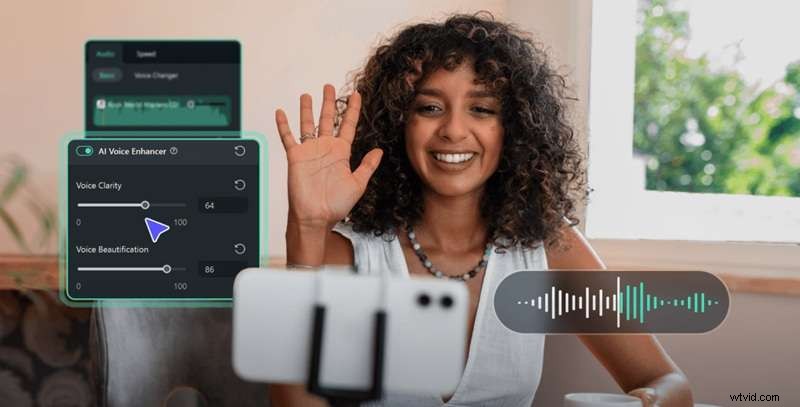
- AI Voice Enhancer that sharpens vocal clarity.
- Precise noise removal with four dedicated options: Wind, DeReverb, Hum, and Hiss.
- Slider‑based controls for frequency balance and track adjustments.
- Supports video podcasts—edit audio and video in one workflow.
- No length or size restrictions—handle long episodes effortlessly.
- A full‑suite video editor, enabling creators to refine content without switching tools.
Filmora runs on Windows and macOS, offers flexible pricing, and includes a free version for trial.
Step‑by‑Step Guide to Enhancing Podcast Audio with Filmora AI Voice Enhancer
Follow these steps to elevate your podcast audio:
Step 1: Launch Filmora
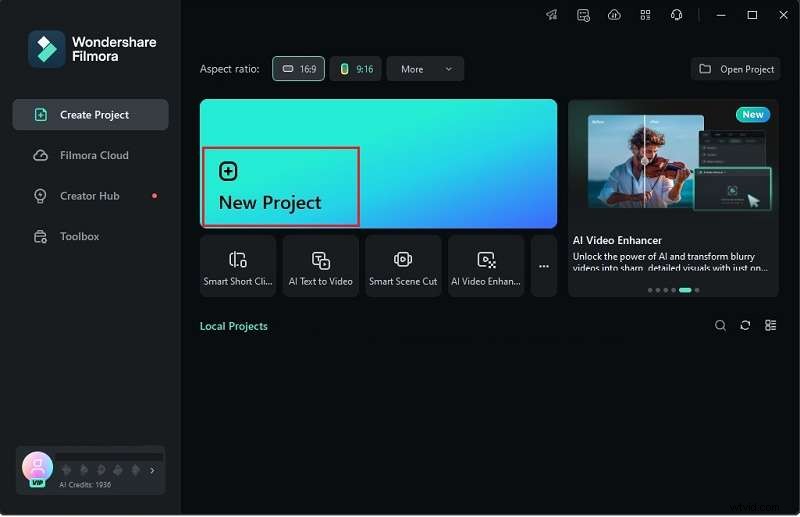
Open the latest version of Filmora, click "New Project," and start editing.
Step 2: Import Your Clip
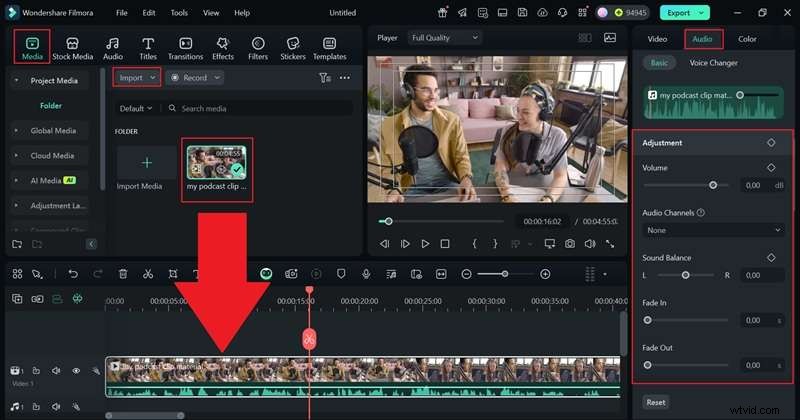
Go to the "Media" tab, click "Import," drag the clip onto the timeline, then open the Property Panel and select the "Audio" tab to adjust volume and add fades.
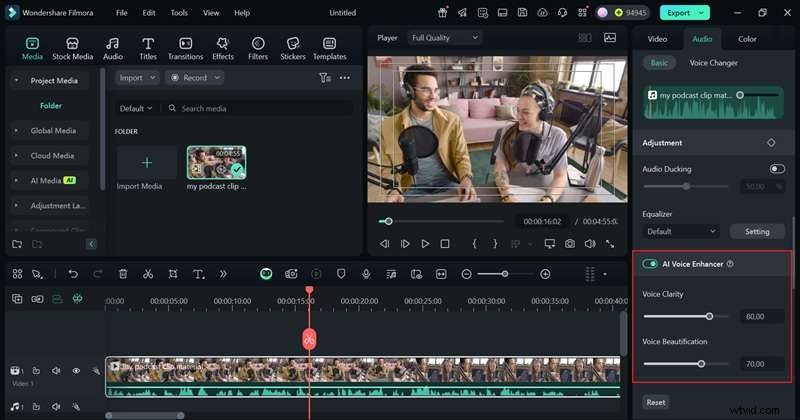
Step 3: Enable AI Voice Enhancer
Toggle the AI Voice Enhancer on and use the sliders to refine clarity.
Step 4: Apply AI Audio Denoise
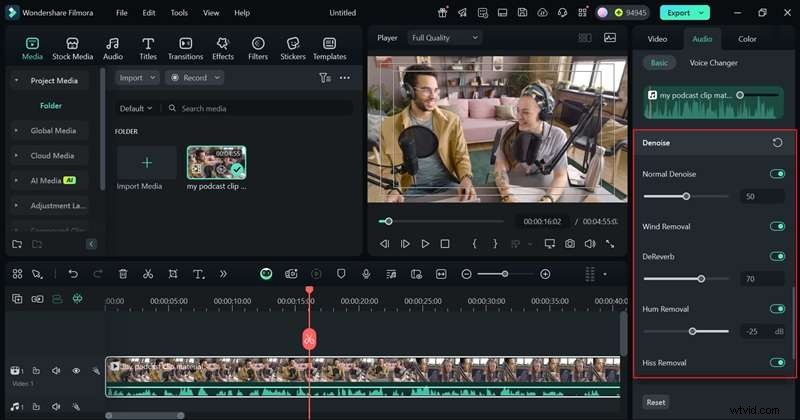
Open the "Denoise" menu and adjust each setting—Wind Removal, DeReverb, Hum Removal, and Hiss Removal—to suit your recording.
- Wind Removal: Eliminates wind noise.
- DeReverb: Reduces echoes.
- Hum Removal: Cuts electrical hum.
- Hiss Removal: Removes static background noise.
Step 5: Export Your Podcast
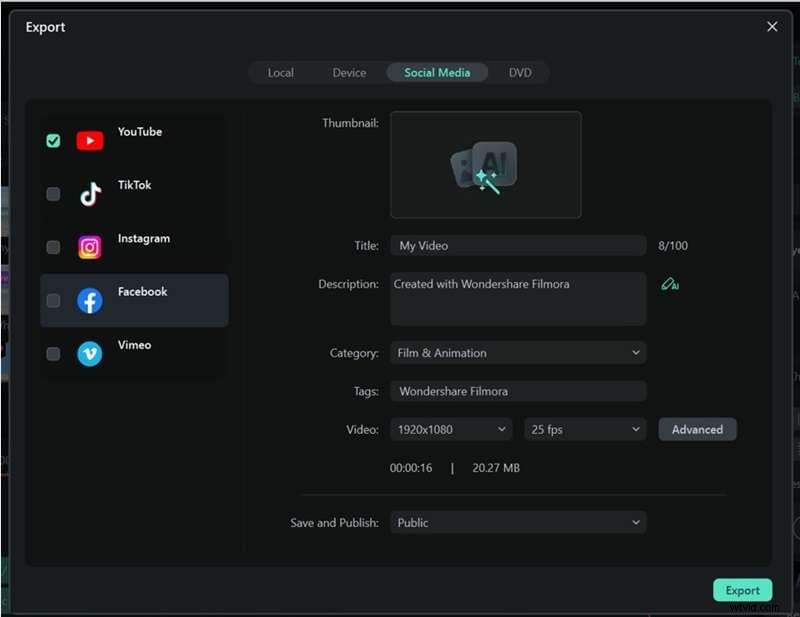
Click "Export," choose "Local" or a social‑media preset, then set title, description, format, and resolution before finalizing.
Part 3. Adobe Podcast Speech Enhancement vs. Filmora: Which One Should You Choose?
Both tools deliver professional audio, but Filmora’s comprehensive AI suite and flexibility give it a clear edge for most creators.
Use the comparison below to decide which platform best aligns with your workflow.
| Aspects | Wondershare Filmora | Adobe Podcast Speech Enhancement |
| Best Suited For | Video podcasters, content creators, L&D professionals, and more. | Audio podcasters, audiobook narrators, voice‑over artists. |
| Limitations | Watermark on exports in the free version. | Restricted formats, duration, file size, and daily usage. |
| Additional Features | Advanced AI tools for both video and audio editing. | Bulk upload, adjustable enhancement levels, video uploads (premium only). |
| Platform | Windows, macOS, Android, iPhone. | Online‑only. |
| Preview Audio Enhancement | Real‑time preview during editing. | Preview before downloading the final file. |
| Noise Reduction | AI‑powered noise reduction that works seamlessly. | No dedicated noise reduction; enhancement improves overall quality. |
| Control Over Enhancement Levels | Slider‑based controls for easy customization. | Available only with premium plans. |
In short, Filmora excels by offering the full spectrum of audio and video editing tools without restrictive limits. Adobe’s solution is competent but is constrained by usage caps and fewer customization options.
Conclusion
AI technology is simplifying the creation of high‑quality podcasts. This guide highlighted Adobe Podcast Speech Enhancement and Wondershare Filmora—two of the leading AI audio enhancers.
Adobe delivers solid performance but falls short on file size, duration, and daily limits, which can frustrate podcasters with longer episodes. Filmora overcomes these hurdles with extensive AI features, no caps, and a unified video‑audio workflow, making it the top choice for creators seeking professional sound without compromise.
Choose Filmora if you want unrestricted, advanced audio enhancement combined with a versatile editing suite.