
Your podcast is great, but imagine if people could see it too! Turning a podcast into a video opens up new ways to connect with your audience, making your content more engaging and shareable on platforms like YouTube, Instagram, and TikTok. Instead of just listening, viewers can experience your podcast with visuals, captions, and creative effects.
Even better, you don't need to spend hours editing or learning complicated software because converting a podcast into a video with AI is faster and easier than ever. But if you're new to this, you might think the idea of making videos without complicated software sounds too good to be true.
That's exactly why we're here. We'll show you how to turn your podcast into a video that stands out, gets noticed, and leaves a lasting impact with just a few clicks. Just keep scrolling to see how easy it is!
In this article
-
- Benefits of Converting Your Podcast into a Video?
Part 1. AI-Powered Podcast Videos: The Future of Engaging Content Creation
AI is shaking things up for podcasters in the best way possible. Turning a podcast into a video used to mean long hours of editing or paying someone to do the heavy lifting. Now, AI does the work for you, making the whole process faster, smarter, and way more fun.
With just a few clicks, AI-powered tools can add visuals, captions, and cool effects that match your podcast audio. Pretty awesome, right?
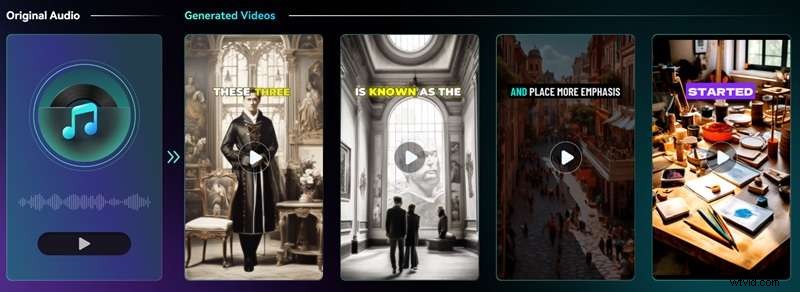
Benefits of Converting Your Podcast into a Video
More engagement and fresh new content are just a few perks of using AI to turn your podcast into a video. Here are other reasons why converting your podcast into a video is the ultimate upgrade:
- Bigger Audience: With video, you can share your content on YouTube, Instagram Reels, and TikTok, reaching millions of potential fans.
- SEO Boost: Videos rank higher on Google and YouTube, making it easier for people to find your content. More visibility means more listeners and subscribers.
- Boost Your Brand: Videos showcase your personality and style visually, making your podcast more memorable and relatable to viewers.
- Easy Monetization: Video opens up more ways to earn—think sponsored YouTube videos, visual ads, or even merchandise showcased visually.
- Ideal to Repurpose: Videos can easily be split into highlights, teasers, reels, or shorts. Turn one episode into endless content without extra effort.
Part 2. Step-by-Step Guide to Converting Your Podcast into a Video
So, you already know turning your podcast into a video is a total game changer, and now it's time to make it happen.
Lucky for you, there's Wondershare Filmora. With its AI Audio-to-Video feature, you can convert podcasts into engaging videos in minutes. It handles everything from simple visuals to slick edits, giving your podcast the visual boost it deserves.
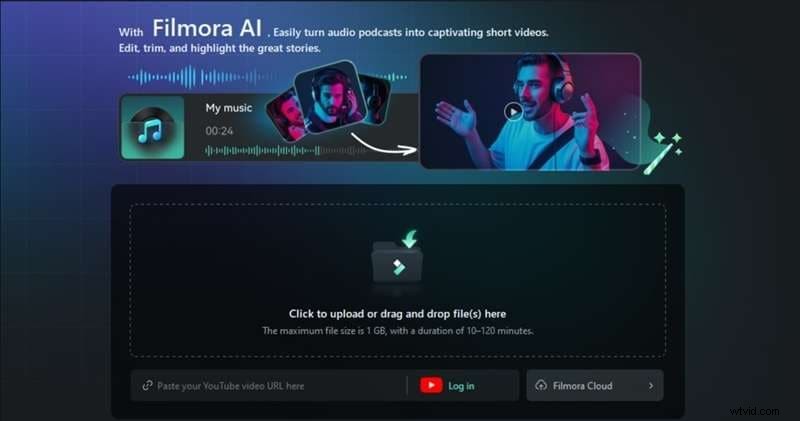
Here's why Filmora is exactly what you need to level up your content from podcasts to videos:
- Easy Conversion Process: Simply upload your audio, choose your preferences, and let the AI handle everything from there. Turning your podcast into video content couldn't be simpler.
- 14 Creative Visual Styles: Pick from artistic styles like Retro Anime, 3D Cartoon, Oil Painting, Watercolor, and many others to give your podcast a unique, eye-catching look.
- Various Templates: Each template comes loaded with stylish transitions, animated captions, video effects, and background music, ensuring your podcast video looks polished and professional right from the start.
- Supports 42 Languages: Filmora speaks your language. It supports multiple languages including English, German, Spanish, French, Italian, Portuguese, Japanese, and Chinese, making it easy to connect with a global audience.
- Avatar Storytelling Feature: Just upload a portrait photo, and Filmora's AI will create a realistic speaking avatar. This feature is perfect if you prefer not to appear on camera but still want a personal touch.
- Complete Editing Suite: Filmora isn't only for podcast-to-video conversions. It's a complete video editing powerhouse with tons of advanced features and a huge built-in media library to enhance any video you create.
On top of that, Filmora works smoothly on both Windows and macOS. So, whichever computer you use, converting your podcast into a video is super easy. And even with all these cool features, Filmora stays budget-friendly. You've got flexible pricing plans and even a free trial, so you can test it out before deciding if you want to buy or subscribe.
Now, it's time to actually learn how to turn your podcast into a video with Filmora AI. Follow this step-by-step guide below to use Filmora AI Audio-to-Video:
Step 1. Open Filmora and access the Audio-to-Video feature
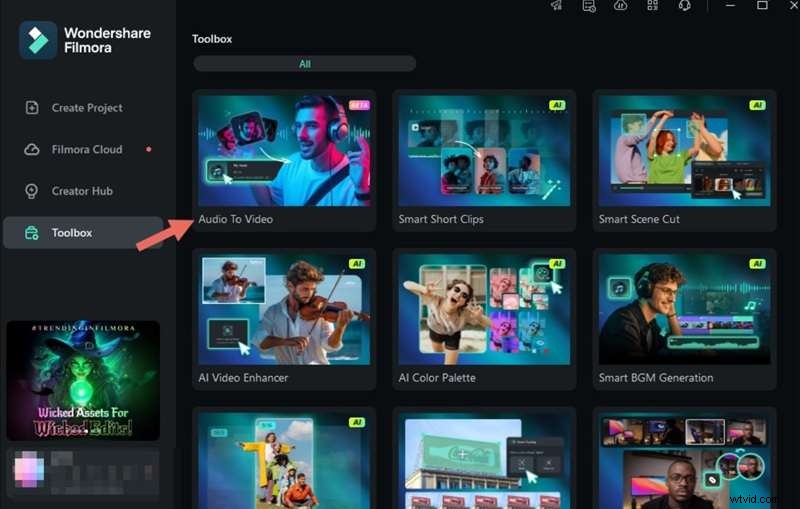
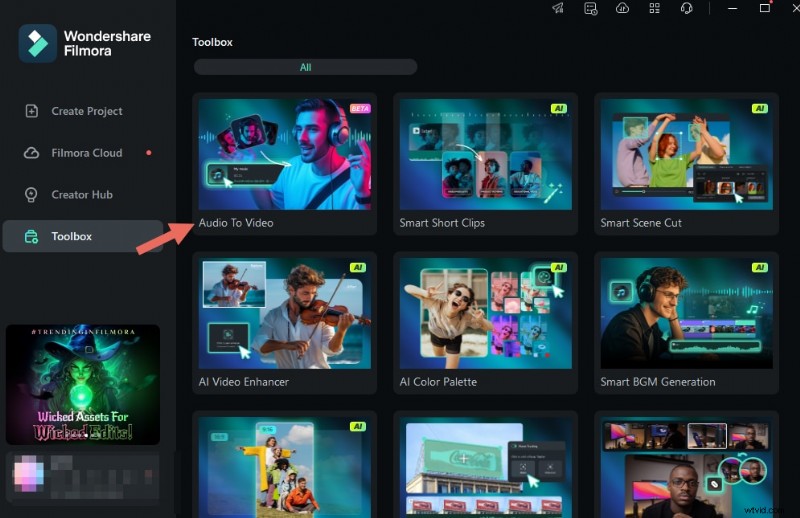
First things first, make sure you've downloaded and installed the latest version of Filmora on your device. After installation, open Filmora, and from the home screen, click the "Audio-to-Video" option located just below the "New Project" button.
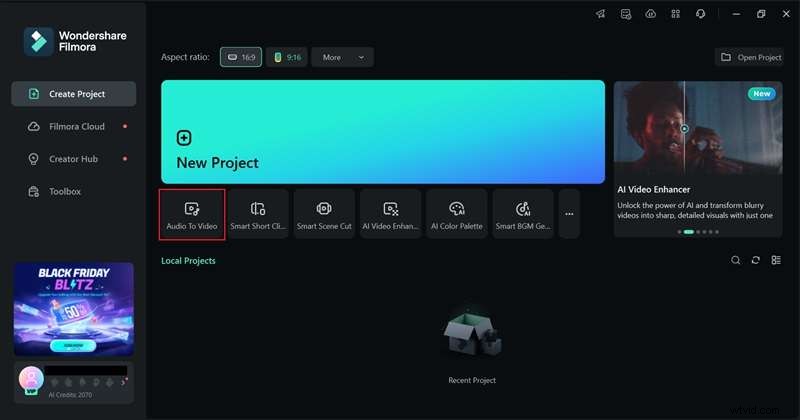
If you don't see the feature below New Project, no worries. Just head over to the "Toolbox" menu and select "Audio to Video" from there.
Step 2. Upload your audio file
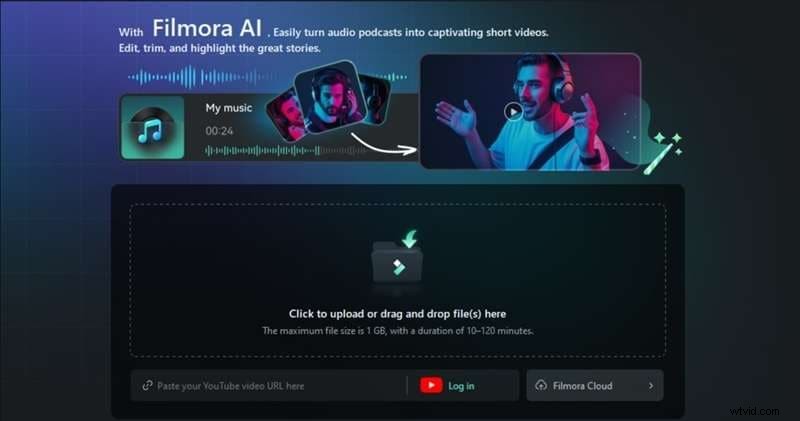
Now, let's add your audio. Just click the Filmora logo to upload your podcast audio file from your computer, or paste in a YouTube link (you'll need to log into your account first). Keep in mind your audio should be between 10 and 120 minutes long, and the file size should be under 1 GB.
Step 3. Customize your settings and generate AI video
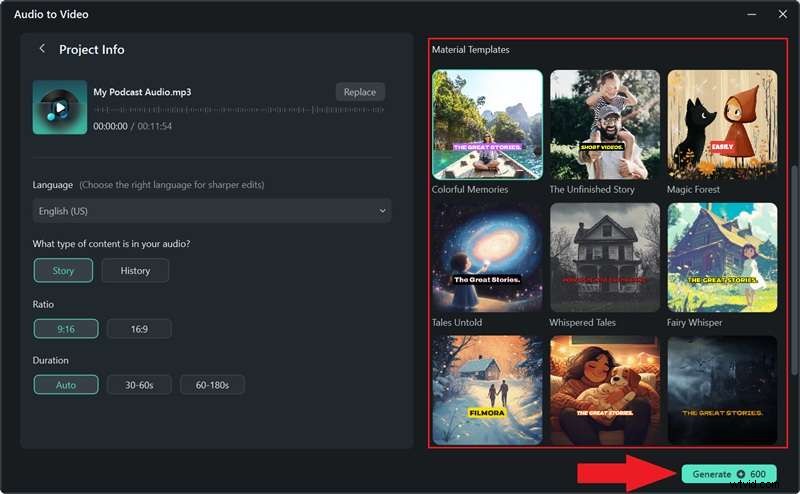
Before creating your video, you'll want to tweak a few settings so it fits perfectly with your podcast. First, pick the language of your audio, and then choose the type of video style (Story or History) that matches your podcast topic.
Next, set your video's “Ratio” and “Duration”. You can also select a "Video Style" from Filmora's options or upload your own image if you want the AI to create a speaking avatar for you.
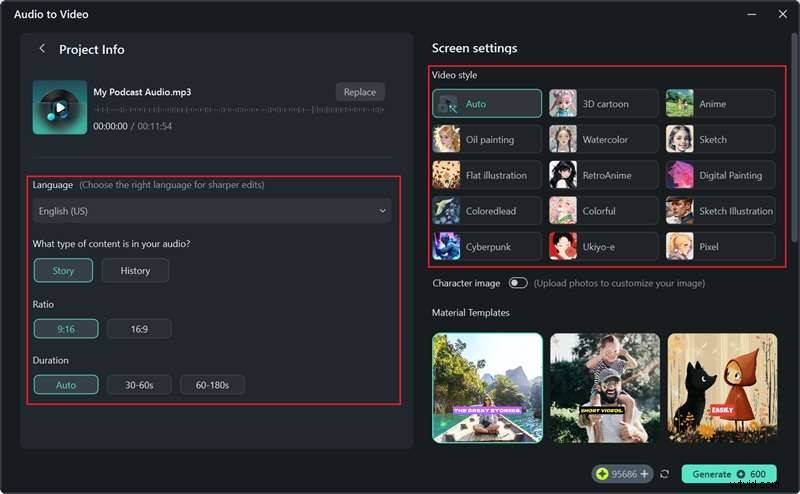
If you want a faster setup, just browse through Filmora's templates and pick one that matches your style. Once you've got everything set, click "Generate" and let Filmora handle the rest. It'll only take a few minutes to create your video.
Step 4. Preview and select video for further edits
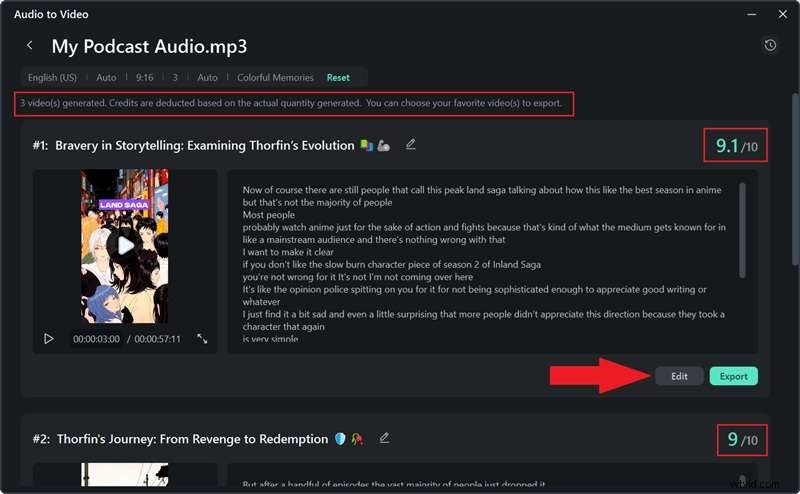
When your video is ready, you'll see one to three different video options, each with its own rating. Just click the play button to check them out. If you're happy with the result, you can export the video right away. If you want to make more tweaks, click "Edit", and you'll head straight into Filmora's main editing workspace.
Step 5. Edit your video text
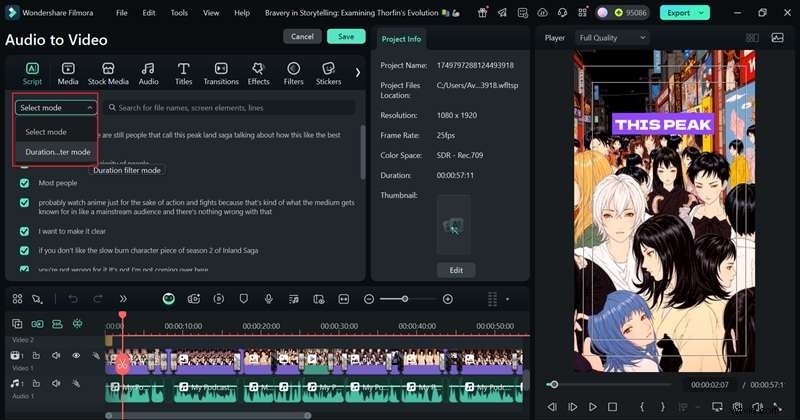
In the main timeline, you can use two different modes to manage your script easily. Select mode lets you choose which parts of the script you want to show or hide, while Duration Filter mode allows you to sort and filter the script based on specific timestamps. This way, you can quickly find and organize your content.
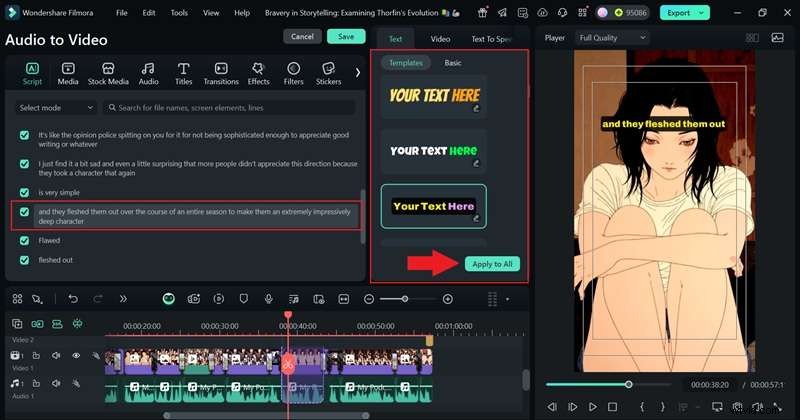
When you click on the script or text in the preview window, the property panel will appear. Navigate to the "Template" option to customize and modify the dynamic captions. Pick the template you like, and click "Apply to All" to apply it across all captions in your project.
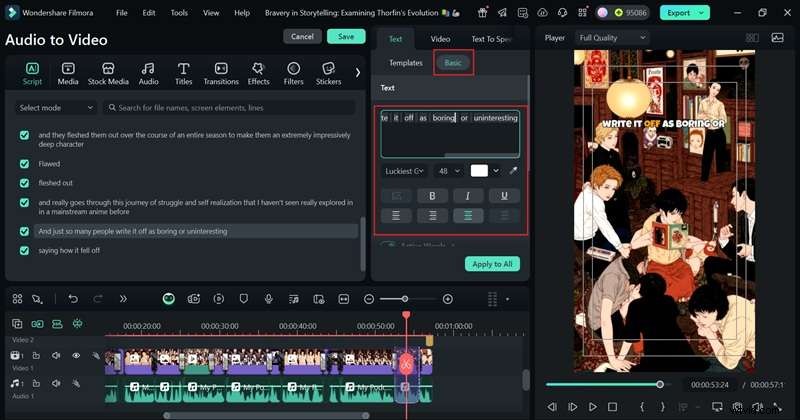
If the script doesn't quite match what was said in your audio, no worries. You can easily fix it by opening the “Text” tab and then choosing the “Basic” option in the property panel. From there, you can edit the script however you'd like.
Step 6. Insert background music
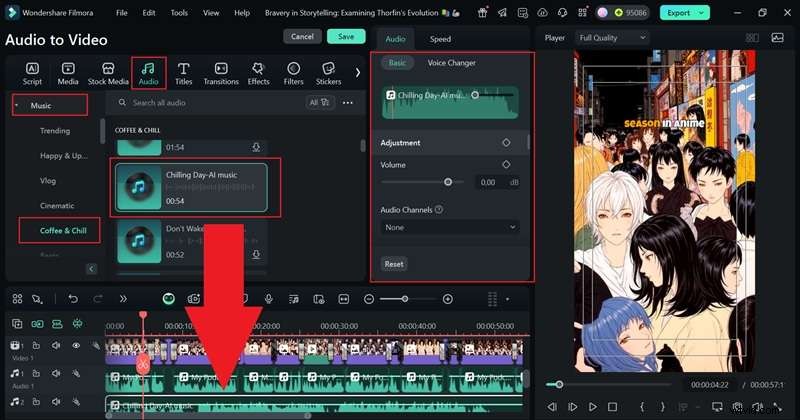
To give your podcast video a more relaxing and immersive vibe, try adding some background music. Just click the "Audio" tab, select "Music", and browse through different categories until you find the track you like. Drag it onto your timeline, then adjust the volume on the right panel so the music doesn't cover up your voice.
Step 7. Enhance your video
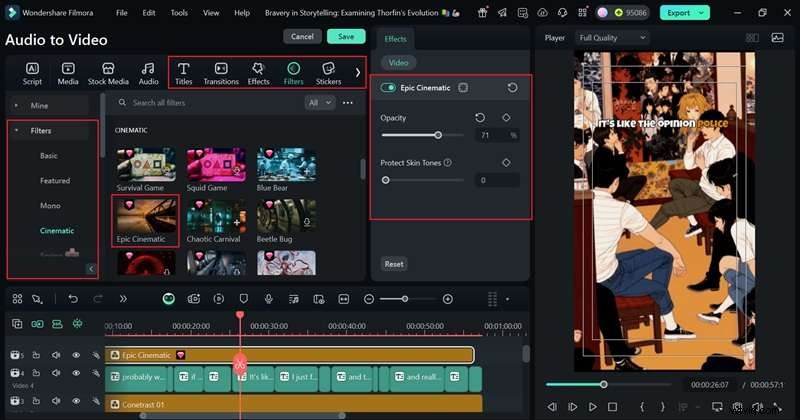
Now, let's give your video a final touch to make it stand out. Add animated stickers, filters, and cool effects to make your video look professional and stylish. Go ahead and get creative!
For example, click the "Filter" tab, choose the ones you like best, and apply them directly to your video. If needed, you can adjust how strong or subtle the filters look using the settings in the property panel.
Step 8. Export your video
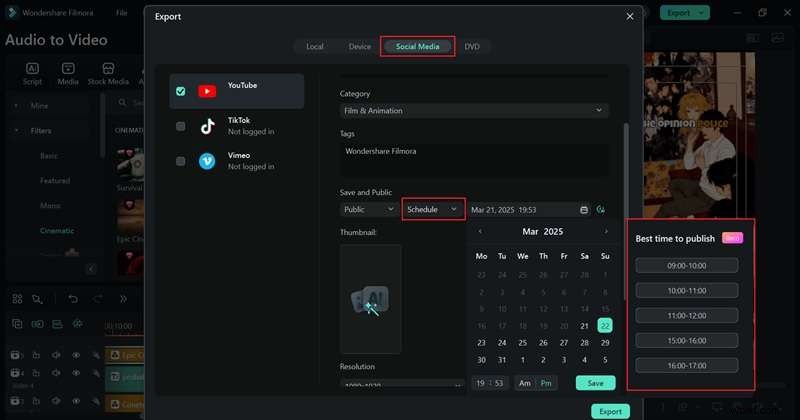
When you're happy with your edits, just click "Export" in the top-right corner. If you'd like to save the video to your computer, choose the "Local" option. Or, upload it directly to social media by selecting "Social Media".
If you prefer scheduling your post, switch on the Schedule option and pick your ideal date and time. Before finishing up, you can also fill in details like the title, description, category, and select your video's resolution.
Part 3. Choosing the Right Visual Style for Your Podcast Video
As you can see, Filmora makes podcast-to-video creation fun, fast, and totally stress-free. The best part is you can keep experimenting with all kinds of visual styles until you find the one that feels just right. But remember, turning your podcast into a fantastic video isn't only about using flashy visuals.
The key to making your podcast truly shine is matching your visuals perfectly to your podcast's theme and personality. As you already know, Filmora offers lots of creative visual styles, giving you endless possibilities to bring your podcast to life.

So, here's your guide to choosing the visual style that fits your podcast vibe perfectly:
- 3D Cartoon: This style is all about fun. It's your go-to for podcasts that dive into entertainment, pop culture, gaming, or anything casual and playful.
- Anime: If your podcast tells stories, explores fantasy worlds, or digs into anime and manga culture, choosing the Anime style is an easy win.
- Sketch: Perfect for podcasts with a creative, artistic, or educational twist. The hand-drawn effect instantly adds charm and uniqueness to your content.
- Oil Painting: When your podcast covers history, philosophy, literature, or classical music, the Oil Painting style gives it a classy, timeless touch.
- CyberPunk: Bold, vibrant, and a little futuristic, this style works best if you talk tech, sci-fi, AI trends, or cutting-edge topics that deserve a striking visual aesthetic.
Conclusion
Turning your podcast into a video comes with lots of benefits, like increased engagement, stronger branding, easier monetization, and endless opportunities to repurpose content. So, this guide shows you exactly how to convert your podcast into video using AI. And with Wondershare Filmora's AI-powered Audio-to-Video feature, this process becomes incredibly simple.
Filmora lets you choose from various creative visual styles that match your podcast topic perfectly. It also provides ready-to-use templates and supports 42 different languages, making it easy to reach your audience anywhere. Even better, Filmora isn't just for podcast-to-video conversions. It's a complete video-editing toolkit packed with advanced features and a huge media library, giving you the freedom to create stunning videos beyond the basics.