
In today’s digital landscape, accurate audio transcription is essential for content creators, educators, and businesses alike. The good news is that several cloud providers offer free tiers of their speech‑to‑text services, allowing developers to prototype and test without upfront costs.
Part 1. Free Speech‑to‑Text APIs You Can Try Today
Below we compare the leading free offerings, summarising their strengths, limits and ideal use cases. Each provider’s free tier is generous enough for small projects and rapid experimentation.
-
Google Cloud Speech‑to‑Text API
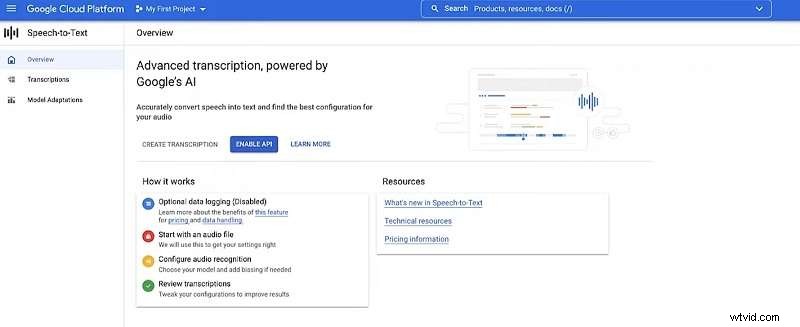
- 60 minutes of free transcription per month; new users receive $300 in credits for 12 months.
- Supports 125 languages and dialects, with specialised models for voice‑control, phone‑calls and video.
- Advanced model‑adaptation improves accuracy on custom vocabularies and noisy audio.
- Free tier limits you to 60 minutes; larger projects need paid plans.
- Requires uploading audio to a Google Cloud Storage bucket.
Ideal for freelancers and small businesses needing occasional, high‑quality transcriptions.
-
Microsoft Azure Speech Service
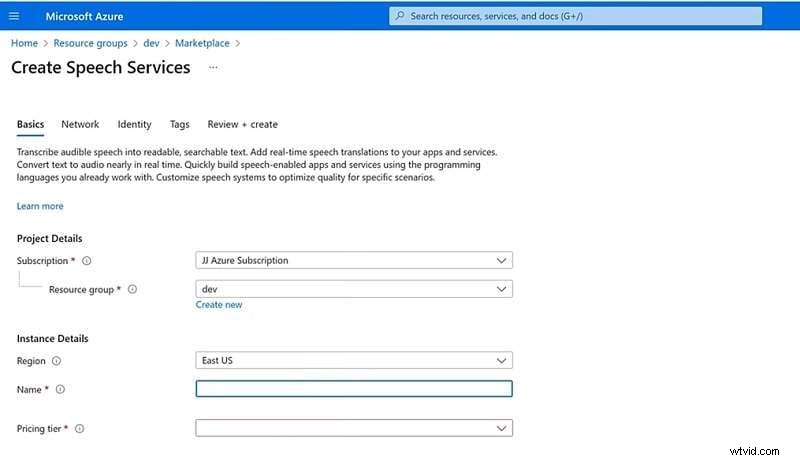
- Free tier includes 5 audio hours and one custom voice model per month.
- Real‑time transcription and batch processing of files stored in Azure Blob Storage.
- Supports custom vocabularies and on‑premises containers.
- Setup is more involved; the free quota may not suffice for heavy workloads.
Best suited for organisations that already use Azure and need industry‑specific terminology.
-
Speechmatics
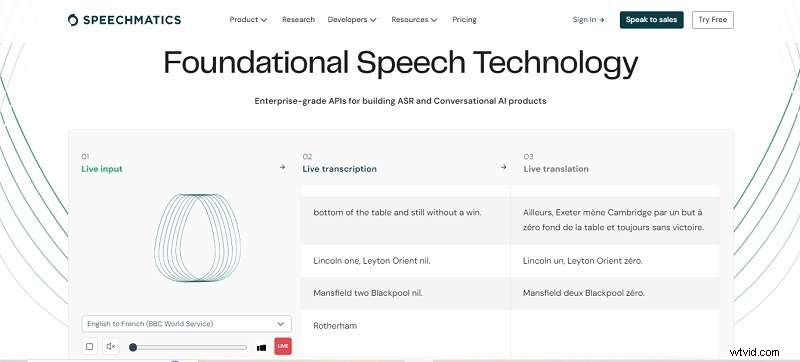
- 8 hours of free transcription per month (4 hours batch, 4 hours real‑time).
- Supports 50+ languages and delivers sub‑second latency for real‑time use.
- Automatic language detection, per‑word timestamps and SRT export.
- Requires technical setup and is geared toward enterprise use.
Excellent for large‑scale media or customer‑service transcription pipelines.
-
AssemblyAI
- New users receive a $50 credit; offers two transcription modes: “Best” (high accuracy) and “Nano” (cost‑effective).
- Features speaker diarisation, topic detection, sentiment analysis and auto‑censorship.
- Limited language coverage and occasional noise‑related errors.
Ideal for meetings, interviews and podcasts with multiple speakers.
-
AWS Transcribe

- Free tier: 1 hour of transcription per month during the first year.
- Supports punctuation, custom vocabularies, multi‑speaker identification and live streaming.
- Requires audio to reside in Amazon S3.
Suitable for businesses already leveraging AWS for other services.
Part 2. Getting Started with a Speech‑to‑Text API
Most providers offer extensive documentation and client libraries in popular languages. Below is a step‑by‑step guide for Google Cloud, which is representative of the process for other services.
- Create a Google Cloud project and enable the Speech‑to‑Text API.
- Generate a service‑account key (JSON) for authentication.
- Install the client library:
pip install google-cloud-speechfor Python. - Write a script that uploads the audio file (or streams it) and calls
recognize()orlong_running_recognize(). - Handle the response: extract transcripts, timestamps and export as needed.
For a full video walkthrough, visit Google’s quick‑start guide.
Part 3. Non‑Technical Transcription with Filmora
If coding isn’t your forte, Wondershare Filmora offers a built‑in speech‑to‑text feature that automatically generates subtitles and transcripts. It supports English, French, Spanish, Indonesian, Hindi, Japanese and more.
When to Use Filmora Instead of an API
- Non‑technical users who prefer a drag‑and‑drop workflow.
- Quick turnaround projects such as short videos or social‑media clips.
- Integrated video editing where subtitles can be added directly to the timeline.
Step‑by‑Step: Transcribing in Filmora
- Open Filmora, create a new project and import your audio or video file.
- Drag the file onto the timeline, select it and navigate to
Tools > Audio > Speech to Text. - Choose the source language, set “No Translation” if desired, and specify the output format (SRT).
- Click
Generateand wait for the transcription to complete. - Double‑click the generated text track to edit and correct any inaccuracies.
- Export the final SRT file or embed the subtitles directly into the video.
Conclusion
Free speech‑to‑text APIs provide a cost‑effective way to integrate transcription into your applications. Google Cloud, Azure, Speechmatics, AssemblyAI and AWS Transcribe each offer distinct strengths, so choose based on language support, custom vocabularies and existing cloud ecosystems. For non‑technical users or quick video projects, Filmora’s built‑in feature offers a hassle‑free alternative.