
Detaching audio from a video clip in Final Cut Pro is a core function for Mac editors. Whether you’re moving the soundtrack to a new section of the timeline or creating a clean audio‑only track, the process is straightforward and can be completed in a few clicks.
Why Detach Audio?
Separating audio gives you independent control over volume, effects, and timing without affecting the video. It’s essential for tasks like:
- Syncing a new voice‑over or music track
- Applying audio effects such as compression or noise reduction
- Exporting the audio as a separate file for further processing
- Re‑arranging audio segments to match edited video content
Step‑by‑Step Detachment in Final Cut Pro
- Import your clip
Click File > Import > Media or press ⌘I to bring the video into your library. - Locate the clip on the timeline
Drag the clip onto the timeline if it isn’t already there. - Detach the audio
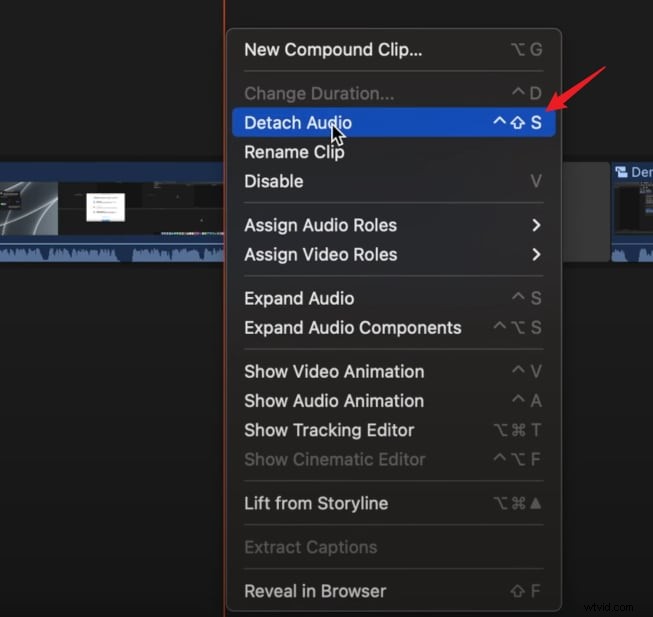
Right‑click the clip and choose Detach Audio (shortcut ⌃⇧S). The audio track appears below the video track. - Save the edited clip (optional)
To keep the detached audio as a separate file, go to File > Share > Save Media or press ⌘S and choose your destination.
Other Final Cut Pro Features for Audio Editing
- Audio Effects – Compression, noise removal, and more.
- Syncing Audio & Video – Align external recordings with footage.
- Export Audio – Save detached audio as a standalone track.
- Multicam & 360° Editing – Advanced video workflows.
- Color Grading & Motion Graphics – Full creative suite.
Alternative: Detach Audio with Wondershare Filmora
If you need a cross‑platform, budget‑friendly solution, Filmora offers a robust audio detachment workflow and is available for Windows, Mac, Android, and iOS.


Filmora Key Features for Audio
- Easy audio detachment with a single click
- AI vocal remover
- Audio keyframing for dynamic volume changes
- Extensive effects library (voice‑changing, sound effects)
- Noise removal and background music generator
- Fade‑in/out and voice‑over recording
Extracting Audio in Filmora – 4 Simple Steps
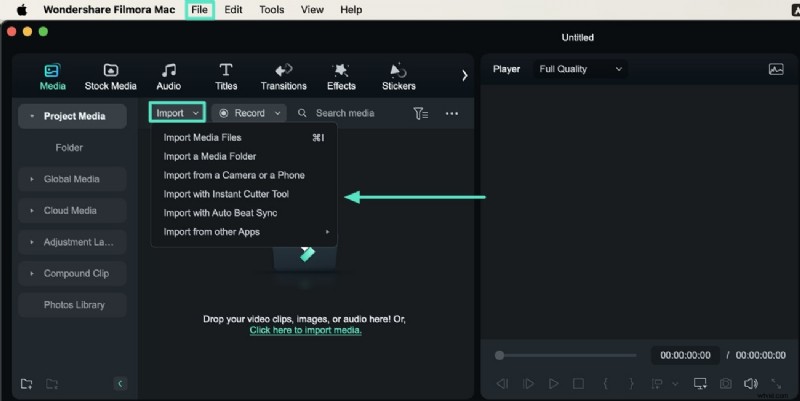
- Import video
Click Import to bring your clip into Filmora. - Detach audio
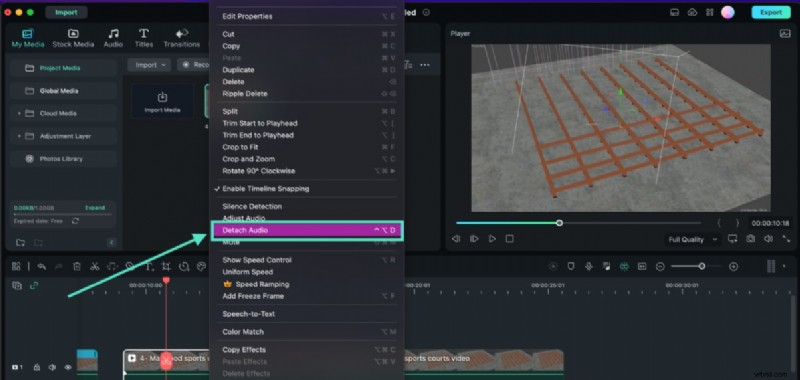
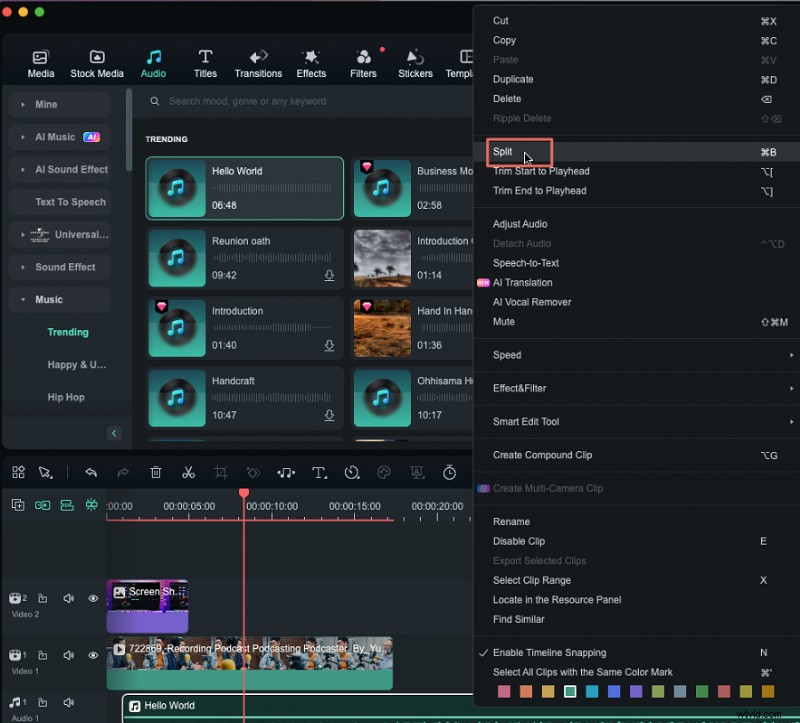
Drag the clip to the timeline, right‑click it, and select Detach Audio. Delete the video track if desired. - Edit the audio
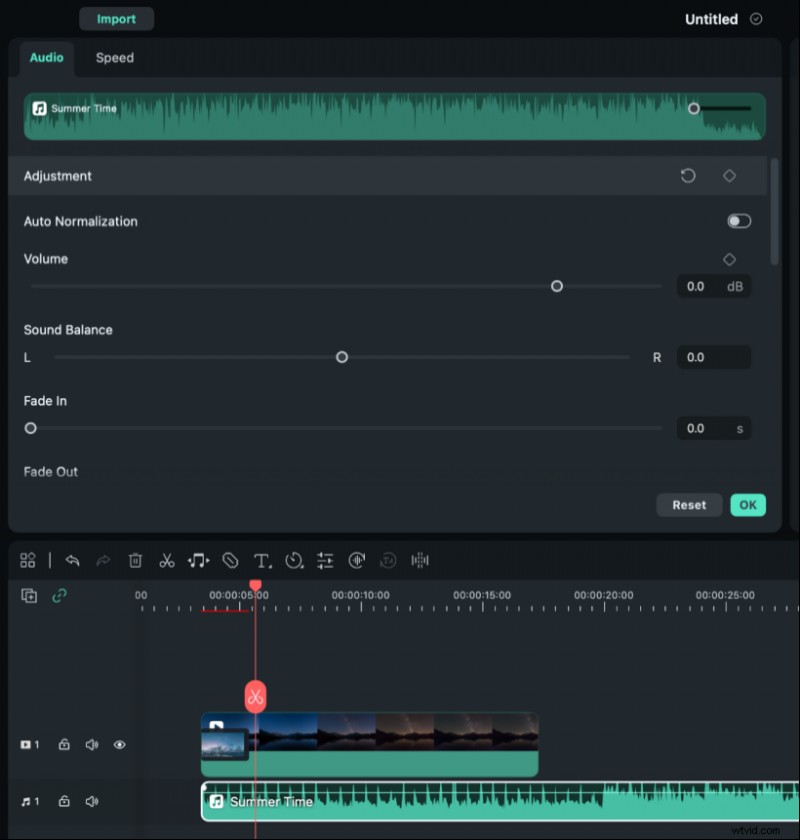
Double‑click the detached audio to open the editing panel. Adjust pitch, volume, or add fades. - Export
Click Export to save the edited audio file.
Conclusion
Detaching audio in Final Cut Pro is quick and powerful, but if you’re looking for an affordable, user‑friendly alternative, Wondershare Filmora provides a comparable feature set across multiple platforms.
FAQs
- How do I separate clips in Final Cut Pro? Use the Blade Tool or press ⌘B to split a clip at the desired point.
- How to remove audio from a video in Final Cut Pro? Right‑click the clip, choose Detach Audio, and delete the resulting audio track if not needed.
- How to unlink audio in Final Cut Pro? Detach the audio track by right‑clicking the clip and selecting Detach Audio; the audio will become an independent track.