
Many PC users find that subpar audio can ruin video calls, music, and content creation. Enhancing sound quality doesn’t require a studio‑grade rig; with the right system settings and user‑friendly tools like Wondershare Filmora, you can achieve professional‑grade audio on a budget.
Common Audio Problems and How to Fix Them
This guide covers the most frequent audio issues—clipping, background hiss, and distortion—and explains how to resolve them using built‑in Windows tools and Filmora’s AI features.

Part 1 – Optimize Your PC’s Sound Settings
- Update Your Audio Drivers
- Open Device Manager and expand Sound, Video, and Game Controllers.
- Right‑click your audio device and choose Update driver.
- Select Search automatically for updated driver software and let Windows install the latest version.
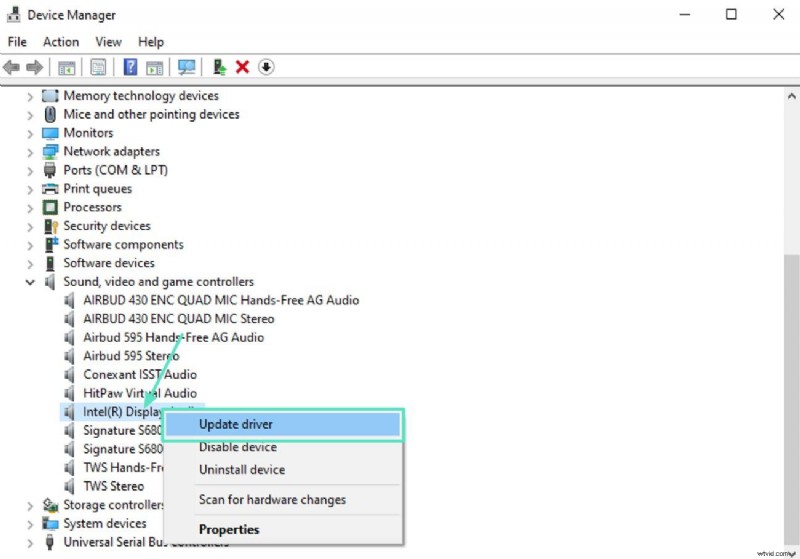
- Boost Output Quality
- Navigate to Settings > System > Sound and click your output device.
- Choose Device properties → Additional device properties → Advanced.
- Set a higher sample rate (e.g., 48 kHz) and bit depth (24 bit) for richer audio.
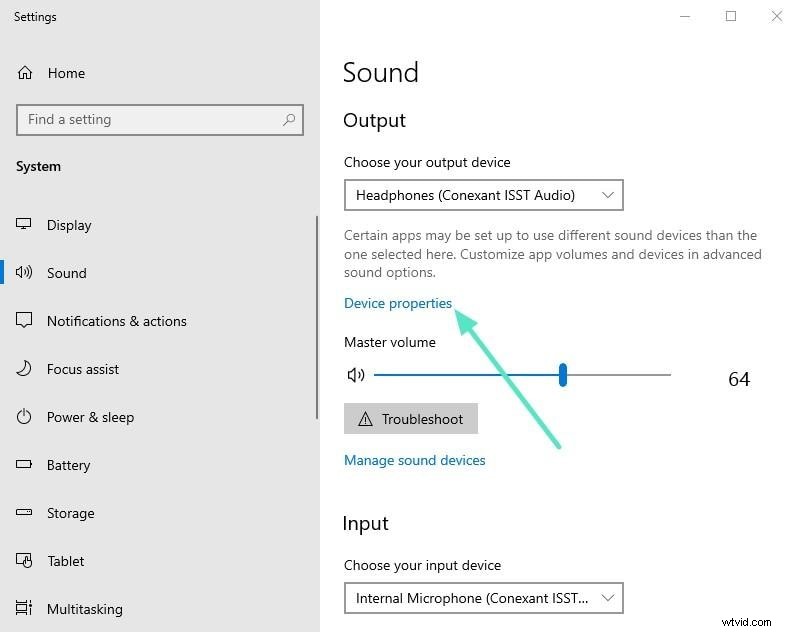
- Enable Windows Enhancements
- In the same Advanced tab, check Bass Boost, Loudness Equalization, and Virtual Surround to tailor the sound profile.
- Apply and confirm the changes.
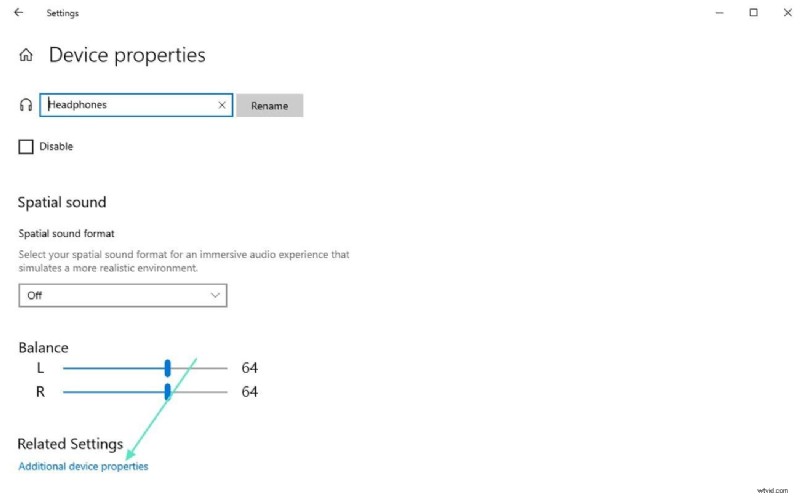
- Minimize Background Interference
- Record in a quiet space and position your microphone away from noise sources.
- Use built‑in noise‑reduction software or plugins if available.
- Upgrade Basic Hardware
- Switch to an external USB microphone for clearer capture.
- Invest in high‑quality headphones to accurately monitor edits.
Part 2 – Refine Audio in Post‑Production with Filmora
Wondershare Filmora offers an intuitive interface and powerful AI tools that require no prior editing experience. Below is a step‑by‑step workflow to clean and polish your audio.


- AI Audio Denoise: Removes hums, hisses, and static from raw recordings.
- AI Voice Enhancer: Boosts clarity and natural tone for spoken content.
- Audio Mixer: Adjust volume, panning, and spatial placement for each track.
Step‑by‑Step Guide
- Import Media
- Open Filmora, click New Project, and drag your audio or video file to the timeline.
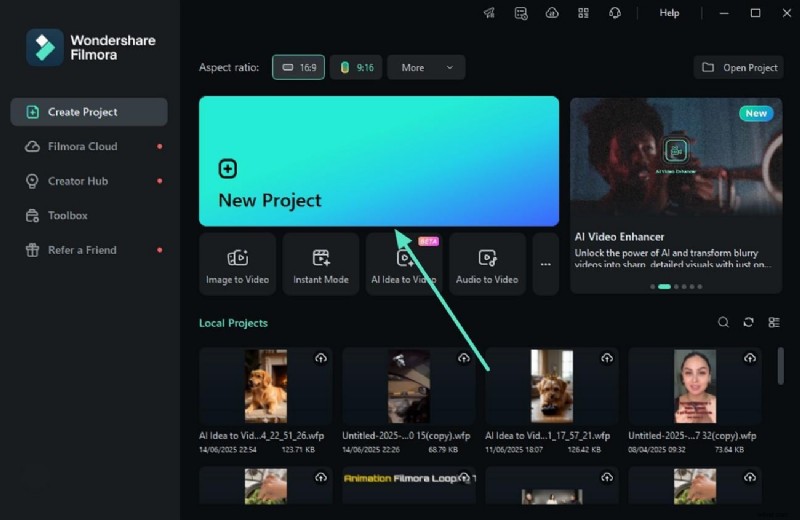
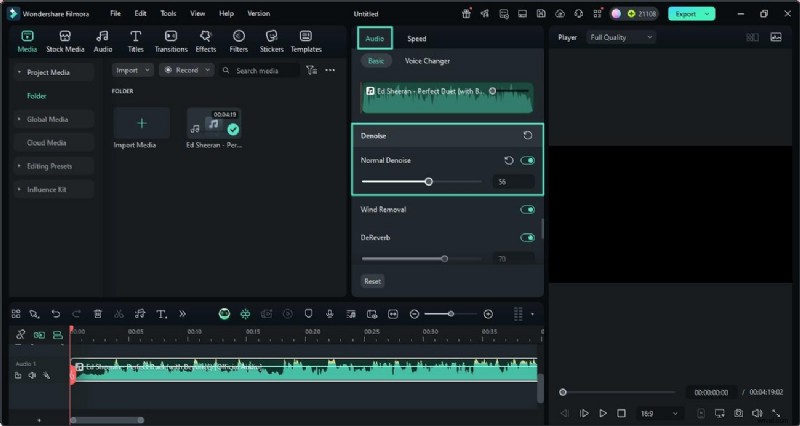
- Apply AI Audio Denoise
- Go to the Audio panel, select Audio Denoise, and adjust the normal denoise slider.
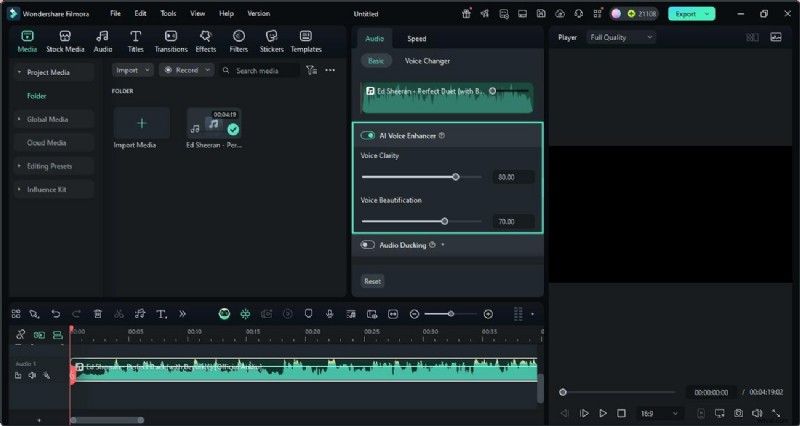
- Enhance Voice
- Toggle AI Voice Enhancer and fine‑tune Voice Clarity and Beautification sliders.
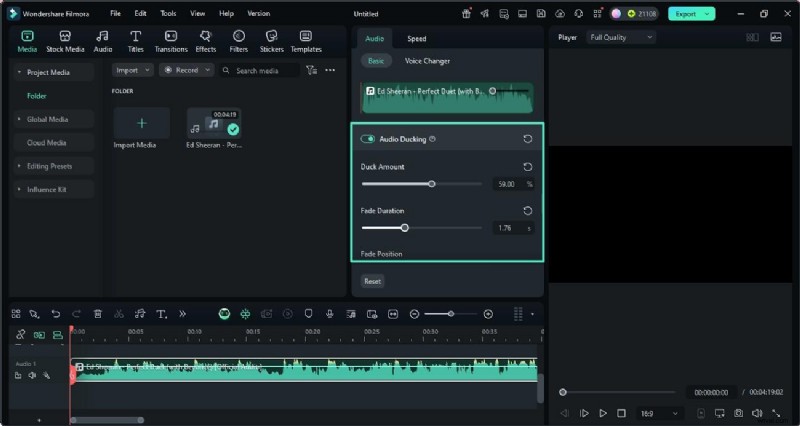
- Audio Ducking
- Enable Audio Ducking to lower background levels when a voice track plays.
- Set Duck Amount, Fade Duration, and Fade Position as needed.
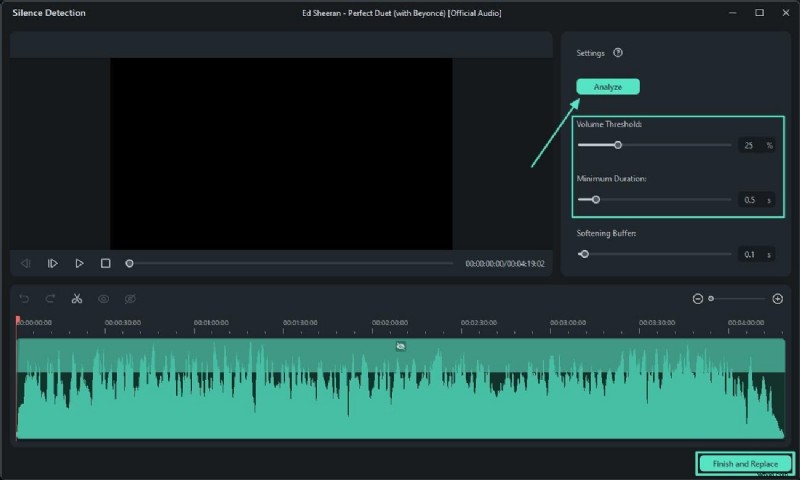
- Silence Detection
- Right‑click the audio track, choose Smart Edit Tools > Silence Detection, and click Analyze.
- Adjust Volume Threshold and Minimum Duration, then Finish and Replace to trim silences.
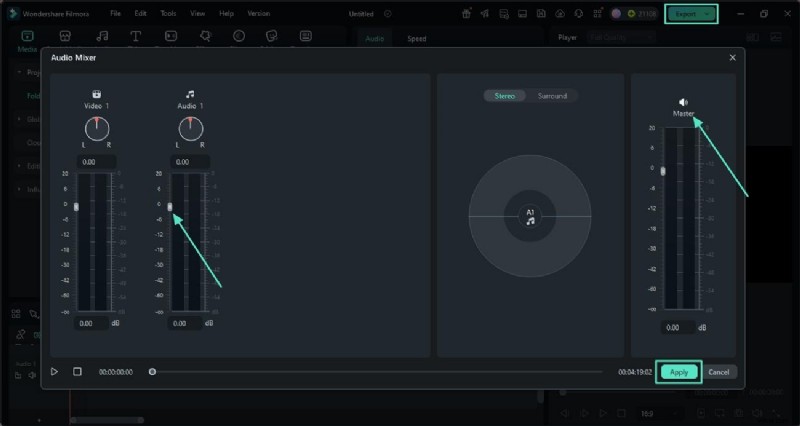
- Use the Equalizer & Audio Mixer
- Click the Audio Mixer icon, adjust stereo and surround levels, and tweak the Master track.
- Apply changes and export when ready.
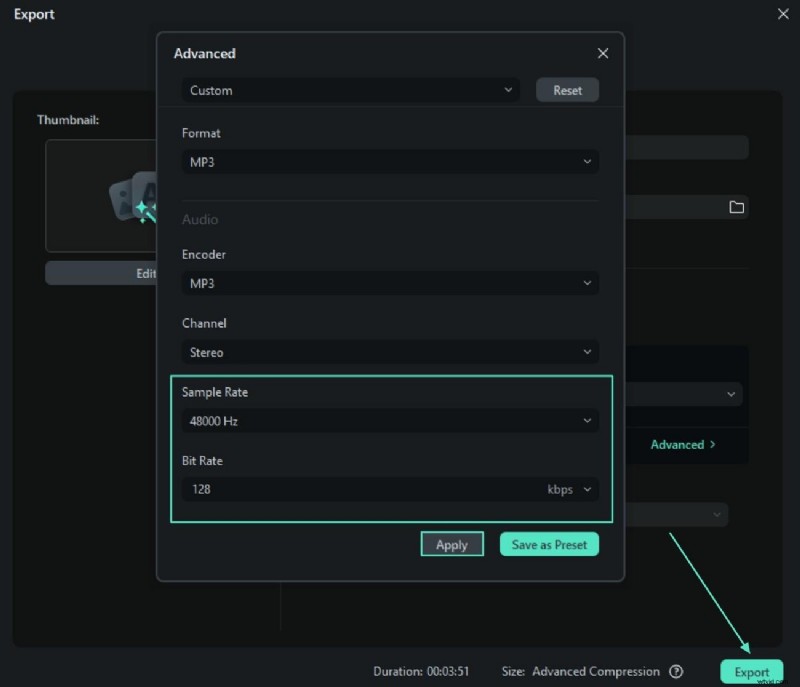
- Export in High Quality
- In the Export window, choose Advanced, set sample rate and bitrate, then hit Export.
Filmora also offers a mobile app for on‑the‑go edits. Below is a quick comparison:
| Feature | Filmora App (Mobile) | Filmora Desktop |
|---|---|---|
| Voice Enhancer | Basic clarity boost | Advanced beautification |
| Noise Reduction | Simple suppression | Wind, hiss, hum modes |
| Volume & Fade | Basic control | Keyframe precision |
| Trim & Split Audio | Drag‑to‑trim | Frame‑level editing |
| Sound Effects & Music | Royalty‑free library | Extensive collection |
| Export Quality | HD formats | Customizable bitrates |
Part 3 – Prevent Audio Problems Before They Start
- Keep your OS and drivers current—automatic updates catch most compatibility issues.
- Position microphones strategically to avoid distortion.
- Record in a quiet environment or use a small studio space.
- Run a quick mic test before each session.
- Regularly review sound settings to ensure input/output devices are correctly selected.
- Save your optimal settings as presets for quick recall.
- Prefer wired headphones for accurate monitoring; wireless lag can introduce latency.
Conclusion
By combining routine system maintenance with Filmora’s AI audio tools, you can transform grainy, noisy recordings into crystal‑clear audio that enhances any video or podcast. Follow these steps, and enjoy professional‑grade sound right from your PC.

Filmora – ⭐⭐⭐⭐⭐ The best AI‑powered video editing software and app.